> ## Documentation Index
> Fetch the complete documentation index at: https://www.zippendo.com/docs/llms.txt
> Use this file to discover all available pages before exploring further.
# Checkout
> Show live carrier rates and pickup points at Shopify or WooCommerce checkout.
Zippendo does **not** host a shopper checkout widget or a rate sandbox in the dashboard. Live rates appear in **your** store checkout — Shopify Carrier-Calculated Shipping, the **Zippendo for WooCommerce** plugin, or `POST /orgs/:orgId/shipping-quote` on a headless storefront.
What you configure in Zippendo is which [shipping rules](/docs/tutorials/shipping-rules) become those options, how many pickup points to show, and (Shopify) whether the **Zippendo Shipping** carrier service is registered.
Connect the store first — [Connect Shopify](/docs/tutorials/connect-shopify) or [Connect order channels](/docs/tutorials/connect-order-channels) — and add at least one outbound shipping rule. Without a rule, checkout has nothing to offer.
## What the shopper sees
A matching **shipping rule** becomes a shipping method. The shopper's destination country, cart weight, order value, and item count decide which rules appear and what they cost. Service-point rules expand into individual pickup locations.
After checkout, the order syncs into **Orders** with that rule attached, so [creating a shipment](/docs/tutorials/create-a-shipment) fills carrier, product, and sender from the rule.
You cannot preview a cart inside Zippendo. The **Test** button on a shipping rule tests **conditions** (would this rule match this cart?), not a live carrier quote. See [Shipping rules](/docs/tutorials/shipping-rules).
## Prerequisites
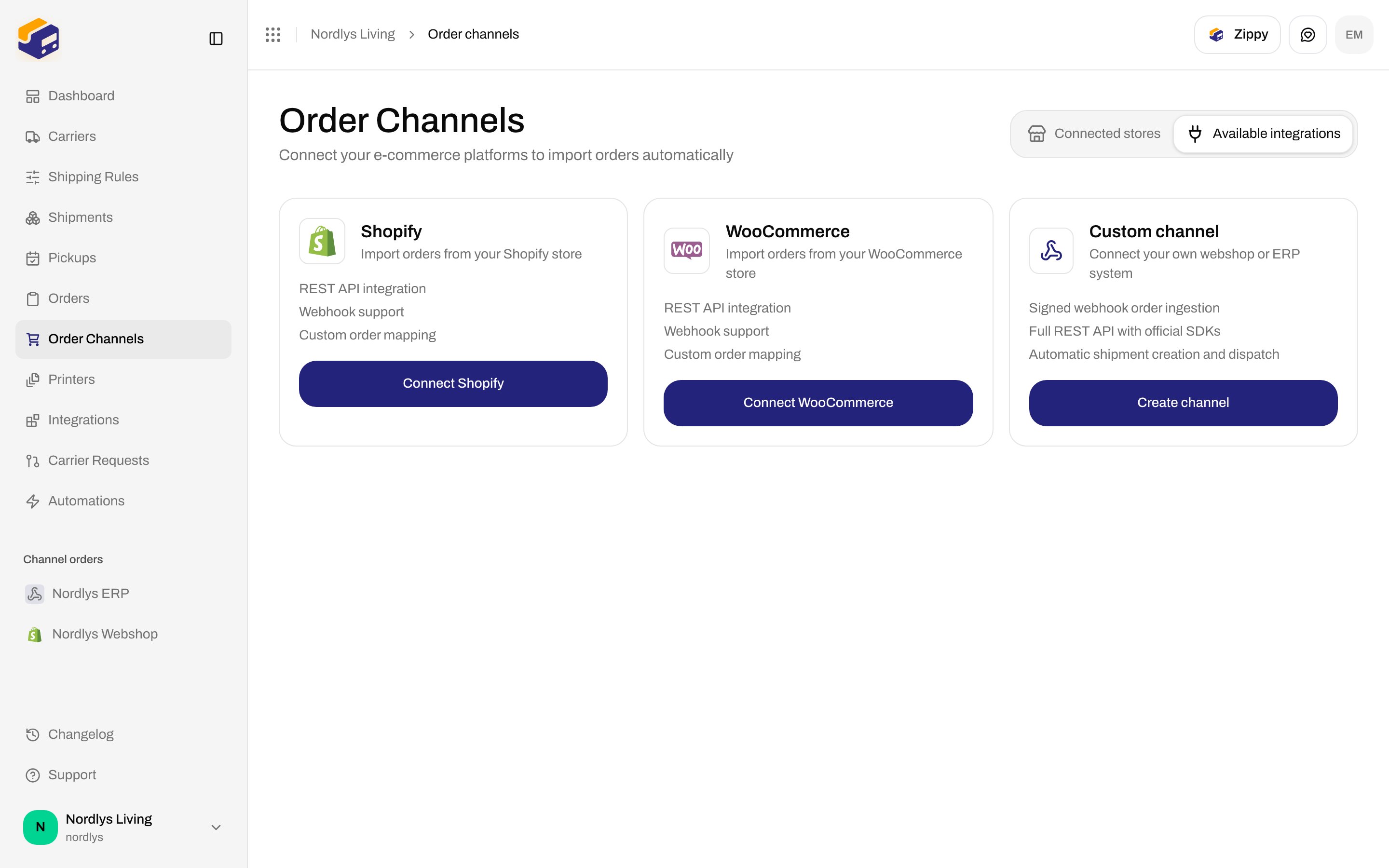
**Order Channels → Available integrations**. Shopify, WooCommerce, or a custom channel.
**Carriers → All Carriers**. Rates use the products on those accounts — [Carriers](/docs/tutorials/carriers).
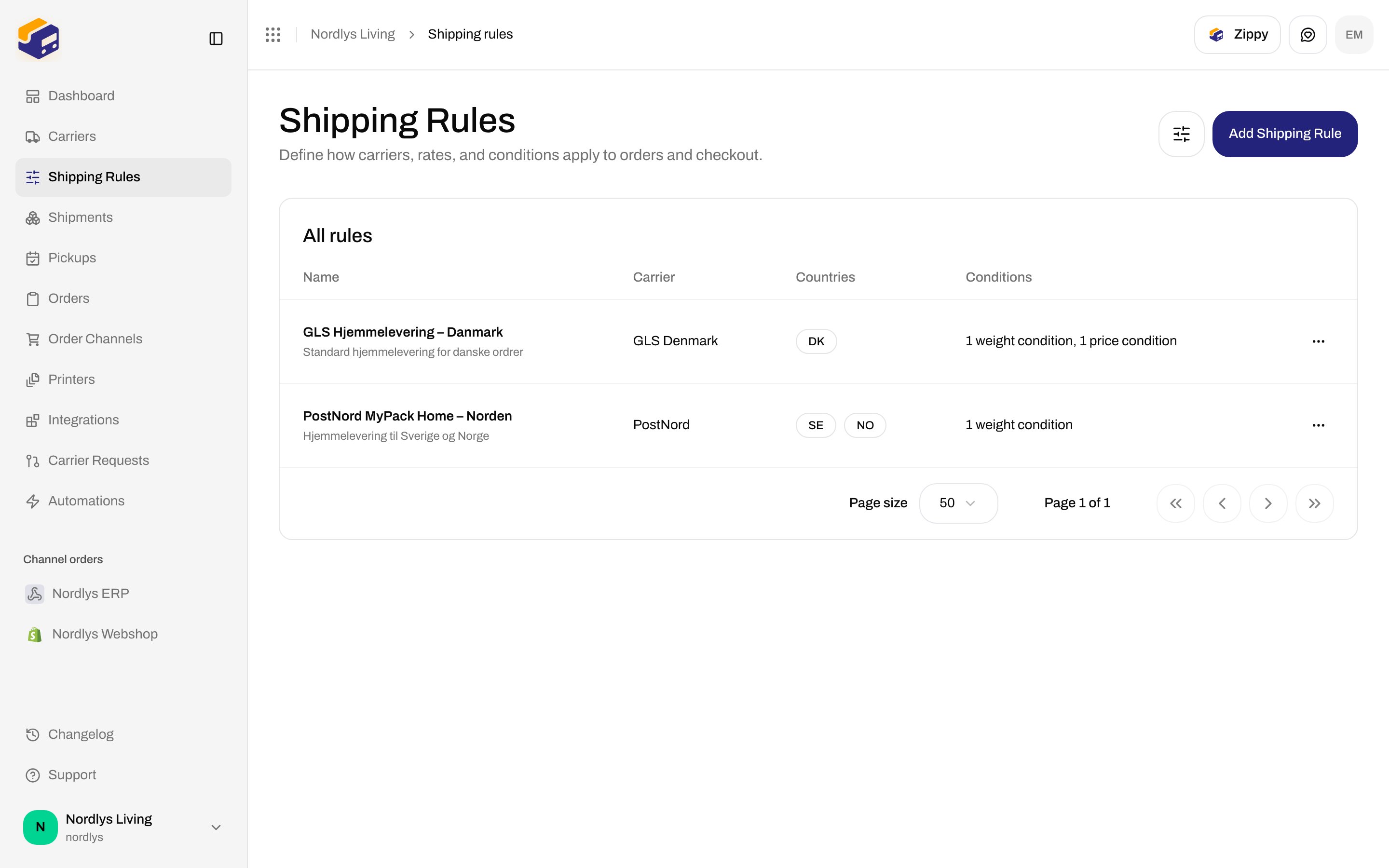
**Shipping Rules → Add Shipping Rule**. Name the rule the way customers should read it. Set destination countries and conditions. [Shipping rules](/docs/tutorials/shipping-rules).
 ## Shopify: Zippendo Shipping
Shopify checkout uses **carrier-calculated rates**. Zippendo registers a carrier service named **Zippendo Shipping**. Shopify calls Zippendo when the shopper reaches shipping; Zippendo returns the selected rules (and pickup points) as rates.
### Install the store
From **Available integrations**, click **Connect Shopify**. The modal is **Connect your Shopify store**.
## Shopify: Zippendo Shipping
Shopify checkout uses **carrier-calculated rates**. Zippendo registers a carrier service named **Zippendo Shipping**. Shopify calls Zippendo when the shopper reaches shipping; Zippendo returns the selected rules (and pickup points) as rates.
### Install the store
From **Available integrations**, click **Connect Shopify**. The modal is **Connect your Shopify store**.
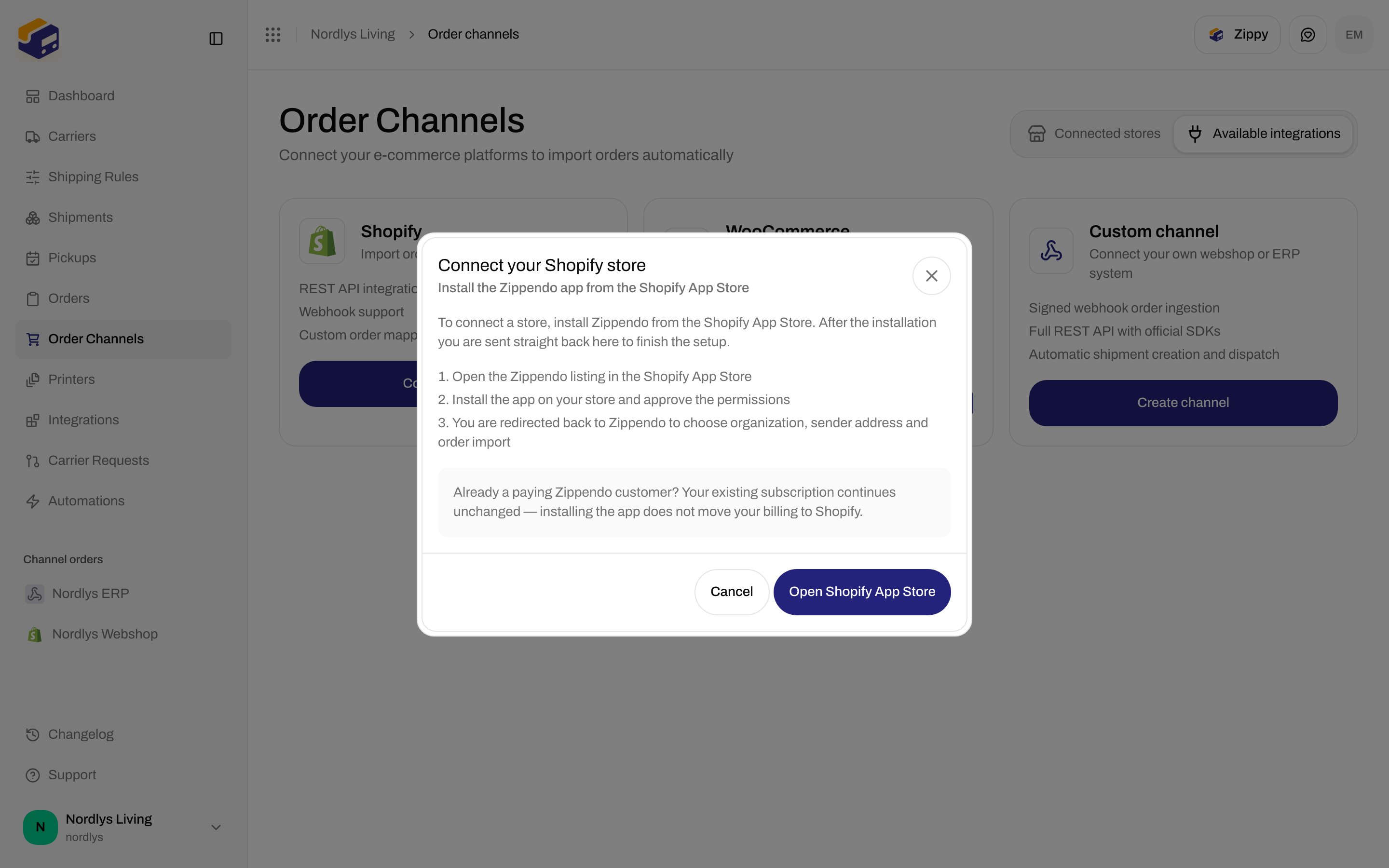
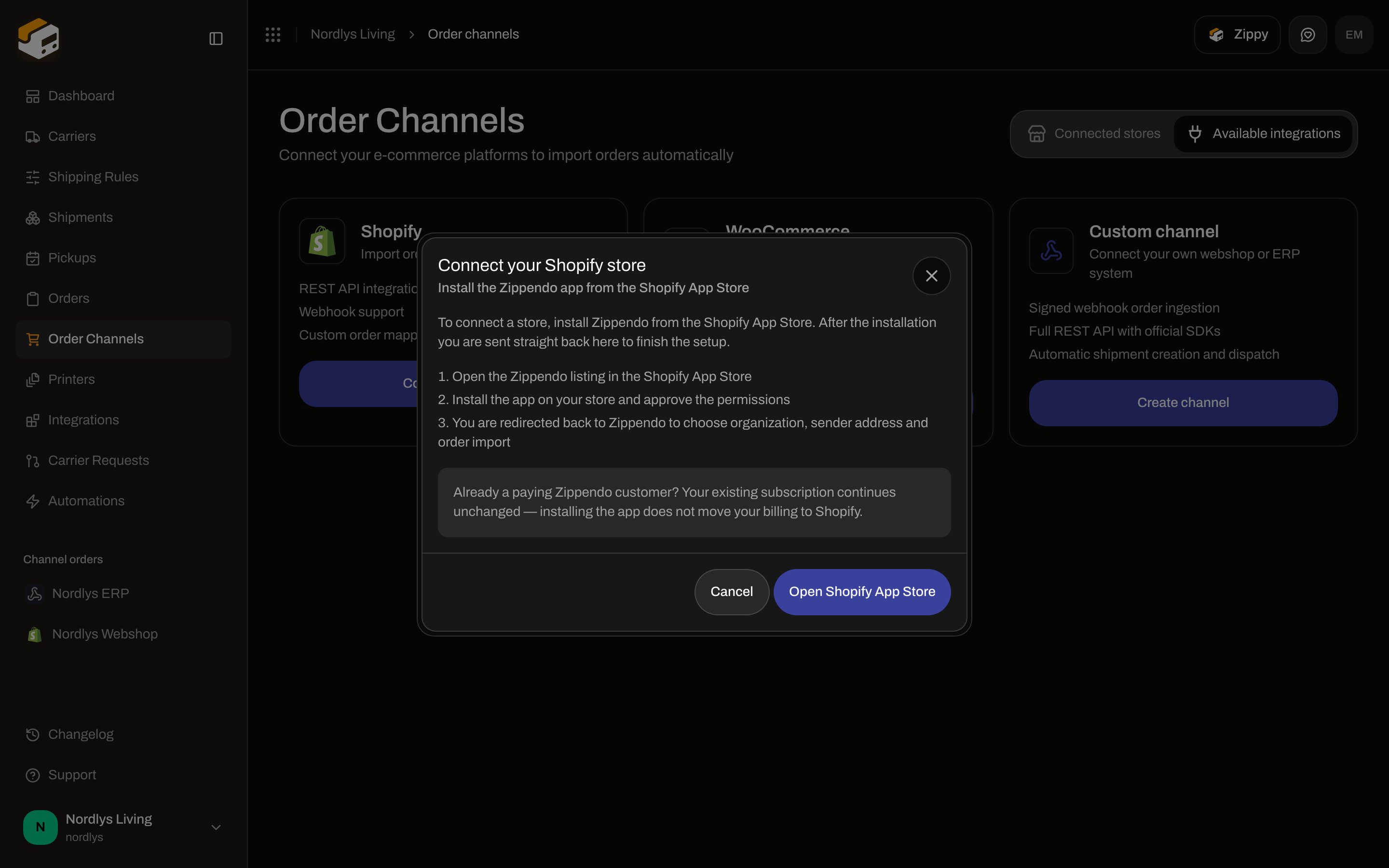 Already a paying Zippendo customer? Your existing subscription continues unchanged — installing the app does not move billing to Shopify. The rest of the install: [Connect Shopify](/docs/tutorials/connect-shopify).
### Choose which rules appear
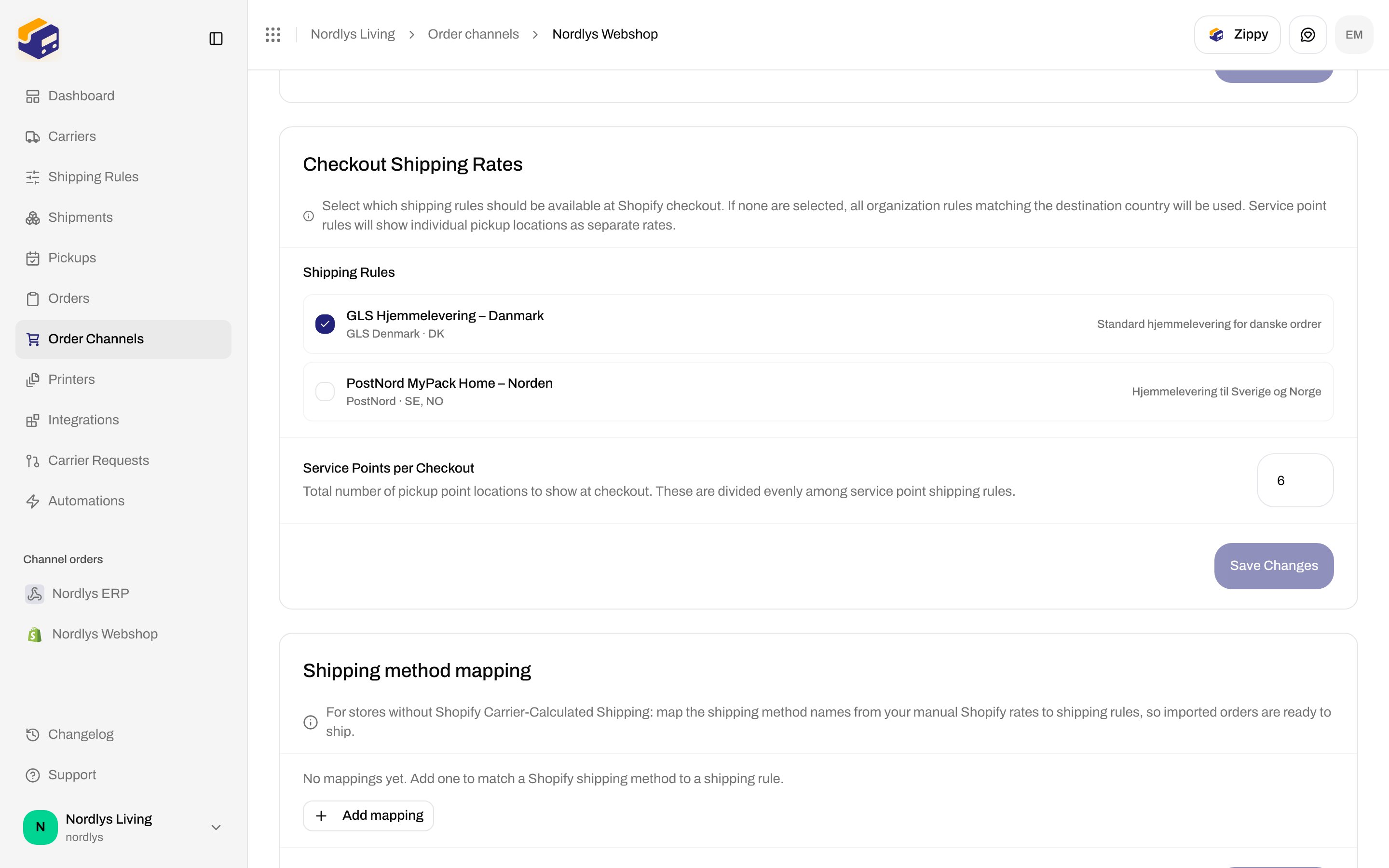
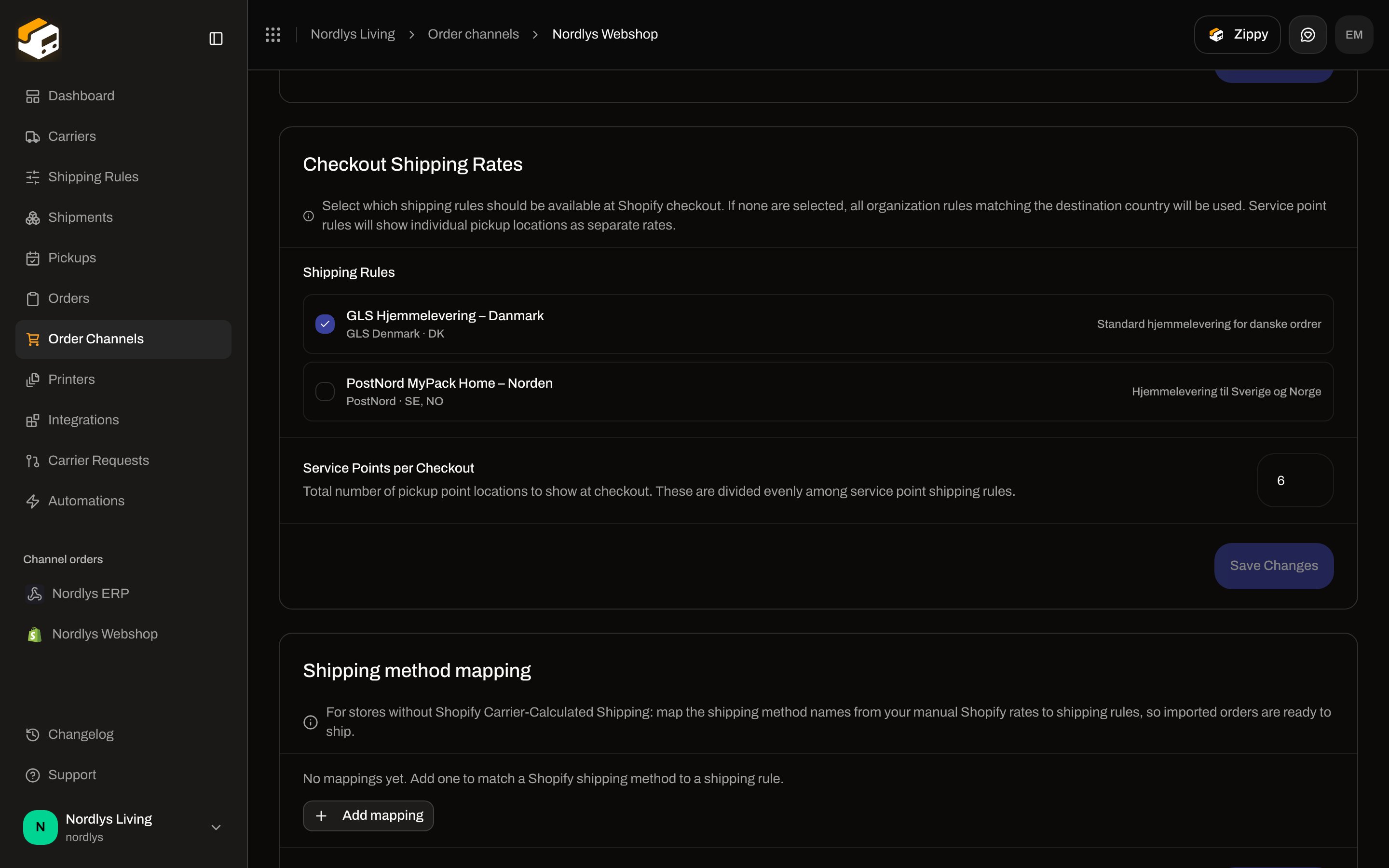
Open the Shopify store under **Connected stores**. Stay on **Orders & checkout**. Scroll to **Checkout Shipping Rates**.
Already a paying Zippendo customer? Your existing subscription continues unchanged — installing the app does not move billing to Shopify. The rest of the install: [Connect Shopify](/docs/tutorials/connect-shopify).
### Choose which rules appear
Open the Shopify store under **Connected stores**. Stay on **Orders & checkout**. Scroll to **Checkout Shipping Rates**.
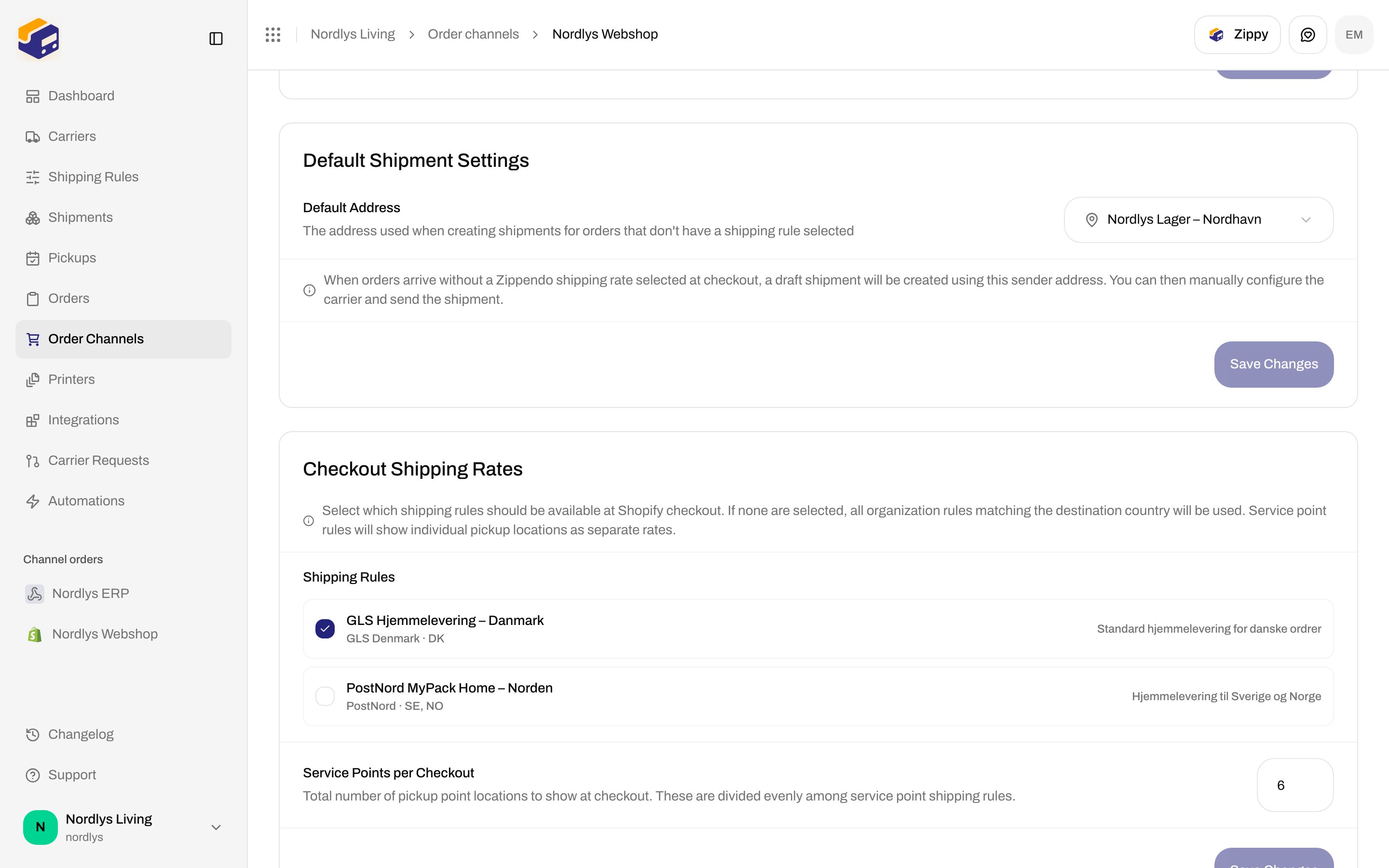
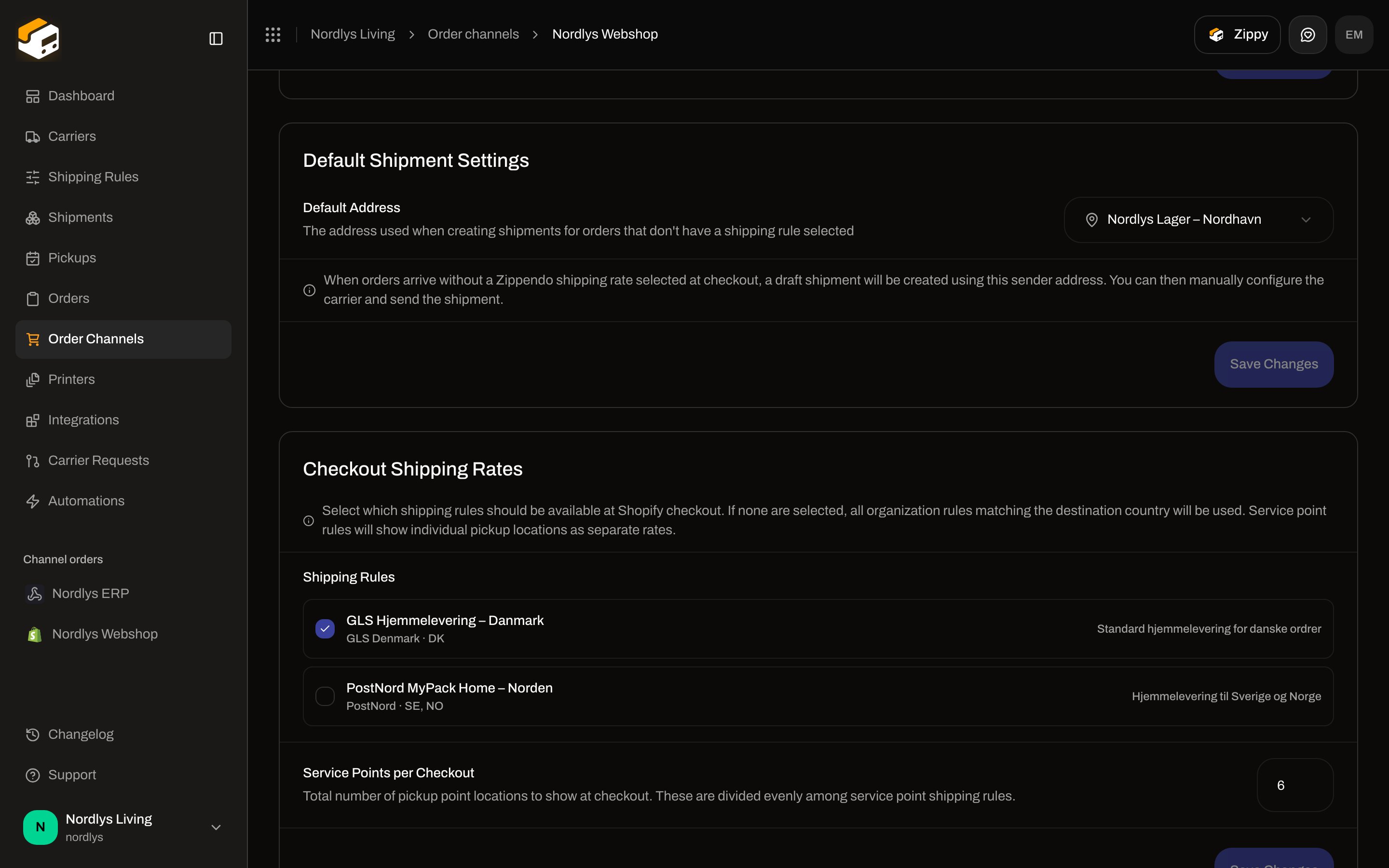 The hint on the card: **Select which shipping rules should be available at Shopify checkout. If none are selected, all organization rules matching the destination country will be used. Service point rules will show individual pickup locations as separate rates.**
Tick the rules this store should offer, then **Save Changes**. Above this card, **Default Shipment Settings** sets the sender for orders that arrive **without** a Zippendo rate (manual Shopify methods, or a shopper who never hit calculated rates).
### Service points per checkout
On the same card, **Service Points per Checkout** is **Total number of pickup point locations to show at checkout. These are divided evenly among service point shipping rules.** Allowed range is 1–20 (the docs org uses **6**).
The hint on the card: **Select which shipping rules should be available at Shopify checkout. If none are selected, all organization rules matching the destination country will be used. Service point rules will show individual pickup locations as separate rates.**
Tick the rules this store should offer, then **Save Changes**. Above this card, **Default Shipment Settings** sets the sender for orders that arrive **without** a Zippendo rate (manual Shopify methods, or a shopper who never hit calculated rates).
### Service points per checkout
On the same card, **Service Points per Checkout** is **Total number of pickup point locations to show at checkout. These are divided evenly among service point shipping rules.** Allowed range is 1–20 (the docs org uses **6**).
 ### Register the carrier service
Open **Connection & integration**. Scroll to **Carrier Service**.
### Register the carrier service
Open **Connection & integration**. Scroll to **Carrier Service**.
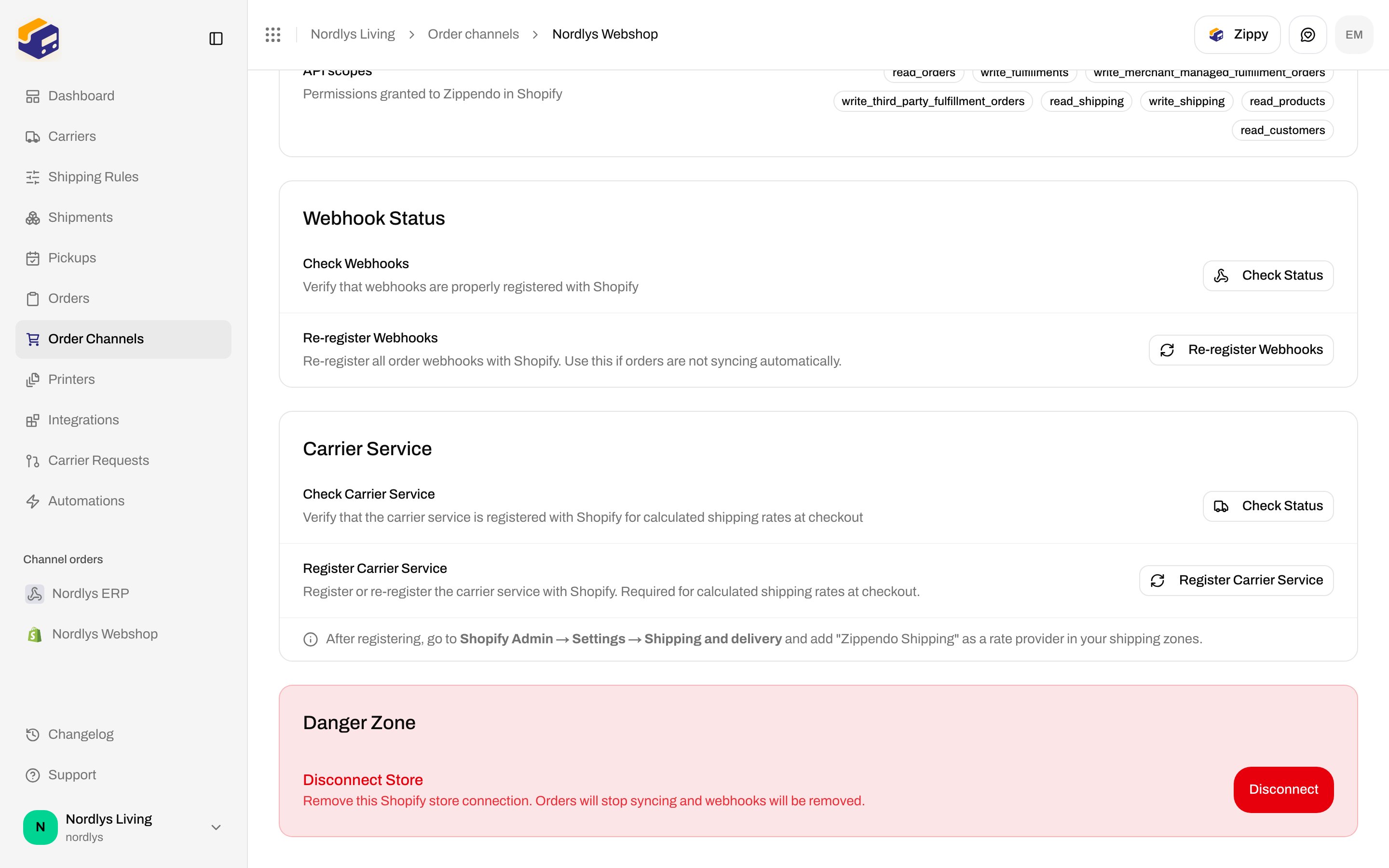
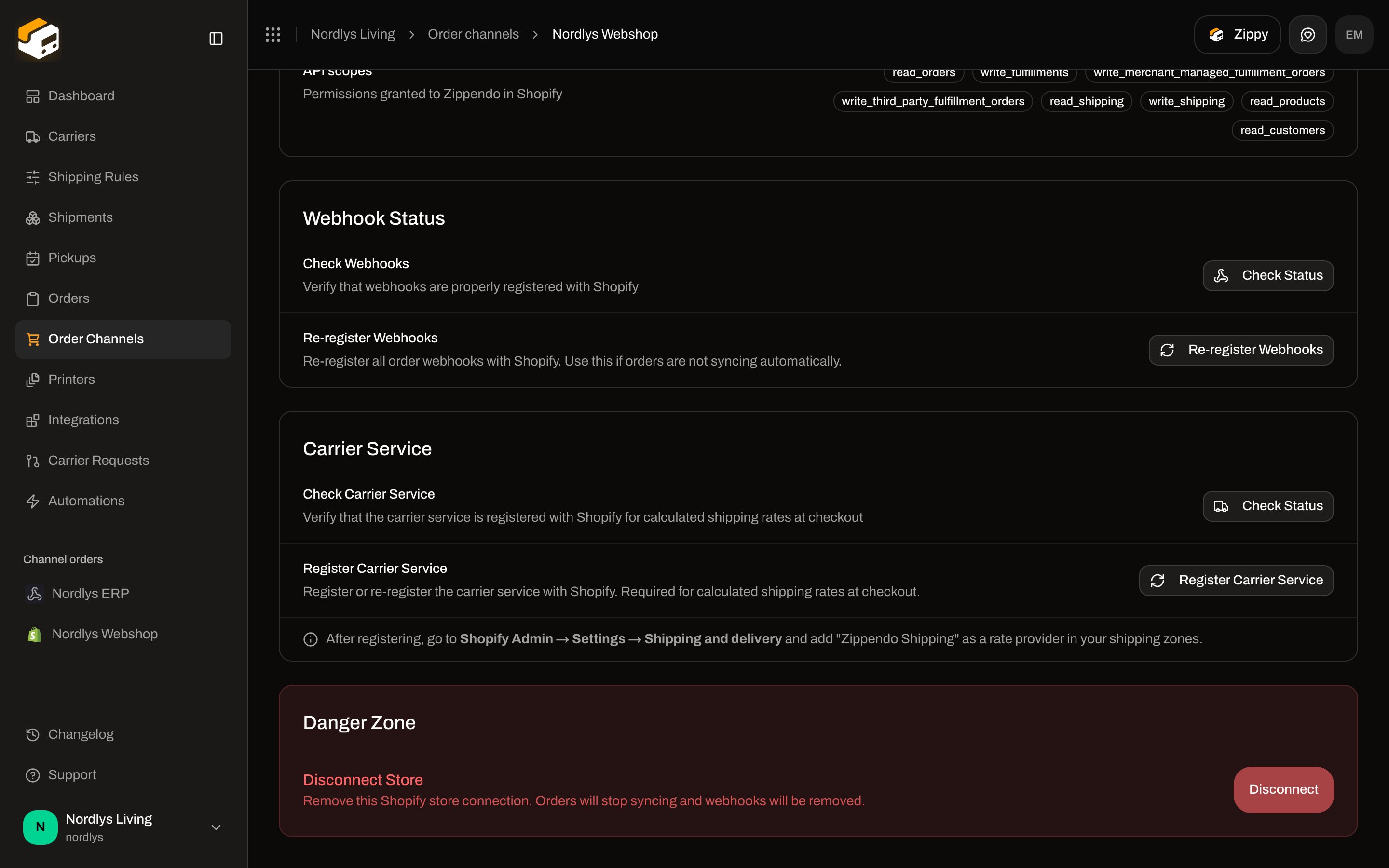 **Check Carrier Service** verifies the carrier service is registered with Shopify for calculated rates. If none is registered, rates will not appear at checkout.
Use **Register Carrier Service** if the check finds nothing (or after a reconnect).
This step is in Shopify, not Zippendo: **Shopify Admin → Settings → Shipping and delivery**, then add **Zippendo Shipping** as a rate provider in your shipping zones.
Until **Zippendo Shipping** is added in Shopify Admin shipping zones, shoppers will not see Zippendo rates — even if **Check Carrier Service** is green and rules are ticked.
### Fallback: shipping method mapping
**Shipping method mapping** is for stores **without** Shopify Carrier-Calculated Shipping. Map the shipping method names from your manual Shopify rates to shipping rules so imported orders are ready to ship.
Click **Add mapping**, enter the Shopify method name (for example `GLS Home Delivery`), pick a shipping rule, and choose how parcel shops are selected (**Nearest automatically** or **Choose manually**). If you already use **Zippendo Shipping**, you can leave mappings empty.
## WooCommerce: plugin and checkout token
WooCommerce checkout is the **Zippendo for WooCommerce** plugin plus a **Checkout token** (`zck_…`) stored on the channel.
**Check Carrier Service** verifies the carrier service is registered with Shopify for calculated rates. If none is registered, rates will not appear at checkout.
Use **Register Carrier Service** if the check finds nothing (or after a reconnect).
This step is in Shopify, not Zippendo: **Shopify Admin → Settings → Shipping and delivery**, then add **Zippendo Shipping** as a rate provider in your shipping zones.
Until **Zippendo Shipping** is added in Shopify Admin shipping zones, shoppers will not see Zippendo rates — even if **Check Carrier Service** is green and rules are ticked.
### Fallback: shipping method mapping
**Shipping method mapping** is for stores **without** Shopify Carrier-Calculated Shipping. Map the shipping method names from your manual Shopify rates to shipping rules so imported orders are ready to ship.
Click **Add mapping**, enter the Shopify method name (for example `GLS Home Delivery`), pick a shipping rule, and choose how parcel shops are selected (**Nearest automatically** or **Choose manually**). If you already use **Zippendo Shipping**, you can leave mappings empty.
## WooCommerce: plugin and checkout token
WooCommerce checkout is the **Zippendo for WooCommerce** plugin plus a **Checkout token** (`zck_…`) stored on the channel.
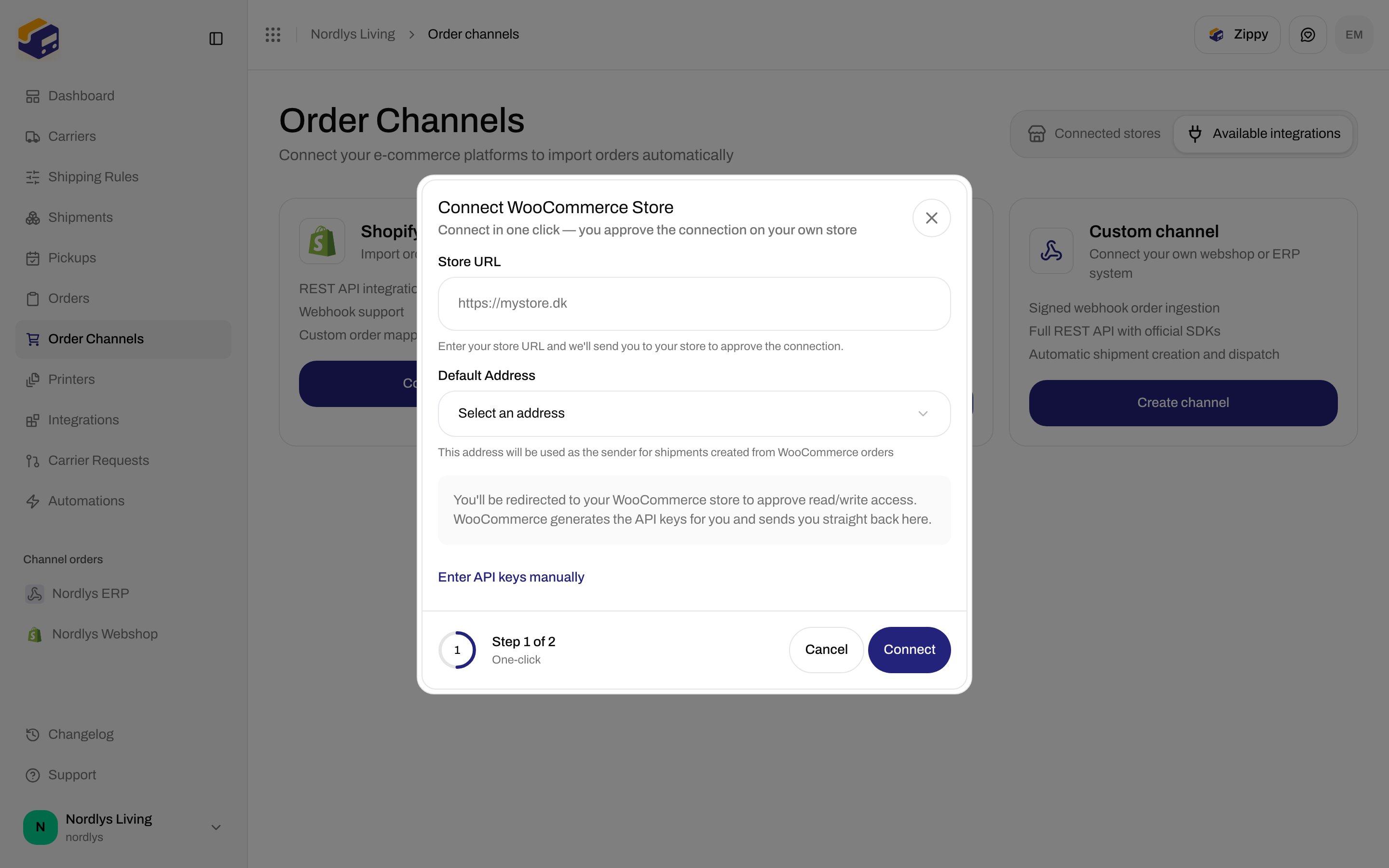
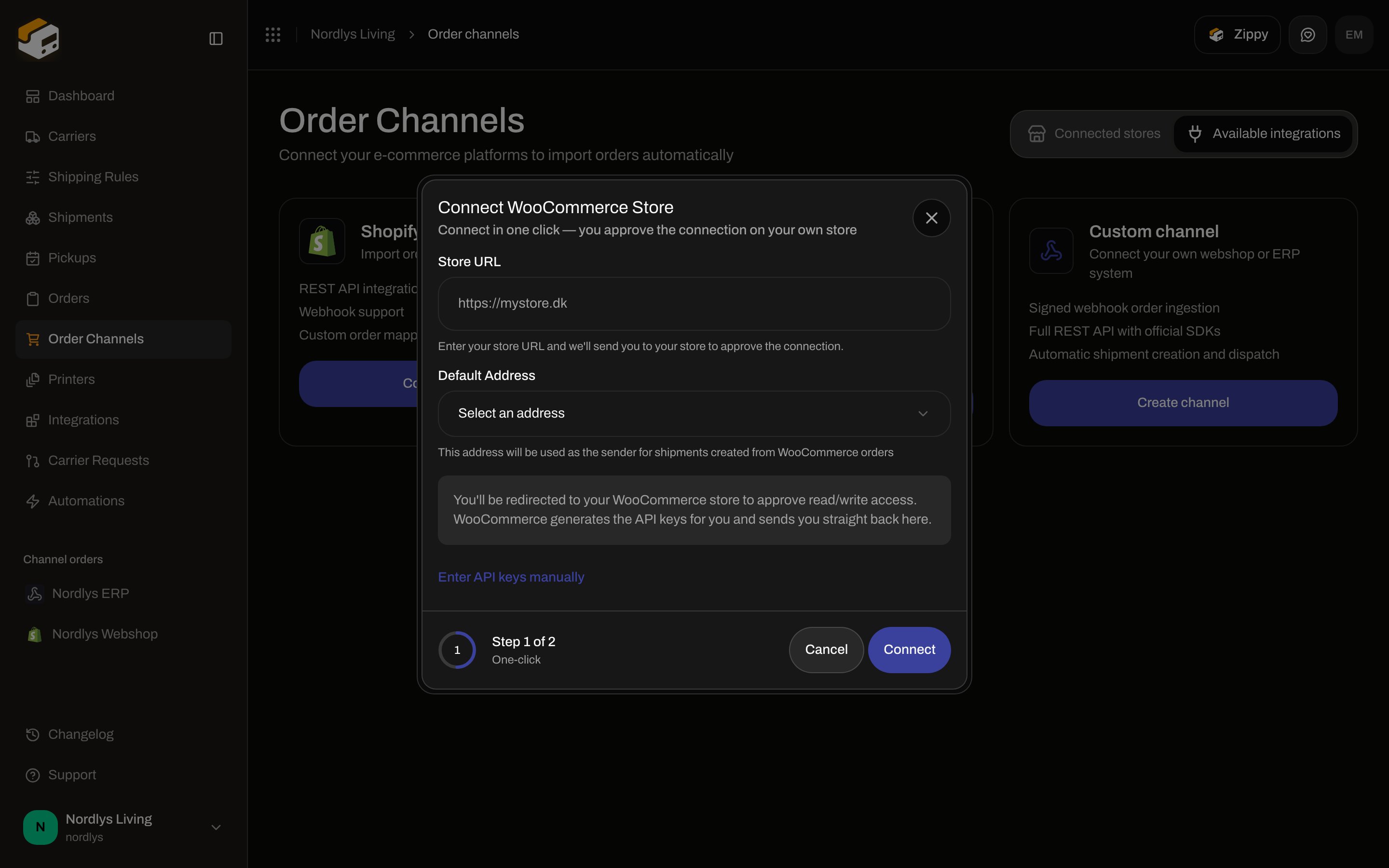 Connect the store as in [Connect order channels](/docs/tutorials/connect-order-channels). Live WooCommerce `wc-auth` cannot be completed in this documentation environment, so the channel settings below are described from the product UI (the same labels you will see after a successful connect). Then open the WooCommerce channel and stay on **Orders & checkout**:
The **Checkout token** card includes **Download plugin**. Install **Zippendo for WooCommerce** on the WordPress site.
Click **Generate token**. Copy it immediately — only a hash is stored. The token is shown once.
In WordPress, open the plugin settings and paste the token. **Rotate token** invalidates the old key immediately; **Revoke** stops the plugin until you generate a new one.
The plugin calls `POST /woocommerce/checkout/rates` (and `POST /woocommerce/checkout/service-points` when the shopper changes postcode). Those routes authenticate with the checkout token, not your dashboard session.
**Test connection** on the WooCommerce channel **Connection** tab is different: it verifies the stored REST API keys can reach the store (order sync). It does **not** quote checkout rates. The plugin can ping `GET /woocommerce/checkout/ping` to confirm the token.
WooCommerce rates still come from your **Shipping Rules**. Create the rules in Zippendo first; the plugin only displays what those rules return for the cart.
## Custom and headless storefronts
A **Custom channel** imports orders (signed ingest or the API). It does not render a Zippendo checkout UI.
To show live rates in your own checkout, call `POST /orgs/:orgId/shipping-quote` with destination, items, and currency. Requirements and a sample body: [Shipping quotes quickstart](/docs/quickstarts/shipping-quotes). You need an API token — [Settings, team, and brands](/docs/tutorials/settings-team-brands) covers **API Settings**.
## How to test rates
There is no in-app checkout preview. Test on the surface the shopper uses:
| Channel | What you can test in Zippendo | What you test off-domain |
| ---------------- | -------------------------------------------------------------- | ------------------------------------------------------------------------------ |
| **Shopify** | Tick rules, set service-point count, **Check Carrier Service** | A real (or draft) checkout after **Zippendo Shipping** is in the shipping zone |
| **WooCommerce** | **Generate token**, **Test connection** (store API keys) | Plugin settings + a cart on the WordPress store |
| **Custom / API** | Shipping-rule **Test** (conditions only) | `POST /orgs/:orgId/shipping-quote` with a sample cart |
If a rate is missing, check the rule's **Receiving Countries**, hard limits, and conditions before assuming the carrier service is down.
## After checkout
**Orders** — the channel badge and shipping rule should match what the shopper picked. [Orders](/docs/tutorials/orders).
Open the order → **Create Shipment** (or **Add Shipment**). The rule fills carrier and product. [Create a shipment](/docs/tutorials/create-a-shipment).
[Labels and printing](/docs/tutorials/labels-printing) and [Tracking](/docs/tutorials/tracking).
Build the methods checkout offers — destination, weight, and price.
Install the app and finish organization, address, and import.
WooCommerce and custom channels, including more than one store.
Headless checkout via POST /orgs/:orgId/shipping-quote.
Field-level: [Get a shipping quote](/docs/how-to/shipping-quotes) · [Shopify settings](/docs/how-to/shopify-settings) · [Droppoint vs service point](/docs/how-to/drop-point-and-service-points)
Connect the store as in [Connect order channels](/docs/tutorials/connect-order-channels). Live WooCommerce `wc-auth` cannot be completed in this documentation environment, so the channel settings below are described from the product UI (the same labels you will see after a successful connect). Then open the WooCommerce channel and stay on **Orders & checkout**:
The **Checkout token** card includes **Download plugin**. Install **Zippendo for WooCommerce** on the WordPress site.
Click **Generate token**. Copy it immediately — only a hash is stored. The token is shown once.
In WordPress, open the plugin settings and paste the token. **Rotate token** invalidates the old key immediately; **Revoke** stops the plugin until you generate a new one.
The plugin calls `POST /woocommerce/checkout/rates` (and `POST /woocommerce/checkout/service-points` when the shopper changes postcode). Those routes authenticate with the checkout token, not your dashboard session.
**Test connection** on the WooCommerce channel **Connection** tab is different: it verifies the stored REST API keys can reach the store (order sync). It does **not** quote checkout rates. The plugin can ping `GET /woocommerce/checkout/ping` to confirm the token.
WooCommerce rates still come from your **Shipping Rules**. Create the rules in Zippendo first; the plugin only displays what those rules return for the cart.
## Custom and headless storefronts
A **Custom channel** imports orders (signed ingest or the API). It does not render a Zippendo checkout UI.
To show live rates in your own checkout, call `POST /orgs/:orgId/shipping-quote` with destination, items, and currency. Requirements and a sample body: [Shipping quotes quickstart](/docs/quickstarts/shipping-quotes). You need an API token — [Settings, team, and brands](/docs/tutorials/settings-team-brands) covers **API Settings**.
## How to test rates
There is no in-app checkout preview. Test on the surface the shopper uses:
| Channel | What you can test in Zippendo | What you test off-domain |
| ---------------- | -------------------------------------------------------------- | ------------------------------------------------------------------------------ |
| **Shopify** | Tick rules, set service-point count, **Check Carrier Service** | A real (or draft) checkout after **Zippendo Shipping** is in the shipping zone |
| **WooCommerce** | **Generate token**, **Test connection** (store API keys) | Plugin settings + a cart on the WordPress store |
| **Custom / API** | Shipping-rule **Test** (conditions only) | `POST /orgs/:orgId/shipping-quote` with a sample cart |
If a rate is missing, check the rule's **Receiving Countries**, hard limits, and conditions before assuming the carrier service is down.
## After checkout
**Orders** — the channel badge and shipping rule should match what the shopper picked. [Orders](/docs/tutorials/orders).
Open the order → **Create Shipment** (or **Add Shipment**). The rule fills carrier and product. [Create a shipment](/docs/tutorials/create-a-shipment).
[Labels and printing](/docs/tutorials/labels-printing) and [Tracking](/docs/tutorials/tracking).
Build the methods checkout offers — destination, weight, and price.
Install the app and finish organization, address, and import.
WooCommerce and custom channels, including more than one store.
Headless checkout via POST /orgs/:orgId/shipping-quote.
Field-level: [Get a shipping quote](/docs/how-to/shipping-quotes) · [Shopify settings](/docs/how-to/shopify-settings) · [Droppoint vs service point](/docs/how-to/drop-point-and-service-points)