> ## Documentation Index
> Fetch the complete documentation index at: https://www.zippendo.com/docs/llms.txt
> Use this file to discover all available pages before exploring further.
# Switch organization and brand
> Use the organization switcher to Manage settings, invite members, switch organization, or scope lists to a brand.
The **organization switcher** is the control at the bottom of the sidebar (`sidebar.team-switcher`). It selects the organization in the URL and, when you have brands, the brand session. Settings is not a sidebar item — **Manage** is how you open it.
Walkthrough: [Getting started](/docs/tutorials/getting-started), [Settings, team, and brands](/docs/tutorials/settings-team-brands). Creating brands: [Create a brand](/docs/how-to/create-a-brand).
## Closed trigger
Shows the current organization name and initial. If no brand is selected, the second line is the org **slug**. If a brand is selected, the second line is the brand name (tags icon). Chevron to open.
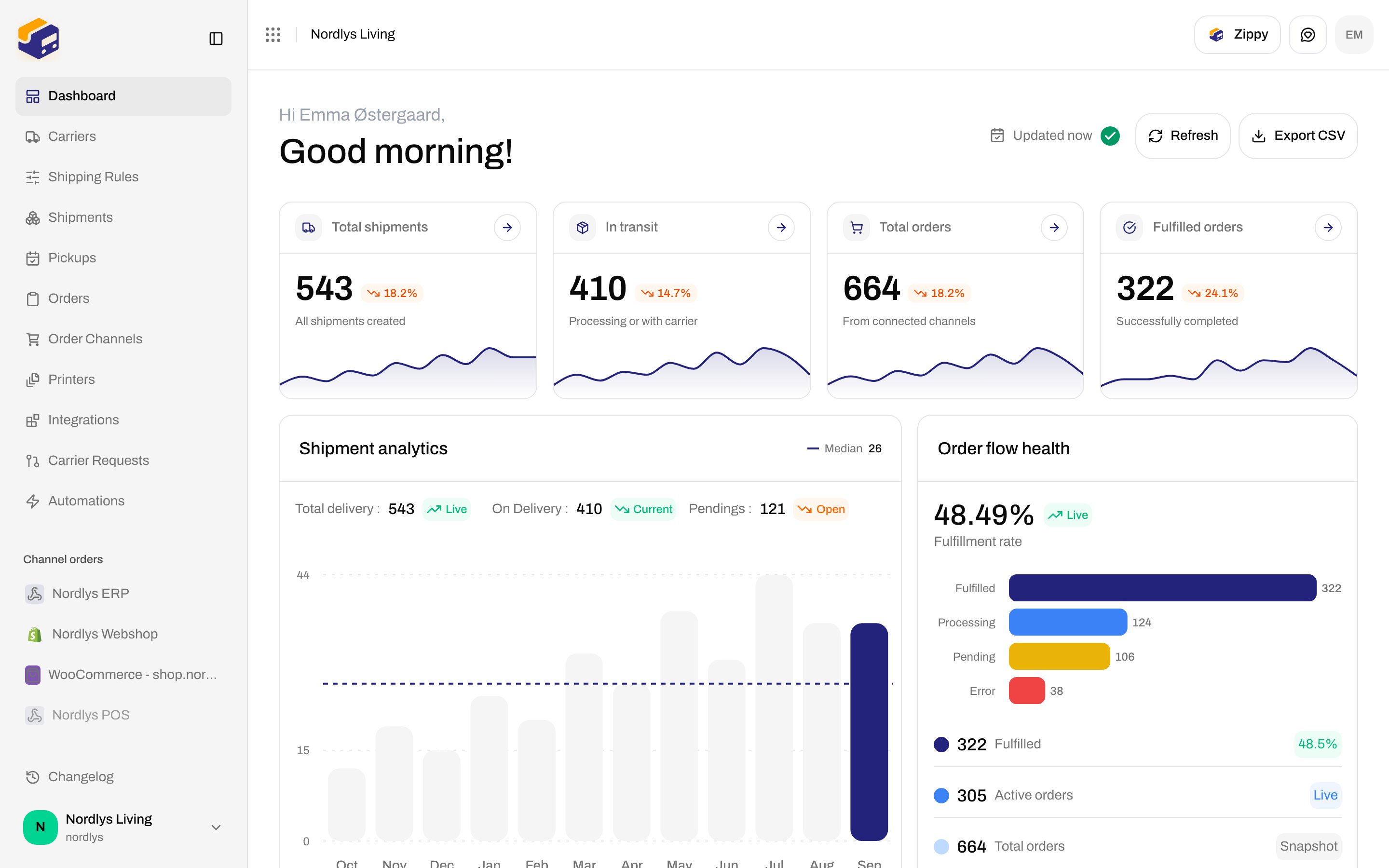
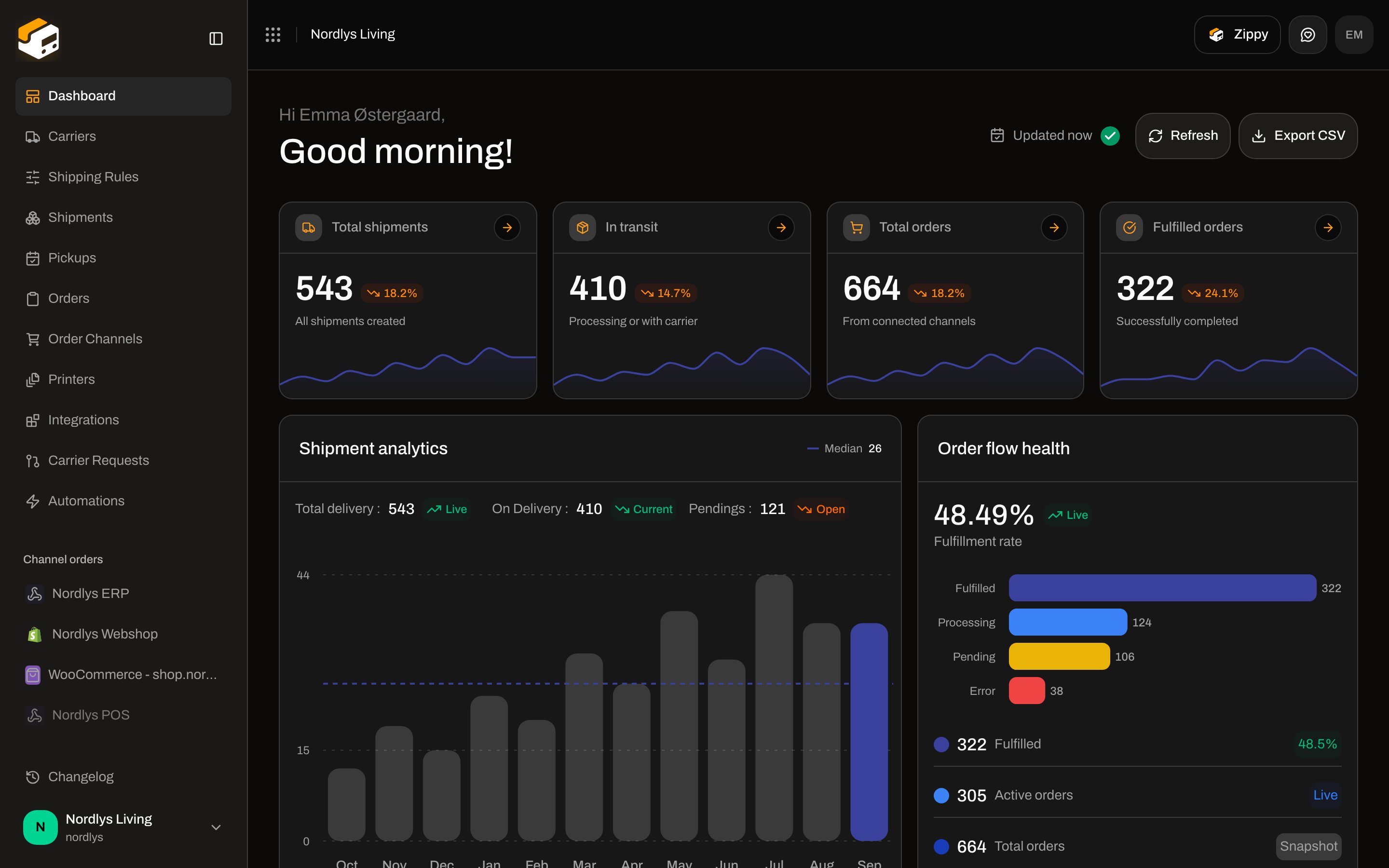 While a switch is in flight the trigger is disabled (`aria-busy`) and the label is **Switching organization…** or **Switching brand…**.
If you have no current organization the trigger is not rendered.
## Open menu
While a switch is in flight the trigger is disabled (`aria-busy`) and the label is **Switching organization…** or **Switching brand…**.
If you have no current organization the trigger is not rendered.
## Open menu
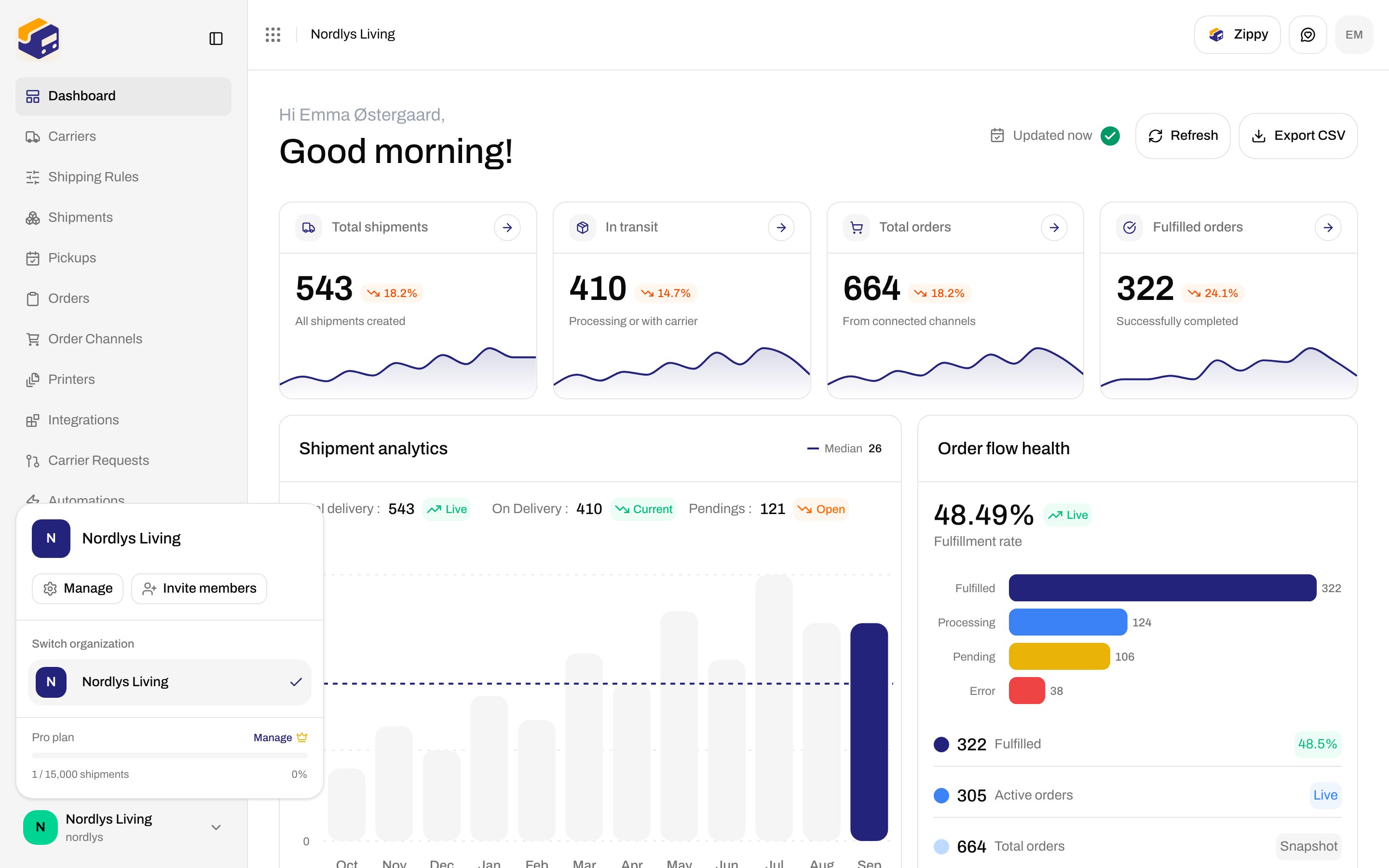
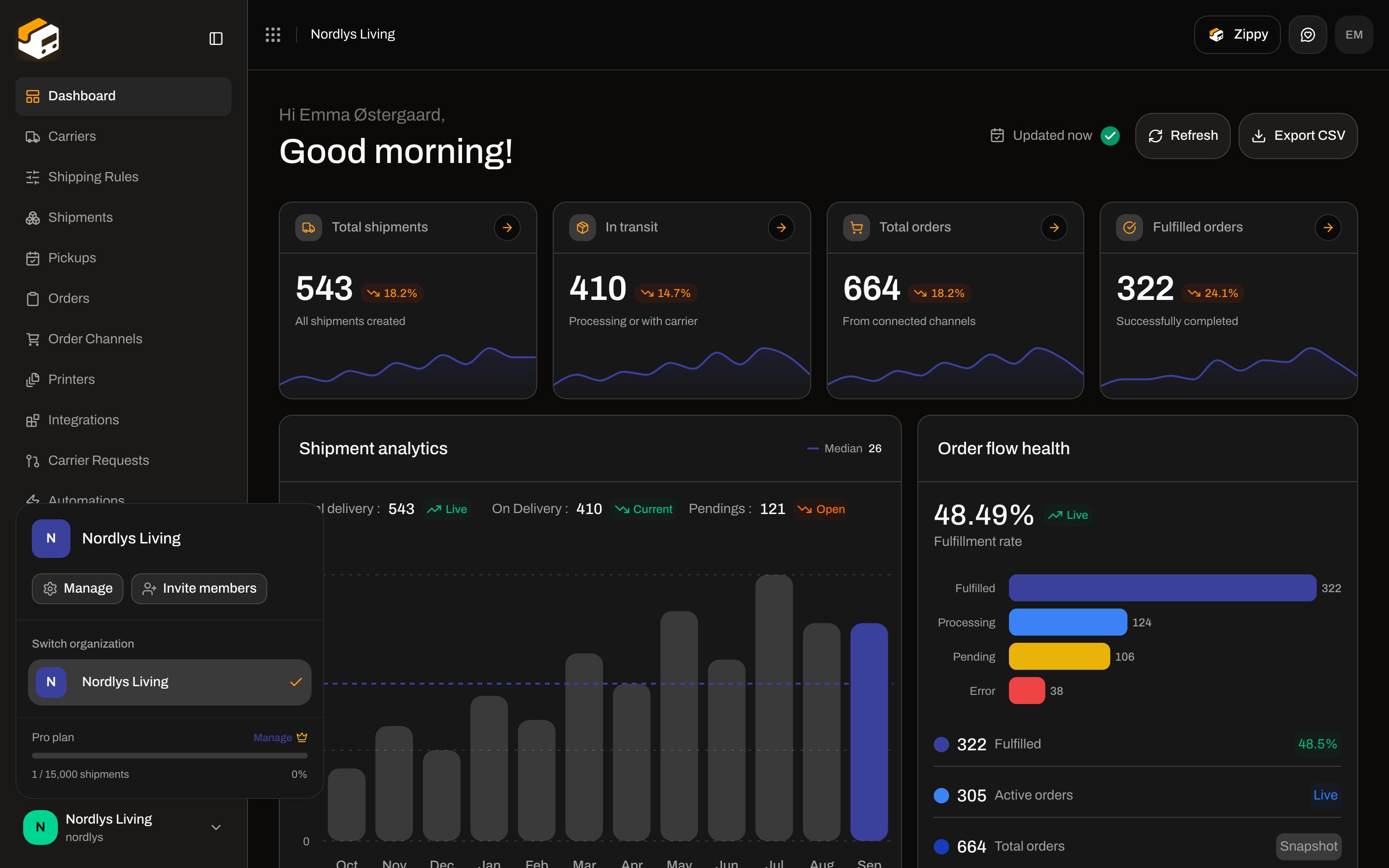 | Control | What it does |
| ----------------------- | ------------------------------------------------------------------------------------------------------------------------------------------------------------------------------------------------- |
| Header | Current org initial and name |
| **Manage** | Opens Settings → **Organization** (`/{slug}/dashboard/settings`) |
| **Invite members** | Opens Settings → **Team** (`/{slug}/dashboard/settings/team`) |
| **Switch organization** | Section label. One row per org you belong to. Current org is highlighted with a check. Click another org to switch. |
| Plan row | **Free plan**, or **\{Plan} plan** (plan name capitalized). **Manage** with a crown icon also opens Settings. |
| Usage bar | Green below 80% of included shipments, red at 80% or above. Caption **\{used} / \{included} shipments** (`∞` when included is unlimited) and a percentage. Hidden until billing usage has loaded. |
There is no **New organization** button (that control is commented out in the app).
### Switch organization
Choosing another org calls the session switch, then navigates to `/{newSlug}/dashboard`. The URL **slug changes**. Failure toast: **Could not switch organization**.
You only see organizations you are a member of. One org → the list is that single row with a check.
## Brands
The **Brands** section is shown only when the organization has at least one brand, or when your membership is brand-locked. Nordlys Living in these docs has no brands, so the section is hidden — [Create a brand](/docs/how-to/create-a-brand) says not to create one here just for screenshots.
When it is visible:
| Control | Copy in the UI |
| ------------------ | ------------------------------------------------------------------------------------------------------------------------------------------- |
| Section label | **Brands** (tags icon). A lock icon when you are brand-locked; tooltip **Your account is restricted to this brand**. |
| Current row | **All brands**, or the selected brand name (logo or initial). Opens a submenu unless you are locked. |
| **Search brands…** | Filters by brand **name** or **slug**. Empty: **No brands match your search**. |
| **All brands** | Organization-wide session (`brandId` null). Hidden from the list when you are brand-locked, and omitted from search when it does not match. |
| Brand rows | Each **Active** brand. Archived brands are not listed. Check mark on the current selection. |
| **Manage brands** | Settings → **Brands** (`/{slug}/dashboard/settings/brands`) |
Brand-locked: the current brand is shown in place, with a lock — no submenu, no **All brands**, no **Manage brands**.
### Switch brand
Choosing **All brands** or a brand rotates the session **in place**. The URL slug **does not change** — lists refetch for the new scope. Busy label **Switching brand…**. Failure toast: **Could not switch brand**. `BRAND_ACCESS_DENIED`: **You do not have access to this brand.**
A leftover `?brand=` from the house view is stripped after you enter a brand session so you do not filter to a different brand by accident. See [Search and filters](/docs/how-to/search-and-filters).
## Related
* [Create a brand](/docs/how-to/create-a-brand)
* [Invite team members](/docs/how-to/invite-team-members)
* [Roles and permissions](/docs/how-to/roles-and-permissions)
* [Organization settings](/docs/how-to/organization-settings)
* [Billing and usage](/docs/how-to/billing-and-usage)
* [Search and filters](/docs/how-to/search-and-filters)
* [Getting started](/docs/tutorials/getting-started)
* [Settings, team, and brands](/docs/tutorials/settings-team-brands)
| Control | What it does |
| ----------------------- | ------------------------------------------------------------------------------------------------------------------------------------------------------------------------------------------------- |
| Header | Current org initial and name |
| **Manage** | Opens Settings → **Organization** (`/{slug}/dashboard/settings`) |
| **Invite members** | Opens Settings → **Team** (`/{slug}/dashboard/settings/team`) |
| **Switch organization** | Section label. One row per org you belong to. Current org is highlighted with a check. Click another org to switch. |
| Plan row | **Free plan**, or **\{Plan} plan** (plan name capitalized). **Manage** with a crown icon also opens Settings. |
| Usage bar | Green below 80% of included shipments, red at 80% or above. Caption **\{used} / \{included} shipments** (`∞` when included is unlimited) and a percentage. Hidden until billing usage has loaded. |
There is no **New organization** button (that control is commented out in the app).
### Switch organization
Choosing another org calls the session switch, then navigates to `/{newSlug}/dashboard`. The URL **slug changes**. Failure toast: **Could not switch organization**.
You only see organizations you are a member of. One org → the list is that single row with a check.
## Brands
The **Brands** section is shown only when the organization has at least one brand, or when your membership is brand-locked. Nordlys Living in these docs has no brands, so the section is hidden — [Create a brand](/docs/how-to/create-a-brand) says not to create one here just for screenshots.
When it is visible:
| Control | Copy in the UI |
| ------------------ | ------------------------------------------------------------------------------------------------------------------------------------------- |
| Section label | **Brands** (tags icon). A lock icon when you are brand-locked; tooltip **Your account is restricted to this brand**. |
| Current row | **All brands**, or the selected brand name (logo or initial). Opens a submenu unless you are locked. |
| **Search brands…** | Filters by brand **name** or **slug**. Empty: **No brands match your search**. |
| **All brands** | Organization-wide session (`brandId` null). Hidden from the list when you are brand-locked, and omitted from search when it does not match. |
| Brand rows | Each **Active** brand. Archived brands are not listed. Check mark on the current selection. |
| **Manage brands** | Settings → **Brands** (`/{slug}/dashboard/settings/brands`) |
Brand-locked: the current brand is shown in place, with a lock — no submenu, no **All brands**, no **Manage brands**.
### Switch brand
Choosing **All brands** or a brand rotates the session **in place**. The URL slug **does not change** — lists refetch for the new scope. Busy label **Switching brand…**. Failure toast: **Could not switch brand**. `BRAND_ACCESS_DENIED`: **You do not have access to this brand.**
A leftover `?brand=` from the house view is stripped after you enter a brand session so you do not filter to a different brand by accident. See [Search and filters](/docs/how-to/search-and-filters).
## Related
* [Create a brand](/docs/how-to/create-a-brand)
* [Invite team members](/docs/how-to/invite-team-members)
* [Roles and permissions](/docs/how-to/roles-and-permissions)
* [Organization settings](/docs/how-to/organization-settings)
* [Billing and usage](/docs/how-to/billing-and-usage)
* [Search and filters](/docs/how-to/search-and-filters)
* [Getting started](/docs/tutorials/getting-started)
* [Settings, team, and brands](/docs/tutorials/settings-team-brands)