> ## Documentation Index
> Fetch the complete documentation index at: https://www.zippendo.com/docs/llms.txt
> Use this file to discover all available pages before exploring further.
# Shipment printer settings
> Pick label and document printers on a shipment, or choose them when you Print All from Documents.
Each shipment can store a **label printer** and a **document printer**. Zippendo uses those ids when you send the shipment (if auto-print is on) and when you print from **Documents**. Shipping-rule printers override the shipment’s ids when a rule is applied — see [Auto-print labels and documents](/docs/how-to/auto-print).
Walkthrough: [Labels and printing](/docs/tutorials/labels-printing). Devices: [Add a printer](/docs/how-to/add-a-printer).
## On shipment detail
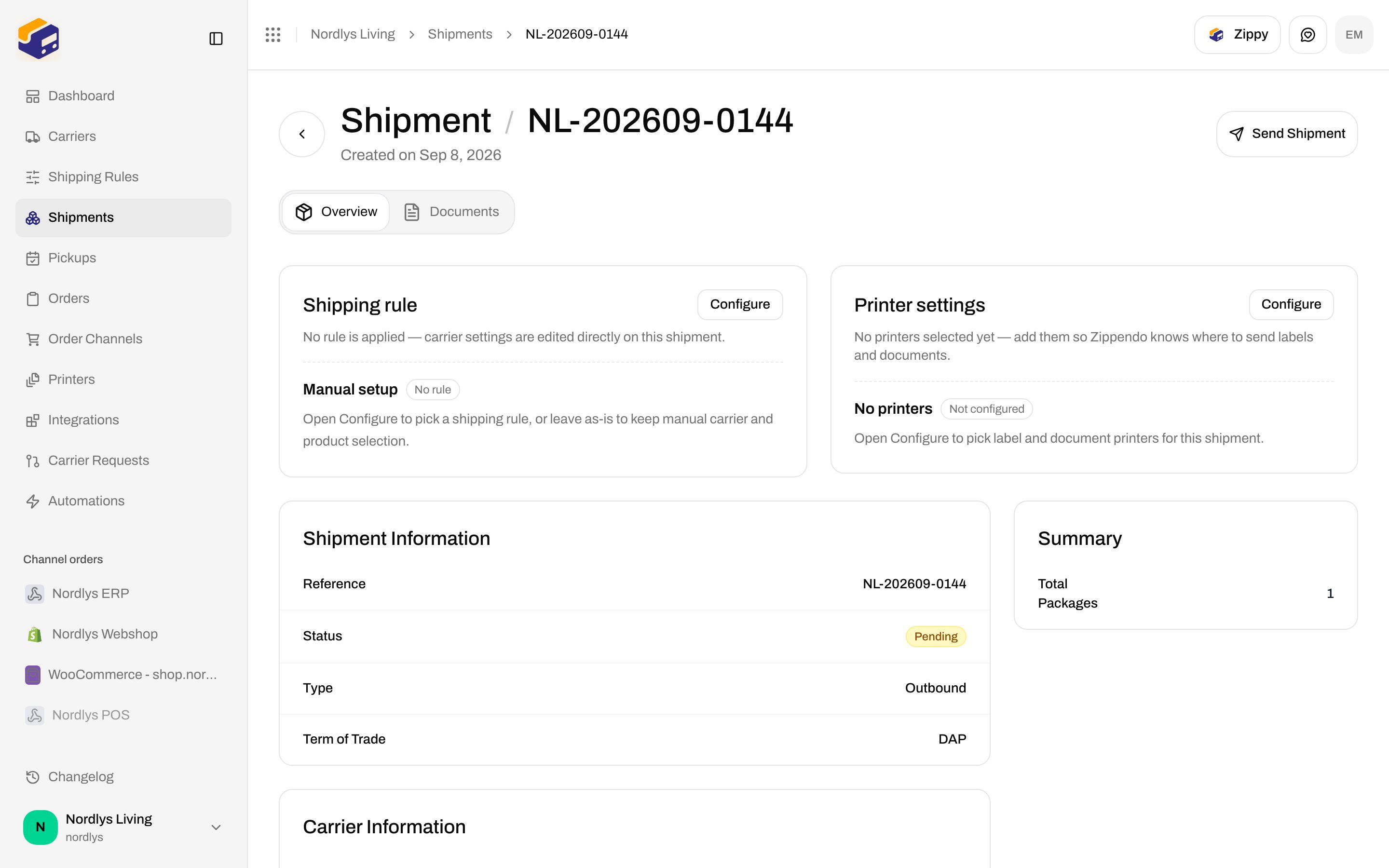
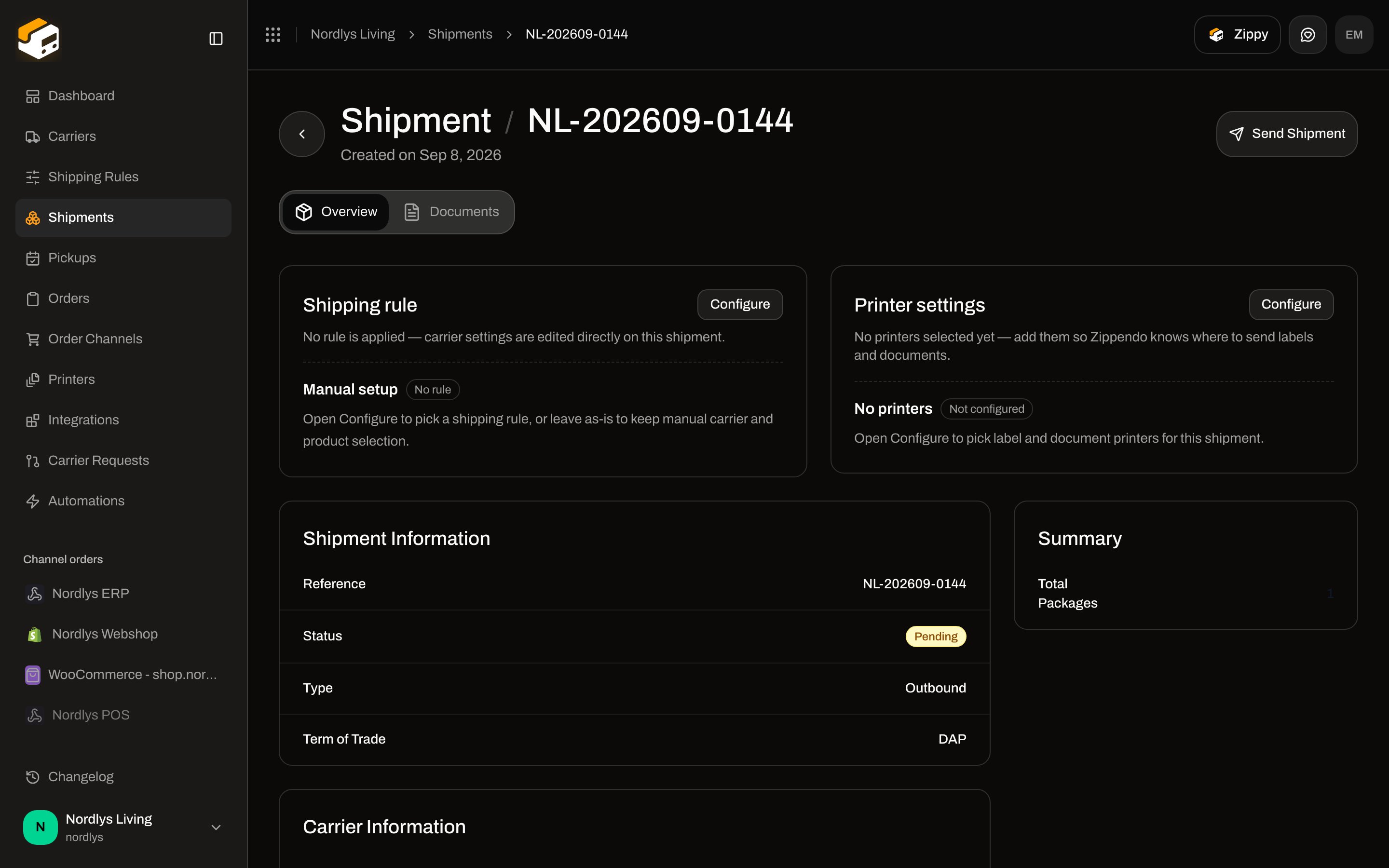
Open a shipment. On **Overview**, the **Printer settings** card sits with shipping rule and other side cards.
| State | Copy |
| ---------- | ------------------------------------------------------------------------------------------------------------------------------------------------------------------------------------------------------------------------------- |
| Empty | **No printers selected yet — add them so Zippendo knows where to send labels and documents.** Heading **No printers**, badge **Not configured**, help **Open Configure to pick label and document printers for this shipment.** |
| Configured | **Labels and documents are routed to these printers when you send or print this shipment.** |
When configured:
| Heading | Value |
| ------------ | --------------------------------------------------------------------------------------------------------------------- |
| **Label** | Printer name, or **Not set**, or **Loading…** while the list loads. Badge **Active** if a label printer id is stored. |
| **Document** | Same pattern. |
Header button: **Configure**.
 ### Configure modal
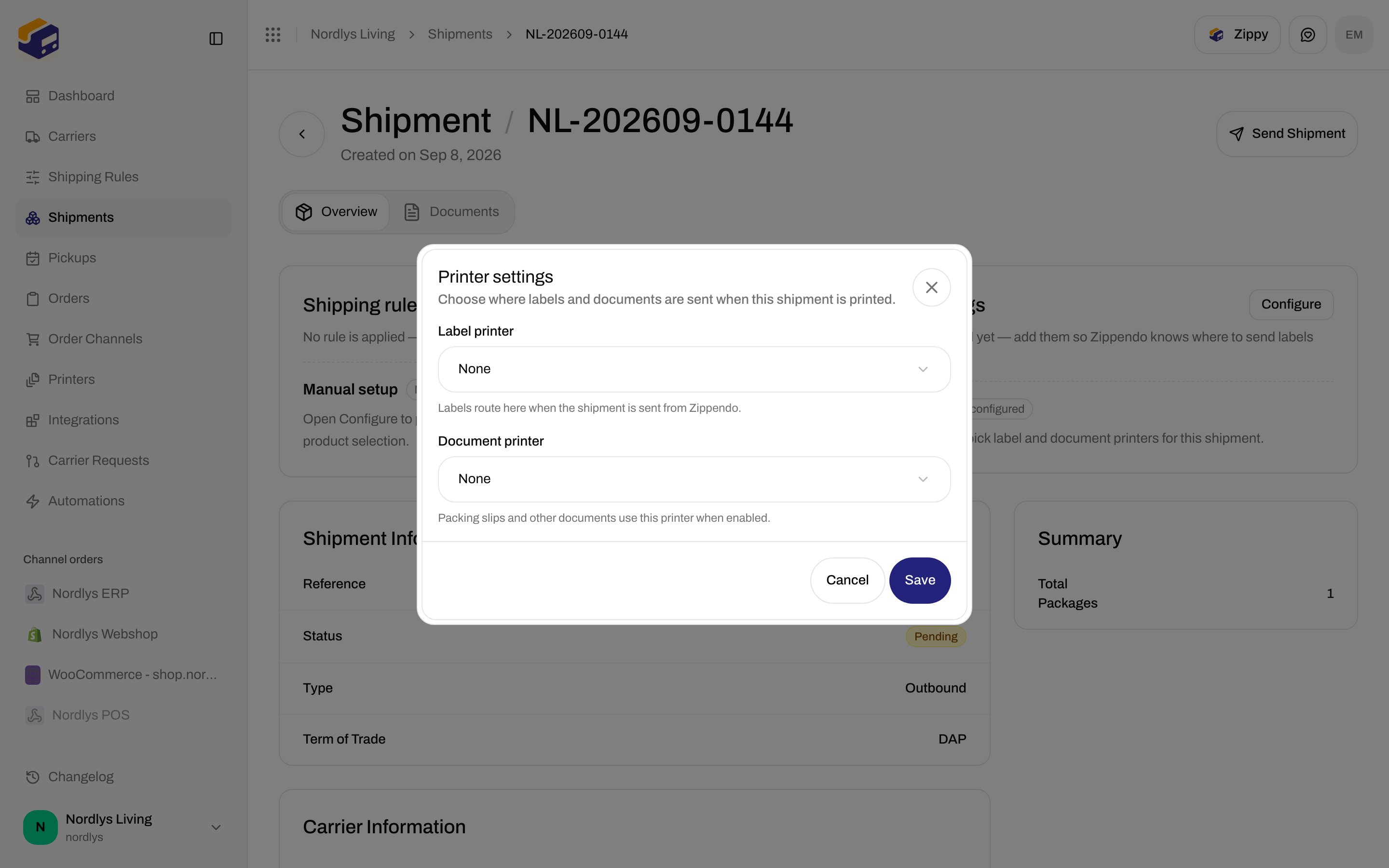
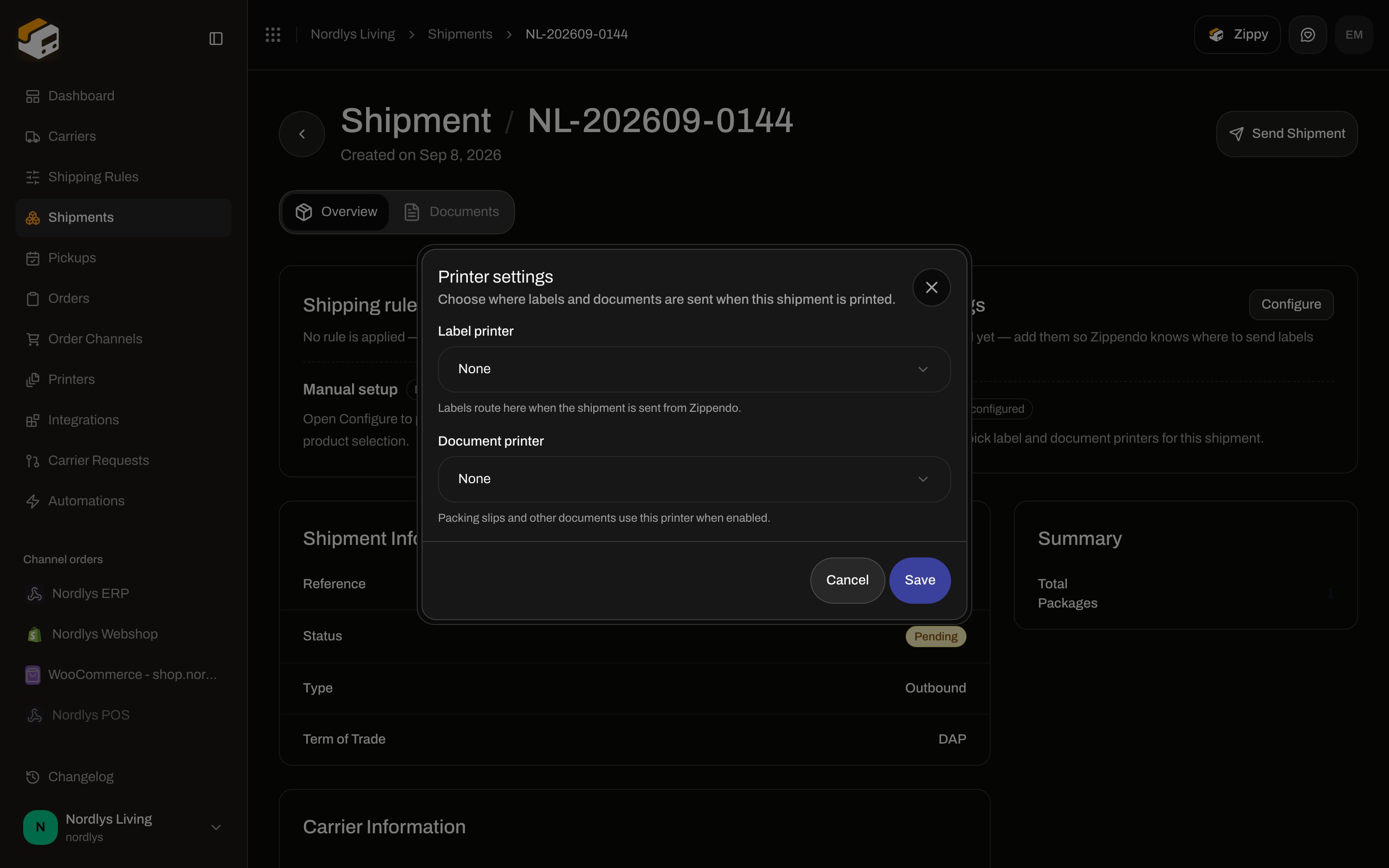
Modal id `shipment-printer-settings`. Title **Printer settings**. Subtitle **Choose where labels and documents are sent when this shipment is printed.**
Loading: **Loading printers…**
| Field | Options | Helper |
| -------------------- | ----------------------------------------------------------- | ------------------------------------------------------------------------------------------------------------- |
| **Label printer** | **None** plus every **Active** printer of type **Label** | **Labels route here when the shipment is sent from Zippendo.** Placeholder **Select label printer**. |
| **Document printer** | **None** plus every **Active** printer of type **Document** | **Packing slips and other documents use this printer when enabled.** Placeholder **Select document printer**. |
**Save** (pending **Saving…**) / **Cancel**. Success toast: **Printer settings updated**. Failure: **Failed to update printer settings**.
Clearing a printer (choose **None**) stores `null` for that field.
### Configure modal
Modal id `shipment-printer-settings`. Title **Printer settings**. Subtitle **Choose where labels and documents are sent when this shipment is printed.**
Loading: **Loading printers…**
| Field | Options | Helper |
| -------------------- | ----------------------------------------------------------- | ------------------------------------------------------------------------------------------------------------- |
| **Label printer** | **None** plus every **Active** printer of type **Label** | **Labels route here when the shipment is sent from Zippendo.** Placeholder **Select label printer**. |
| **Document printer** | **None** plus every **Active** printer of type **Document** | **Packing slips and other documents use this printer when enabled.** Placeholder **Select document printer**. |
**Save** (pending **Saving…**) / **Cancel**. Success toast: **Printer settings updated**. Failure: **Failed to update printer settings**.
Clearing a printer (choose **None**) stores `null` for that field.
 Only **Active** printers are listed. **Pending Approval** and **Disabled** devices do not appear. Approve them first — [Authorize the printer client](/docs/how-to/authorize-a-printer).
## On Create Shipment
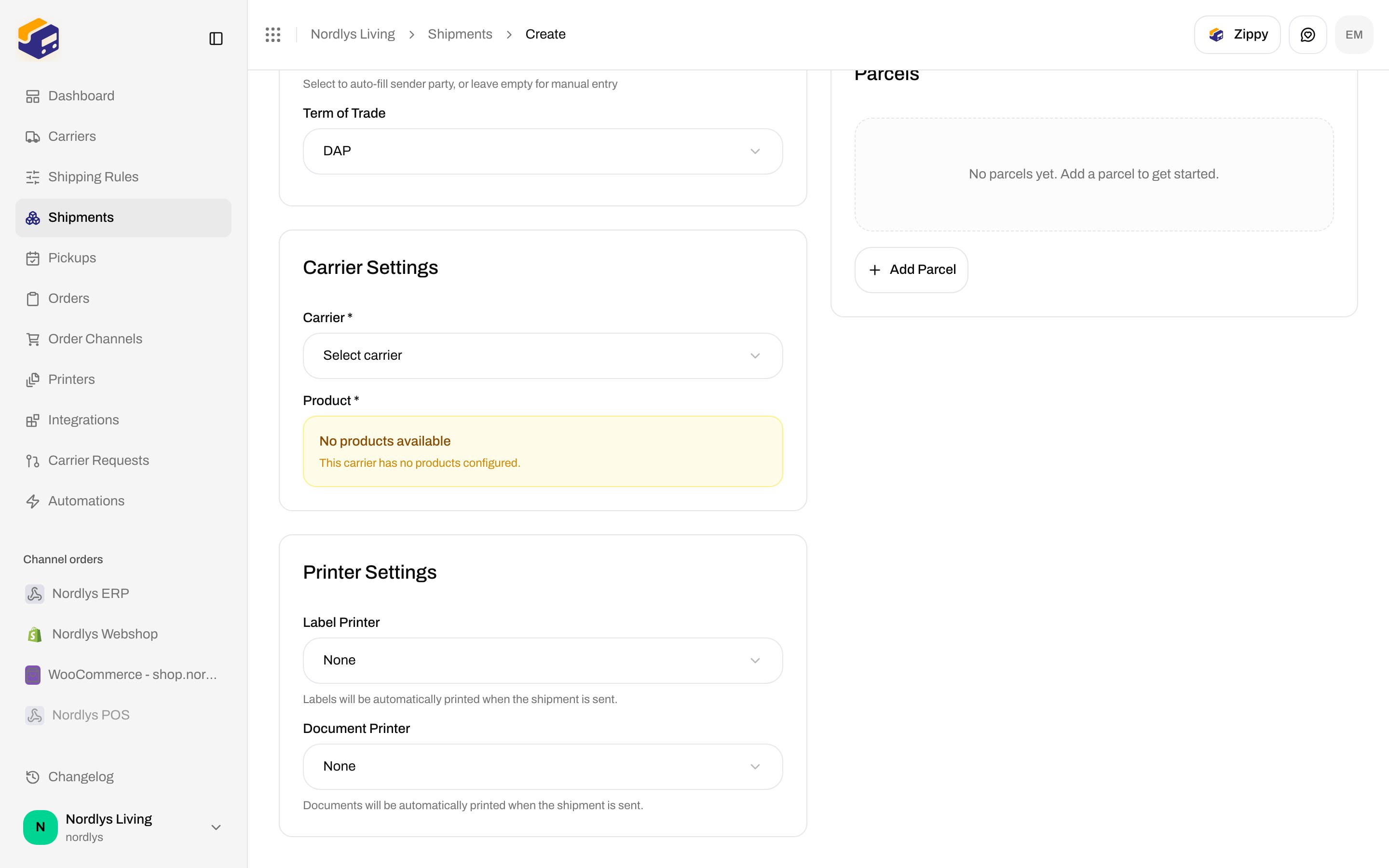
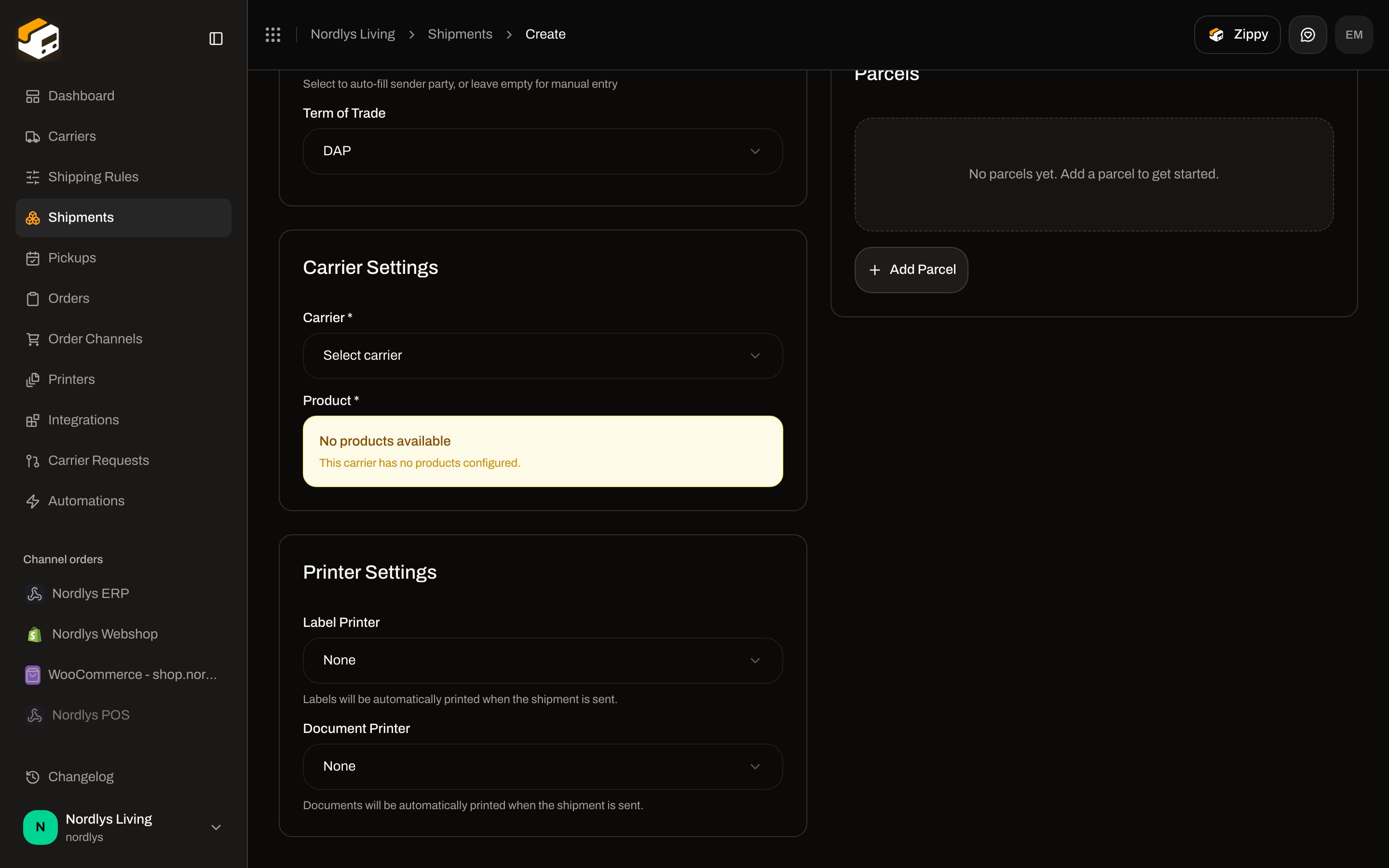
The **Printer Settings** card is on `/dashboard/shipments/create` (standalone create).
| Field | Default | Helper |
| -------------------- | -------- | --------------------------------------------------------------------------------------------------------------- |
| **Label Printer** | **None** | **Labels will be automatically printed when the shipment is sent.** Placeholder **Select label printer**. |
| **Document Printer** | **None** | **Documents will be automatically printed when the shipment is sent.** Placeholder **Select document printer**. |
Same option lists as the detail modal: **None** plus **Active** printers of the matching type. Optional — leave **None** if you print later from **Documents**.
Only **Active** printers are listed. **Pending Approval** and **Disabled** devices do not appear. Approve them first — [Authorize the printer client](/docs/how-to/authorize-a-printer).
## On Create Shipment
The **Printer Settings** card is on `/dashboard/shipments/create` (standalone create).
| Field | Default | Helper |
| -------------------- | -------- | --------------------------------------------------------------------------------------------------------------- |
| **Label Printer** | **None** | **Labels will be automatically printed when the shipment is sent.** Placeholder **Select label printer**. |
| **Document Printer** | **None** | **Documents will be automatically printed when the shipment is sent.** Placeholder **Select document printer**. |
Same option lists as the detail modal: **None** plus **Active** printers of the matching type. Optional — leave **None** if you print later from **Documents**.
 ## Print Documents (one-off)
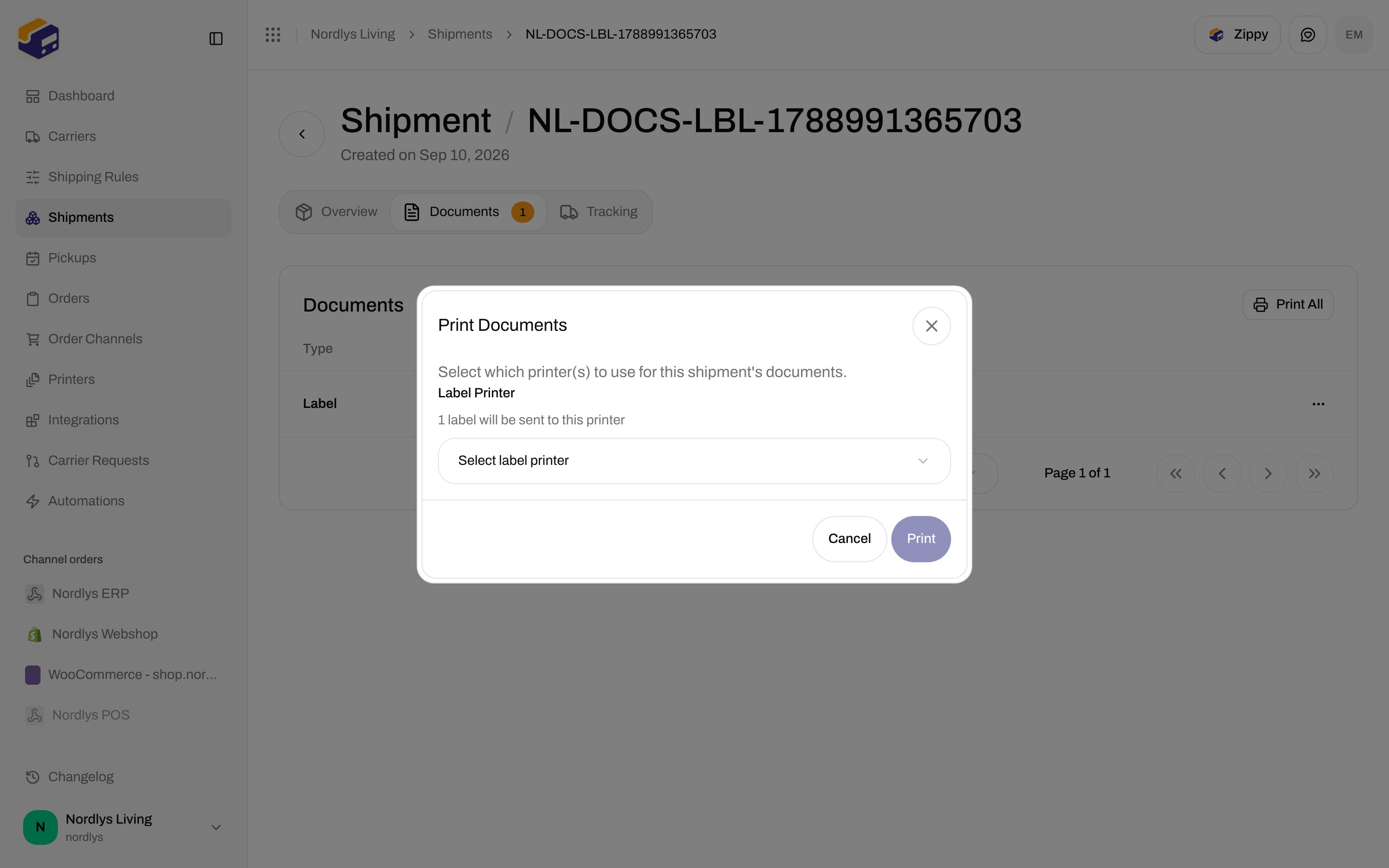
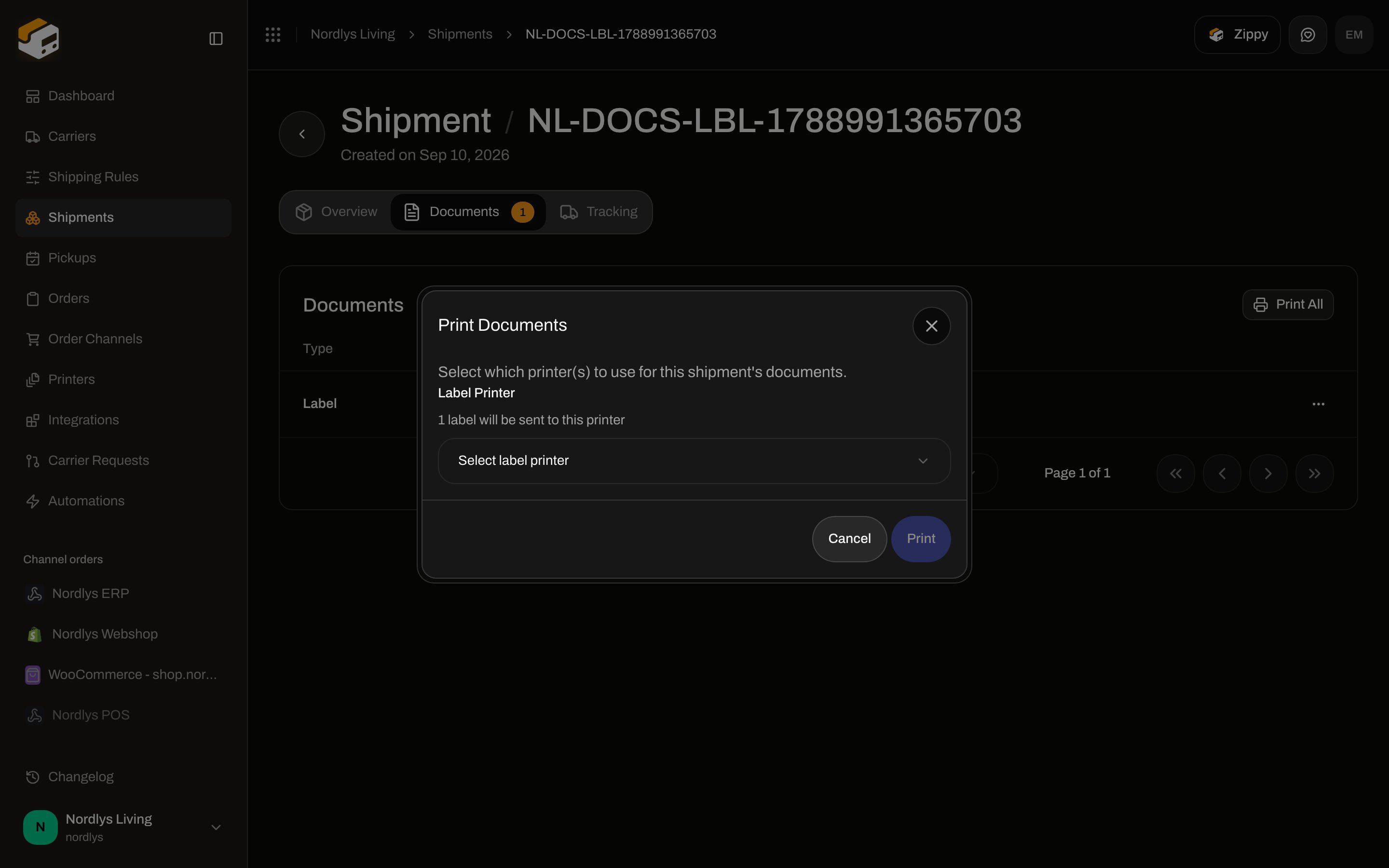
On **Documents**, **Print All** or a row **Print** opens **Print Documents** (`printer-select-modal`) when the shipment (or its shipping rule) does not already have the printers this print needs.
Help: **Select which printer(s) to use for this shipment's documents.** **Print** / **Cancel**.
| Field | Helper |
| -------------------- | ------------------------------------------------------------------------------------------------------------------------------------------------------------------------------------------------------------ |
| **Label Printer** | **\{\{count}} label will be sent to this printer** / **labels**. Placeholder **Select label printer**. Shown only if this print includes labels and no label printer is already configured. |
| **Document Printer** | **\{\{count}} document will be sent to this printer** / **documents**. Placeholder **Select document printer**. Shown only if this print includes non-label documents and no document printer is configured. |
There is no **None** here — you must pick a printer for each select that is shown. **Print** stays disabled until those selects have a value.
Amber warnings:
| Condition | Copy |
| --------------------------------------------- | --------------------------------------------------------------------- |
| No active printers of either needed type | **No active printers found. Please set up a printer first.** |
| Labels needed, no active label printers | **No active label printers found. Please set up a printer first.** |
| Documents needed, no active document printers | **No active document printers found. Please set up a printer first.** |
Toasts after confirm: **\{\{count}} print job created** / **print jobs created**, or **\{\{count}} document failed to print** / **documents failed to print**. Offline printer: **The printer is offline.**
## Print Documents (one-off)
On **Documents**, **Print All** or a row **Print** opens **Print Documents** (`printer-select-modal`) when the shipment (or its shipping rule) does not already have the printers this print needs.
Help: **Select which printer(s) to use for this shipment's documents.** **Print** / **Cancel**.
| Field | Helper |
| -------------------- | ------------------------------------------------------------------------------------------------------------------------------------------------------------------------------------------------------------ |
| **Label Printer** | **\{\{count}} label will be sent to this printer** / **labels**. Placeholder **Select label printer**. Shown only if this print includes labels and no label printer is already configured. |
| **Document Printer** | **\{\{count}} document will be sent to this printer** / **documents**. Placeholder **Select document printer**. Shown only if this print includes non-label documents and no document printer is configured. |
There is no **None** here — you must pick a printer for each select that is shown. **Print** stays disabled until those selects have a value.
Amber warnings:
| Condition | Copy |
| --------------------------------------------- | --------------------------------------------------------------------- |
| No active printers of either needed type | **No active printers found. Please set up a printer first.** |
| Labels needed, no active label printers | **No active label printers found. Please set up a printer first.** |
| Documents needed, no active document printers | **No active document printers found. Please set up a printer first.** |
Toasts after confirm: **\{\{count}} print job created** / **print jobs created**, or **\{\{count}} document failed to print** / **documents failed to print**. Offline printer: **The printer is offline.**
 Follow jobs on the printer’s **Jobs** tab — [Printer jobs](/docs/how-to/printer-jobs).
## Related
* [Auto-print labels and documents](/docs/how-to/auto-print) — rule-level printers and auto-print checkboxes
* [Printer jobs](/docs/how-to/printer-jobs)
* [Add a printer](/docs/how-to/add-a-printer)
* [Set up the printer client](/docs/how-to/setup-printer-client)
* [Labels and printing](/docs/tutorials/labels-printing)
Follow jobs on the printer’s **Jobs** tab — [Printer jobs](/docs/how-to/printer-jobs).
## Related
* [Auto-print labels and documents](/docs/how-to/auto-print) — rule-level printers and auto-print checkboxes
* [Printer jobs](/docs/how-to/printer-jobs)
* [Add a printer](/docs/how-to/add-a-printer)
* [Set up the printer client](/docs/how-to/setup-printer-client)
* [Labels and printing](/docs/tutorials/labels-printing)