> ## Documentation Index
> Fetch the complete documentation index at: https://www.zippendo.com/docs/llms.txt
> Use this file to discover all available pages before exploring further.
# Set up the printer client
> Install the Zippendo Printer desktop app, sign in with the browser, register a local printer, and keep it online for print jobs.
The **Zippendo Printer** desktop app (window title **Zippendo Printer**) connects the printers on this computer to Zippendo. It stays in the system tray, keeps a WebSocket open, and prints labels and documents as jobs arrive.
It is not the same surface as sidebar **Printers**. You download the app from **Printers**, but you register devices in the desktop app. After a printer is **Active**, you edit name, type, and **Rotate wide pages to portrait** on the web **Printers** list.
Journey: [Labels and printing](/docs/tutorials/labels-printing). Web list, filters, and **Print All**: [Add a printer](/docs/how-to/add-a-printer). Browser **Authorize Printer Client** states: [Authorize the printer client](/docs/how-to/authorize-a-printer). Jobs: [Printer jobs](/docs/how-to/printer-jobs).
The desktop app is light-only (no theme switch). Frames captioned **desktop app window** are the live **Zippendo Printer** window (macOS title bar). Older renderer-only PNGs stay in the same folder as fallback. Web **Printers** and **Authorize Printer Client** shots are reused from those how-tos — not copied into this folder.
## Printer client vs Printers
| Surface | What you do there |
| ----------------------------------------------- | ---------------------------------------------------------------------------------------------------------------------------------------------------- |
| **Zippendo Printer** (this app) | **Sign in with Browser**, pick a **Local Printer**, set **Display Name** and **Printer Type**, watch **Connected** / **Disconnected**, **Reconnect** |
| **Printers** (web, `/{org}/dashboard/printers`) | **Download Printer Client**, **Approve** / **Disable**, **Edit** name/type/rotation, **Online** / **Offline**, job history |
There is no **Add printer** button on the web list. Empty copy: **No printers yet** — **Printers will appear here once they are registered from the printer client application.**
## Download
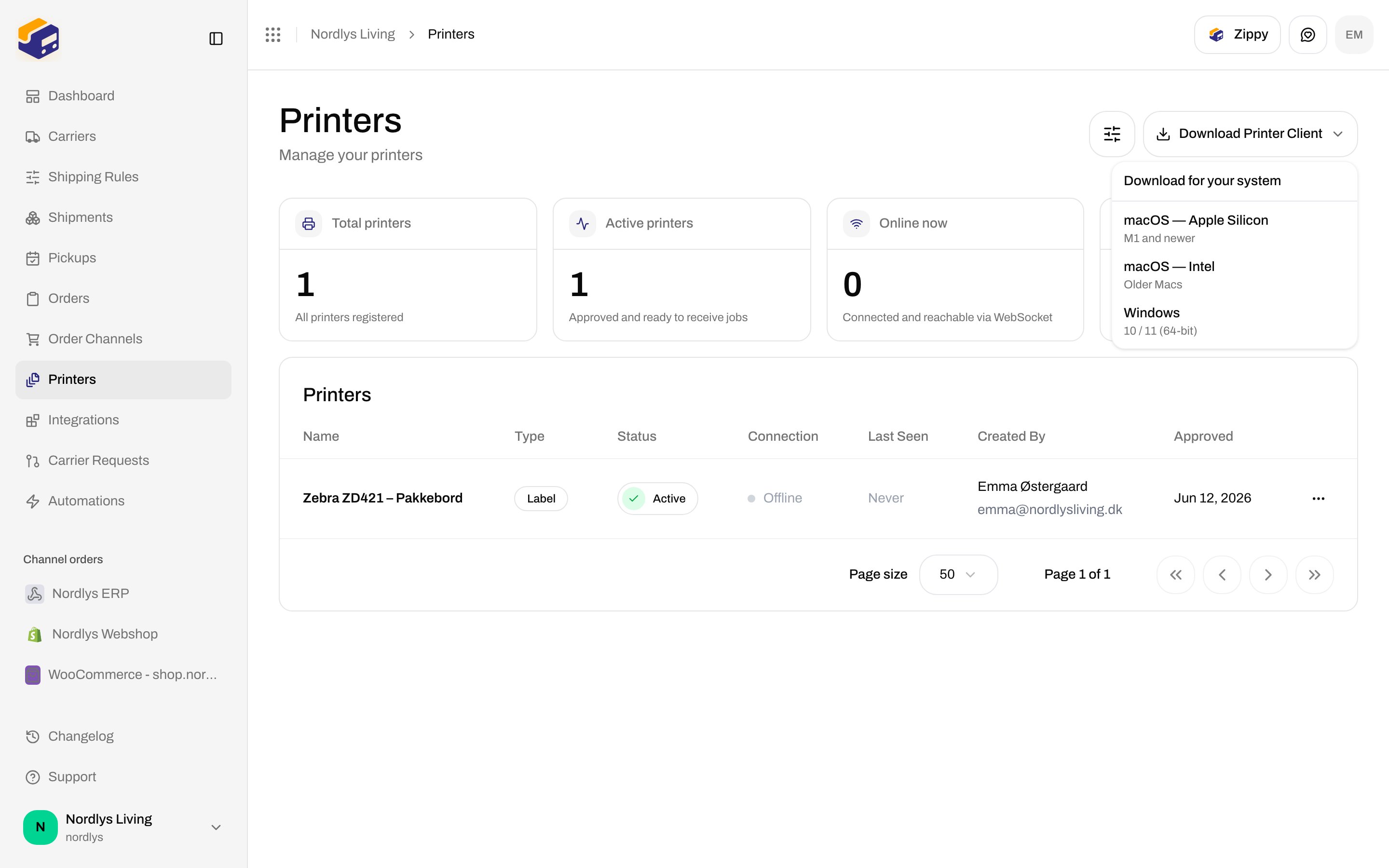
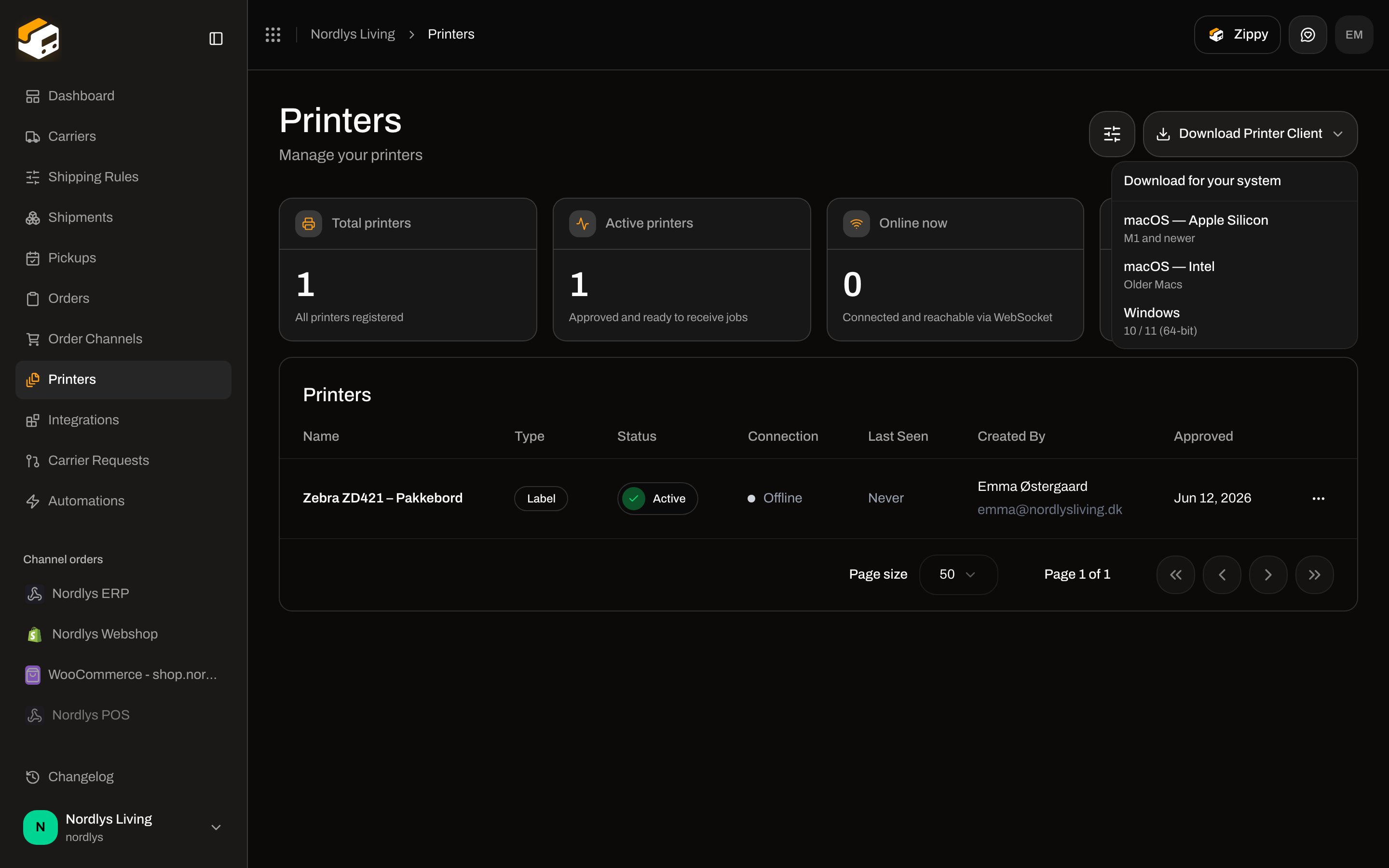
Sidebar **Printers**. Header action **Download Printer Client**. Menu title **Download for your system**. Each row is a direct installer from the latest GitHub release (not a landing page):
| Label | Helper | File |
| ------------------------- | -------------------- | -------------------------------- |
| **macOS — Apple Silicon** | **M1 and newer** | `Zippendo-Printer-mac-arm64.dmg` |
| **macOS — Intel** | **Older Macs** | `Zippendo-Printer-mac-x64.dmg` |
| **Windows** | **10 / 11 (64-bit)** | `Zippendo-Printer-win-x64.exe` |
 ## Install and first launch
The app does **not** ask for macOS Screen Recording or Accessibility. Network access is enough to sign in and print.
### macOS
Drag **Zippendo Printer** into **Applications**.
**Control-click** (right-click) the app → **Open** → **Open**. On **macOS Sequoia (15)** or later, if that is still blocked, open **System Settings → Privacy & Security**, find the message about **Zippendo Printer**, and click **Open Anyway**. You only do this once.
macOS will not report the app as “damaged” — the installer is ad-hoc signed. The extra click is the unidentified-developer prompt, not a Screen Recording or Accessibility dialog.
### Windows
Open `Zippendo-Printer-win-x64.exe`. You can change the install folder. The installer can add a desktop shortcut and a Start menu shortcut.
Choose **More info → Run anyway**.
Windows can auto-update in the background. Until Apple notarization ships, macOS users grab a new `.dmg` from **Download Printer Client** when they need a newer build. The tray menu includes **Check for updates…**.
## Sign in with the browser
There is **no pairing code** and no email/password form in the current app. Sign-in is browser OAuth.
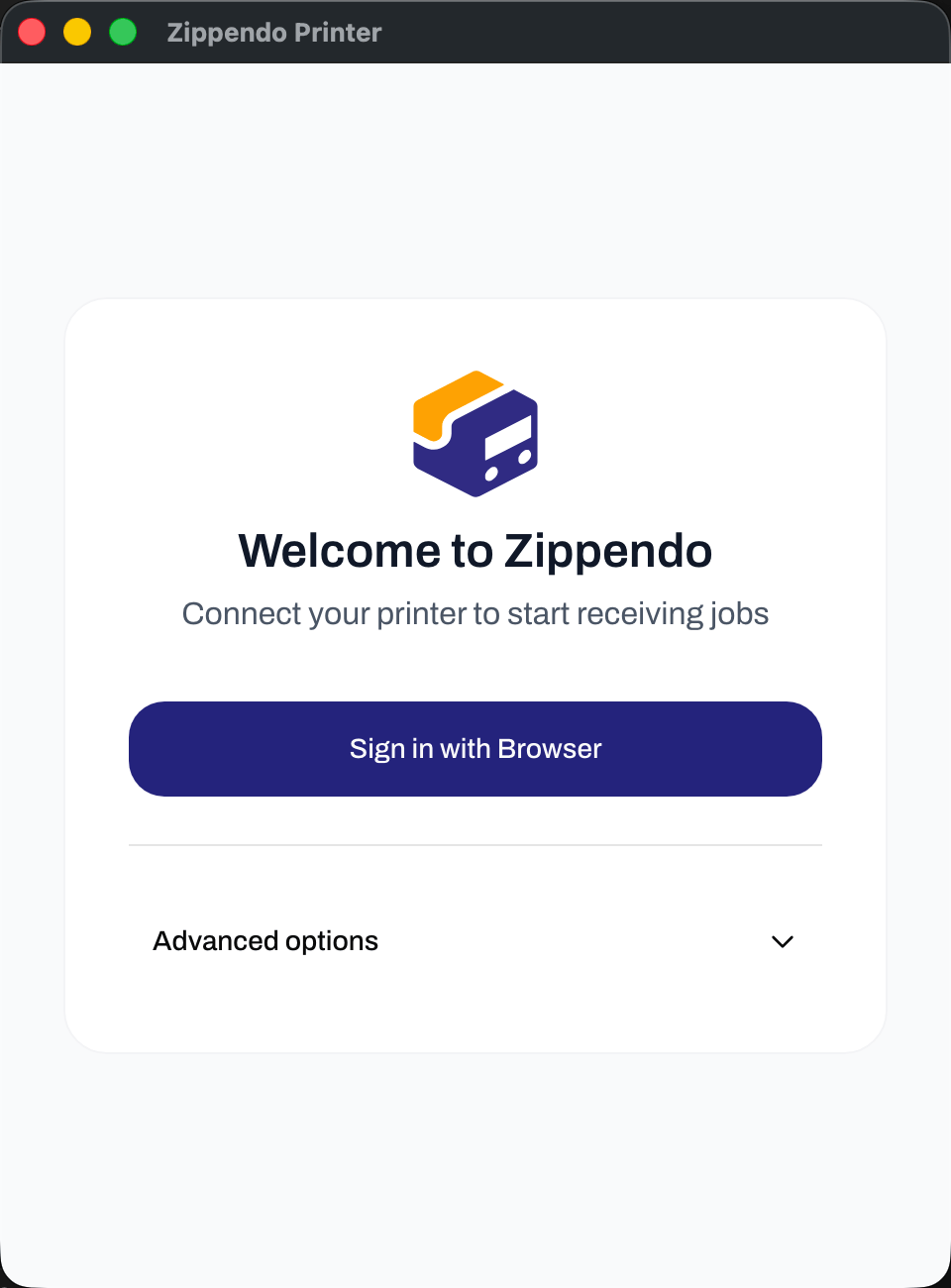
On first launch the window title is **Zippendo Printer**. The card:
| Element | Copy |
| ------------- | ----------------------------------------------------- |
| Title | **Welcome to Zippendo** |
| Subtitle | **Connect your printer to start receiving jobs** |
| Primary | **Sign in with Browser** (busy: **Opening browser…**) |
| Footer toggle | **Advanced options** / **Hide advanced options** |
## Install and first launch
The app does **not** ask for macOS Screen Recording or Accessibility. Network access is enough to sign in and print.
### macOS
Drag **Zippendo Printer** into **Applications**.
**Control-click** (right-click) the app → **Open** → **Open**. On **macOS Sequoia (15)** or later, if that is still blocked, open **System Settings → Privacy & Security**, find the message about **Zippendo Printer**, and click **Open Anyway**. You only do this once.
macOS will not report the app as “damaged” — the installer is ad-hoc signed. The extra click is the unidentified-developer prompt, not a Screen Recording or Accessibility dialog.
### Windows
Open `Zippendo-Printer-win-x64.exe`. You can change the install folder. The installer can add a desktop shortcut and a Start menu shortcut.
Choose **More info → Run anyway**.
Windows can auto-update in the background. Until Apple notarization ships, macOS users grab a new `.dmg` from **Download Printer Client** when they need a newer build. The tray menu includes **Check for updates…**.
## Sign in with the browser
There is **no pairing code** and no email/password form in the current app. Sign-in is browser OAuth.
On first launch the window title is **Zippendo Printer**. The card:
| Element | Copy |
| ------------- | ----------------------------------------------------- |
| Title | **Welcome to Zippendo** |
| Subtitle | **Connect your printer to start receiving jobs** |
| Primary | **Sign in with Browser** (busy: **Opening browser…**) |
| Footer toggle | **Advanced options** / **Hide advanced options** |
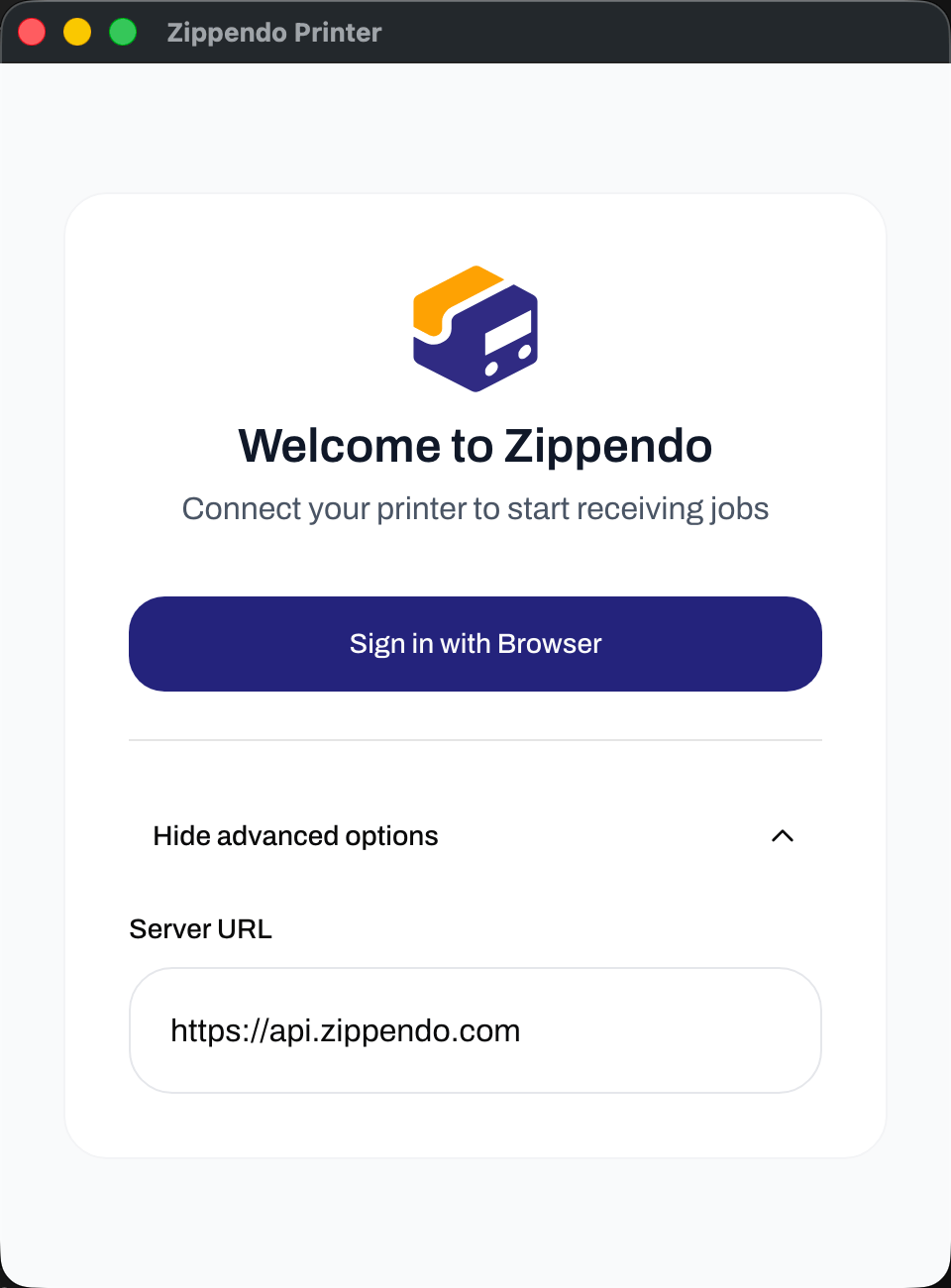
 **Advanced options** reveals **Server URL** (placeholder **[https://api.zippendo.com](https://api.zippendo.com)**). Packaged installs already point at production. Leave it unless Zippendo support gives you a different API host.
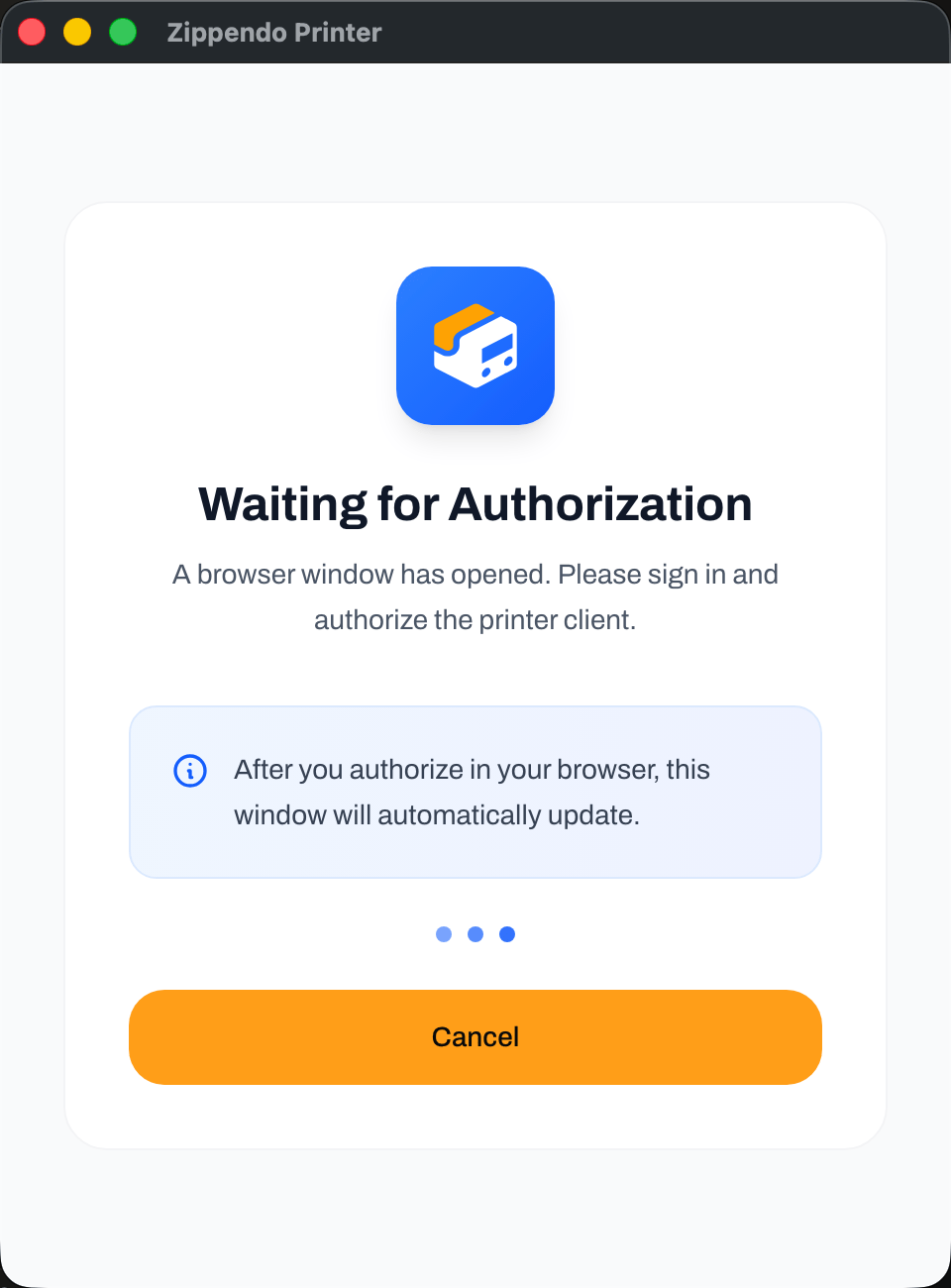
 Click **Sign in with Browser**. The app starts a local callback listener and opens `/authorize-printer?session_id=…` (optional `callback_port` for the HTTP fallback). The desktop window switches to **Waiting for Authorization**.
| Element | Copy |
| -------- | --------------------------------------------------------------------------------- |
| Title | **Waiting for Authorization** |
| Subtitle | **A browser window has opened. Please sign in and authorize the printer client.** |
| Hint | **After you authorize in your browser, this window will automatically update.** |
| Action | **Cancel** |
Errors on this screen: **Authorization was rejected**, **Authorization session expired**, **Failed to initiate sign in**, **Sign in failed**.
Click **Sign in with Browser**. The app starts a local callback listener and opens `/authorize-printer?session_id=…` (optional `callback_port` for the HTTP fallback). The desktop window switches to **Waiting for Authorization**.
| Element | Copy |
| -------- | --------------------------------------------------------------------------------- |
| Title | **Waiting for Authorization** |
| Subtitle | **A browser window has opened. Please sign in and authorize the printer client.** |
| Hint | **After you authorize in your browser, this window will automatically update.** |
| Action | **Cancel** |
Errors on this screen: **Authorization was rejected**, **Authorization session expired**, **Failed to initiate sign in**, **Sign in failed**.
 ## Authorize in the browser
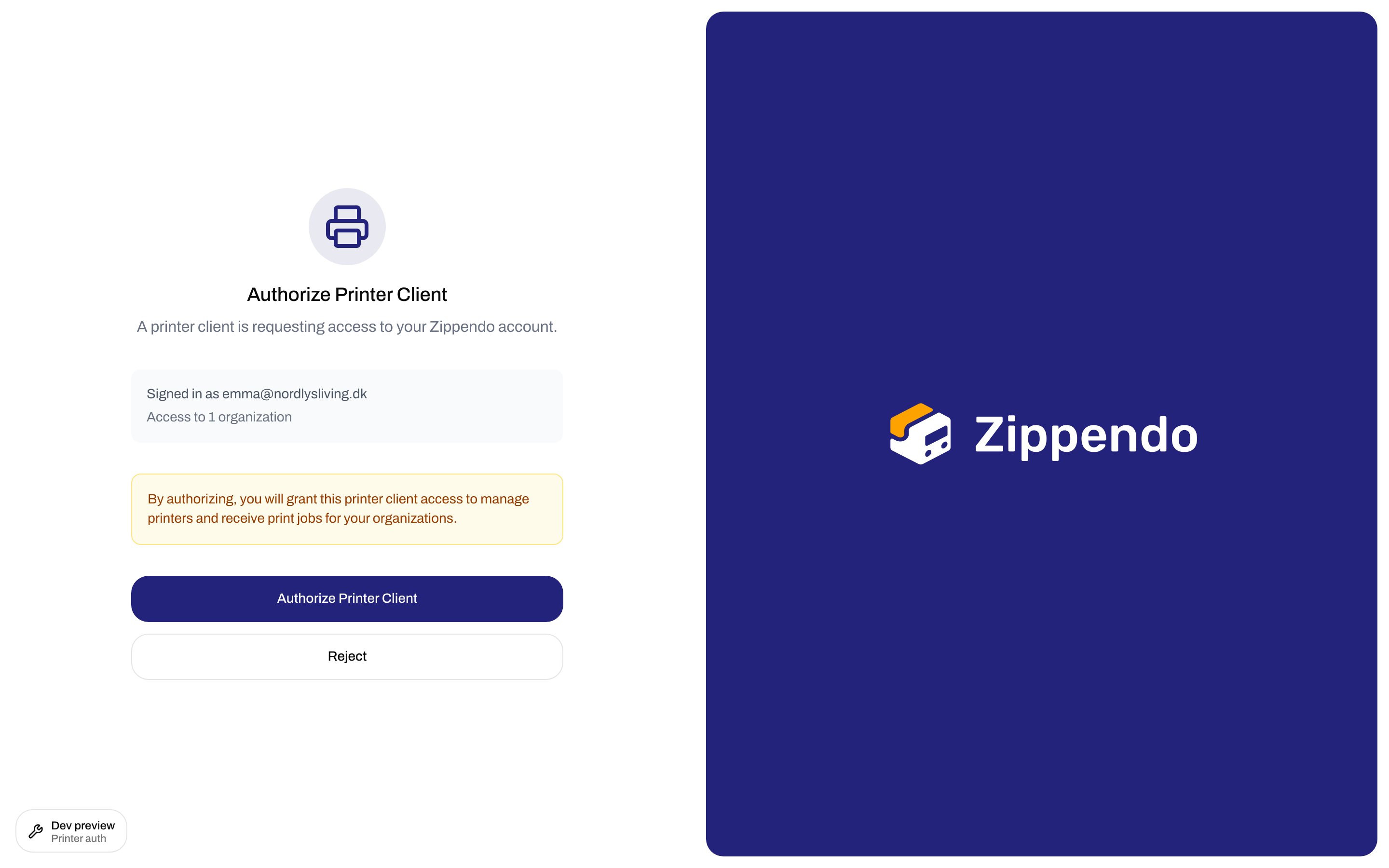
You must already be signed in to Zippendo. Title **Authorize Printer Client**. Description: **A printer client is requesting access to your Zippendo account.**
| Element | Copy |
| ------------- | ------------------------------------------------------------------------------------------------------------------------------- |
| Signed-in box | **Signed in as \{email}** |
| Org count | **Access to \{count} organization** / **organizations** |
| Warning | **By authorizing, you will grant this printer client access to manage printers and receive print jobs for your organizations.** |
| Primary | **Authorize Printer Client** (pending: **Authorizing…**) |
| Secondary | **Reject** (pending: **Rejecting…**) |
## Authorize in the browser
You must already be signed in to Zippendo. Title **Authorize Printer Client**. Description: **A printer client is requesting access to your Zippendo account.**
| Element | Copy |
| ------------- | ------------------------------------------------------------------------------------------------------------------------------- |
| Signed-in box | **Signed in as \{email}** |
| Org count | **Access to \{count} organization** / **organizations** |
| Warning | **By authorizing, you will grant this printer client access to manage printers and receive print jobs for your organizations.** |
| Primary | **Authorize Printer Client** (pending: **Authorizing…**) |
| Secondary | **Reject** (pending: **Rejecting…**) |
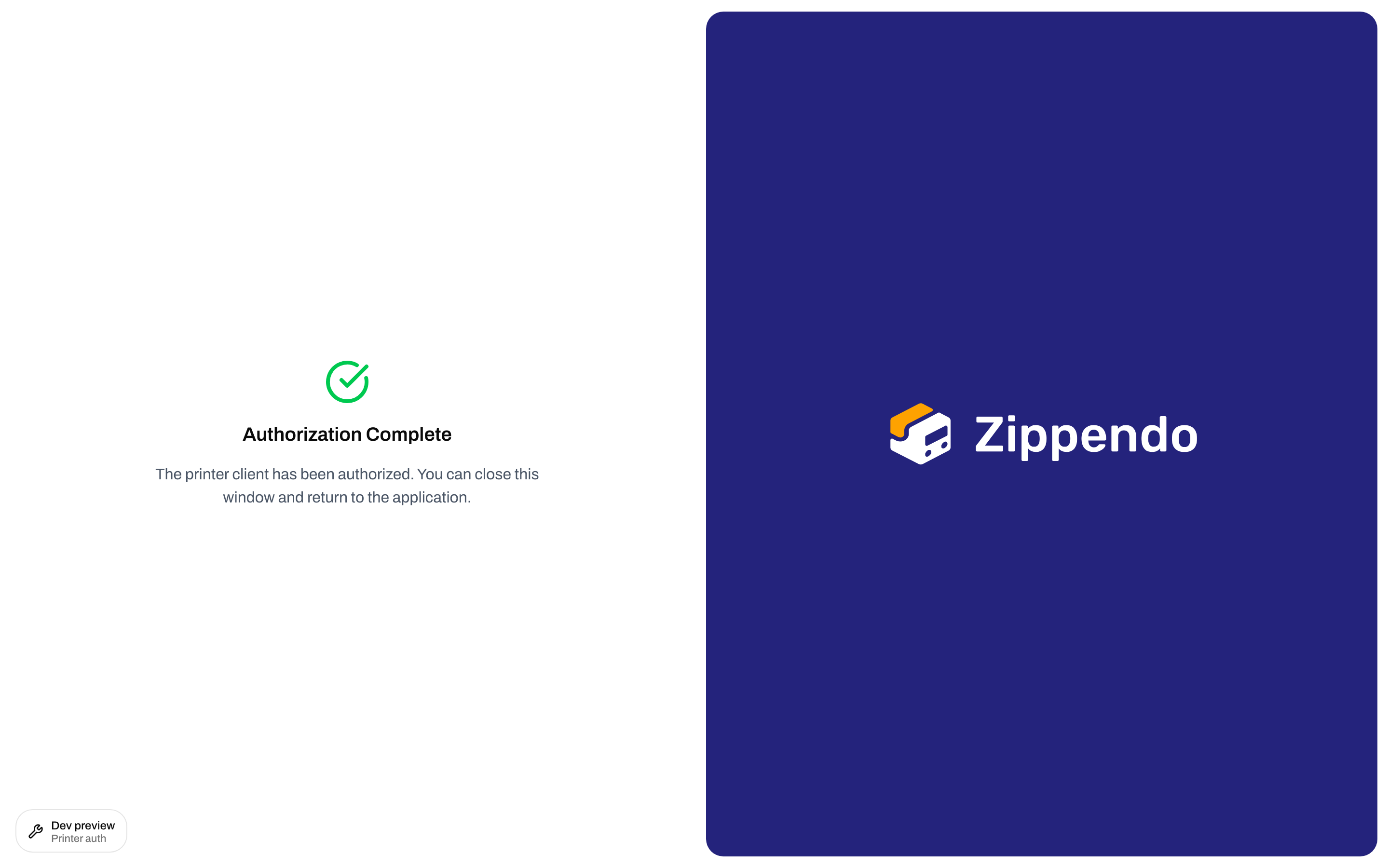
 **Authorize Printer Client** redirects to `zippendo://callback?token=…` (preferred) or `http://localhost:PORT/callback`. Stay on the tab until the desktop app receives the token. Then **Authorization Complete**: **The printer client has been authorized. You can close this window and return to the application.**
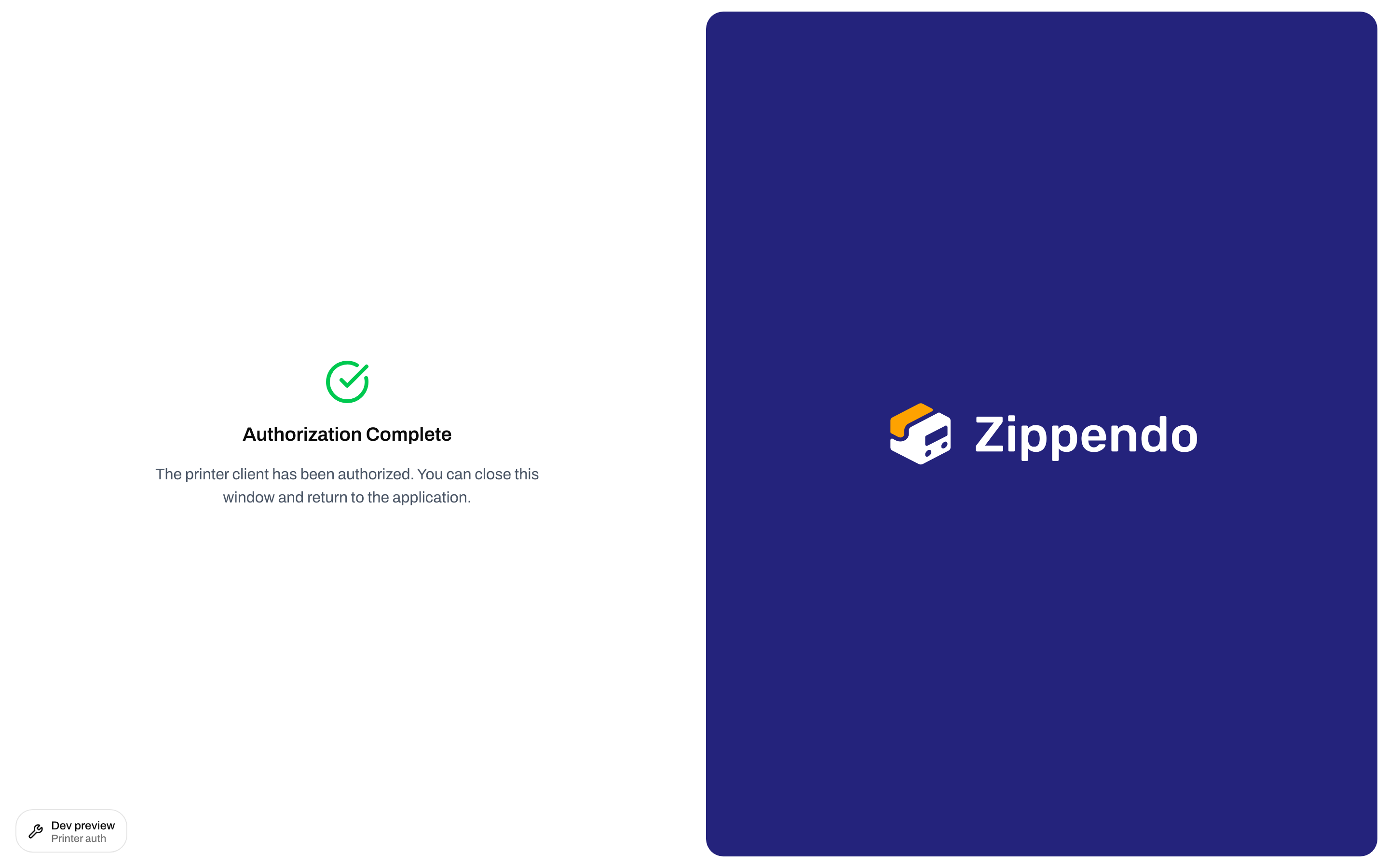 Other authorize states (no extra fields — start again from **Sign in with Browser** if needed): **Invalid Request**, **Session Error**, **Already Authorized**, **Authorization Rejected**, **Session Expired**. Full copy: [Authorize the printer client](/docs/how-to/authorize-a-printer).
## Printer Dashboard
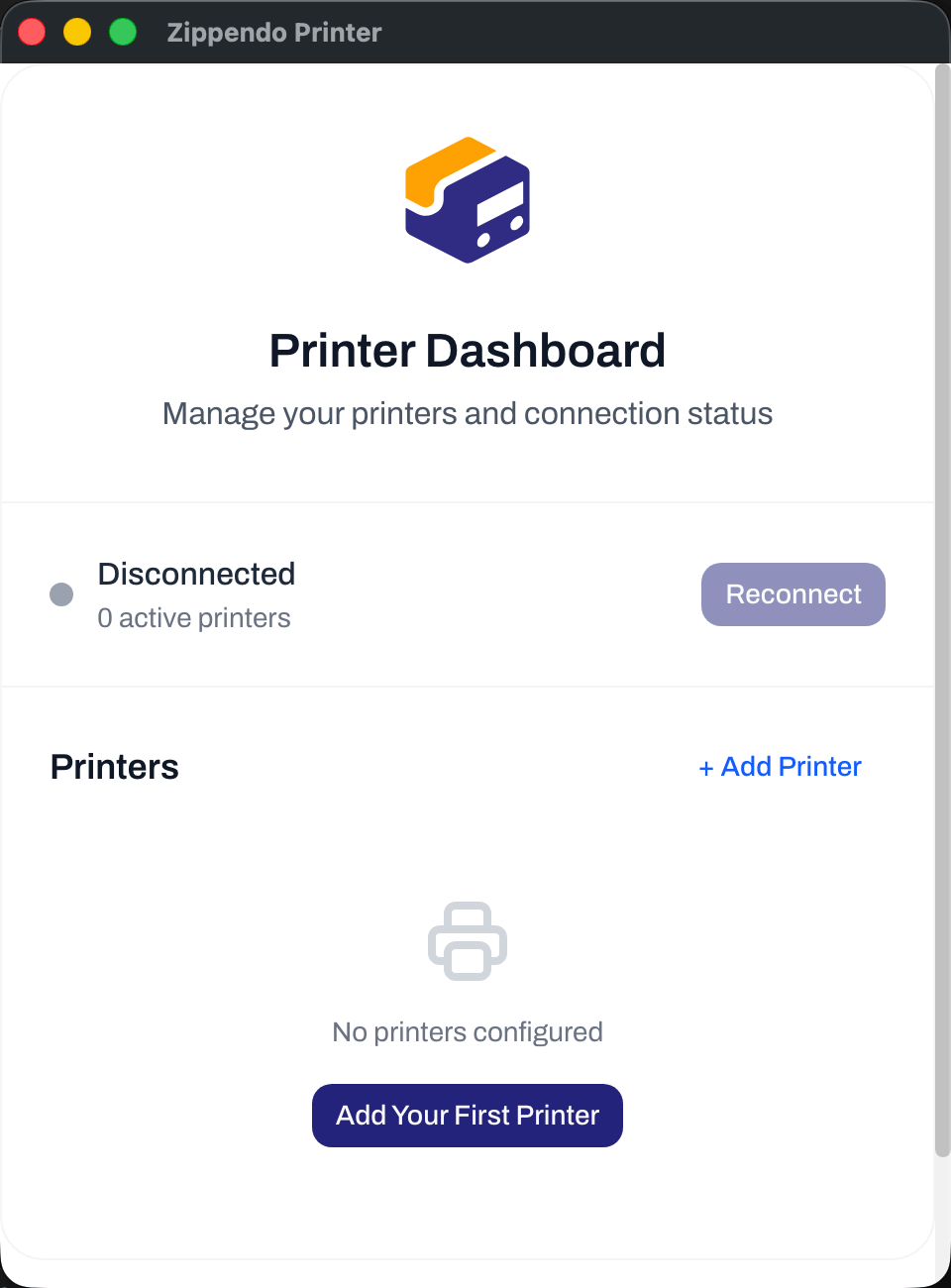
After a successful callback the app shows **Printer Dashboard** — **Manage your printers and connection status**. Footer: **Signed in as \{name}** and **Settings**.
Empty state: **No printers configured** and **Add Your First Printer**. Heading **Printers** still has **+ Add Printer**.
Other authorize states (no extra fields — start again from **Sign in with Browser** if needed): **Invalid Request**, **Session Error**, **Already Authorized**, **Authorization Rejected**, **Session Expired**. Full copy: [Authorize the printer client](/docs/how-to/authorize-a-printer).
## Printer Dashboard
After a successful callback the app shows **Printer Dashboard** — **Manage your printers and connection status**. Footer: **Signed in as \{name}** and **Settings**.
Empty state: **No printers configured** and **Add Your First Printer**. Heading **Printers** still has **+ Add Printer**.
 ### Connection status
The status row is the WebSocket to Zippendo, not the USB/network cable to the device.
| Status | Meaning |
| -------------------- | ------------------------------------------- |
| **Connected** | Ready to receive jobs |
| **Connecting…** | Establishing the socket |
| **Connection Error** | Failed to connect. Will retry automatically |
| **Disconnected** | Not connected |
Subtitle: **\{n} active printer(s)** and, when any are **ACTIVE**, **· \{n} connected** (local OS printers the app currently sees as idle/ready).
**Reconnect** appears when status is **Disconnected** or **Connection Error**. It stays disabled until at least one printer is **Active**. Error if connect fails: **Failed to connect**.
The app reconnects on its own after a drop (1s, 2s, 4s, … up to 60s) and does not stop until you **Sign Out**. Closing the window hides it to the tray (it keeps running).
### System tray
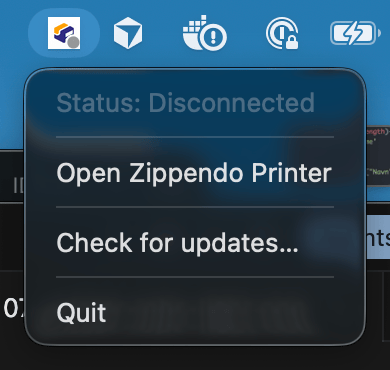
Tooltip **Zippendo Printer**, or **Zippendo Printer - Connected** / **Connecting...** / **Disconnected** / **Connection Error**. Menu:
| Item | Notes |
| ---------------------------------------- | ------------------------------------------------------------------------------------------------ |
| **Status: …** | Disabled label — same four states as the dashboard (tray uses **Connecting...** with three dots) |
| **Open Zippendo Printer** | Shows the window |
| **Check for updates…** | Manual update check |
| **Restart & install update v\{version}** | Only after an update has downloaded |
| **Quit** | Stops the client. Jobs will queue as **Pending** until you start it again |
Double-click the tray icon to show or hide the window.
### Connection status
The status row is the WebSocket to Zippendo, not the USB/network cable to the device.
| Status | Meaning |
| -------------------- | ------------------------------------------- |
| **Connected** | Ready to receive jobs |
| **Connecting…** | Establishing the socket |
| **Connection Error** | Failed to connect. Will retry automatically |
| **Disconnected** | Not connected |
Subtitle: **\{n} active printer(s)** and, when any are **ACTIVE**, **· \{n} connected** (local OS printers the app currently sees as idle/ready).
**Reconnect** appears when status is **Disconnected** or **Connection Error**. It stays disabled until at least one printer is **Active**. Error if connect fails: **Failed to connect**.
The app reconnects on its own after a drop (1s, 2s, 4s, … up to 60s) and does not stop until you **Sign Out**. Closing the window hides it to the tray (it keeps running).
### System tray
Tooltip **Zippendo Printer**, or **Zippendo Printer - Connected** / **Connecting...** / **Disconnected** / **Connection Error**. Menu:
| Item | Notes |
| ---------------------------------------- | ------------------------------------------------------------------------------------------------ |
| **Status: …** | Disabled label — same four states as the dashboard (tray uses **Connecting...** with three dots) |
| **Open Zippendo Printer** | Shows the window |
| **Check for updates…** | Manual update check |
| **Restart & install update v\{version}** | Only after an update has downloaded |
| **Quit** | Stops the client. Jobs will queue as **Pending** until you start it again |
Double-click the tray icon to show or hide the window.
 ## Add a printer
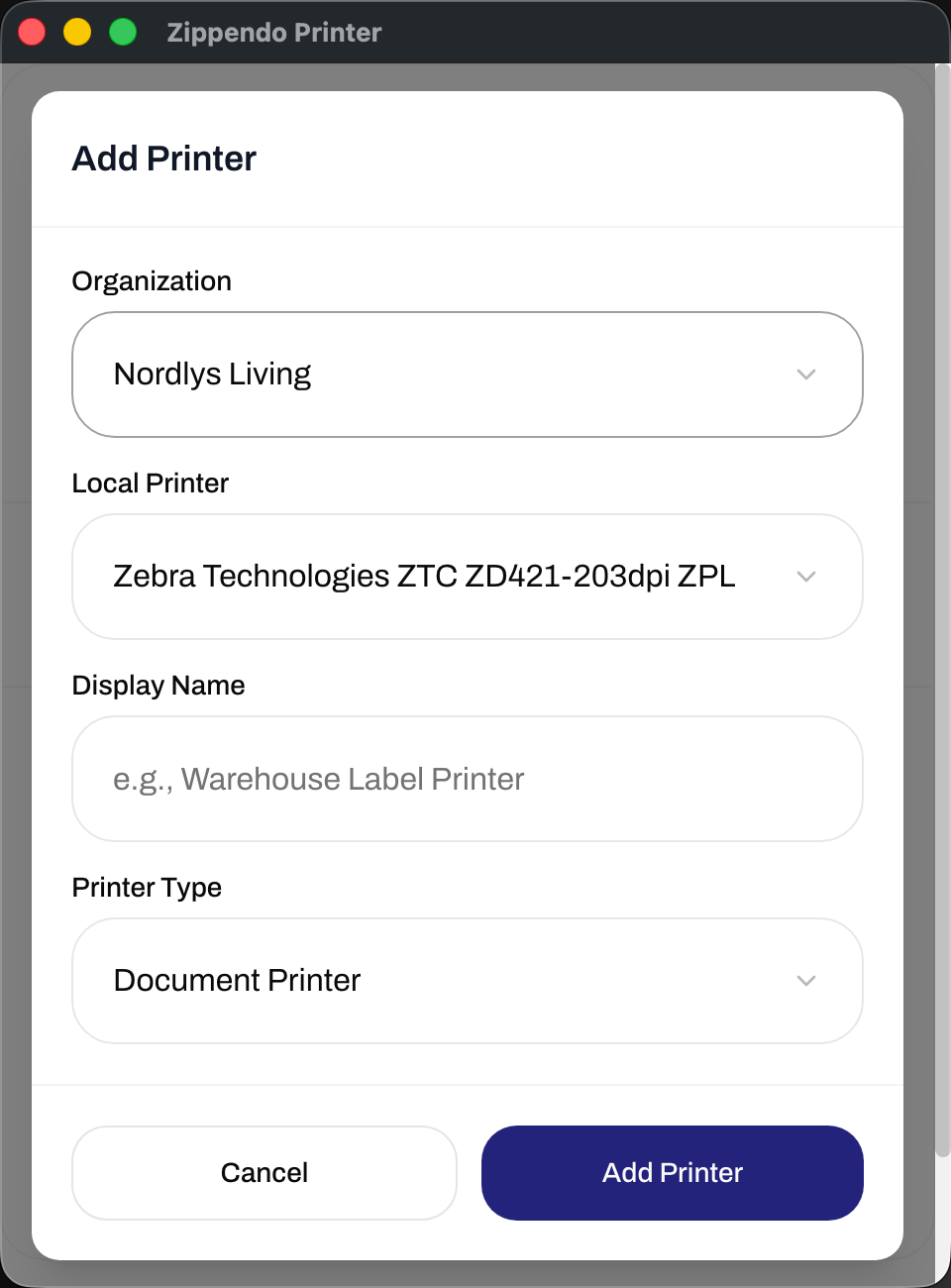
**+ Add Printer** or **Add Your First Printer** opens **Add Printer**. Every field is required — empty submit shows **Please fill in all fields**. Failures: **Failed to add printer**, **Failed to discover printers**.
| Field | Control | Options / placeholder |
| ----------------- | ------- | -------------------------------------------------------------------------------------------------------------------------------------------------------------- |
| **Organization** | Select | **Select organization…** — every org the signed-in user can access |
| **Local Printer** | Select | **Select printer…** — printers the OS reports. The OS default is marked **(Default)**. While scanning: **Discovering printers…**. Empty: **No printers found** |
| **Display Name** | Text | Placeholder **e.g., Warehouse Label Printer** — this is the name on web **Printers** |
| **Printer Type** | Select | **Document Printer** (default) or **Label Printer** |
Actions: **Cancel**, **Add Printer** (busy: **Adding…**).
## Add a printer
**+ Add Printer** or **Add Your First Printer** opens **Add Printer**. Every field is required — empty submit shows **Please fill in all fields**. Failures: **Failed to add printer**, **Failed to discover printers**.
| Field | Control | Options / placeholder |
| ----------------- | ------- | -------------------------------------------------------------------------------------------------------------------------------------------------------------- |
| **Organization** | Select | **Select organization…** — every org the signed-in user can access |
| **Local Printer** | Select | **Select printer…** — printers the OS reports. The OS default is marked **(Default)**. While scanning: **Discovering printers…**. Empty: **No printers found** |
| **Display Name** | Text | Placeholder **e.g., Warehouse Label Printer** — this is the name on web **Printers** |
| **Printer Type** | Select | **Document Printer** (default) or **Label Printer** |
Actions: **Cancel**, **Add Printer** (busy: **Adding…**).
 Use **Label Printer** for shipping labels (thermal / ZPL). Use **Document Printer** for packing lists and invoices (usually A4). The same OS printer can be registered once per type on this client — for example as both Label and Document, but not twice as Label.
Printer names must be unique in the organization. **Local Printer** is stored as **OS Printer Name** on the web and cannot be changed there.
## Pending approval vs Active vs Offline
A new printer is **Pending Approval** until someone uses **Approve** on web **Printers**. The desktop app shows a yellow banner **\{n} printer(s) pending approval in Zippendo.** and the row **Waiting for admin approval**. The OS name and type (`LABEL` / `DOCUMENT`) sit under the display name.
Use **Label Printer** for shipping labels (thermal / ZPL). Use **Document Printer** for packing lists and invoices (usually A4). The same OS printer can be registered once per type on this client — for example as both Label and Document, but not twice as Label.
Printer names must be unique in the organization. **Local Printer** is stored as **OS Printer Name** on the web and cannot be changed there.
## Pending approval vs Active vs Offline
A new printer is **Pending Approval** until someone uses **Approve** on web **Printers**. The desktop app shows a yellow banner **\{n} printer(s) pending approval in Zippendo.** and the row **Waiting for admin approval**. The OS name and type (`LABEL` / `DOCUMENT`) sit under the display name.
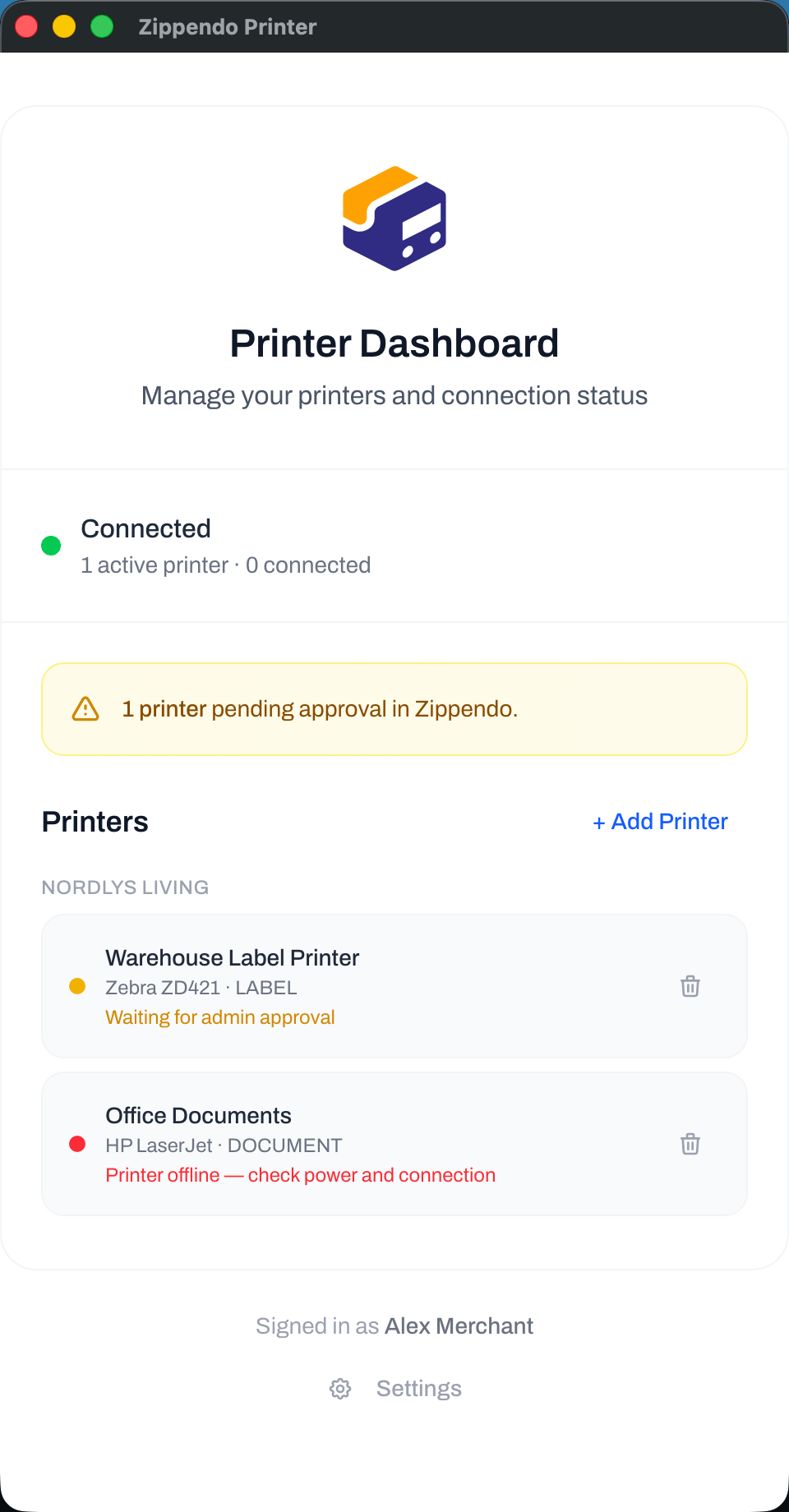 Row status dots in the desktop app:
| Dot | Meaning |
| ------ | ---------------------------------------------------------------------------------------------- |
| Yellow | **Waiting for admin approval** |
| Green | **Active** and the local OS printer is found |
| Red | **Active** but the local printer is missing — **Printer offline — check power and connection** |
| Gray | **Disabled** |
Trash icon title **Remove printer**. Confirm: **Remove printer "\{name}"?** Failure: **Failed to remove printer**.
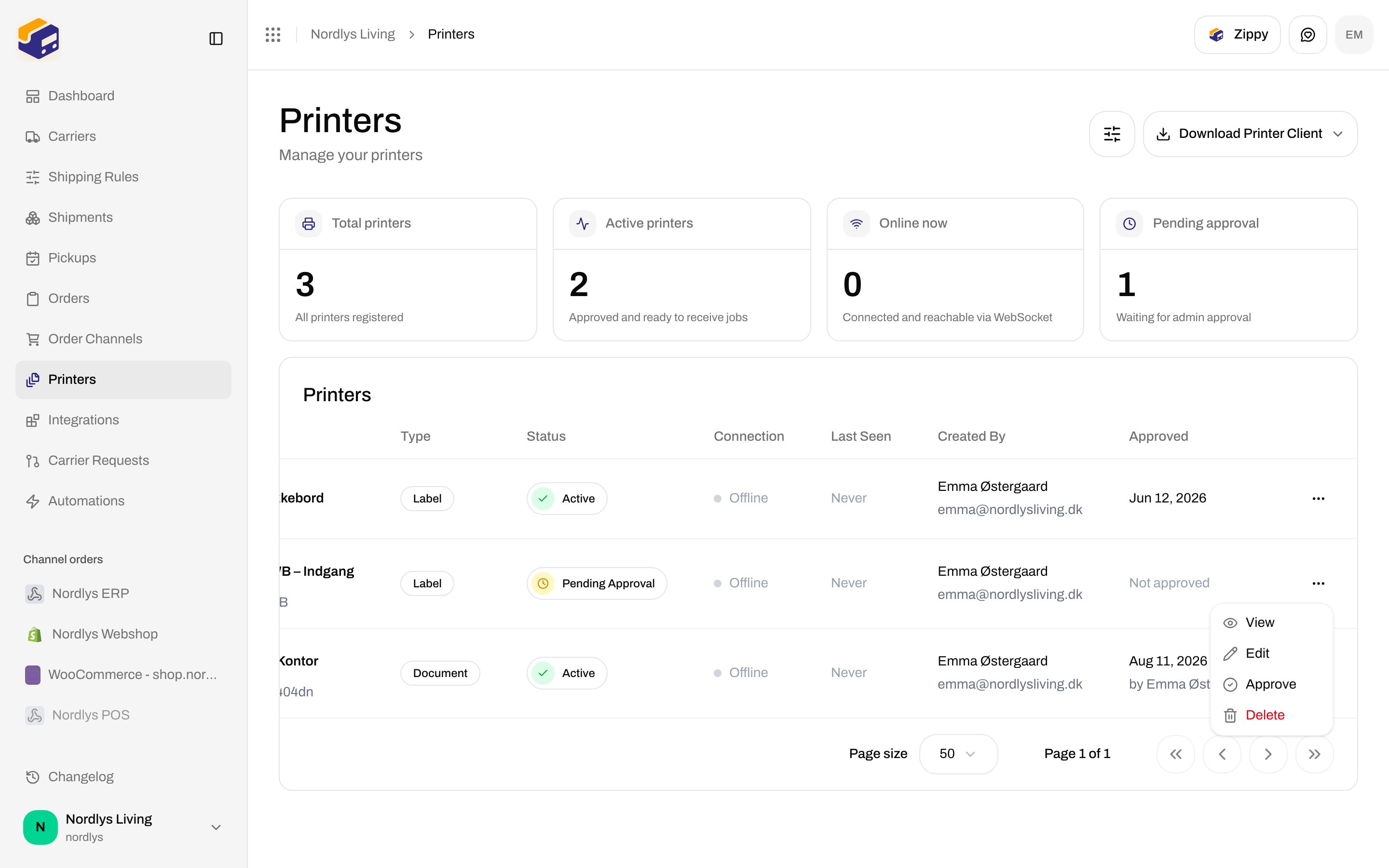
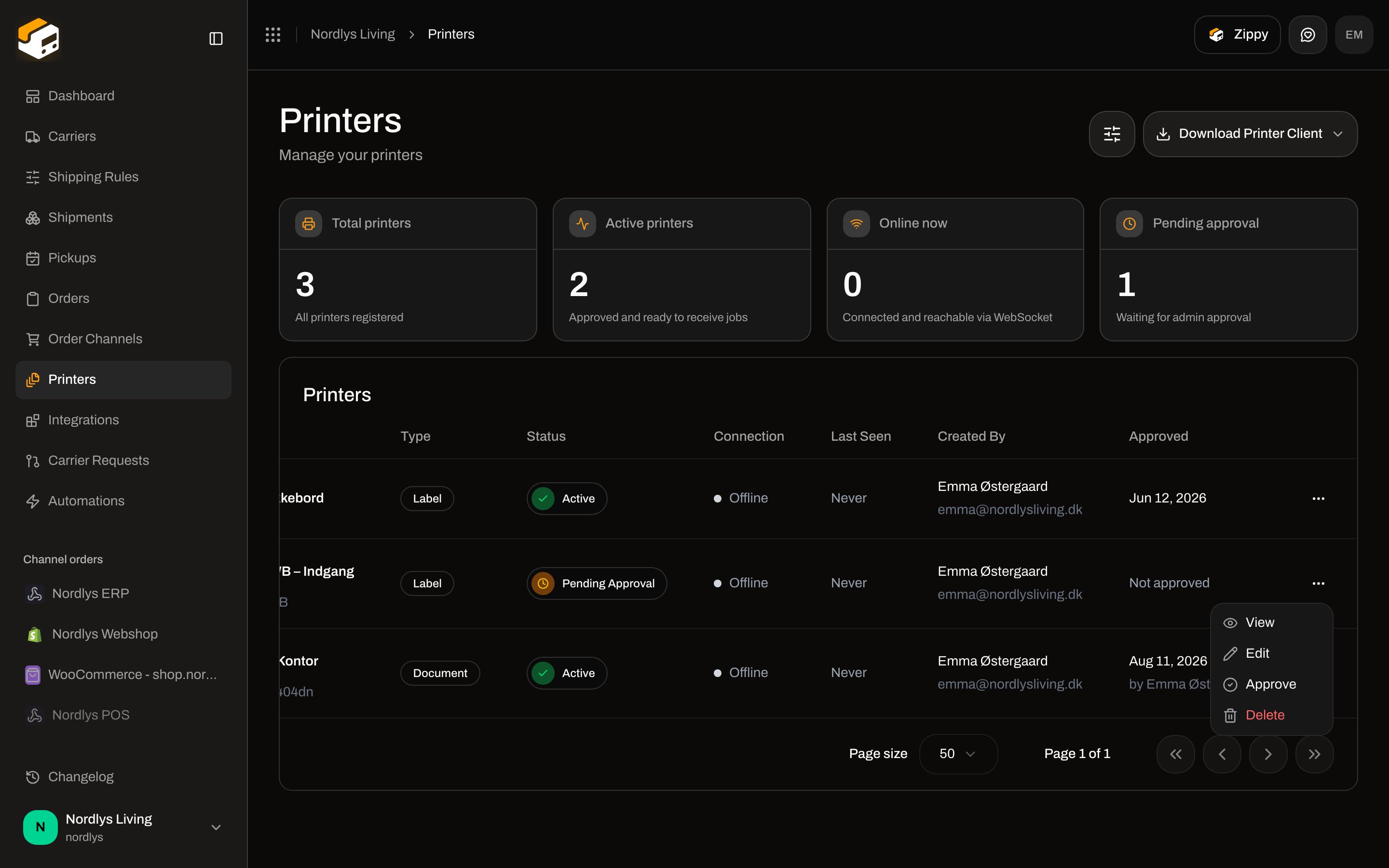
On the web list, **Status** (**Active** / **Pending Approval** / **Disabled**) is independent of **Connection** (**Online** / **Offline**). A printer can be **Active** and **Offline**: approved, but this app is not connected. **Approve** is only in the row menu while status is **Pending Approval**. Toast: **Printer approved successfully**.
Row status dots in the desktop app:
| Dot | Meaning |
| ------ | ---------------------------------------------------------------------------------------------- |
| Yellow | **Waiting for admin approval** |
| Green | **Active** and the local OS printer is found |
| Red | **Active** but the local printer is missing — **Printer offline — check power and connection** |
| Gray | **Disabled** |
Trash icon title **Remove printer**. Confirm: **Remove printer "\{name}"?** Failure: **Failed to remove printer**.
On the web list, **Status** (**Active** / **Pending Approval** / **Disabled**) is independent of **Connection** (**Online** / **Offline**). A printer can be **Active** and **Offline**: approved, but this app is not connected. **Approve** is only in the row menu while status is **Pending Approval**. Toast: **Printer approved successfully**.
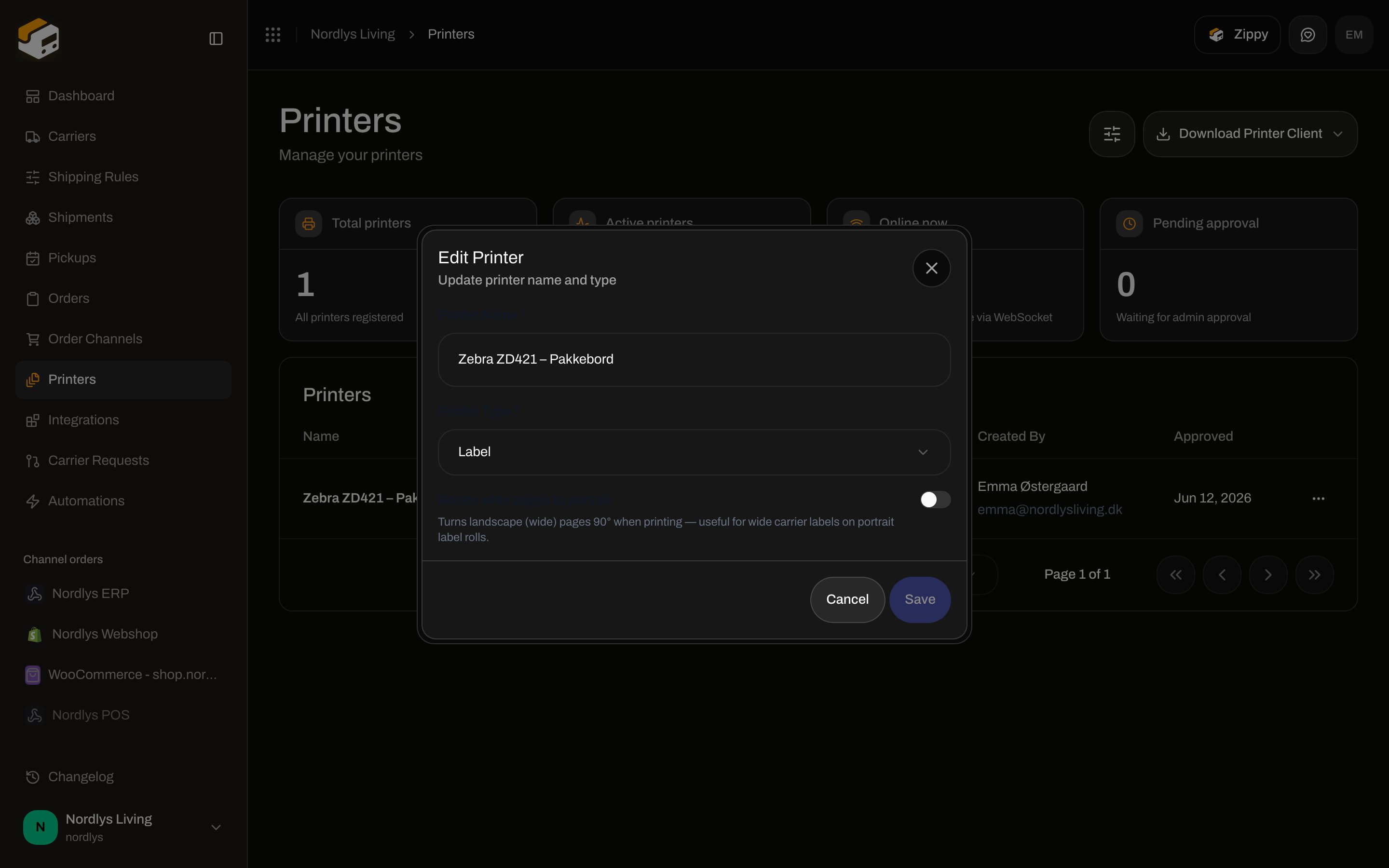
 ### Rotation (web only)
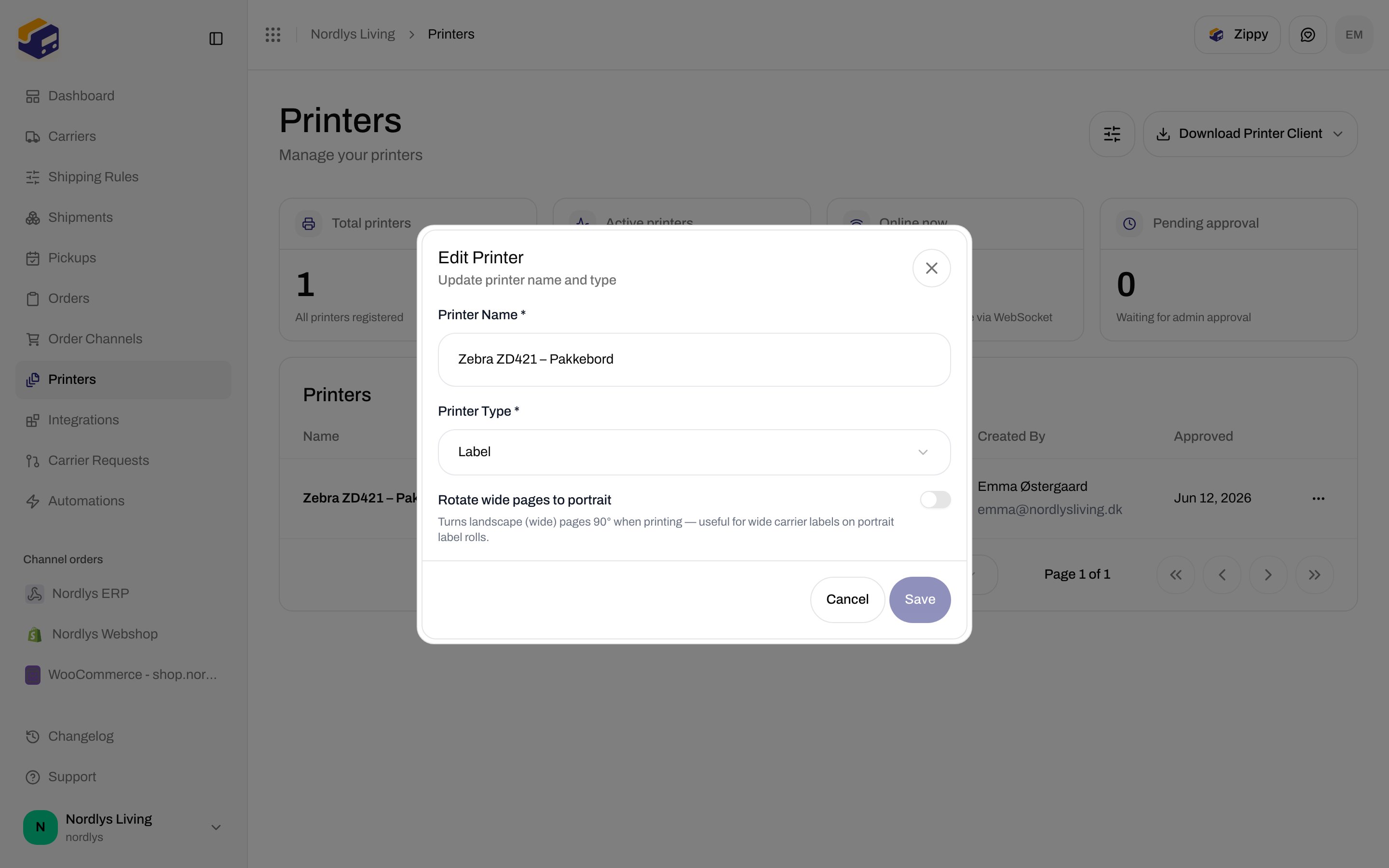
There is no rotate control in **Zippendo Printer**. After the printer is **Active**, **Edit** it on **Printers** and turn on **Rotate wide pages to portrait**. Helper: **Turns landscape (wide) pages 90° when printing — useful for wide carrier labels on portrait label rolls.** **OS Printer Name** is read-only.
### Rotation (web only)
There is no rotate control in **Zippendo Printer**. After the printer is **Active**, **Edit** it on **Printers** and turn on **Rotate wide pages to portrait**. Helper: **Turns landscape (wide) pages 90° when printing — useful for wide carrier labels on portrait label rolls.** **OS Printer Name** is read-only.
 ## Print jobs and a test print
**Printer Dashboard** does not list jobs and has no **Test Print** button. Jobs are created from a shipment **Documents** tab (**Print** / **Print All**) or from auto-print when you **send**. Open **Printers** → the printer → **Jobs**.
Stats: **Pending**, **Processing**, **Failed**, **Completed**. Retry a **Failed** job from that list. Full columns and toasts: [Printer jobs](/docs/how-to/printer-jobs).
## Print jobs and a test print
**Printer Dashboard** does not list jobs and has no **Test Print** button. Jobs are created from a shipment **Documents** tab (**Print** / **Print All**) or from auto-print when you **send**. Open **Printers** → the printer → **Jobs**.
Stats: **Pending**, **Processing**, **Failed**, **Completed**. Retry a **Failed** job from that list. Full columns and toasts: [Printer jobs](/docs/how-to/printer-jobs).
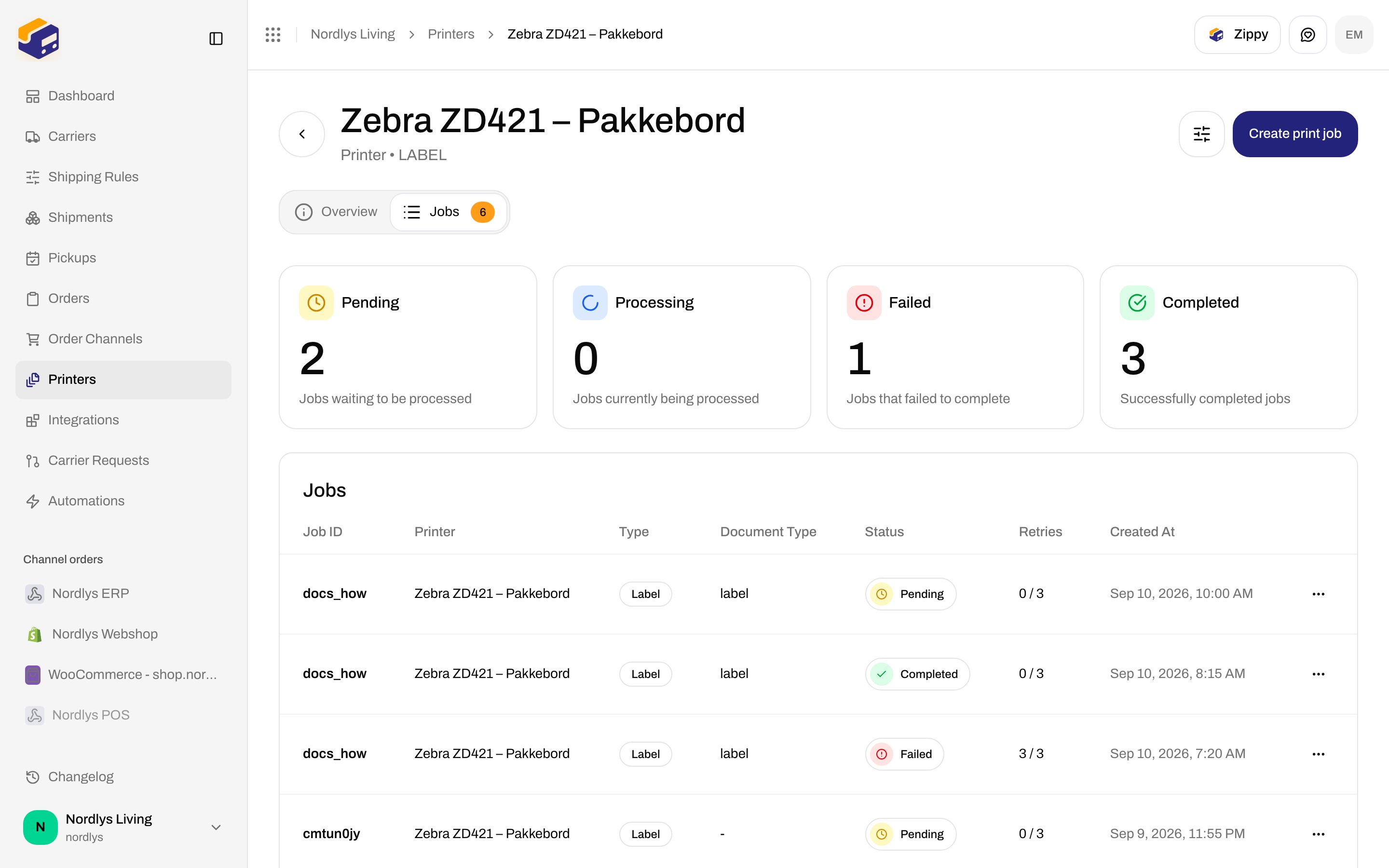
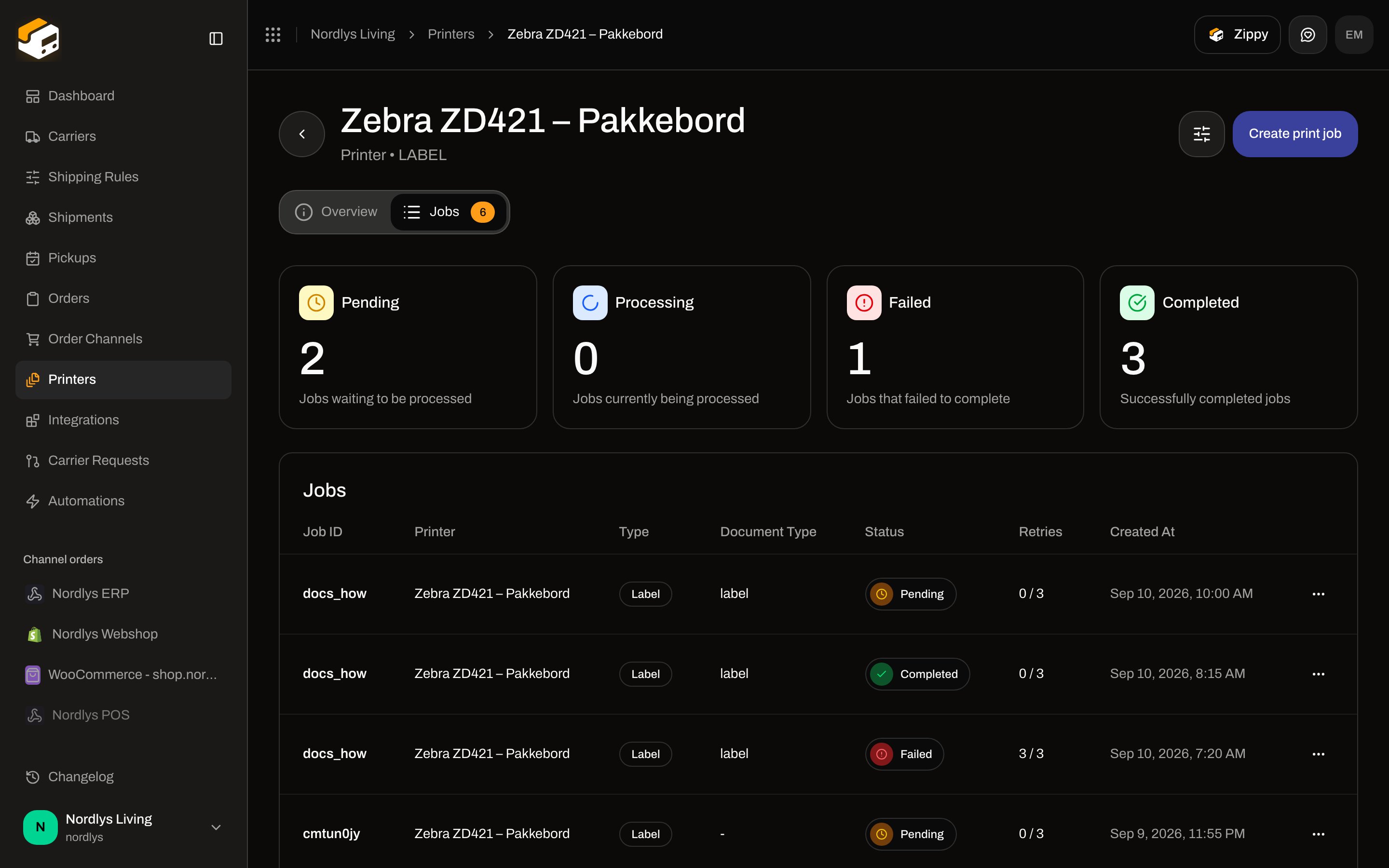 To confirm the path end to end: send a shipment (or **Print All** on **Documents**), then watch the job leave **Pending** while this app is **Connected** and the row is green.
## Auto-print
The desktop app does not have an auto-print toggle. Auto-print is configured on a shipping rule (**Auto-Print Labels** / **Auto-Print Documents**) or on a shipment with no rule (**Printer Settings**). When you **send**, Zippendo queues jobs to an **Active** printer; this app must be **Connected** for them to print.
Setup: [Auto-print labels and documents](/docs/how-to/auto-print).
## Settings
Footer **Settings**. **Back to Dashboard** returns to **Printer Dashboard**. **Device** (**Client ID**) and **About** (**Version**, **Platform**) sit below **Language** — scroll the desktop app window to see them.
| Section | Fields |
| ------------ | ------------------------------------------------------------------------------------------------------------------------------------------------------------------------------------------------------------- |
| **Account** | **Organization** / **Organizations** (names of orgs this client can use). **Sign Out** (busy: **Signing out…**). Failure: **Logout failed** |
| **Server** | **Server URL** (placeholder **[https://api.zippendo.com](https://api.zippendo.com)**). **Save** (busy: **Saving…**). Empty: **Server URL cannot be empty**. Failure: **Failed to save server URL** |
| **Language** | **Display language** — **System default**, **English**, **Dansk**. **System default** follows the OS. The closed control can look empty when **System default** is selected; open it to see the three options |
| **Device** | **Client ID** (read-only UUID). Helper: **This ID uniquely identifies this device** |
| **About** | **Version**, **Platform** (the device platform string) |
To confirm the path end to end: send a shipment (or **Print All** on **Documents**), then watch the job leave **Pending** while this app is **Connected** and the row is green.
## Auto-print
The desktop app does not have an auto-print toggle. Auto-print is configured on a shipping rule (**Auto-Print Labels** / **Auto-Print Documents**) or on a shipment with no rule (**Printer Settings**). When you **send**, Zippendo queues jobs to an **Active** printer; this app must be **Connected** for them to print.
Setup: [Auto-print labels and documents](/docs/how-to/auto-print).
## Settings
Footer **Settings**. **Back to Dashboard** returns to **Printer Dashboard**. **Device** (**Client ID**) and **About** (**Version**, **Platform**) sit below **Language** — scroll the desktop app window to see them.
| Section | Fields |
| ------------ | ------------------------------------------------------------------------------------------------------------------------------------------------------------------------------------------------------------- |
| **Account** | **Organization** / **Organizations** (names of orgs this client can use). **Sign Out** (busy: **Signing out…**). Failure: **Logout failed** |
| **Server** | **Server URL** (placeholder **[https://api.zippendo.com](https://api.zippendo.com)**). **Save** (busy: **Saving…**). Empty: **Server URL cannot be empty**. Failure: **Failed to save server URL** |
| **Language** | **Display language** — **System default**, **English**, **Dansk**. **System default** follows the OS. The closed control can look empty when **System default** is selected; open it to see the three options |
| **Device** | **Client ID** (read-only UUID). Helper: **This ID uniquely identifies this device** |
| **About** | **Version**, **Platform** (the device platform string) |
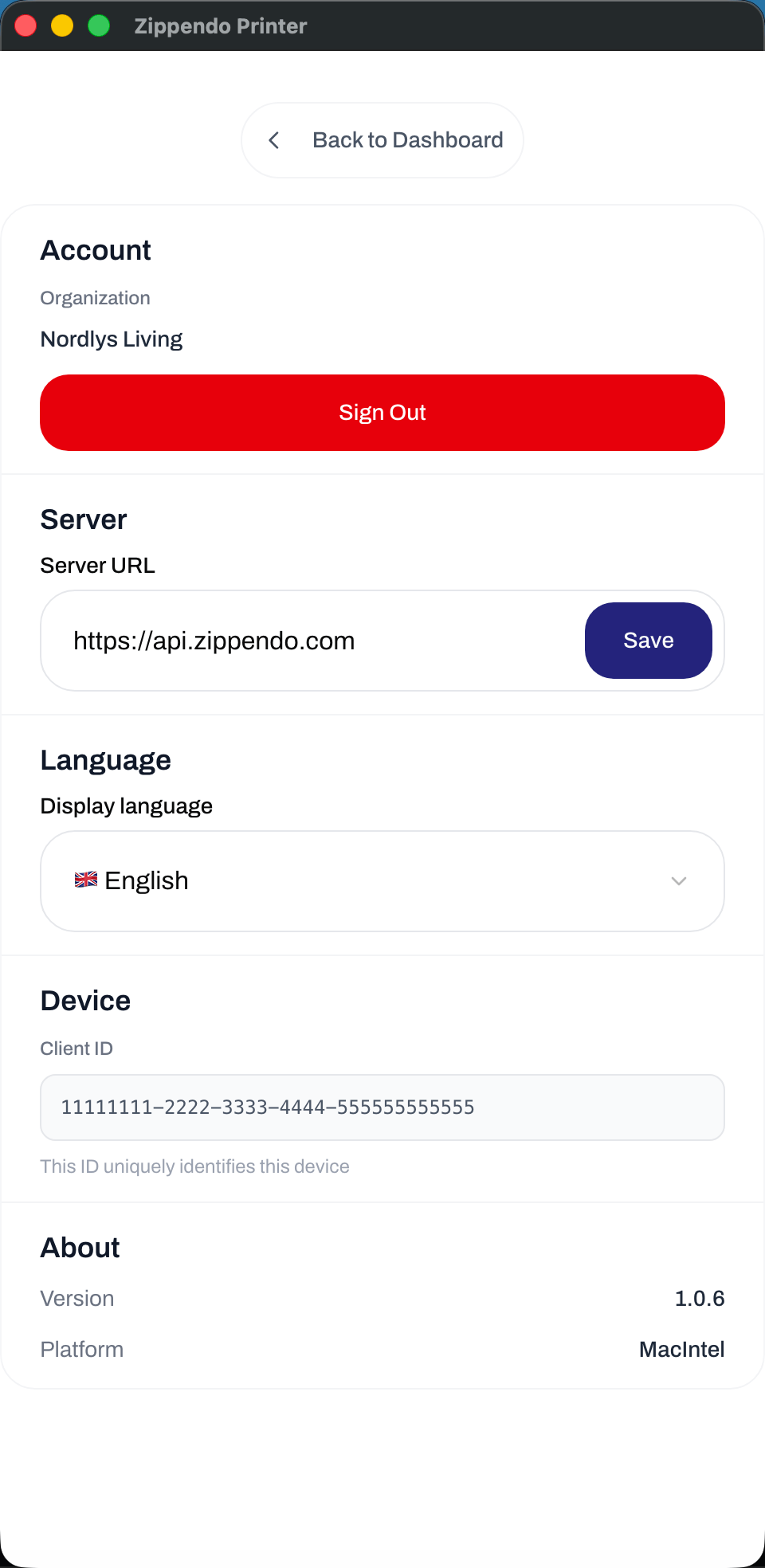 **Sign Out** disconnects the WebSocket and returns to **Welcome to Zippendo**. The **Client ID** is kept so printers registered from this machine can be restored after you sign in again.
## Troubleshooting
| Symptom | What to check |
| -------------------------------------------------- | --------------------------------------------------------------------------------------------------------------------------------------------------------------------------------------------------------------------------------- |
| Web **Connection** stays **Offline** | **Zippendo Printer** must be running (tray icon) and show **Connected**. Quit from the tray fully stops the socket |
| Desktop **Disconnected** / **Connection Error** | Click **Reconnect** if you have an **Active** printer. Otherwise wait — the app retries with backoff up to 60s. Confirm **Server URL** is **[https://api.zippendo.com](https://api.zippendo.com)** unless you were told otherwise |
| **Printer offline — check power and connection** | The OS no longer reports that **Local Printer**. Power, cable/Wi-Fi, and the printer queue in macOS **Printers & Scanners** / Windows **Printers & scanners** |
| Jobs stuck **Pending** | Printer **Status** must be **Active** (not **Pending Approval** or **Disabled**) and this app **Connected**. Pending jobs wait until the client is online; they are not sent to the browser print dialog |
| **Waiting for admin approval** never clears | On **Printers**, row menu **Approve**. The desktop app refreshes pending printers about every 30 seconds |
| Sign-in never leaves **Waiting for Authorization** | Finish **Authorize Printer Client** in the browser tab that opened. If you closed it, **Cancel** and **Sign in with Browser** again. Expired sessions: **Authorization session expired** |
| **No printers found** | The OS has no printers. Add one in system settings, then reopen **Add Printer** |
More: [Printer offline or not printing](/docs/knowledge-base/printer-offline-or-not-printing).
## Next
Web Printers list, rotation, and Print All.
Every Authorize Printer Client browser state.
Print labels and documents when a shipment is sent.
Pending, processing, failed, and completed jobs — retry and delete.
**Sign Out** disconnects the WebSocket and returns to **Welcome to Zippendo**. The **Client ID** is kept so printers registered from this machine can be restored after you sign in again.
## Troubleshooting
| Symptom | What to check |
| -------------------------------------------------- | --------------------------------------------------------------------------------------------------------------------------------------------------------------------------------------------------------------------------------- |
| Web **Connection** stays **Offline** | **Zippendo Printer** must be running (tray icon) and show **Connected**. Quit from the tray fully stops the socket |
| Desktop **Disconnected** / **Connection Error** | Click **Reconnect** if you have an **Active** printer. Otherwise wait — the app retries with backoff up to 60s. Confirm **Server URL** is **[https://api.zippendo.com](https://api.zippendo.com)** unless you were told otherwise |
| **Printer offline — check power and connection** | The OS no longer reports that **Local Printer**. Power, cable/Wi-Fi, and the printer queue in macOS **Printers & Scanners** / Windows **Printers & scanners** |
| Jobs stuck **Pending** | Printer **Status** must be **Active** (not **Pending Approval** or **Disabled**) and this app **Connected**. Pending jobs wait until the client is online; they are not sent to the browser print dialog |
| **Waiting for admin approval** never clears | On **Printers**, row menu **Approve**. The desktop app refreshes pending printers about every 30 seconds |
| Sign-in never leaves **Waiting for Authorization** | Finish **Authorize Printer Client** in the browser tab that opened. If you closed it, **Cancel** and **Sign in with Browser** again. Expired sessions: **Authorization session expired** |
| **No printers found** | The OS has no printers. Add one in system settings, then reopen **Add Printer** |
More: [Printer offline or not printing](/docs/knowledge-base/printer-offline-or-not-printing).
## Next
Web Printers list, rotation, and Print All.
Every Authorize Printer Client browser state.
Print labels and documents when a shipment is sent.
Pending, processing, failed, and completed jobs — retry and delete.