> ## Documentation Index
> Fetch the complete documentation index at: https://www.zippendo.com/docs/llms.txt
> Use this file to discover all available pages before exploring further.
# Send a shipment
> Book a pending shipment with Send Shipment — what to check first, credits, Retry Send, Request Logs, and Send order.
**Create Shipment** only saves a **Pending** shipment. **Send Shipment** books it with the carrier, creates the **Label**, and uses a billable shipment on your plan. There is **no confirmation dialog** and no extra form: you review the overview, then click the header button.
Walkthrough with printing: [Labels and printing](/docs/tutorials/labels-printing). Creating the pending row: [Create a shipment](/docs/tutorials/create-a-shipment).
**Send Shipment** and **Send order** book a live label on your carrier account and count toward **Shipments this period**. Do not send until addresses, weight, product, and (if required) service point are correct. You cannot edit a shipment the same way after it is **Dispatched**.
## Send Shipment vs Create Shipment
| | **Create Shipment** | **Send Shipment** |
| -------------------- | ----------------------------------------------- | ---------------------------------------- |
| Where | Create form, or order **Create Shipment** modal | Pending (or **Error**) shipment detail |
| What it does | Writes the shipment as **Pending** | Books the carrier, generates documents |
| Credits | No | Yes — one included (or overage) shipment |
| Extra fields | Full create form | None — the click is the confirm |
| Success toast | **Shipment created successfully** | **Shipment sent successfully** |
| Button while working | **Creating…** | **Sending…** |
## What to confirm before you send
Open **Shipments**, click the **Pending** row. Header action: **Send Shipment**.
Review **Overview** (there is no second step):
**Shipment Information**
| Field | Meaning |
| ----------------- | ----------------------------------------------------------- |
| **Reference** | Customer-facing id |
| **Status** | Must be **Pending** (or **Error** for retry) |
| **Type** | **Outbound** or **Inbound** |
| **Term of Trade** | Incoterm (default **DAP**) — printed with customs documents |
**Carrier Information** — **Carrier**, **Product**, **Services** (pencil while pending/draft/error). [Apply a shipping rule](/docs/how-to/apply-a-shipping-rule) if the **Shipping rule** card still says **Manual setup**.
**Addresses** — **Sender**, **Receiver**, and **Service Point** when the product needs one. [Shipment parties](/docs/how-to/shipment-parties), [Pick a service point](/docs/how-to/pick-a-service-point).
**Package Details** — weight, dimensions, order lines (including **Country of origin** and **Tariff**). [Customs and documents](/docs/how-to/customs-and-documents).
**Printer settings** / **Shipping rule** — only on **Draft** or **Pending**. Optional; labels still generate without a printer.
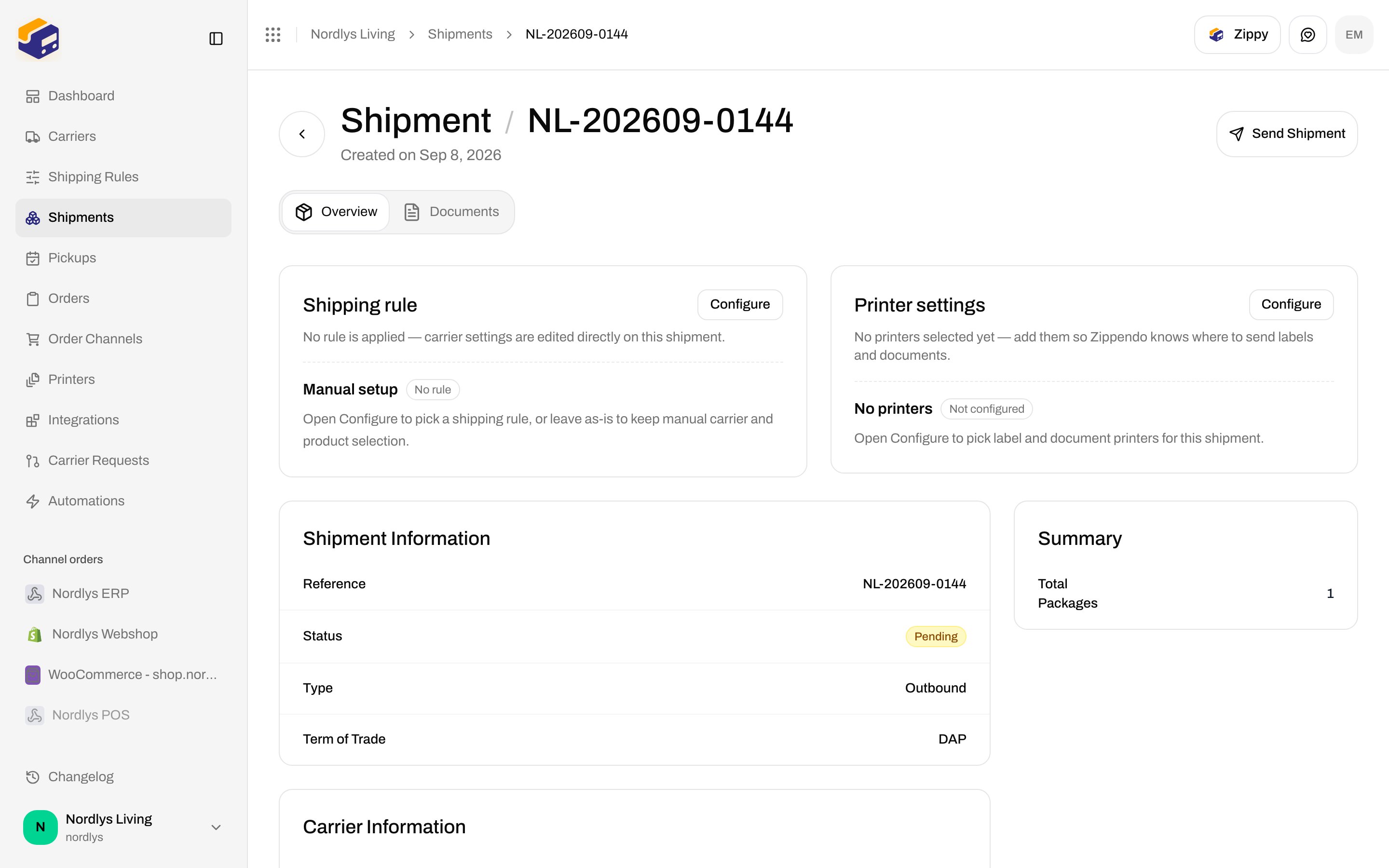
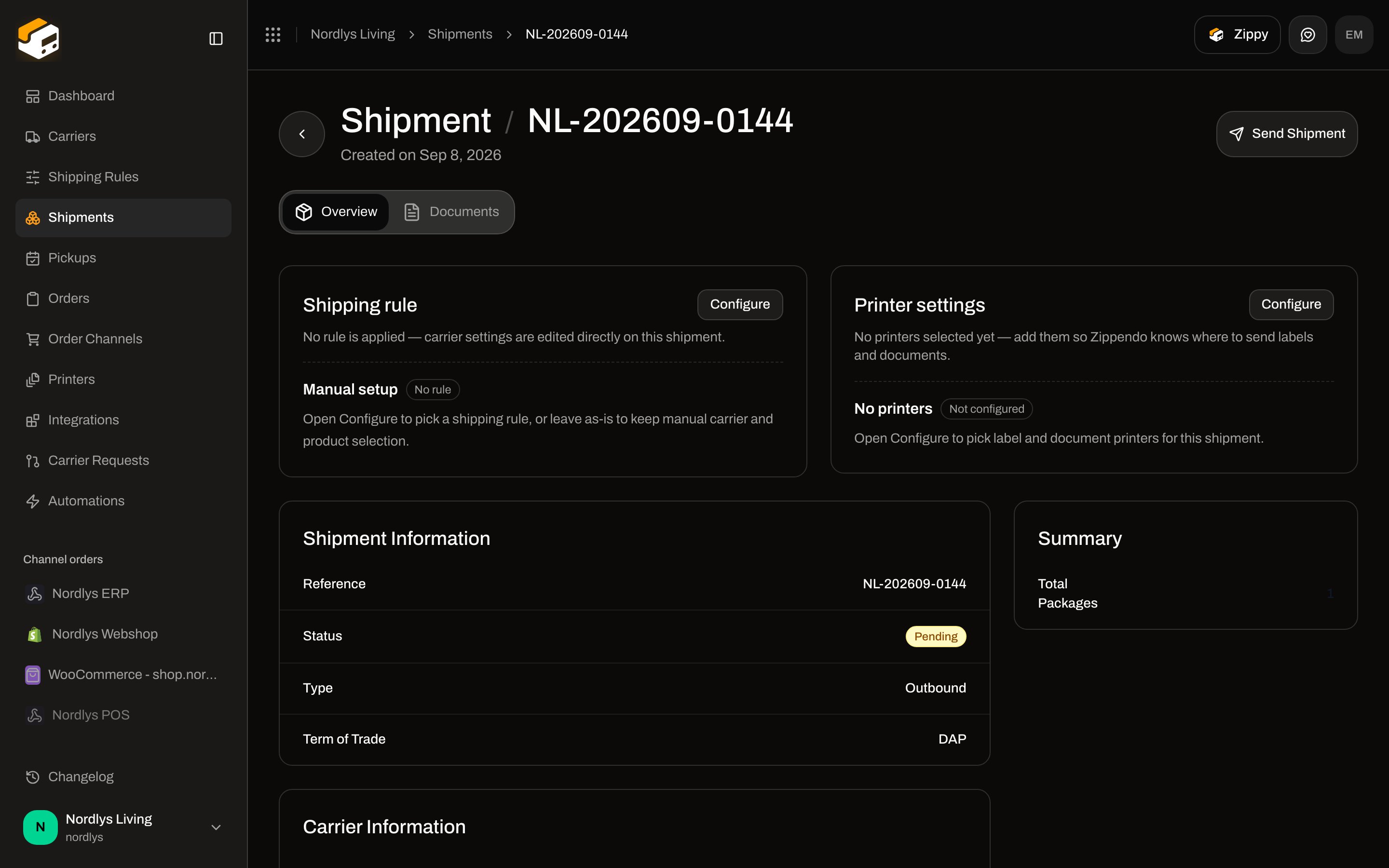 Status must be **Pending**. **Draft** is not sendable until it is pending.
Parties, product, parcels, printers, service point. Fix data while you can still edit.
The button reads **Sending…** and is disabled while the request runs. On success: toast **Shipment sent successfully**, status **Dispatched**, **Send Shipment** disappears, **Documents** gets a **Label**.
## When the button shows or hides
| Status | Header action |
| -------------------------------------------------------------------------------------------- | ----------------- |
| **Pending** | **Send Shipment** |
| **Error** | **Retry Send** |
| **Draft**, **Processing**, **Dispatched**, **Partly Dispatched**, **On Hold**, **Cancelled** | No send button |
**Create Return Shipment** can appear on a **Dispatched** **Outbound** shipment when the rule has a return rule and auto-create is off — that is not send. [Inbound and returns](/docs/how-to/inbound-and-returns).
## Send order (batch)
When an order already has shipments, the order header action is **Send order** (not **Create Shipment**). It books every **Pending** or **Error** shipment on that order in **one** request.
* Disabled with tooltip **No shipments ready to send** when nothing is sendable
* Label while working: **Sending…**
Toasts:
| Result | Toast |
| ---------------------- | ---------------------------------------------------------------------------------- |
| All sent | **{{count}} shipment sent** / **{{count}} shipments sent** |
| Mix of sent and failed | **{{sent}} sent, {{failed}} failed** |
| Some skipped | **{{sent}} sent, {{failed}} failed, {{skipped}} not attempted — send those again** |
| All failed | Carrier detail, or **Failed to send shipments** |
Each shipment **card** also has **Send** / **Sending…** for a single row (`orders.shipment-send`). Same booking path as **Send Shipment**.
Status must be **Pending**. **Draft** is not sendable until it is pending.
Parties, product, parcels, printers, service point. Fix data while you can still edit.
The button reads **Sending…** and is disabled while the request runs. On success: toast **Shipment sent successfully**, status **Dispatched**, **Send Shipment** disappears, **Documents** gets a **Label**.
## When the button shows or hides
| Status | Header action |
| -------------------------------------------------------------------------------------------- | ----------------- |
| **Pending** | **Send Shipment** |
| **Error** | **Retry Send** |
| **Draft**, **Processing**, **Dispatched**, **Partly Dispatched**, **On Hold**, **Cancelled** | No send button |
**Create Return Shipment** can appear on a **Dispatched** **Outbound** shipment when the rule has a return rule and auto-create is off — that is not send. [Inbound and returns](/docs/how-to/inbound-and-returns).
## Send order (batch)
When an order already has shipments, the order header action is **Send order** (not **Create Shipment**). It books every **Pending** or **Error** shipment on that order in **one** request.
* Disabled with tooltip **No shipments ready to send** when nothing is sendable
* Label while working: **Sending…**
Toasts:
| Result | Toast |
| ---------------------- | ---------------------------------------------------------------------------------- |
| All sent | **{{count}} shipment sent** / **{{count}} shipments sent** |
| Mix of sent and failed | **{{sent}} sent, {{failed}} failed** |
| Some skipped | **{{sent}} sent, {{failed}} failed, {{skipped}} not attempted — send those again** |
| All failed | Carrier detail, or **Failed to send shipments** |
Each shipment **card** also has **Send** / **Sending…** for a single row (`orders.shipment-send`). Same booking path as **Send Shipment**.
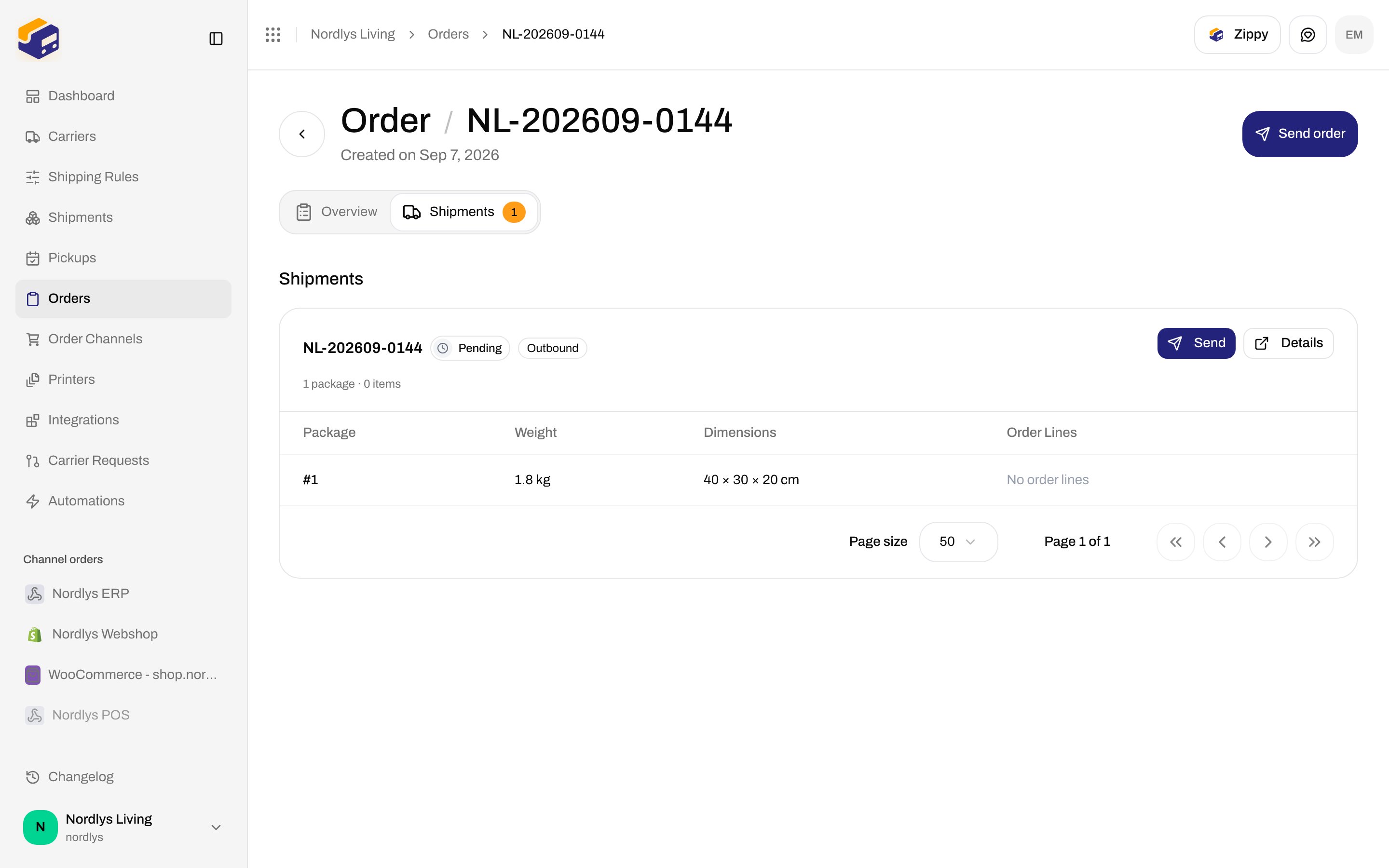
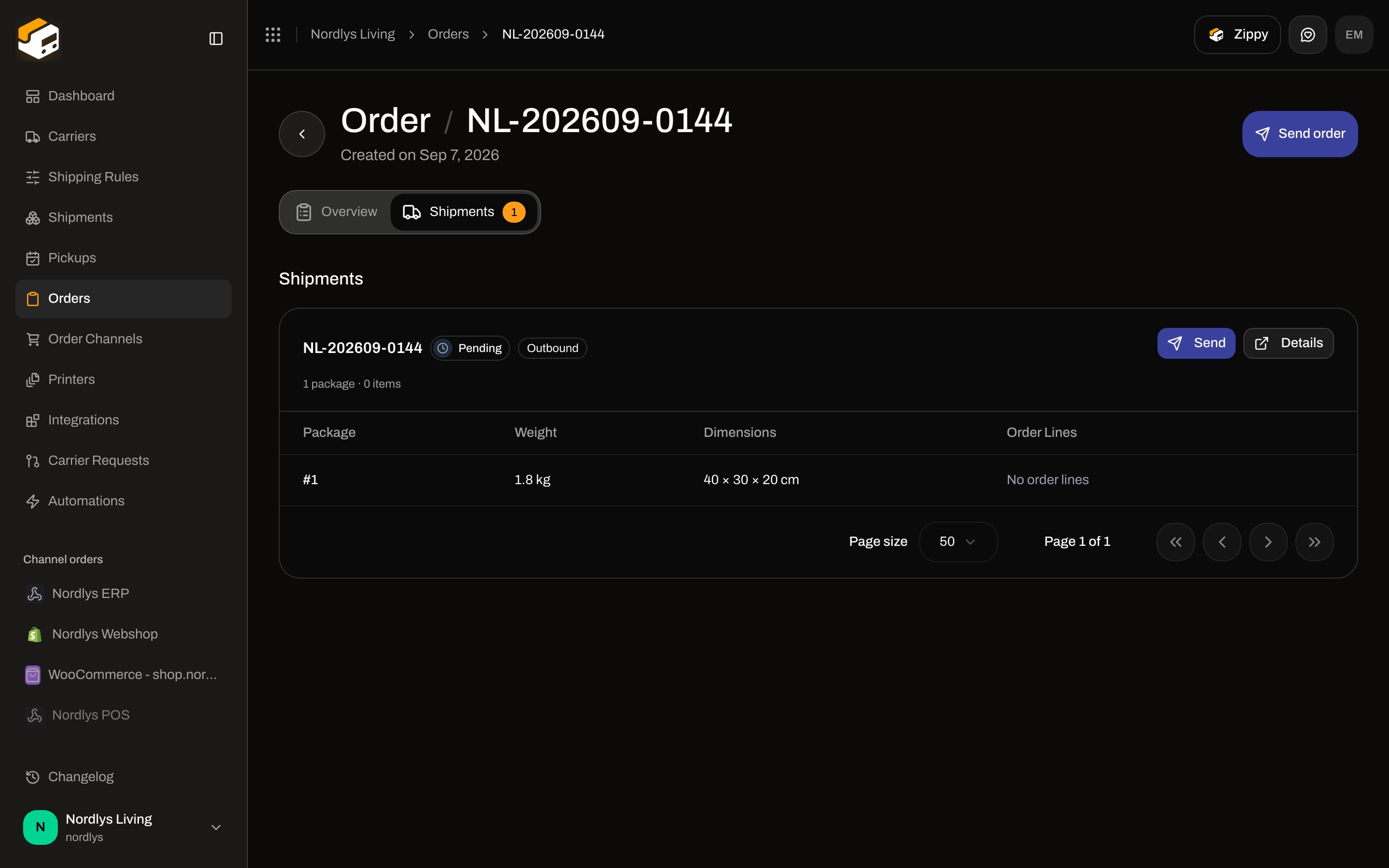 There is no separate “batch send” screen on the shipments list. Multi-send is **Send order** (or the public API batch send).
## Retry Send, errors, Request Logs
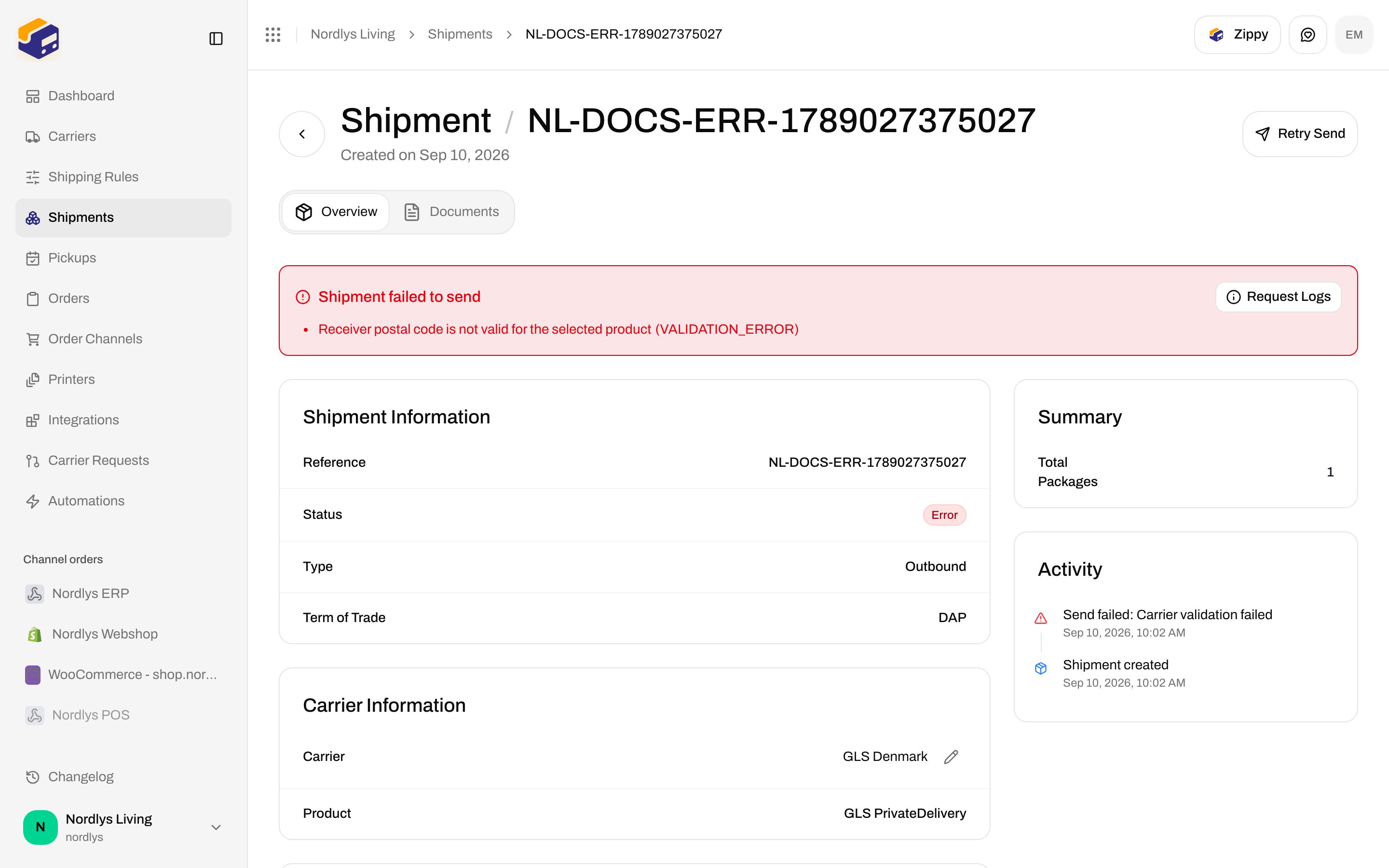
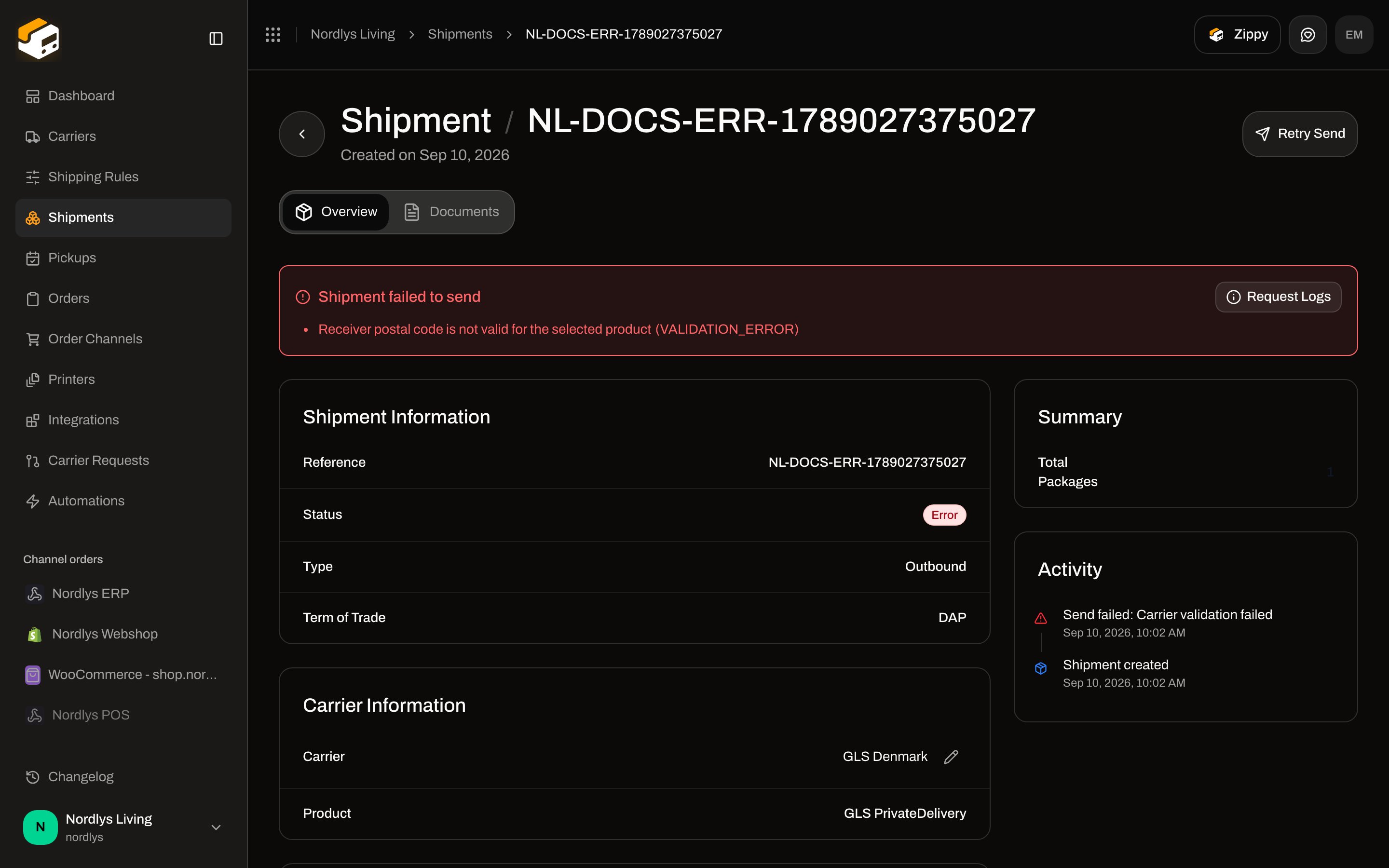
If the carrier rejects the booking, status becomes **Error**. Header: **Retry Send**. Banner title: **Shipment failed to send**.
Each error line is the localized code first (so “Invalid Refresh Token” from a carrier becomes a credential fix), then `(CODE)`, then the carrier’s own message underneath when it differs.
There is no separate “batch send” screen on the shipments list. Multi-send is **Send order** (or the public API batch send).
## Retry Send, errors, Request Logs
If the carrier rejects the booking, status becomes **Error**. Header: **Retry Send**. Banner title: **Shipment failed to send**.
Each error line is the localized code first (so “Invalid Refresh Token” from a carrier becomes a credential fix), then `(CODE)`, then the carrier’s own message underneath when it differs.
 Common send failures:
| Code / toast | What to do |
| ----------------------------------------------------------------------------------------------------------------------------- | -------------------------------------------------------------------------- |
| **Failed to send shipment** | Generic fallback |
| **This carrier product delivers to a service point — select a droppoint before sending.** | [Pick a service point](/docs/how-to/pick-a-service-point) |
| **The customs declaration is incomplete. Each item needs a description, a quantity, and a declared value greater than zero.** | Fill parcel lines — [Customs and documents](/docs/how-to/customs-and-documents) |
| **The carrier rejected your API credentials…** | [Carriers](/docs/tutorials/carriers) |
| **You have exceeded your plan limits. Please upgrade or remove excess items.** | Usage below; [Billing and usage](/docs/how-to/billing-and-usage) |
Fix the data, then **Retry Send**. A successful retry still uses a credit. Void/cancel-label is not on this screen — [Hold, cancel, or delete](/docs/how-to/hold-cancel-and-delete-shipments).
### Request Logs
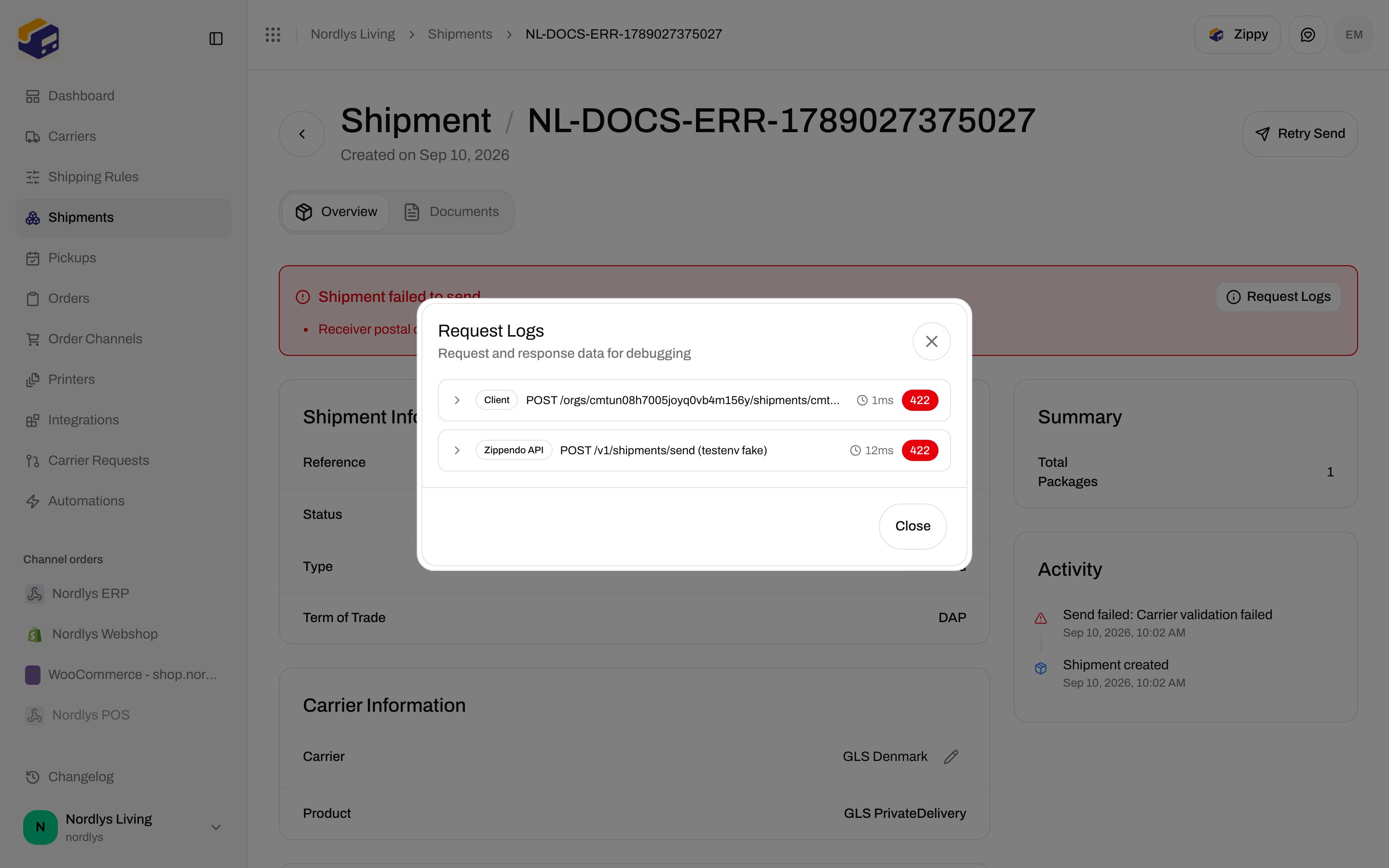
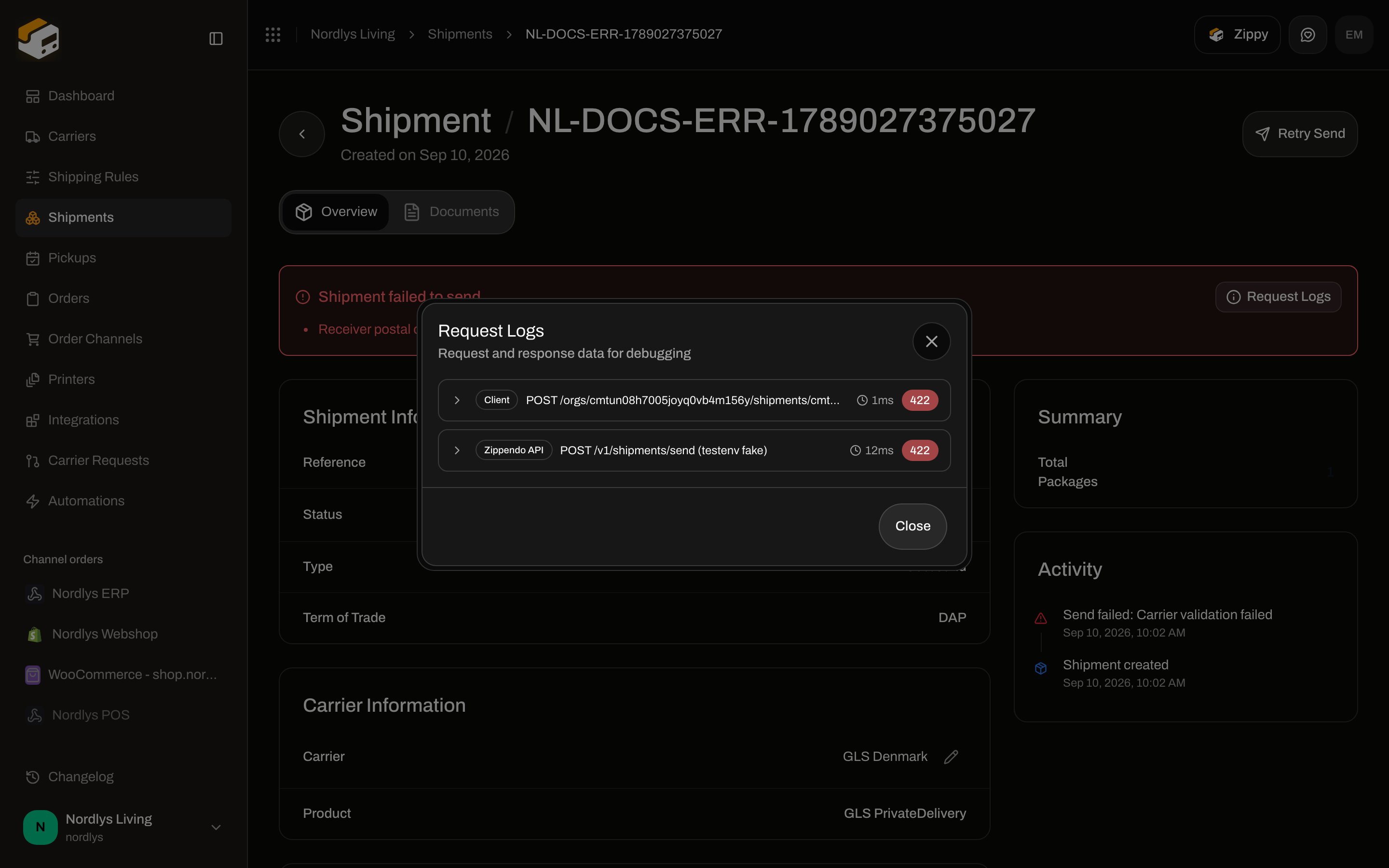
**Request Logs** sits on the error banner (and on the right of Overview when there are logs but no errors). Hidden when `logs` is empty.
Modal title: **Request Logs**. Subtitle: **Request and response data for debugging**. Close: **Close**.
Each entry:
| Chip | Direction |
| ---------------- | ------------------------- |
| **Client** | Client → Zippendo |
| **Zippendo API** | Zippendo → carrier server |
| **Carrier API** | Carrier server → carrier |
Plus endpoint, duration in ms, HTTP status badge (destructive if error or status ≥ 400). Expand for **Error**, **Request** JSON, **Response** JSON, and timestamp.
Common send failures:
| Code / toast | What to do |
| ----------------------------------------------------------------------------------------------------------------------------- | -------------------------------------------------------------------------- |
| **Failed to send shipment** | Generic fallback |
| **This carrier product delivers to a service point — select a droppoint before sending.** | [Pick a service point](/docs/how-to/pick-a-service-point) |
| **The customs declaration is incomplete. Each item needs a description, a quantity, and a declared value greater than zero.** | Fill parcel lines — [Customs and documents](/docs/how-to/customs-and-documents) |
| **The carrier rejected your API credentials…** | [Carriers](/docs/tutorials/carriers) |
| **You have exceeded your plan limits. Please upgrade or remove excess items.** | Usage below; [Billing and usage](/docs/how-to/billing-and-usage) |
Fix the data, then **Retry Send**. A successful retry still uses a credit. Void/cancel-label is not on this screen — [Hold, cancel, or delete](/docs/how-to/hold-cancel-and-delete-shipments).
### Request Logs
**Request Logs** sits on the error banner (and on the right of Overview when there are logs but no errors). Hidden when `logs` is empty.
Modal title: **Request Logs**. Subtitle: **Request and response data for debugging**. Close: **Close**.
Each entry:
| Chip | Direction |
| ---------------- | ------------------------- |
| **Client** | Client → Zippendo |
| **Zippendo API** | Zippendo → carrier server |
| **Carrier API** | Carrier server → carrier |
Plus endpoint, duration in ms, HTTP status badge (destructive if error or status ≥ 400). Expand for **Error**, **Request** JSON, **Response** JSON, and timestamp.
 ## Credits
Each **successful** send (including **Retry Send** that succeeds) counts as one shipment on the plan. Download or **Print** of an existing label does not.
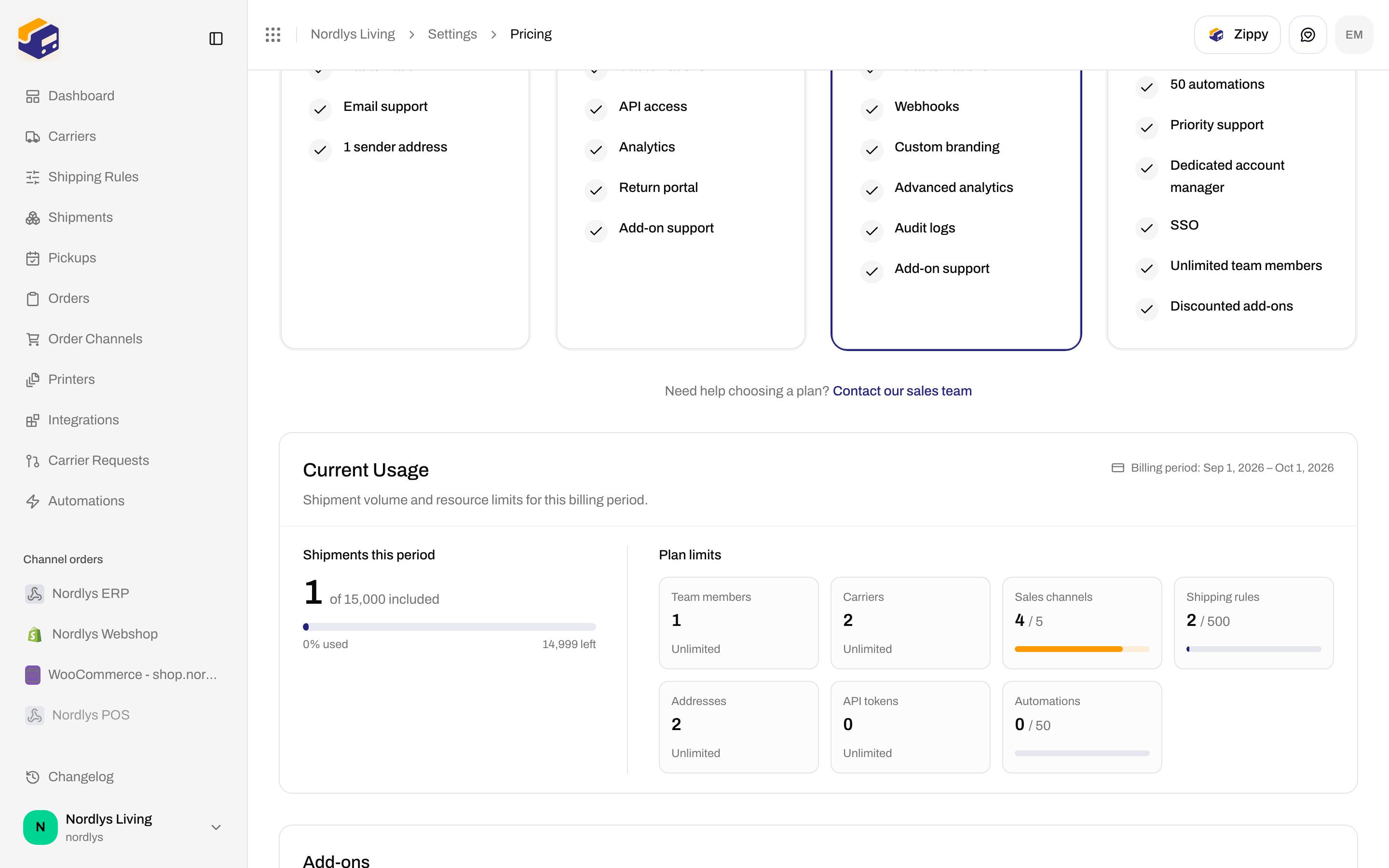
**Settings → Pricing** (team switcher **Manage**) → **Current Usage**:
* Title: **Current Usage**
* **Shipments this period** with **{{used}} / {{included}} shipments used**
* **Allow overage shipments** — when off, sending pauses at the included cap; when on, extras are billed as overage
## Credits
Each **successful** send (including **Retry Send** that succeeds) counts as one shipment on the plan. Download or **Print** of an existing label does not.
**Settings → Pricing** (team switcher **Manage**) → **Current Usage**:
* Title: **Current Usage**
* **Shipments this period** with **{{used}} / {{included}} shipments used**
* **Allow overage shipments** — when off, sending pauses at the included cap; when on, extras are billed as overage
 Next: [Labels and printing](/docs/tutorials/labels-printing) and [Customs and documents](/docs/how-to/customs-and-documents).