> ## Documentation Index
> Fetch the complete documentation index at: https://www.zippendo.com/docs/llms.txt
> Use this file to discover all available pages before exploring further.
# Printer jobs
> Open a printer’s Jobs tab — Pending, Dispatched, Processing, Completed, and Failed — then retry or delete a job and inspect job detail.
A **print job** is one document sent to a registered printer. Jobs are created when you print from a shipment’s **Documents** tab (**Print** or **Print All**). Open them from **Printers** → a printer → **Jobs** (`?tab=jobs`).
Walkthrough: [Labels and printing](/docs/tutorials/labels-printing). Install the desktop app: [Set up the printer client](/docs/how-to/setup-printer-client). Registering the device is [Add a printer](/docs/how-to/add-a-printer). Approving the client is [Authorize the printer client](/docs/how-to/authorize-a-printer).
There is no org-wide jobs list. Jobs always live under one printer at `/dashboard/printers/:id` (Jobs tab) or `/dashboard/printers/:id/jobs/:jobId`.
## Open Jobs
Sidebar **Printers**. Title **Printers**, description **Manage your printers**.
Click a row, or the row menu **View**. The detail URL is `/dashboard/printers/:id`.
Tabs: **Overview** (`?tab=overview`) and **Jobs** (`?tab=jobs`). **Jobs** shows a count badge when the current page of jobs is not empty.
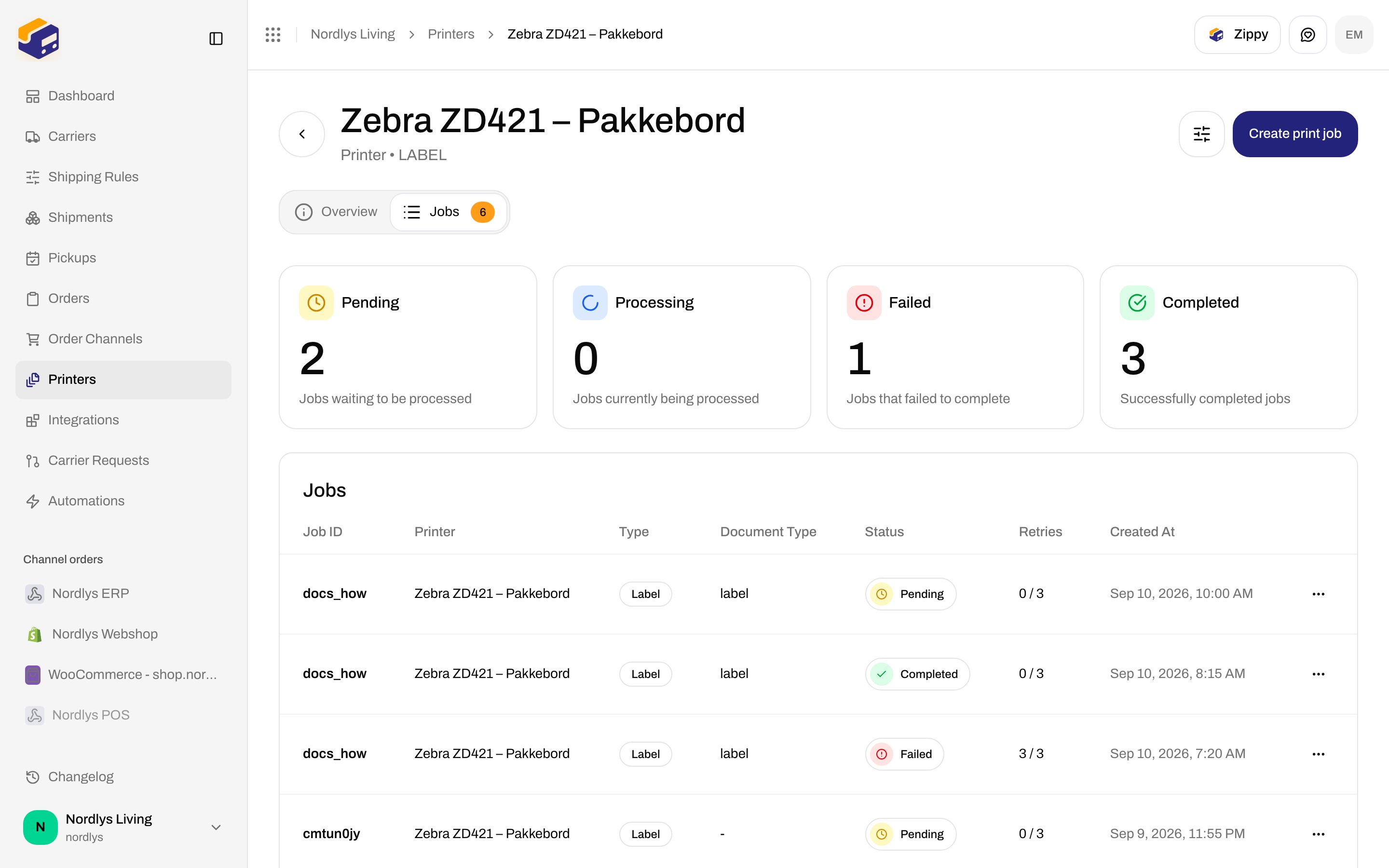
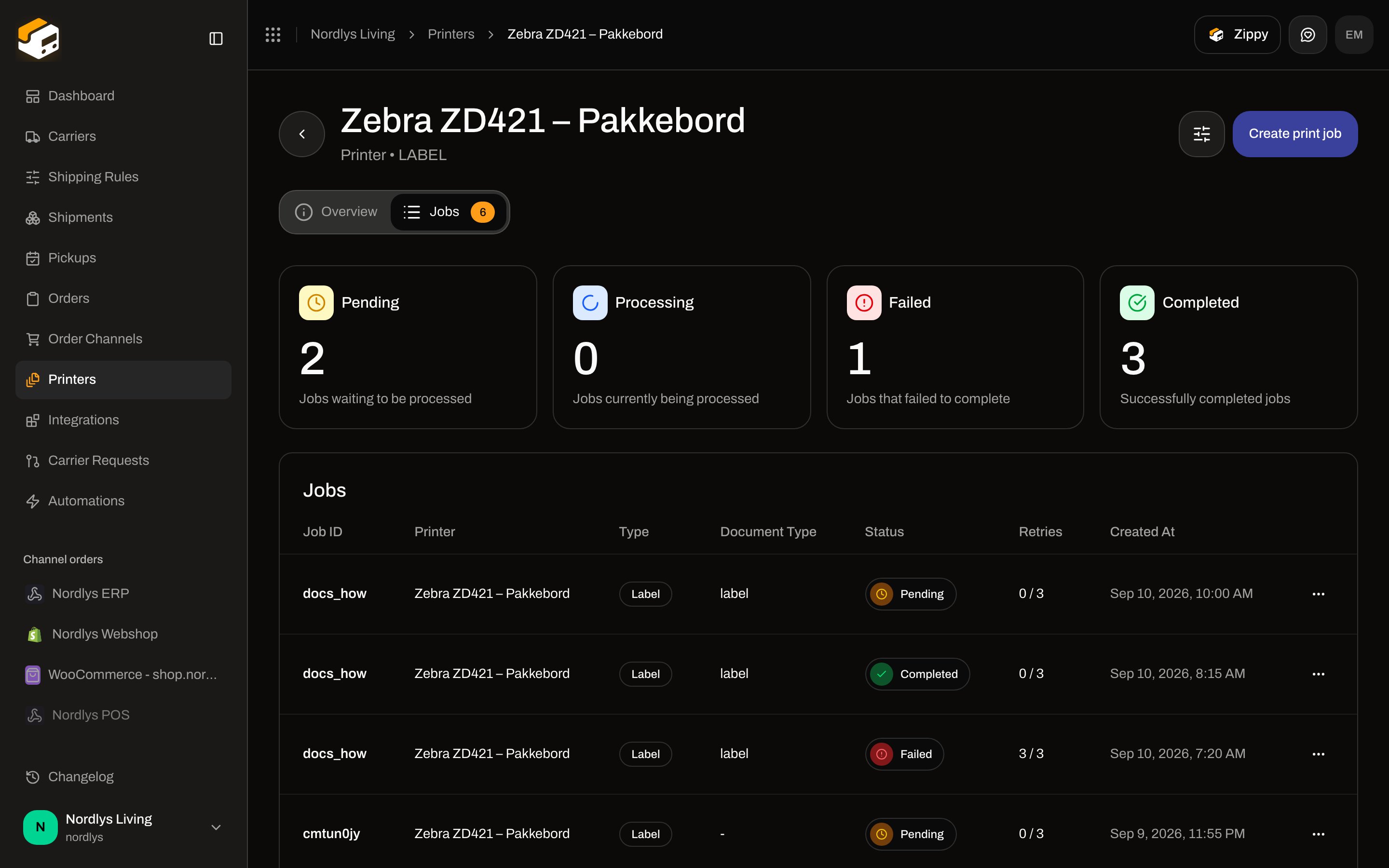 Header action **Create print job** goes to `/dashboard/printers/:id/jobs/create`. That route has no screen in the client — use **Documents → Print** / **Print All** on a shipment instead. See [Shipment printer settings](/docs/how-to/shipment-printer-settings).
## Job stats
Shown above the table only when at least one job is returned. **Processing** counts both **Processing** and **Dispatched**.
| Card | What it counts | Change line | Description |
| -------------- | --------------------------- | ------------------------------ | ---------------------------------- |
| **Pending** | `PENDING` | **\{\{count}} pending jobs** | **Jobs waiting to be processed** |
| **Processing** | `PROCESSING` + `DISPATCHED` | **\{\{count}} active jobs** | **Jobs currently being processed** |
| **Failed** | `FAILED` | **\{\{count}} failed jobs** | **Jobs that failed to complete** |
| **Completed** | `COMPLETED` | **\{\{count}} completed jobs** | **Successfully completed jobs** |
The table polls every 5 seconds while any job is **Pending**, **Dispatched**, or **Processing**.
## Jobs table
Container title: **Jobs**. Sorted by **Created At** descending. Pagination is server-side.
| Column | What it shows |
| ----------------- | ----------------------------------------------------------------------------- |
| **Job ID** | First 8 characters of the id, monospace |
| **Printer** | Printer display name |
| **Type** | **Label** or **Document** |
| **Document Type** | Carrier/document type, or **-** when empty |
| **Status** | Badge: **Pending**, **Dispatched**, **Processing**, **Completed**, **Failed** |
| **Retries** | `retries / maxRetries` (default max is 3) |
| **Created At** | `DD/MM/YYYY HH:mm` |
Row click opens job detail.
Row menu:
| Action | When it appears |
| ---------- | ----------------------------------- |
| **View** | Always |
| **Retry** | Status is **Failed** |
| **Delete** | Status is **Pending** or **Failed** |
### Status filter
On **Jobs** only, the header filter includes **Status**. Options: **Pending**, **Dispatched**, **Processing**, **Completed**, **Failed** (plus the shared **All**). **Overview** has no job filter.
### Empty state
**No print jobs found** / **Print jobs will appear here once they are created**. Button **Create Print Job** uses the same missing `/jobs/create` route as the header — print from the shipment instead.
## Retry and delete
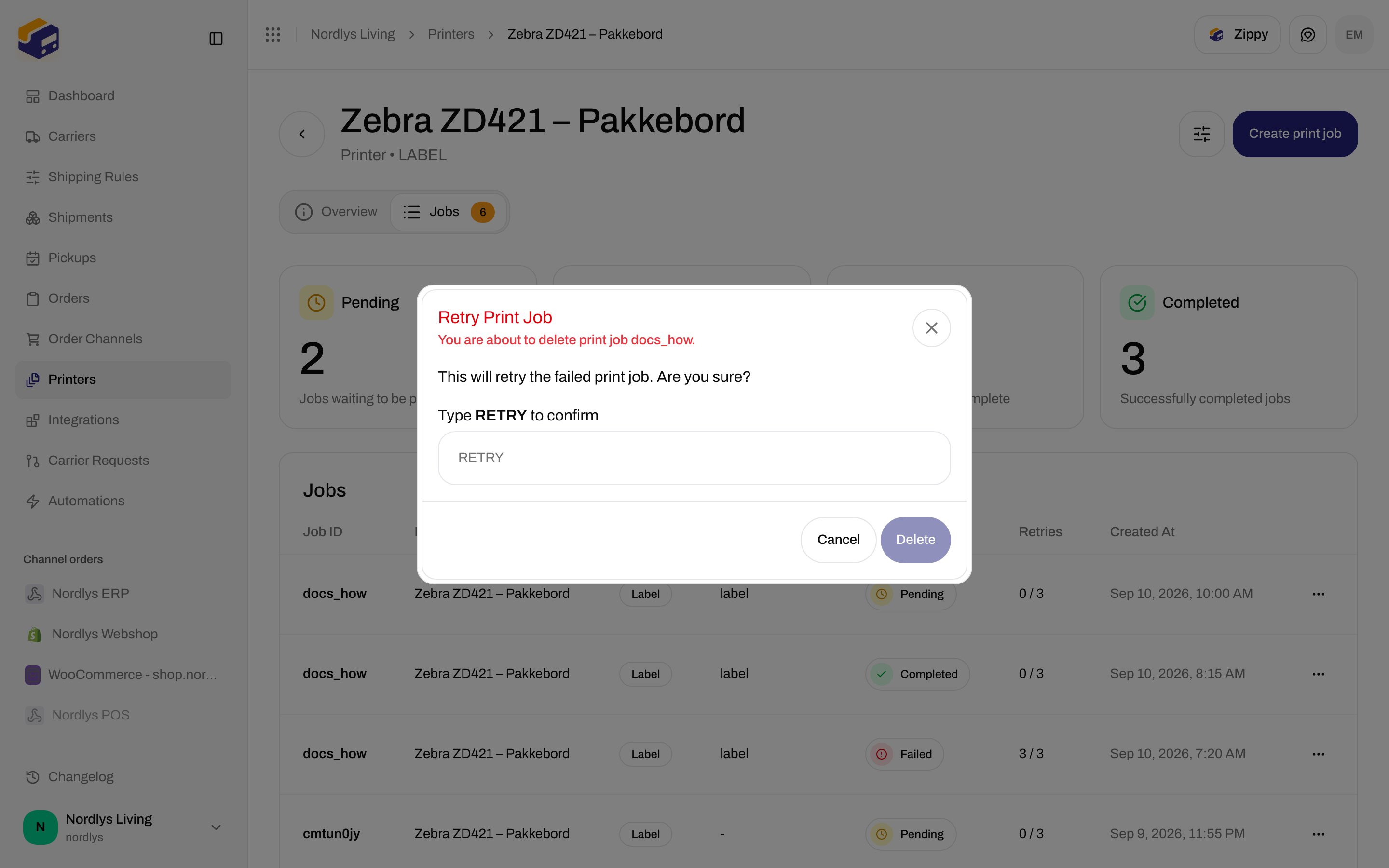
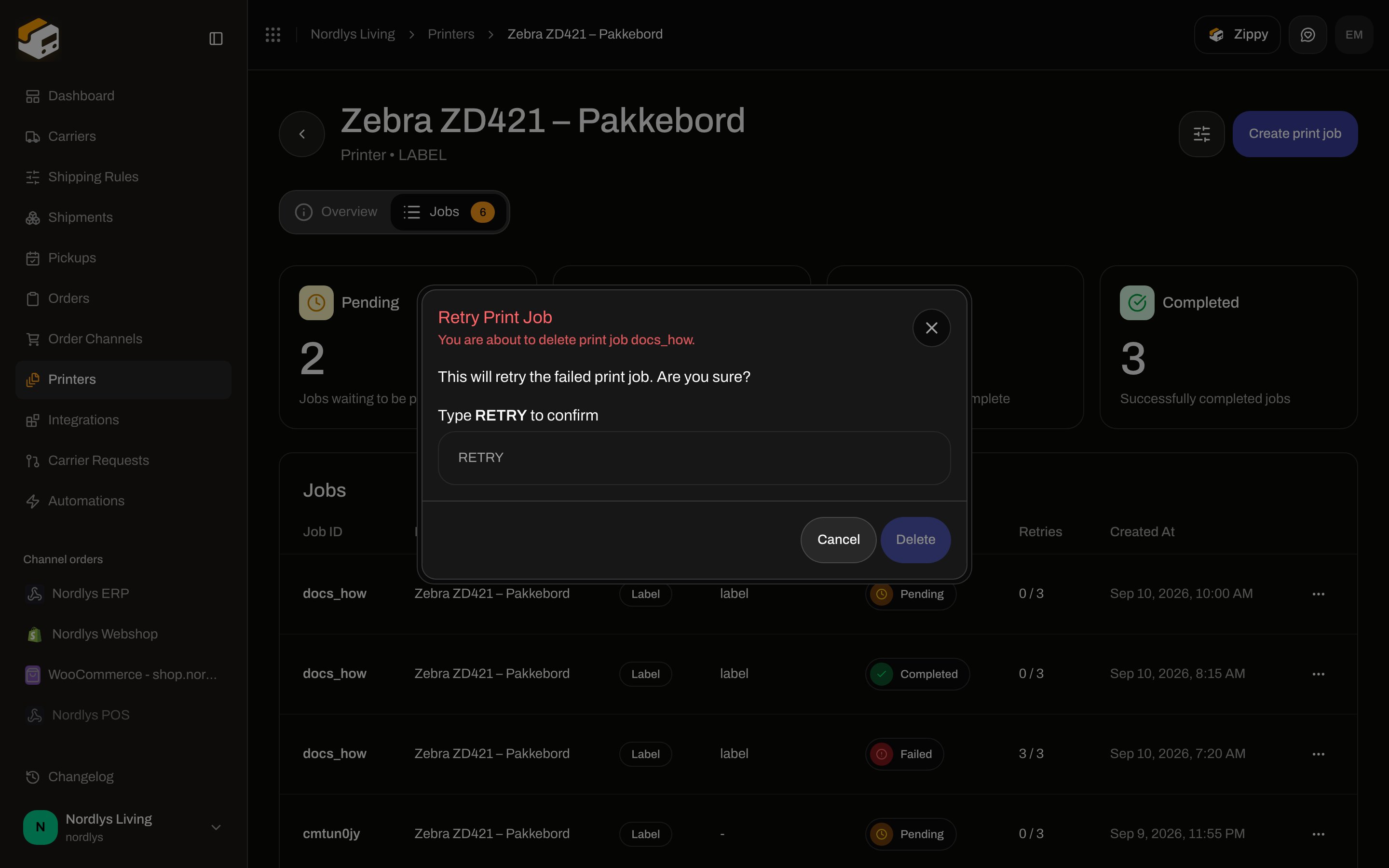
**Retry Print Job**. Description: **This will retry the failed print job. Are you sure?** You must type **RETRY**. Success toast: **Print job retried successfully**. Failure: **Failed to retry print job**.
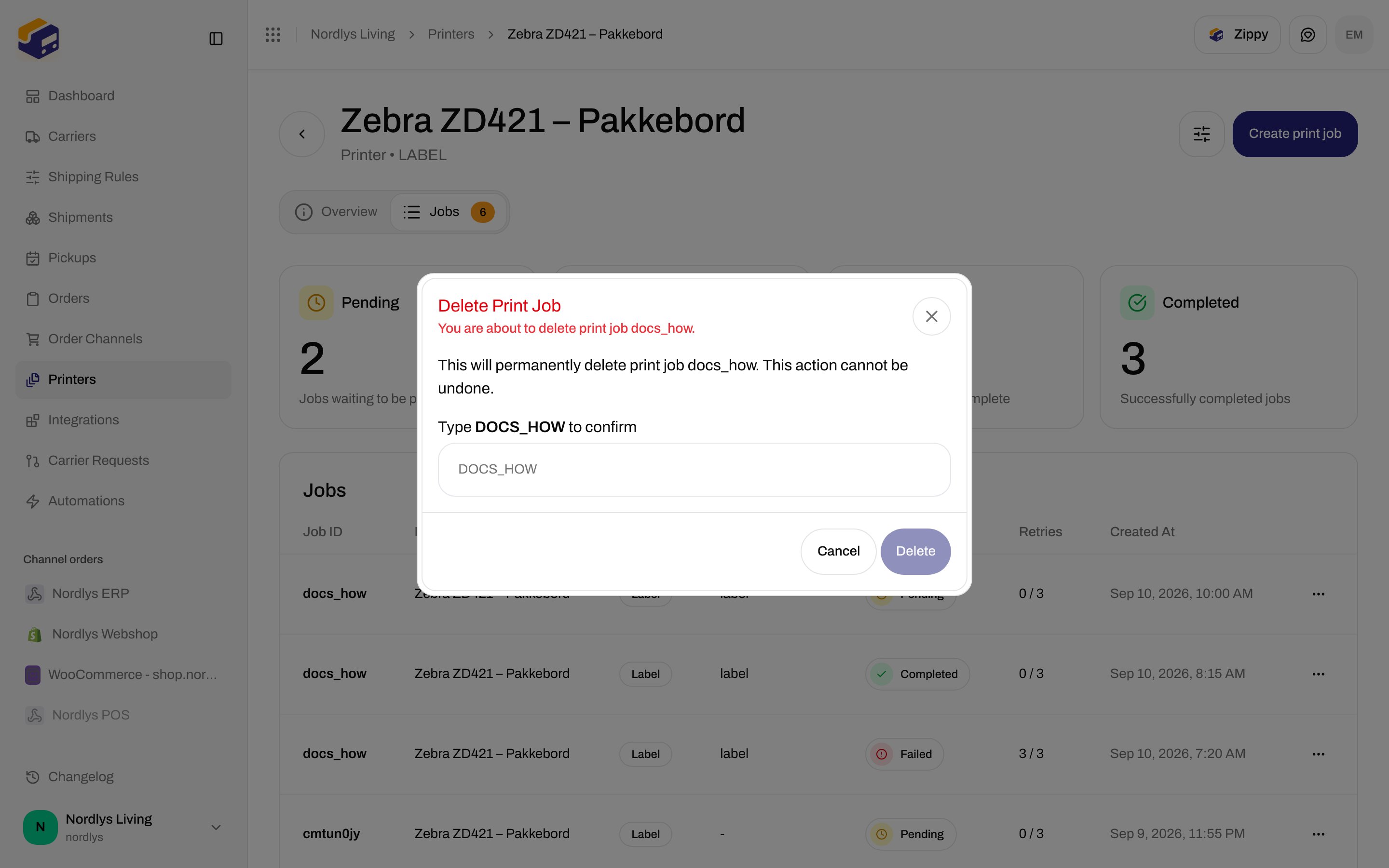
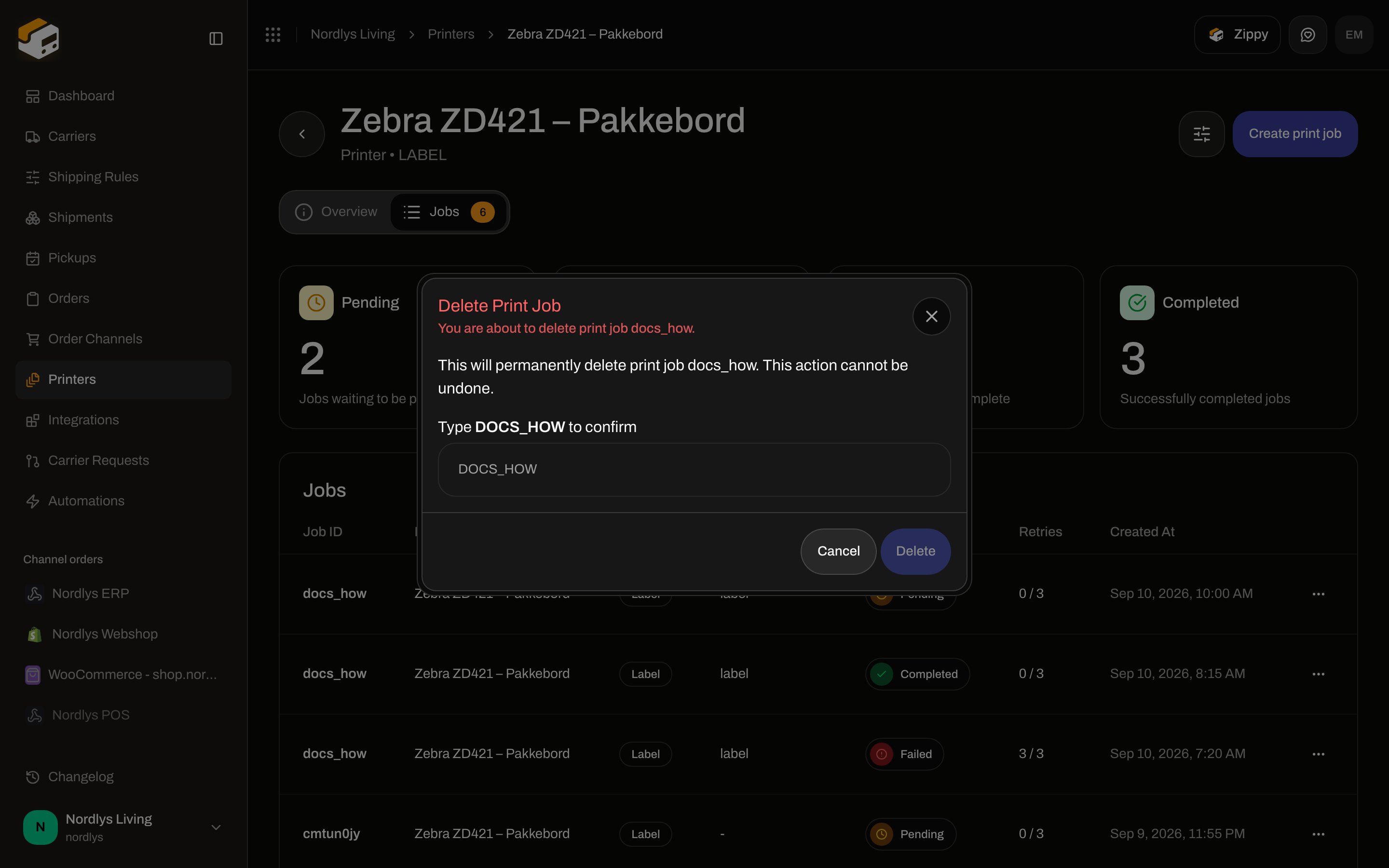
**Delete Print Job**. Description: **This will permanently delete print job \{\{id}}. This action cannot be undone.** Type the first 8 characters of the id in **uppercase**. Success: **Print job deleted successfully**. Failure: **Failed to delete print job**.
Header action **Create print job** goes to `/dashboard/printers/:id/jobs/create`. That route has no screen in the client — use **Documents → Print** / **Print All** on a shipment instead. See [Shipment printer settings](/docs/how-to/shipment-printer-settings).
## Job stats
Shown above the table only when at least one job is returned. **Processing** counts both **Processing** and **Dispatched**.
| Card | What it counts | Change line | Description |
| -------------- | --------------------------- | ------------------------------ | ---------------------------------- |
| **Pending** | `PENDING` | **\{\{count}} pending jobs** | **Jobs waiting to be processed** |
| **Processing** | `PROCESSING` + `DISPATCHED` | **\{\{count}} active jobs** | **Jobs currently being processed** |
| **Failed** | `FAILED` | **\{\{count}} failed jobs** | **Jobs that failed to complete** |
| **Completed** | `COMPLETED` | **\{\{count}} completed jobs** | **Successfully completed jobs** |
The table polls every 5 seconds while any job is **Pending**, **Dispatched**, or **Processing**.
## Jobs table
Container title: **Jobs**. Sorted by **Created At** descending. Pagination is server-side.
| Column | What it shows |
| ----------------- | ----------------------------------------------------------------------------- |
| **Job ID** | First 8 characters of the id, monospace |
| **Printer** | Printer display name |
| **Type** | **Label** or **Document** |
| **Document Type** | Carrier/document type, or **-** when empty |
| **Status** | Badge: **Pending**, **Dispatched**, **Processing**, **Completed**, **Failed** |
| **Retries** | `retries / maxRetries` (default max is 3) |
| **Created At** | `DD/MM/YYYY HH:mm` |
Row click opens job detail.
Row menu:
| Action | When it appears |
| ---------- | ----------------------------------- |
| **View** | Always |
| **Retry** | Status is **Failed** |
| **Delete** | Status is **Pending** or **Failed** |
### Status filter
On **Jobs** only, the header filter includes **Status**. Options: **Pending**, **Dispatched**, **Processing**, **Completed**, **Failed** (plus the shared **All**). **Overview** has no job filter.
### Empty state
**No print jobs found** / **Print jobs will appear here once they are created**. Button **Create Print Job** uses the same missing `/jobs/create` route as the header — print from the shipment instead.
## Retry and delete
**Retry Print Job**. Description: **This will retry the failed print job. Are you sure?** You must type **RETRY**. Success toast: **Print job retried successfully**. Failure: **Failed to retry print job**.
**Delete Print Job**. Description: **This will permanently delete print job \{\{id}}. This action cannot be undone.** Type the first 8 characters of the id in **uppercase**. Success: **Print job deleted successfully**. Failure: **Failed to delete print job**.
 ## Job detail
URL: `/dashboard/printers/:id/jobs/:jobId`. Title **Print Job \{\{id}}** (first 8 characters). Description **Created on \{\{date}}**.
Header action: **Retry** when status is **Failed**; otherwise **Delete** when status is **Pending** or **Failed**. Completed and in-flight jobs have no header action.
Tabs: **Overview**, and **Document** only when `documentType` is set.
## Job detail
URL: `/dashboard/printers/:id/jobs/:jobId`. Title **Print Job \{\{id}}** (first 8 characters). Description **Created on \{\{date}}**.
Header action: **Retry** when status is **Failed**; otherwise **Delete** when status is **Pending** or **Failed**. Completed and in-flight jobs have no header action.
Tabs: **Overview**, and **Document** only when `documentType` is set.
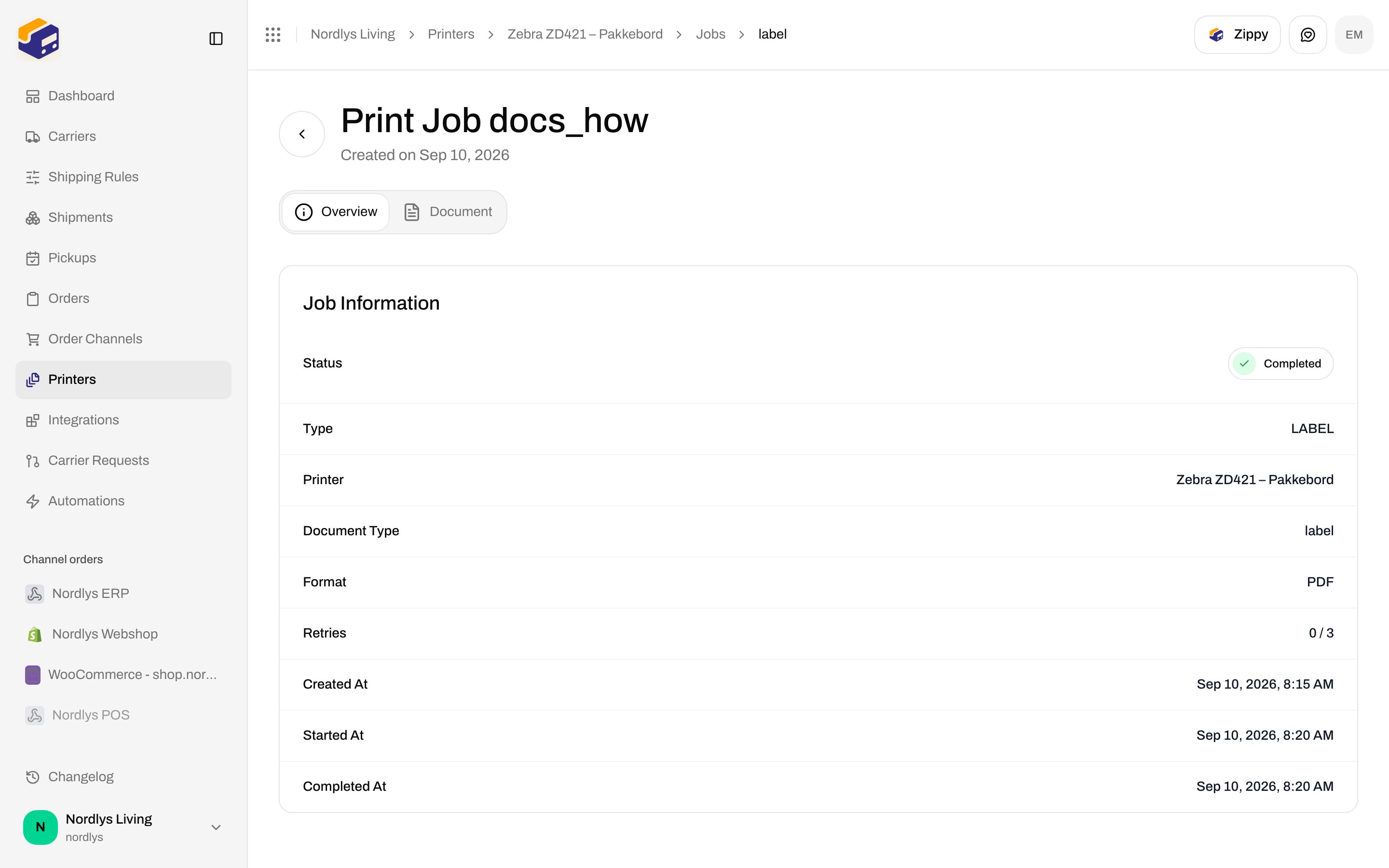
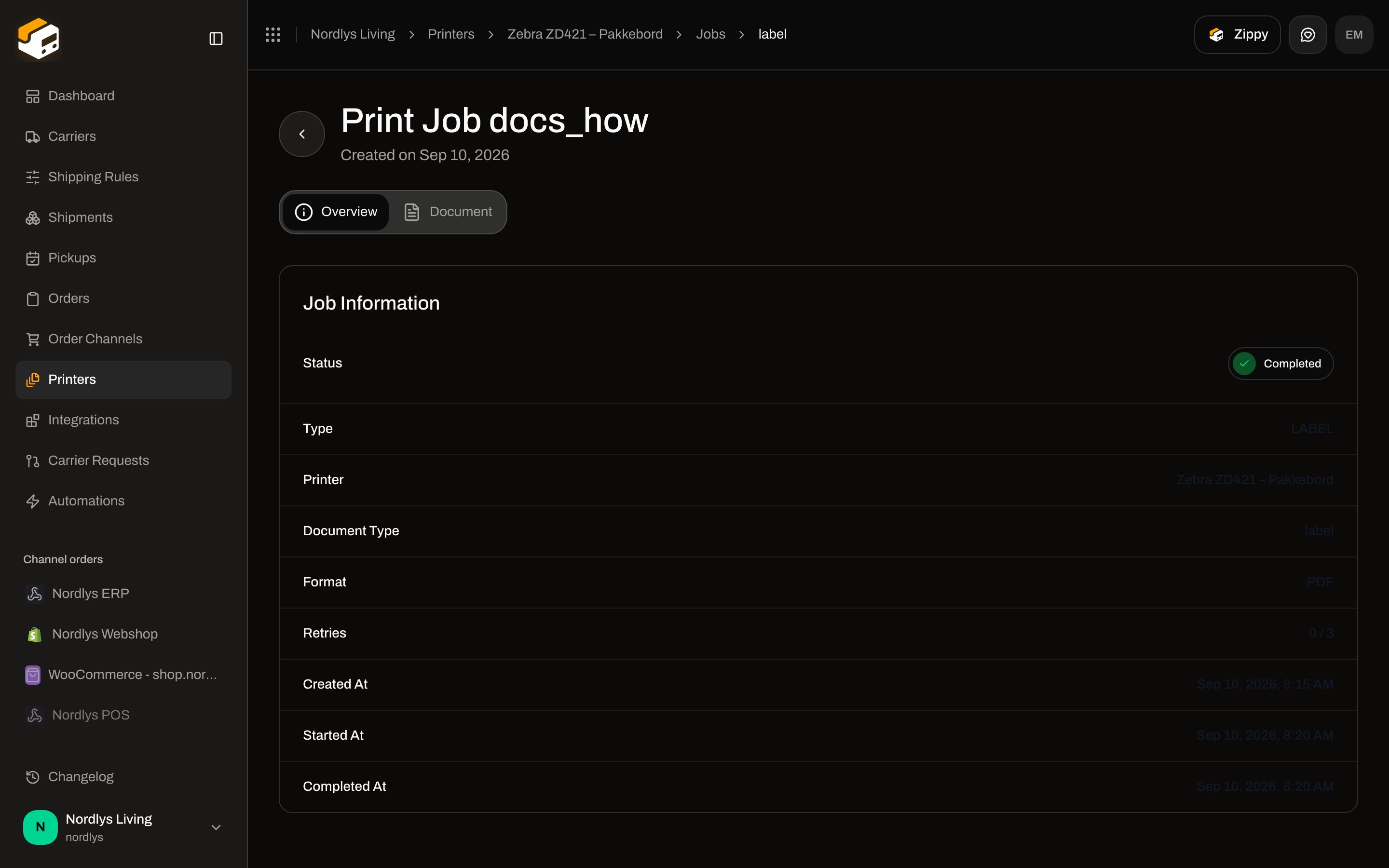 ### Job Information
| Row | When |
| ----------------- | ---------------------------------------- |
| **Status** | Always |
| **Type** | Always (`LABEL` or `DOCUMENT` as stored) |
| **Printer** | Always (printer name) |
| **Document Type** | When the job has a document type |
| **Format** | Always, uppercased (`PDF`, `PNG`, …) |
| **Retries** | `retries / maxRetries` |
| **Created At** | Always |
| **Started At** | When the job has started |
| **Completed At** | When the job has finished |
Active jobs (**Pending**, **Dispatched**, **Processing**) poll every 3 seconds.
### Error Information
Only when the job has an error string. Label **Error Message**, then the raw error.
### Metadata
Only when metadata is a non-empty object. Shown as JSON.
### Document tab
**Document Preview** — **Document Type** and **Format**, then a PDF iframe or image from the job content URL. Headless browsers often leave PDFs blank; use **View** on the shipment document if you need to read the label.
### Not found
**Print Job Not Found** / **The print job you're looking for doesn't exist or you don't have access to it.**
## How jobs get created
On a shipment, **Documents → Print All** (or a row **Print**) opens **Print Documents**. Confirming creates jobs and toasts **\{\{count}} print job created** or **\{\{count}} document failed to print**. If the printer is disconnected, the API can return **The printer is offline.** (`PRINTER_OFFLINE`). Missing job: **Print job not found.** (`PRINTER_JOB_NOT_FOUND`).
In testenv, printer WebSocket clients do not run, so printers stay **Offline** and jobs can sit in **Pending**.
## Related
* [Set up the printer client](/docs/how-to/setup-printer-client)
* [Add a printer](/docs/how-to/add-a-printer)
* [Authorize the printer client](/docs/how-to/authorize-a-printer)
* [Shipment printer settings](/docs/how-to/shipment-printer-settings)
* [Auto-print labels and documents](/docs/how-to/auto-print)
* [Labels and printing](/docs/tutorials/labels-printing)
### Job Information
| Row | When |
| ----------------- | ---------------------------------------- |
| **Status** | Always |
| **Type** | Always (`LABEL` or `DOCUMENT` as stored) |
| **Printer** | Always (printer name) |
| **Document Type** | When the job has a document type |
| **Format** | Always, uppercased (`PDF`, `PNG`, …) |
| **Retries** | `retries / maxRetries` |
| **Created At** | Always |
| **Started At** | When the job has started |
| **Completed At** | When the job has finished |
Active jobs (**Pending**, **Dispatched**, **Processing**) poll every 3 seconds.
### Error Information
Only when the job has an error string. Label **Error Message**, then the raw error.
### Metadata
Only when metadata is a non-empty object. Shown as JSON.
### Document tab
**Document Preview** — **Document Type** and **Format**, then a PDF iframe or image from the job content URL. Headless browsers often leave PDFs blank; use **View** on the shipment document if you need to read the label.
### Not found
**Print Job Not Found** / **The print job you're looking for doesn't exist or you don't have access to it.**
## How jobs get created
On a shipment, **Documents → Print All** (or a row **Print**) opens **Print Documents**. Confirming creates jobs and toasts **\{\{count}} print job created** or **\{\{count}} document failed to print**. If the printer is disconnected, the API can return **The printer is offline.** (`PRINTER_OFFLINE`). Missing job: **Print job not found.** (`PRINTER_JOB_NOT_FOUND`).
In testenv, printer WebSocket clients do not run, so printers stay **Offline** and jobs can sit in **Pending**.
## Related
* [Set up the printer client](/docs/how-to/setup-printer-client)
* [Add a printer](/docs/how-to/add-a-printer)
* [Authorize the printer client](/docs/how-to/authorize-a-printer)
* [Shipment printer settings](/docs/how-to/shipment-printer-settings)
* [Auto-print labels and documents](/docs/how-to/auto-print)
* [Labels and printing](/docs/tutorials/labels-printing)