> ## Documentation Index
> Fetch the complete documentation index at: https://www.zippendo.com/docs/llms.txt
> Use this file to discover all available pages before exploring further.
# Pick a service point
> Choose a GLS ShopDelivery or PostNord Mypack Collect droppoint — Drop Point card, Select Service Point list and map, and every validation message.
A **service point** is the parcel shop or locker the carrier delivers to instead of the door. Zippendo only asks for one when the **product** is a service-point product (`isServicePoint`). On the create form the card is titled **Drop Point**; the required field and the picker are **Service Point**. For why both words appear, see [Droppoint vs service point](/docs/how-to/drop-point-and-service-points).
This page is the field-level guide. The click-through is in [Create a shipment](/docs/tutorials/create-a-shipment). Connecting the carrier is in [Carriers](/docs/tutorials/carriers).
There is **no search box** in the picker. Zippendo looks up nearby points from the **receiver** address (address line 1, postal code, city, country code) and shows a list plus a map. Complete the receiver first — see [Shipment parties](/docs/how-to/shipment-parties).
## When Drop Point appears
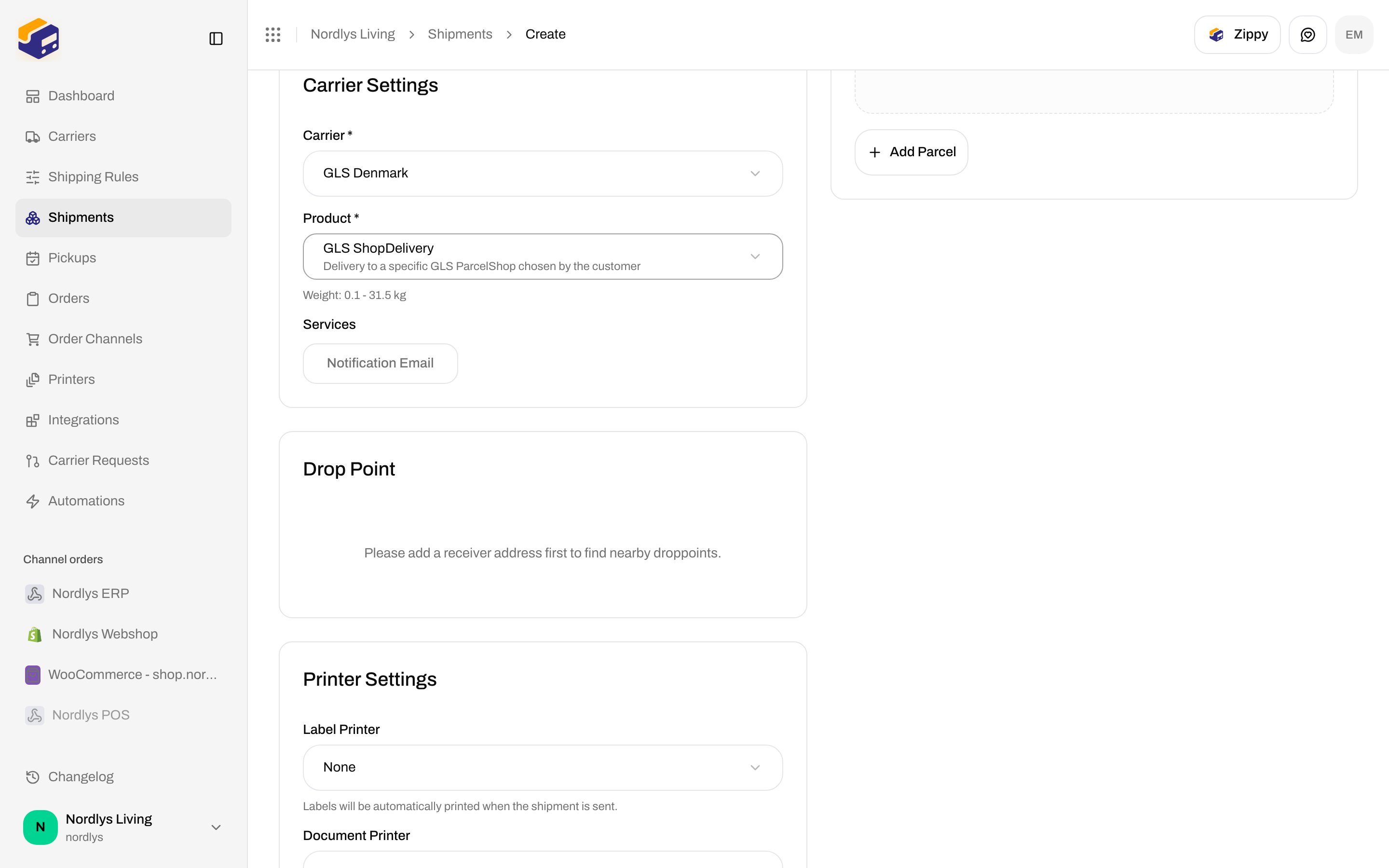
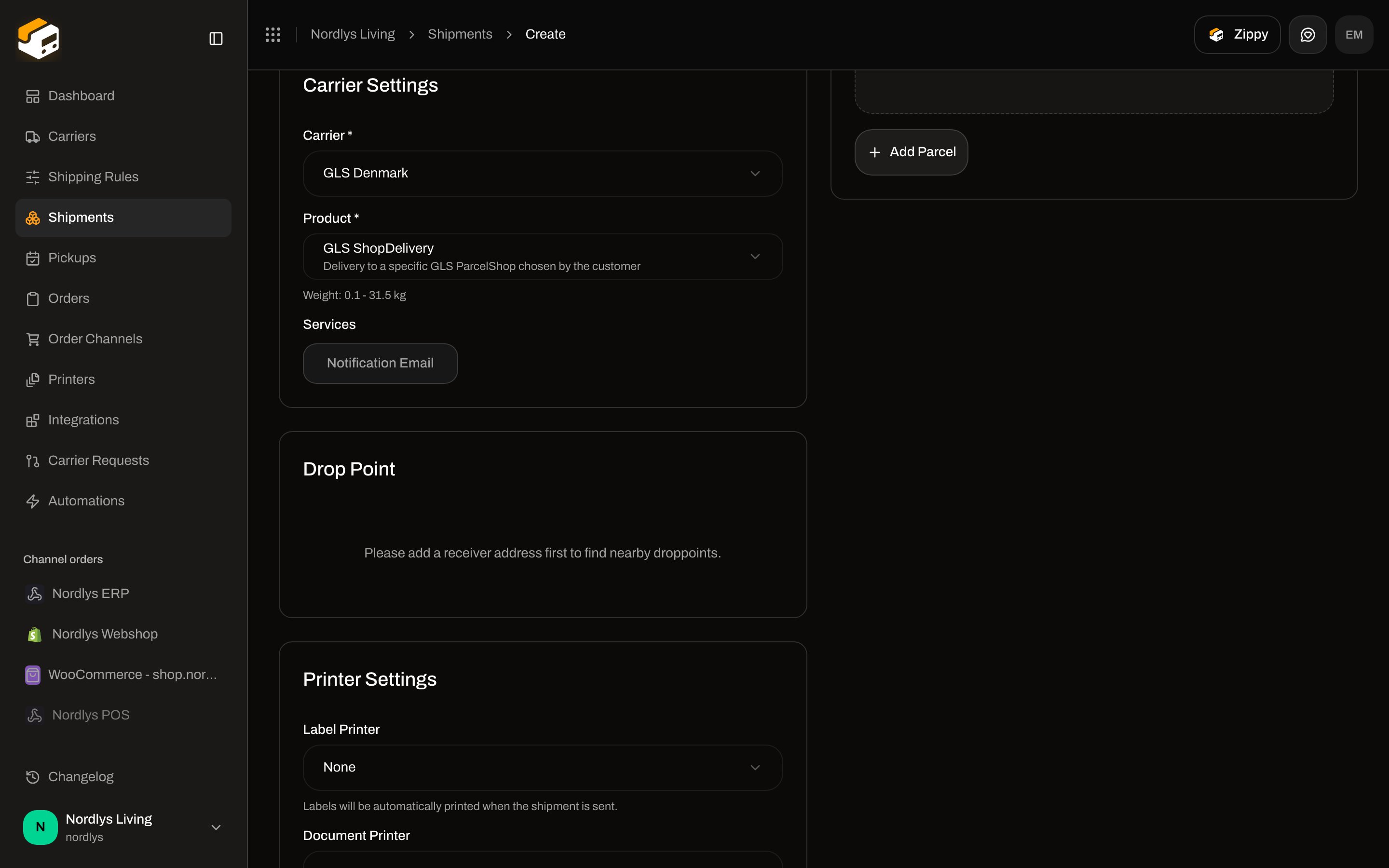
The **Drop Point** card is rendered only when the selected product has **service point** delivery. Home-delivery products never show it.
On **Create Shipment** (`/dashboard/shipments/create`), pick **Carrier \***, then **Product \***. Products that open **Drop Point** in the Nordlys / GLS + PostNord catalog:
| Carrier | Product | Type | What it means |
| --------------- | -------------------- | ------------ | ------------------------------------- |
| **GLS Denmark** | **GLS ShopDelivery** | **Outbound** | Delivery to a specific GLS ParcelShop |
| **PostNord** | **Mypack Collect** | **Outbound** | Delivery to a service point |
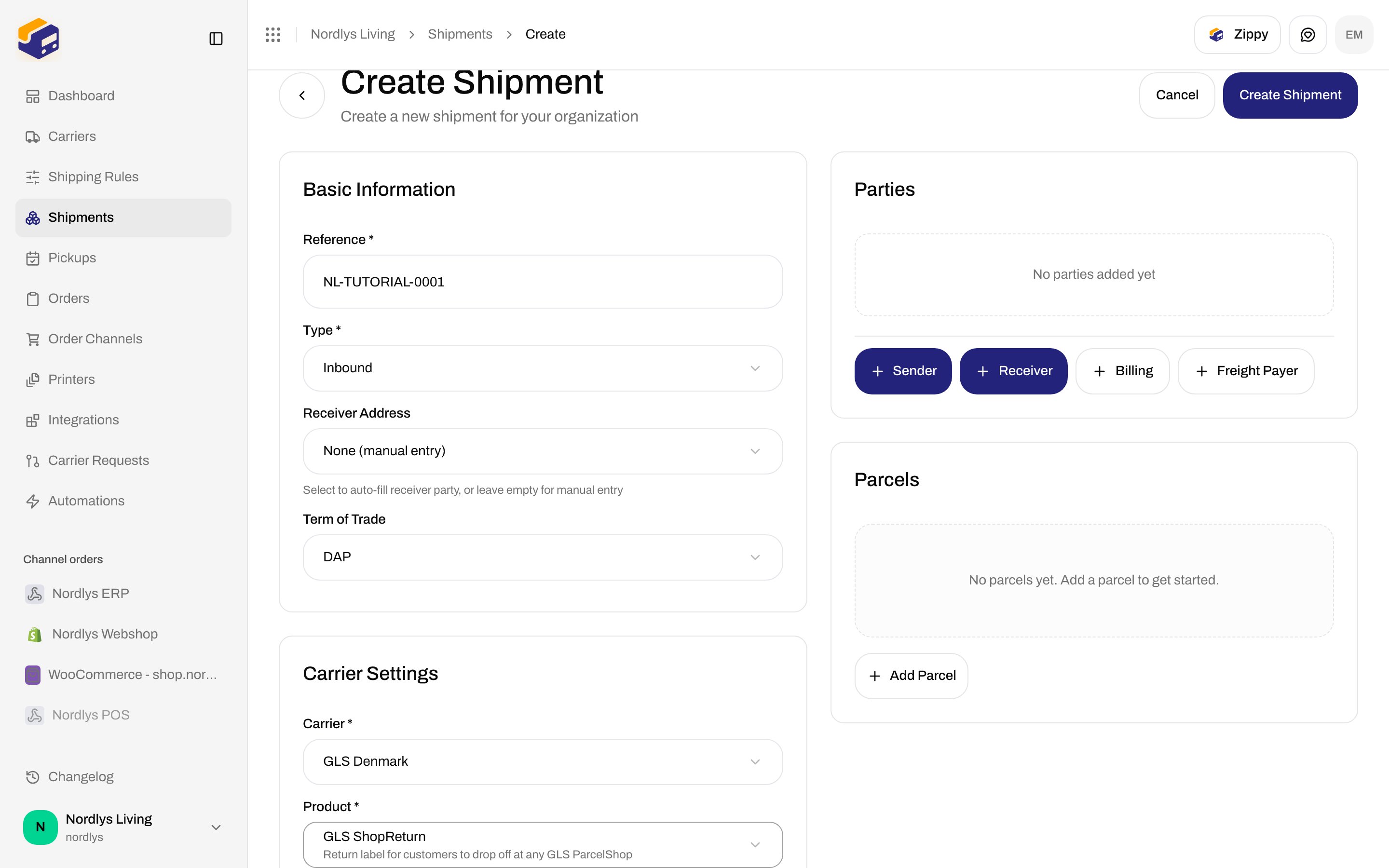
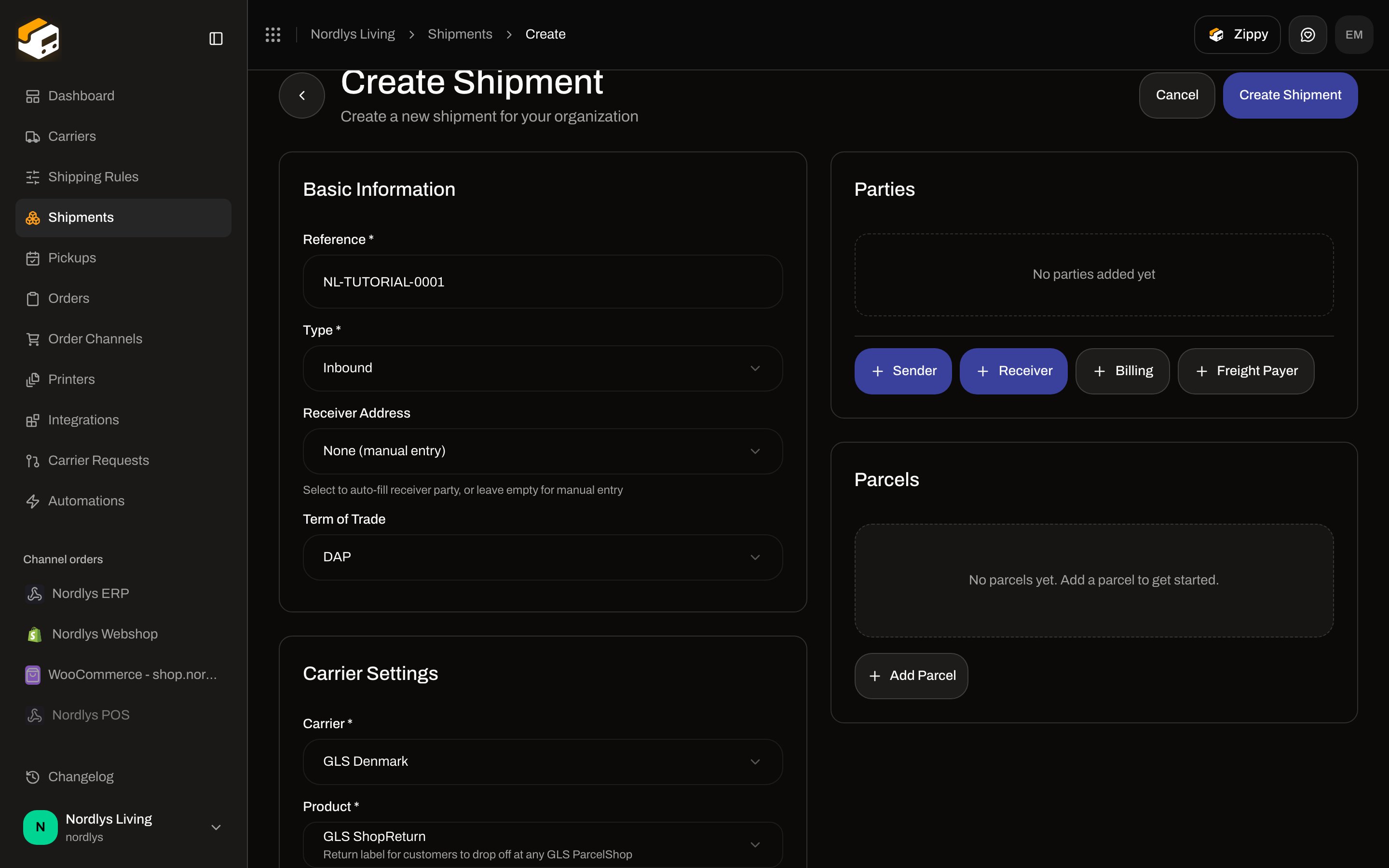
**GLS ShopReturn** (inbound) does **not** show **Drop Point**. The product description is “Return label for customers to drop off at any GLS ParcelShop” — no specific point is collected. **PostNord Return** is the same pattern (`isServicePoint` is off). Pickup (the carrier collects from you) is a different card — **Pickup Details** — and is not a droppoint.
 Switch **Type \*** to **Inbound** and pick **GLS ShopReturn** to confirm the card is gone.
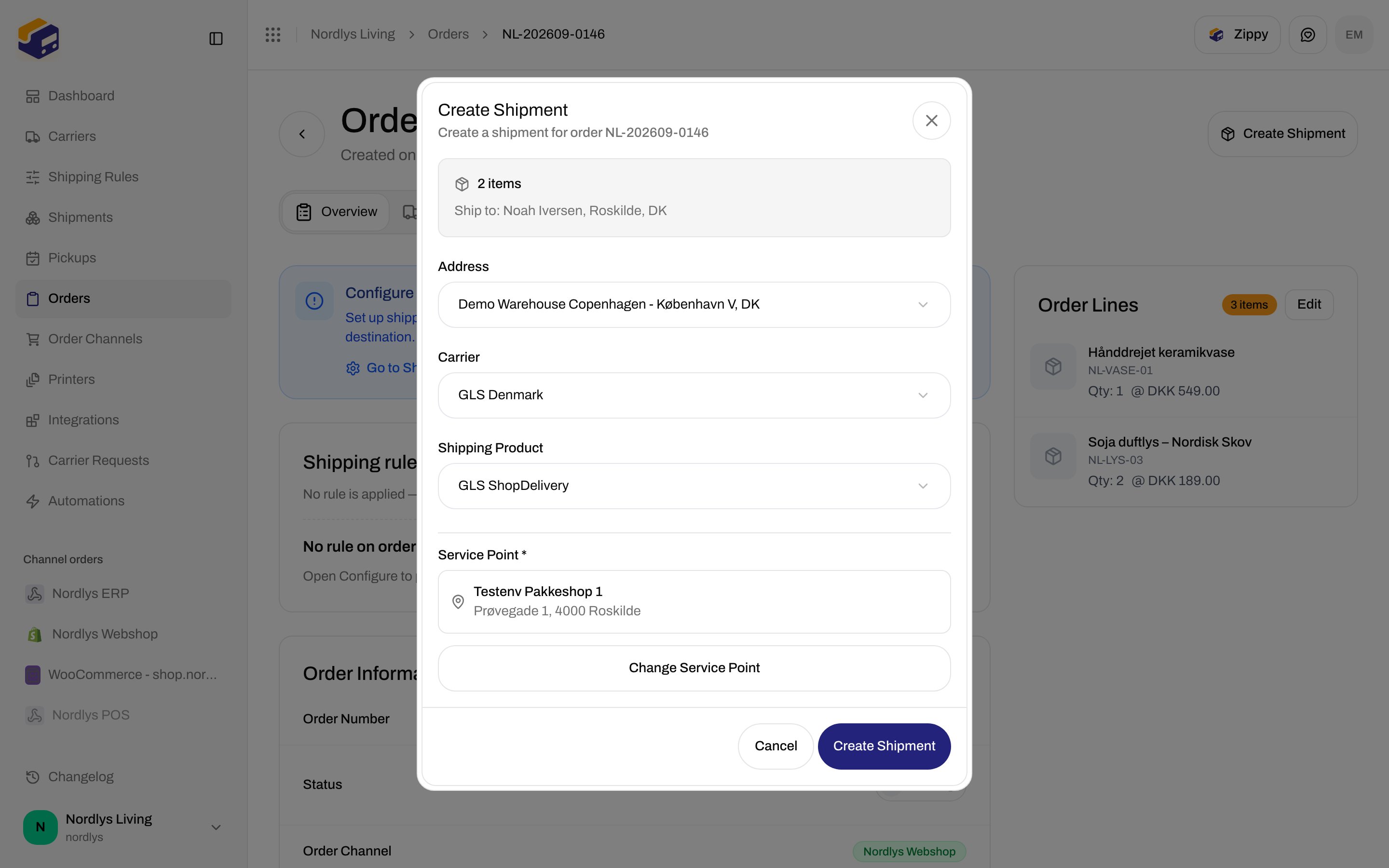
 From an order, the same rule applies inside **Create Shipment**: when **Shipping Product** is a shop product, **Service Point \*** appears under the carrier fields.
## Drop Point card (standalone create)
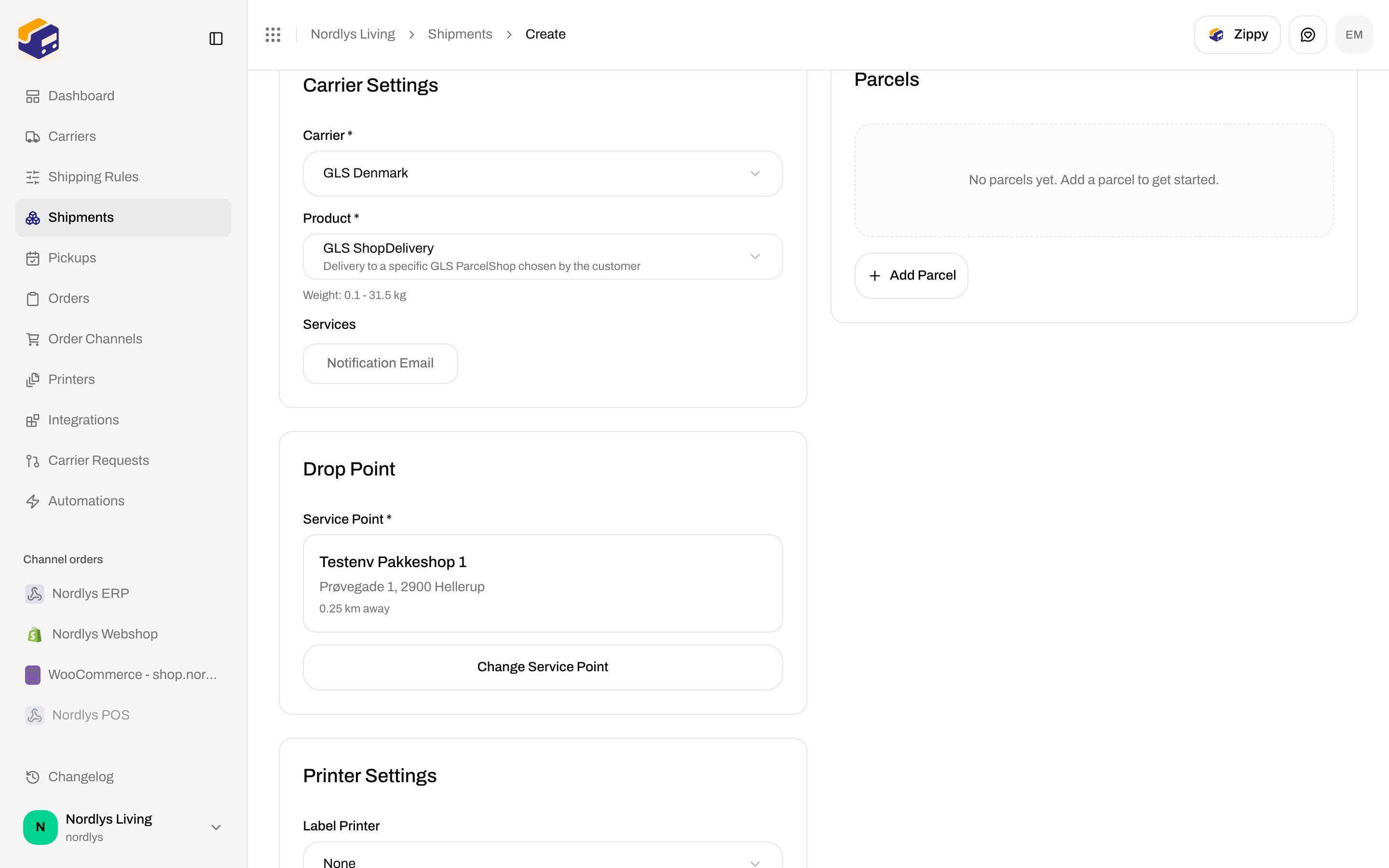
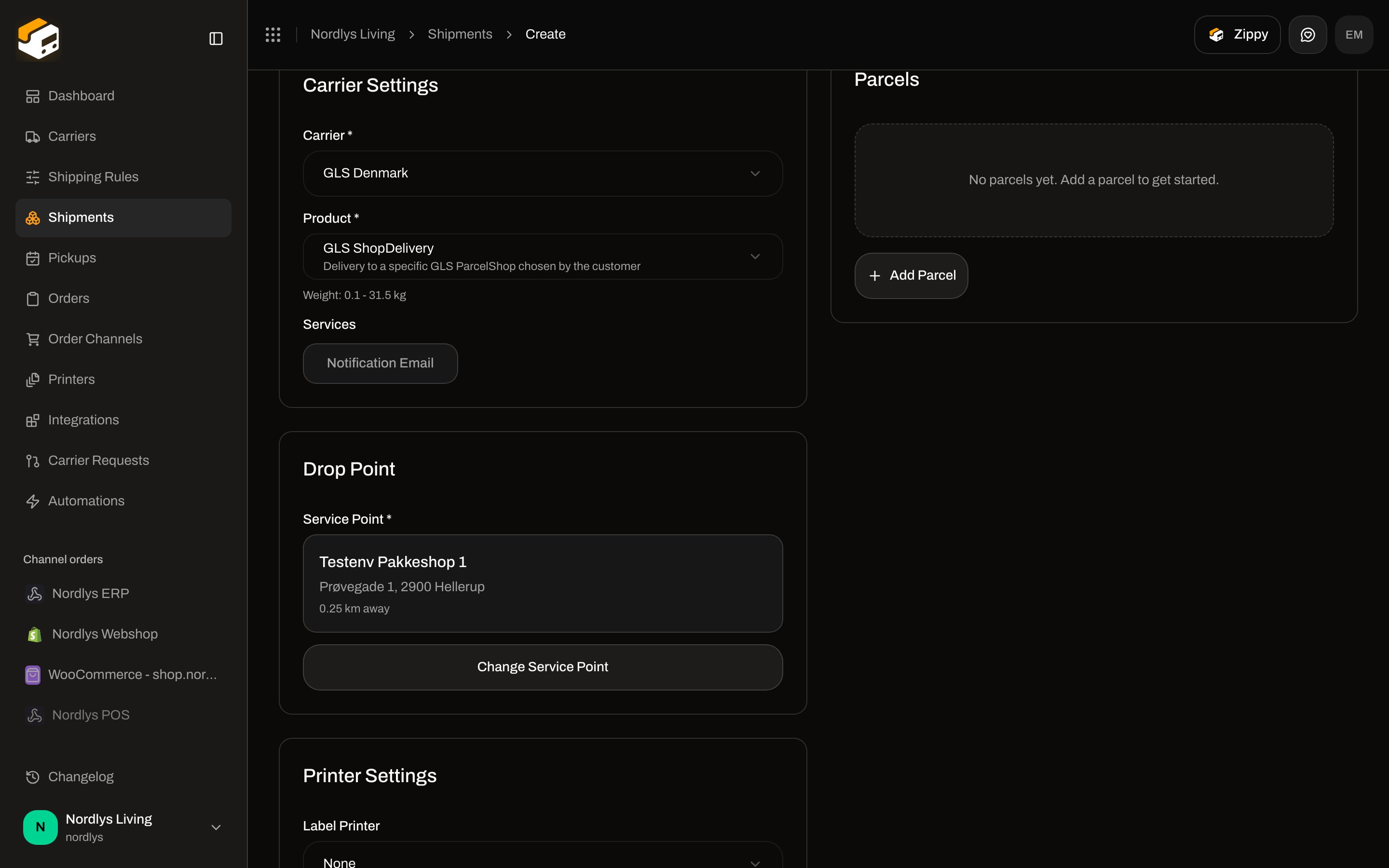
Card title: **Drop Point**.
### Empty and blocked states
| What you see | When |
| ------------------------------------------------------------------------------------------------------------------ | --------------------------------------------------------------------------------- |
| **Please add a receiver address first to find nearby droppoints.** | No **Receiver** party yet |
| **Please complete the receiver address (address, postal code, city, and country code) to find nearby droppoints.** | Receiver exists but address line 1, postal code, city, or country code is missing |
| Skeleton placeholders | Lookup in progress |
| Localized carrier error + **Retry** | Lookup failed (`Failed to load droppoints` if the error has no code) |
| **No droppoints found near the receiver address.** | Lookup succeeded with zero points |
**Retry** re-runs the lookup. Fix the receiver address if the postal code or country is wrong.
### After results
| Control | Required | What it shows |
| ----------------------------- | --------------------- | ------------------------------------------------------------------------ |
| **Service Point \*** | Yes, for this product | Label over the selection |
| Selected point card | — | **Name**, formatted **address**, **{{distance}} km away** (two decimals) |
| **No service point selected** | — | Empty muted box when nothing is chosen |
| **Select Service Point** | — | Opens the picker when no point is selected |
| **Change Service Point** | — | Same picker when a point is already selected |
Zippendo auto-selects the **closest** result (first in the list) as soon as points arrive, unless `servicePointId` is already set.
From an order, the same rule applies inside **Create Shipment**: when **Shipping Product** is a shop product, **Service Point \*** appears under the carrier fields.
## Drop Point card (standalone create)
Card title: **Drop Point**.
### Empty and blocked states
| What you see | When |
| ------------------------------------------------------------------------------------------------------------------ | --------------------------------------------------------------------------------- |
| **Please add a receiver address first to find nearby droppoints.** | No **Receiver** party yet |
| **Please complete the receiver address (address, postal code, city, and country code) to find nearby droppoints.** | Receiver exists but address line 1, postal code, city, or country code is missing |
| Skeleton placeholders | Lookup in progress |
| Localized carrier error + **Retry** | Lookup failed (`Failed to load droppoints` if the error has no code) |
| **No droppoints found near the receiver address.** | Lookup succeeded with zero points |
**Retry** re-runs the lookup. Fix the receiver address if the postal code or country is wrong.
### After results
| Control | Required | What it shows |
| ----------------------------- | --------------------- | ------------------------------------------------------------------------ |
| **Service Point \*** | Yes, for this product | Label over the selection |
| Selected point card | — | **Name**, formatted **address**, **{{distance}} km away** (two decimals) |
| **No service point selected** | — | Empty muted box when nothing is chosen |
| **Select Service Point** | — | Opens the picker when no point is selected |
| **Change Service Point** | — | Same picker when a point is already selected |
Zippendo auto-selects the **closest** result (first in the list) as soon as points arrive, unless `servicePointId` is already set.
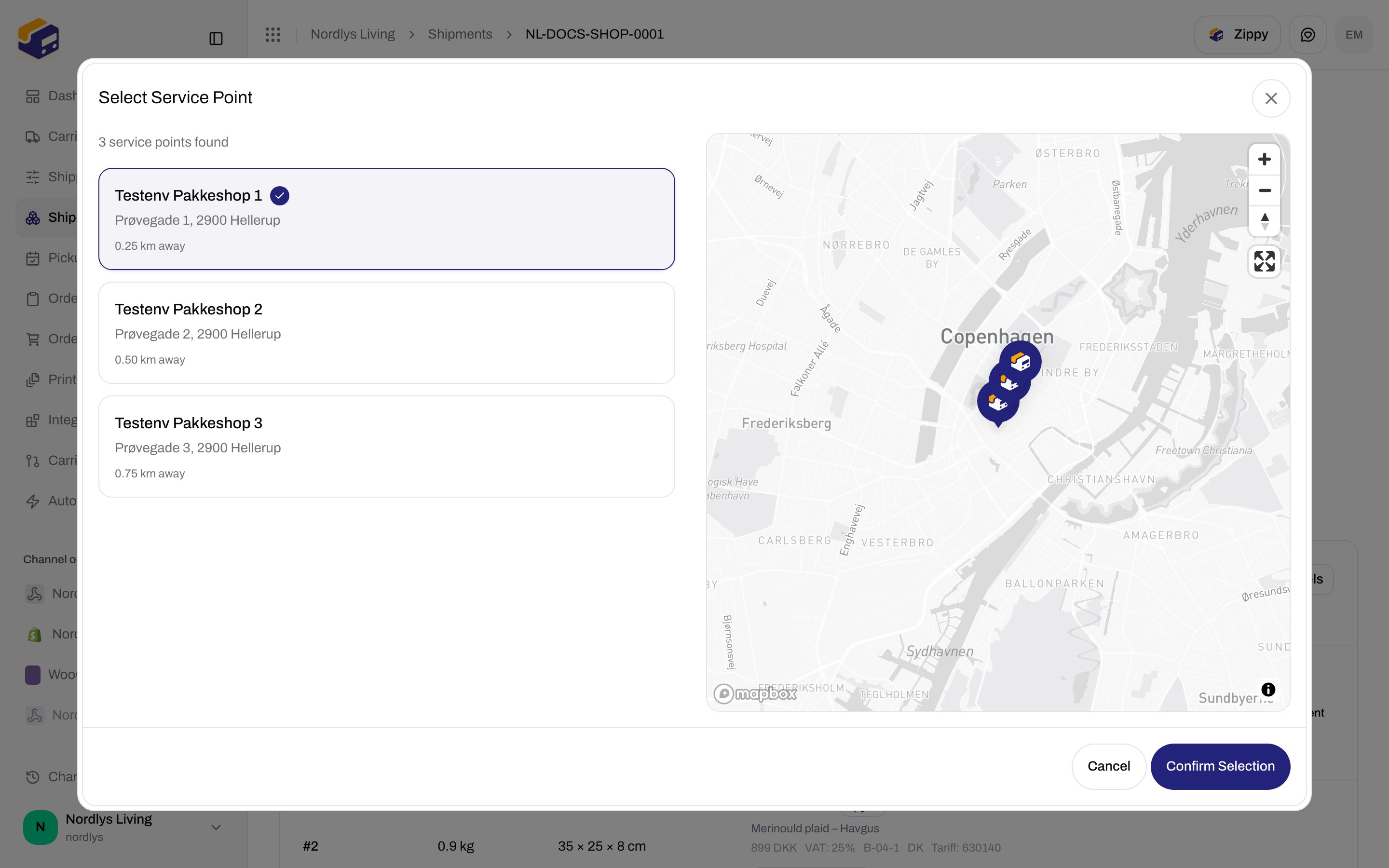
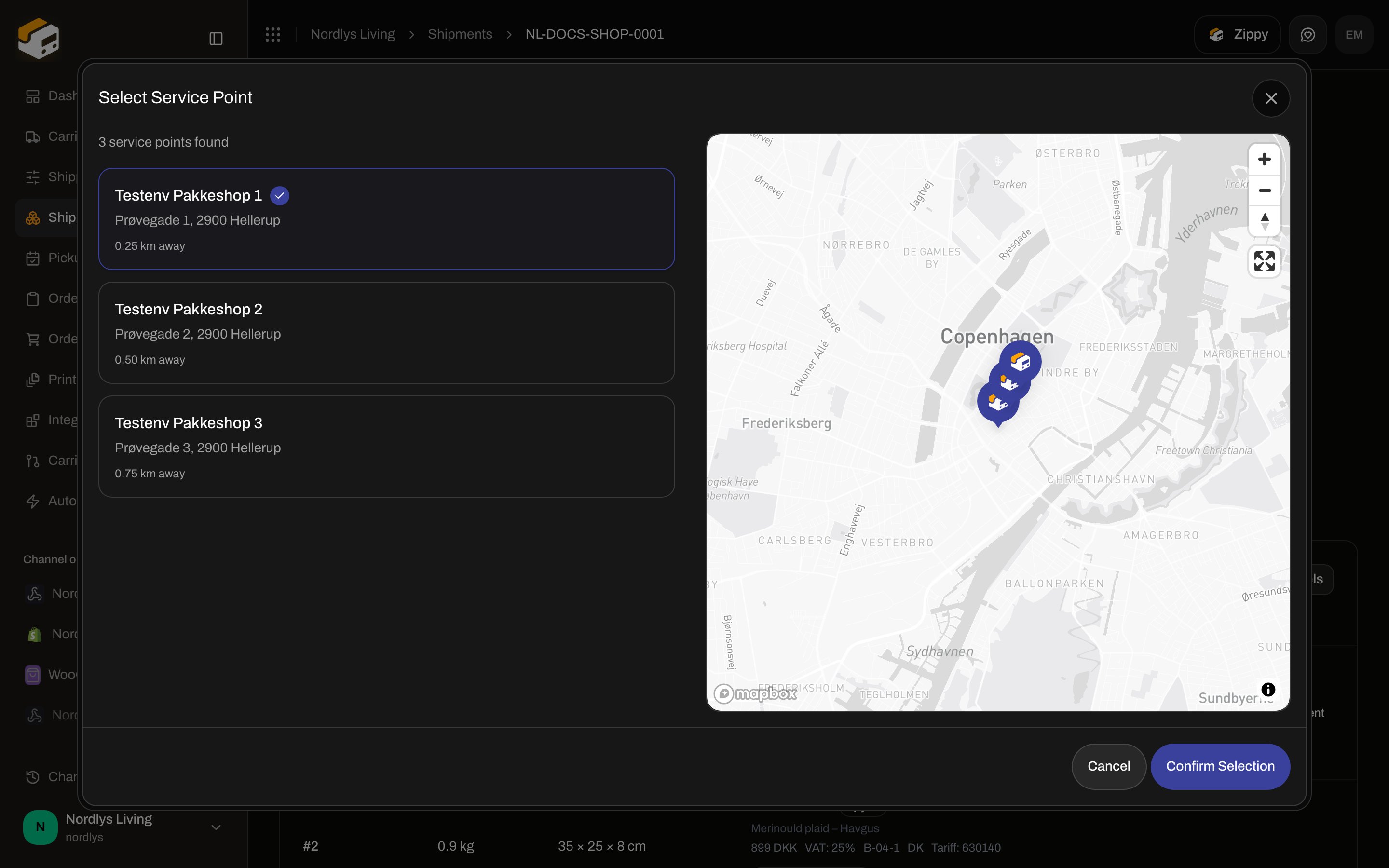
 ## Select Service Point (list and map)
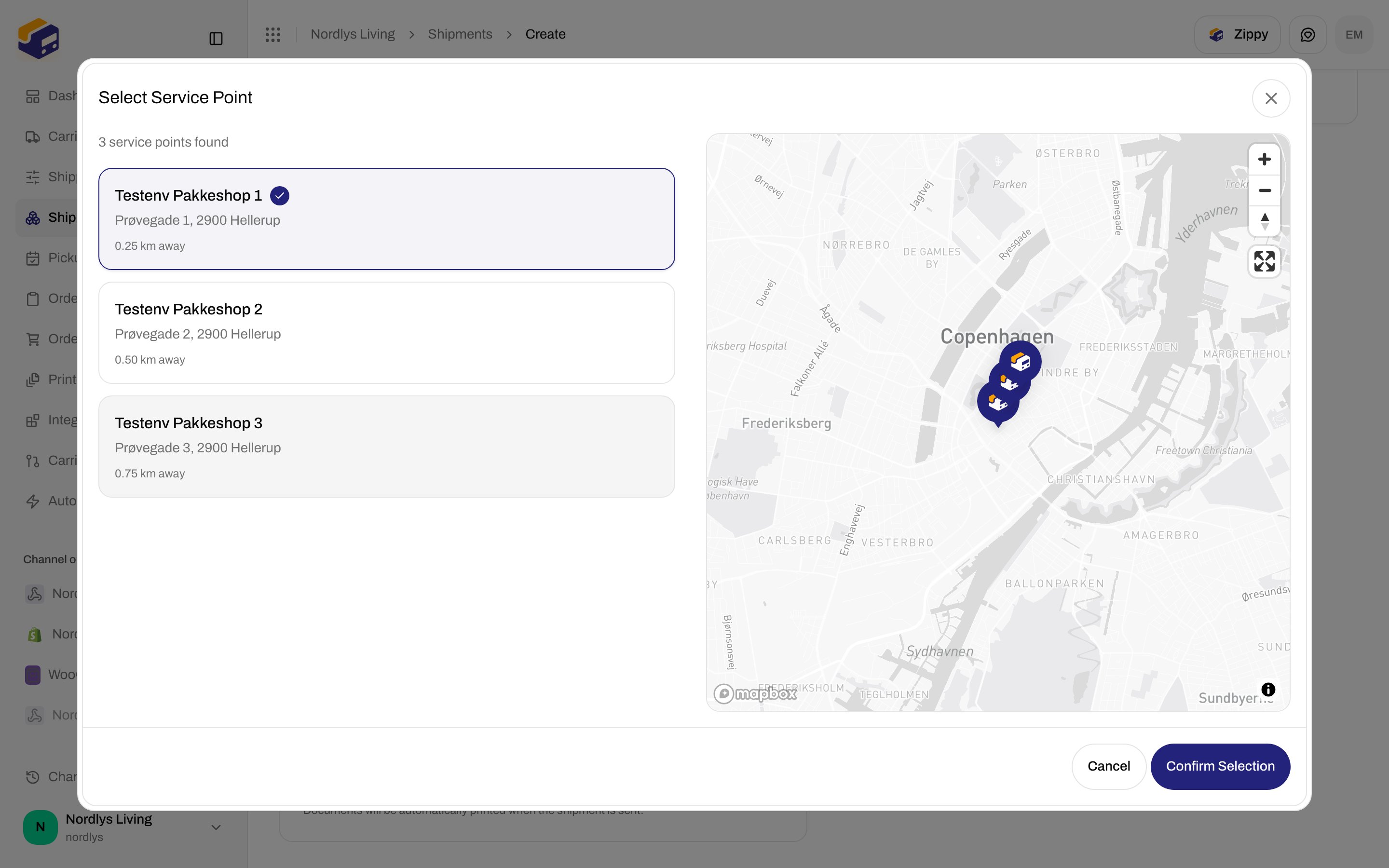
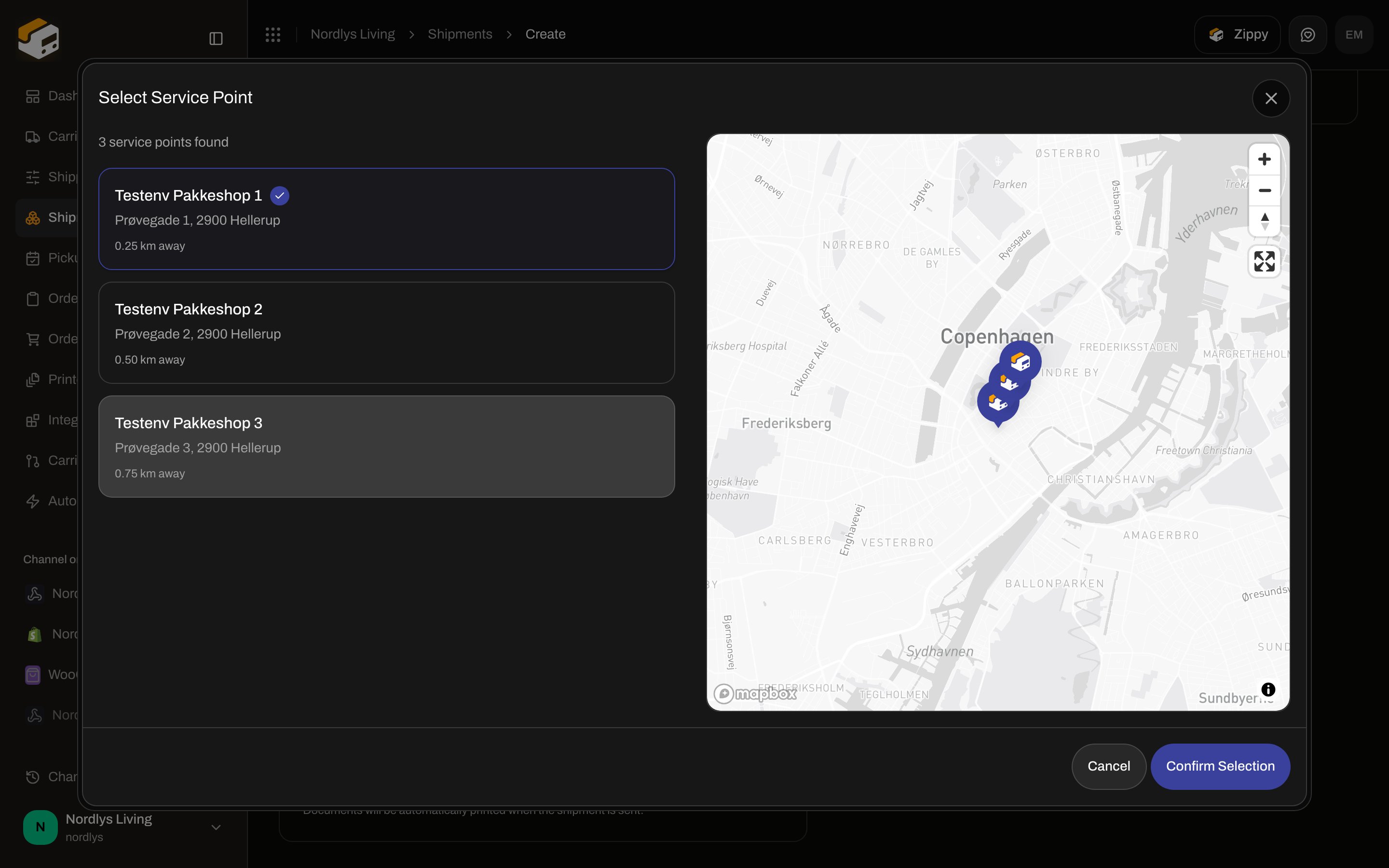
Modal title: **Select Service Point**. Confirm: **Confirm Selection** (or **Saving…** when persisting on an existing shipment). Cancel: **Cancel**. Confirm is hidden until a row is selected.
Left column:
* Count: **{{count}} service point found** / **{{count}} service points found**
* Each row: **name**, **address**, **{{distance}} km away**, checkmark when selected
* Hover highlights the row; click selects it (and the matching map marker)
* **Failed to load service points** plus the error message
* **No service points found**
Right column:
* Map centered on the selected (or first) point, zoom 12, markers for every result (selected = green, others = blue)
* Click a marker to select that point
* **No map available** when there is no center coordinate (or while the map token is missing)
## Select Service Point (list and map)
Modal title: **Select Service Point**. Confirm: **Confirm Selection** (or **Saving…** when persisting on an existing shipment). Cancel: **Cancel**. Confirm is hidden until a row is selected.
Left column:
* Count: **{{count}} service point found** / **{{count}} service points found**
* Each row: **name**, **address**, **{{distance}} km away**, checkmark when selected
* Hover highlights the row; click selects it (and the matching map marker)
* **Failed to load service points** plus the error message
* **No service points found**
Right column:
* Map centered on the selected (or first) point, zoom 12, markers for every result (selected = green, others = blue)
* Click a marker to select that point
* **No map available** when there is no center coordinate (or while the map token is missing)
 On create, **Confirm Selection** closes the modal and writes the point onto the form (`servicePointId` plus `droppoint` in additional parameters). It does not save the shipment yet.
## From an order
Open **Orders**, then **Create Shipment**. Fields above the point:
* **Address**
* **Carrier**
* **Shipping Product**
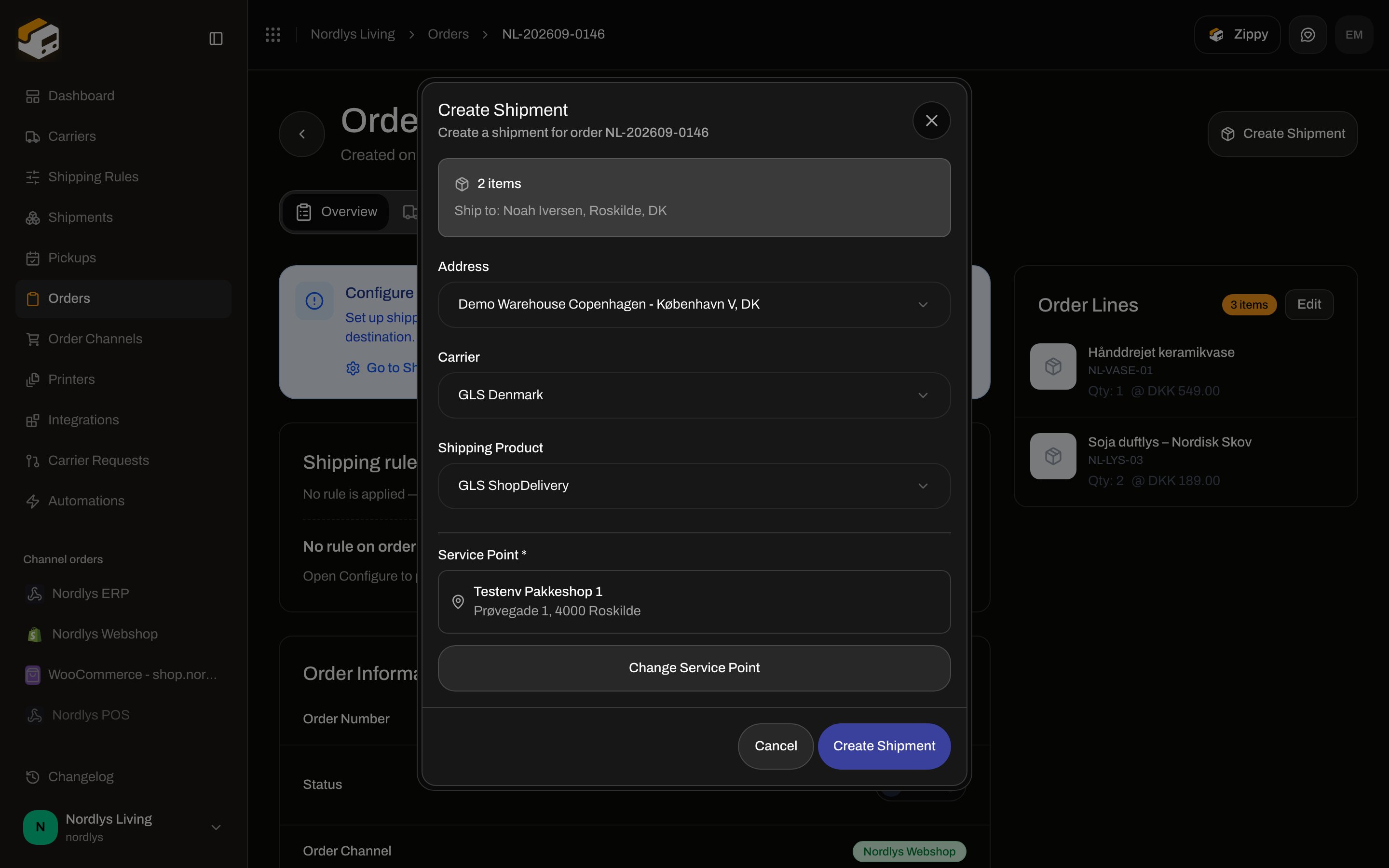
When the product is a service-point product, **Service Point \*** appears. The nearest point is auto-filled. Use **Change Service Point** / **Select Service Point**. **Create Shipment** stays disabled until a point is selected.
If the order has a shipping rule whose product is a shop product, the same **Service Point \*** block appears in rule mode. [Apply a shipping rule](/docs/how-to/apply-a-shipping-rule).
On create, **Confirm Selection** closes the modal and writes the point onto the form (`servicePointId` plus `droppoint` in additional parameters). It does not save the shipment yet.
## From an order
Open **Orders**, then **Create Shipment**. Fields above the point:
* **Address**
* **Carrier**
* **Shipping Product**
When the product is a service-point product, **Service Point \*** appears. The nearest point is auto-filled. Use **Change Service Point** / **Select Service Point**. **Create Shipment** stays disabled until a point is selected.
If the order has a shipping rule whose product is a shop product, the same **Service Point \*** block appears in rule mode. [Apply a shipping rule](/docs/how-to/apply-a-shipping-rule).
 ## Changing it later
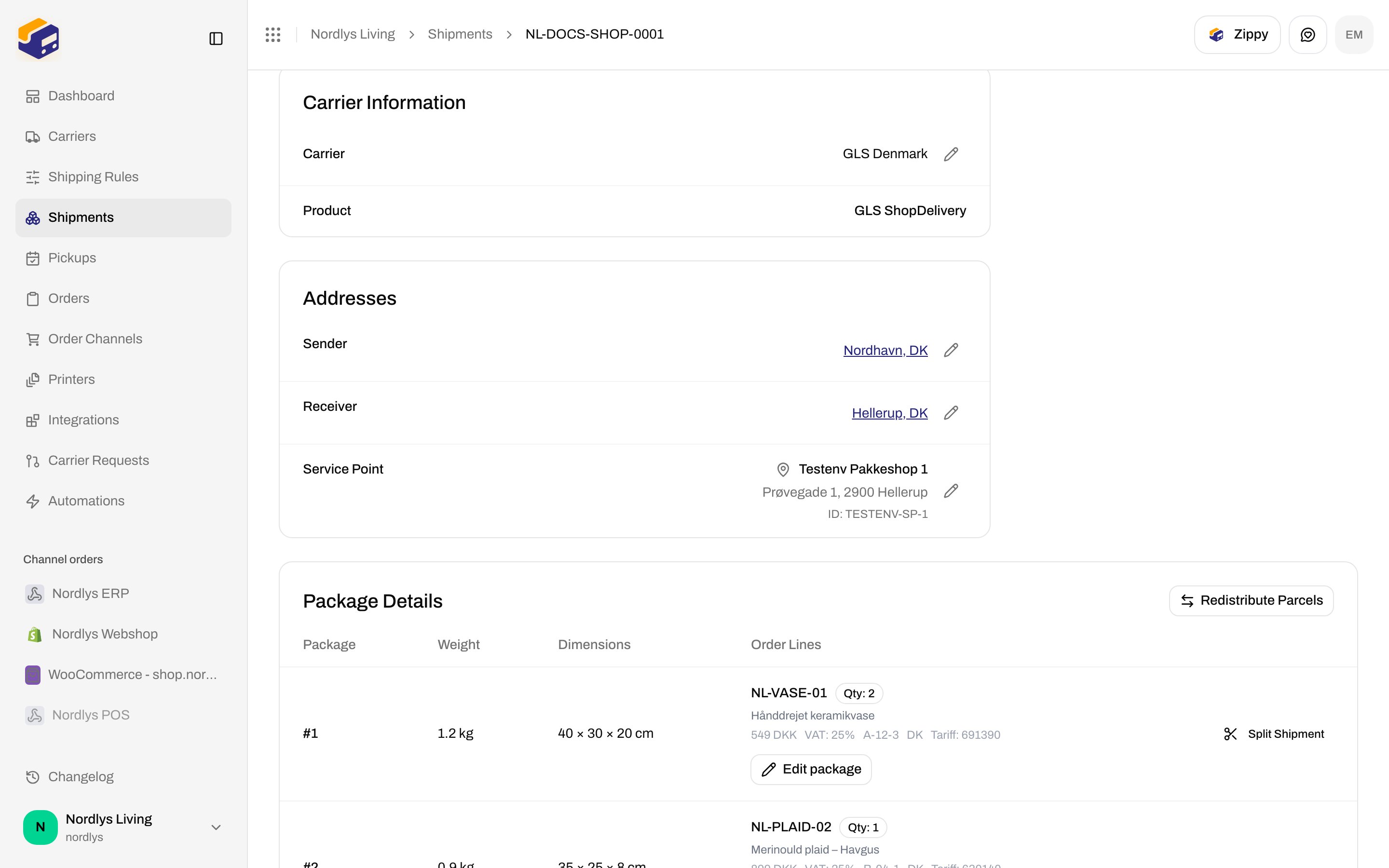
On shipment **Overview**, **Addresses** shows **Sender**, **Receiver**, and — when a point is stored — **Service Point**.
The **Service Point** row:
* Pin icon and **name** (or the words **Service Point** if only an id was imported, for example from checkout)
* Address line when display details were stored
* **ID: {{id}}** when `servicePointId` is set
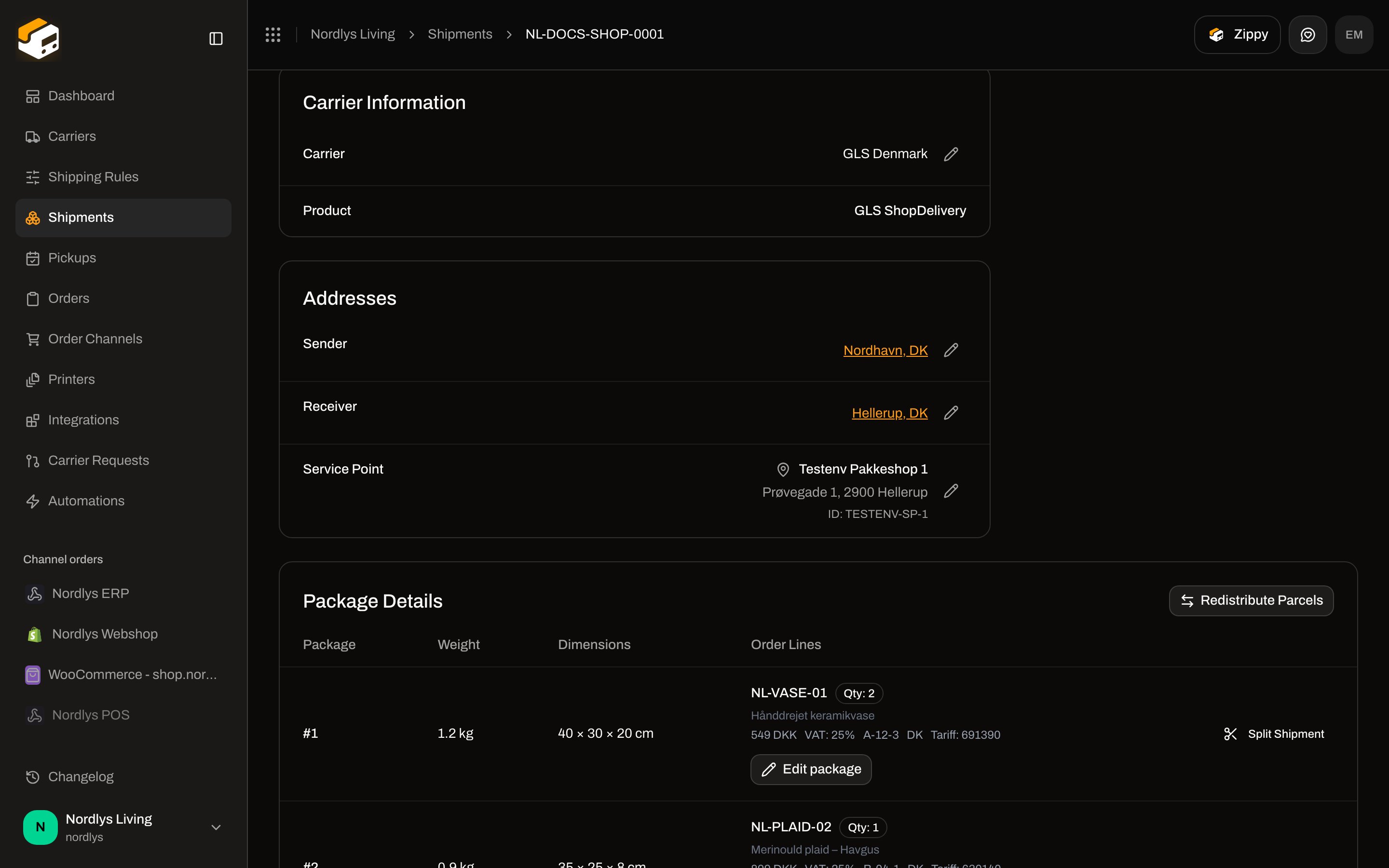
The pencil is shown while status is **Pending**, **Draft**, or **Error**. It opens the same **Select Service Point** modal; confirm persists immediately. Toasts: **Service point updated** / **Failed to update service point**.
After **Dispatched**, the pencil is hidden. You cannot change the point on a live label — [Hold, cancel, or delete](/docs/how-to/hold-cancel-and-delete-shipments).
## Changing it later
On shipment **Overview**, **Addresses** shows **Sender**, **Receiver**, and — when a point is stored — **Service Point**.
The **Service Point** row:
* Pin icon and **name** (or the words **Service Point** if only an id was imported, for example from checkout)
* Address line when display details were stored
* **ID: {{id}}** when `servicePointId` is set
The pencil is shown while status is **Pending**, **Draft**, or **Error**. It opens the same **Select Service Point** modal; confirm persists immediately. Toasts: **Service point updated** / **Failed to update service point**.
After **Dispatched**, the pencil is hidden. You cannot change the point on a live label — [Hold, cancel, or delete](/docs/how-to/hold-cancel-and-delete-shipments).
 You can also switch product on **Carrier Information** → pencil (**Edit Carrier Settings**). If the new product is a service-point product, **Service Point \*** appears in that modal with the same empty / retry / select states. Save stays disabled until a point is chosen.
## Validation and send
| Message | Where |
| ------------------------------------------------------------------------------------------------------------------ | ---------------------------------------- |
| **Please add a receiver address first to find nearby droppoints.** | Drop Point card / order modal |
| **Please complete the receiver address (address, postal code, city, and country code) to find nearby droppoints.** | Drop Point card |
| **Failed to load droppoints** + **Retry** | Card or order block |
| **No droppoints found near the receiver address.** | Card or order block |
| **No service point selected** | Card or order block |
| **Failed to load service points** | Picker |
| **No service points found** | Picker |
| **This carrier product delivers to a service point — select a droppoint before sending.** | Send (`SHIPMENT_SERVICE_POINT_REQUIRED`) |
Sending without a point fails. [Send a shipment](/docs/how-to/send-a-shipment).
You are done when **Service Point \*** shows a shop name and address, or **Addresses** on a pending shipment lists **Service Point** with an ID. Then [send](/docs/how-to/send-a-shipment) to buy the label.
You can also switch product on **Carrier Information** → pencil (**Edit Carrier Settings**). If the new product is a service-point product, **Service Point \*** appears in that modal with the same empty / retry / select states. Save stays disabled until a point is chosen.
## Validation and send
| Message | Where |
| ------------------------------------------------------------------------------------------------------------------ | ---------------------------------------- |
| **Please add a receiver address first to find nearby droppoints.** | Drop Point card / order modal |
| **Please complete the receiver address (address, postal code, city, and country code) to find nearby droppoints.** | Drop Point card |
| **Failed to load droppoints** + **Retry** | Card or order block |
| **No droppoints found near the receiver address.** | Card or order block |
| **No service point selected** | Card or order block |
| **Failed to load service points** | Picker |
| **No service points found** | Picker |
| **This carrier product delivers to a service point — select a droppoint before sending.** | Send (`SHIPMENT_SERVICE_POINT_REQUIRED`) |
Sending without a point fails. [Send a shipment](/docs/how-to/send-a-shipment).
You are done when **Service Point \*** shows a shop name and address, or **Addresses** on a pending shipment lists **Service Point** with an ID. Then [send](/docs/how-to/send-a-shipment) to buy the label.