> ## Documentation Index
> Fetch the complete documentation index at: https://www.zippendo.com/docs/llms.txt
> Use this file to discover all available pages before exploring further.
# Order channel settings
> Open Order Channels to manage Connected stores, Available integrations, brand assignment, and leftover Disconnected channels.
**Order Channels** is the shared list for every store you connect. This page is the list, the sidebar, leftover **Disconnected channels**, and the **Brand** field that appears on every channel type. Per-platform connect and settings are:
* [Connect WooCommerce](/docs/how-to/connect-woocommerce)
* [Shopify settings](/docs/how-to/shopify-settings)
* [Custom channel API](/docs/how-to/custom-channel-api)
Walkthrough: [Connect order channels](/docs/tutorials/connect-order-channels). Shopify install: [Connect Shopify](/docs/tutorials/connect-shopify). Checkout rates: [Checkout](/docs/tutorials/checkout).
## Where it lives
Sidebar **Order Channels** → `/{org}/dashboard/order-channels`. Page title **Order Channels**. Subtitle: **Connect your e-commerce platforms to import orders automatically**.
Tabs are URL state (`?tab=`):
| Tab | `?tab=` | What it lists |
| -------------------------- | ------------------------ | --------------------------------------------------------------------------------------- |
| **Connected stores** | `connected-stores` | Live Shopify, WooCommerce, and custom channels, then leftover **Disconnected channels** |
| **Available integrations** | `available-integrations` | Catalog cards to connect a new store |
A bookmark with `?tab=integrations` is rewritten to **Available integrations**.
Loading on **Connected stores** shows three card skeletons. Channel detail loading: **Loading…**. Missing channel: **Channel not found** / **The order channel you're looking for doesn't exist or you don't have access.**
## Connected stores
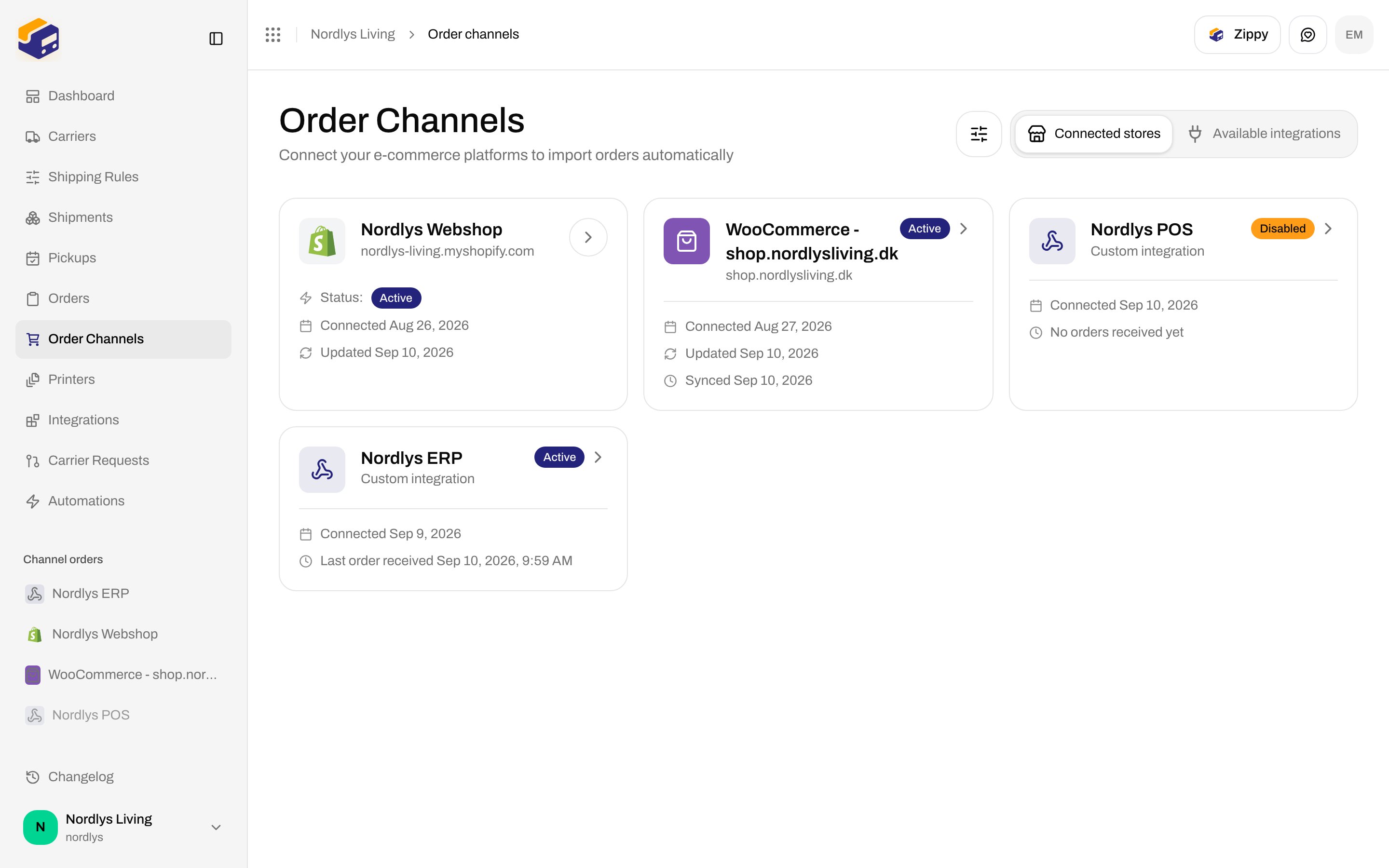
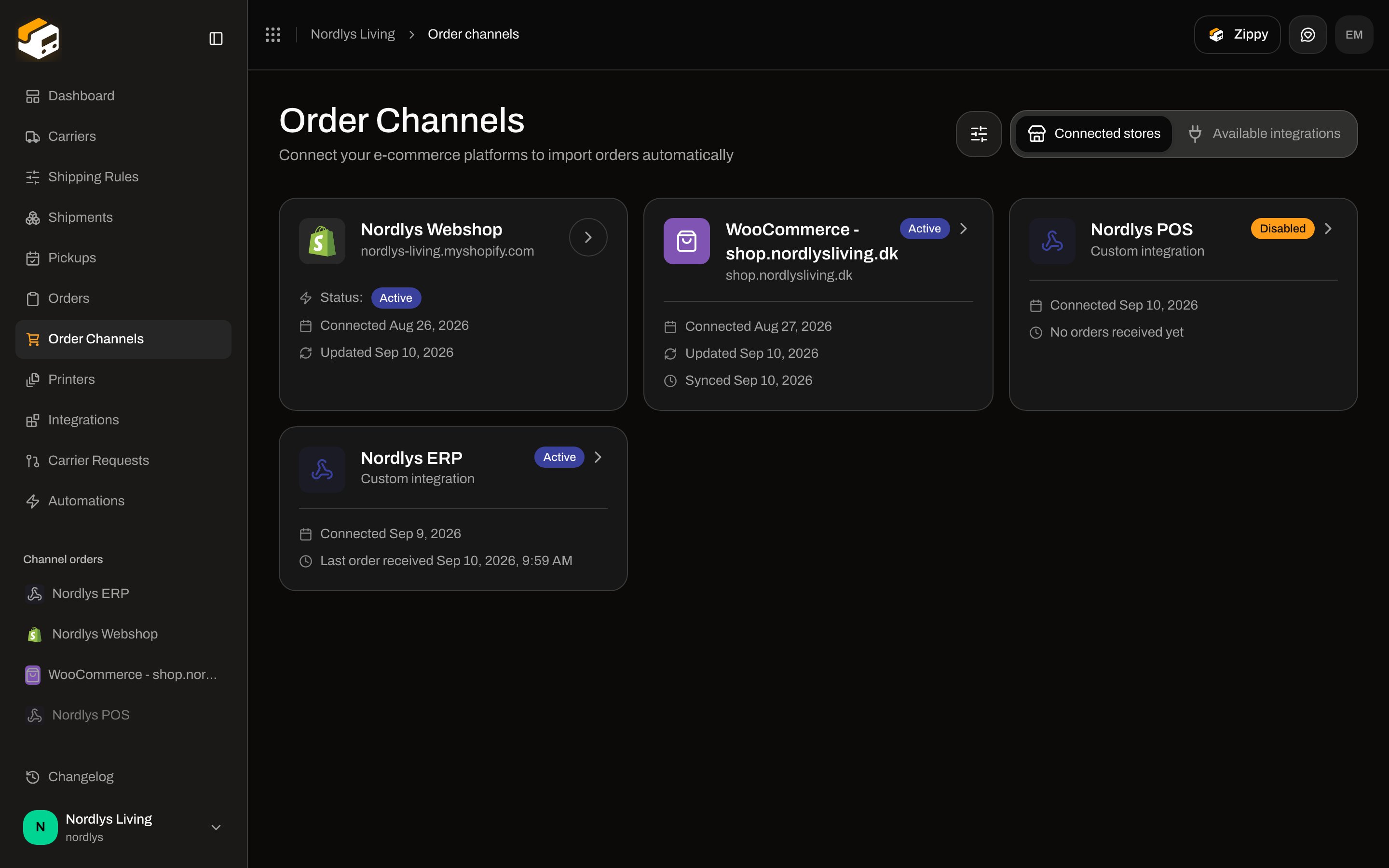
Click a live card to open `/{org}/dashboard/order-channels/{id}`. Aria on each card: **Open \{name}**.
 ### Empty
When nothing is connected and there are no leftovers:
| Copy | Text |
| ----------- | ------------------------------------------------------------------------------------------------------ |
| Title | **No stores connected** |
| Description | **Connect a sales channel to import orders automatically, or browse integrations to compare options.** |
| Primary | **Connect Shopify** — same modal as [Shopify settings](/docs/how-to/shopify-settings) |
| Secondary | **Browse available integrations** — switches to **Available integrations** |
### Shared card fields
Every live card shows a name, **Active** or **Disabled**, and **Connected \{date}**. The rest depends on type:
| Type | Subtitle | Extra rows | Extra badge |
| ----------- | -------------------------------------------------------------- | -------------------------------------------------------------- | ---------------------------------------------------------------------------------------------------- |
| Shopify | Shop domain | **Status:** **Active** / **Disabled**, **Updated \{date}** | **Uninstalled in app** when the Shopify app was removed. Card is not clickable without a channel id. |
| WooCommerce | Store hostname, or **WooCommerce Store** if the URL is missing | **Updated \{date}**, **Synced \{date}** when a sync has run | — |
| Custom | **Custom integration** | **Last order received \{date}**, or **No orders received yet** | — |
WooCommerce and custom cards also show a [brand](/docs/how-to/create-a-brand) badge when the channel is assigned. Shopify cards do not show a badge on this list (brand is on the Shopify settings screen).
There is no enable switch on the list. **Active** / **Disabled** is a badge. How you change it is per type: custom **Channel enabled**, WooCommerce **Status** (display) plus **Disconnect**, Shopify disconnect — see the platform pages.
### Filters
On **Connected stores** only. The sliders control sits next to the tabs (tooltip **Click to filter results**). Same **Filters** popover as other lists ([Search and filters](/docs/how-to/search-and-filters)): title **Filters**, footer **Add filters**. **Available integrations** has no filter.
**Brand** fields appear only when the organization has brands and you are in the house view (not inside a brand session):
| Option | Meaning |
| -------------- | ------------------------------- |
| **All brands** | Every channel |
| **No brand** | Organization-wide channels |
| A brand name | Channels assigned to that brand |
Inside a brand session the control is a scope toggle: **All records**, **Only this brand**, **Organization-wide only**. Shopify installation cards are **not** narrowed by this filter (they come from a separate endpoint). WooCommerce, custom, and leftover rows are.
## Available integrations
Catalog of what Zippendo can connect. Feature bullets are on the card; the button opens that platform’s modal.
### Empty
When nothing is connected and there are no leftovers:
| Copy | Text |
| ----------- | ------------------------------------------------------------------------------------------------------ |
| Title | **No stores connected** |
| Description | **Connect a sales channel to import orders automatically, or browse integrations to compare options.** |
| Primary | **Connect Shopify** — same modal as [Shopify settings](/docs/how-to/shopify-settings) |
| Secondary | **Browse available integrations** — switches to **Available integrations** |
### Shared card fields
Every live card shows a name, **Active** or **Disabled**, and **Connected \{date}**. The rest depends on type:
| Type | Subtitle | Extra rows | Extra badge |
| ----------- | -------------------------------------------------------------- | -------------------------------------------------------------- | ---------------------------------------------------------------------------------------------------- |
| Shopify | Shop domain | **Status:** **Active** / **Disabled**, **Updated \{date}** | **Uninstalled in app** when the Shopify app was removed. Card is not clickable without a channel id. |
| WooCommerce | Store hostname, or **WooCommerce Store** if the URL is missing | **Updated \{date}**, **Synced \{date}** when a sync has run | — |
| Custom | **Custom integration** | **Last order received \{date}**, or **No orders received yet** | — |
WooCommerce and custom cards also show a [brand](/docs/how-to/create-a-brand) badge when the channel is assigned. Shopify cards do not show a badge on this list (brand is on the Shopify settings screen).
There is no enable switch on the list. **Active** / **Disabled** is a badge. How you change it is per type: custom **Channel enabled**, WooCommerce **Status** (display) plus **Disconnect**, Shopify disconnect — see the platform pages.
### Filters
On **Connected stores** only. The sliders control sits next to the tabs (tooltip **Click to filter results**). Same **Filters** popover as other lists ([Search and filters](/docs/how-to/search-and-filters)): title **Filters**, footer **Add filters**. **Available integrations** has no filter.
**Brand** fields appear only when the organization has brands and you are in the house view (not inside a brand session):
| Option | Meaning |
| -------------- | ------------------------------- |
| **All brands** | Every channel |
| **No brand** | Organization-wide channels |
| A brand name | Channels assigned to that brand |
Inside a brand session the control is a scope toggle: **All records**, **Only this brand**, **Organization-wide only**. Shopify installation cards are **not** narrowed by this filter (they come from a separate endpoint). WooCommerce, custom, and leftover rows are.
## Available integrations
Catalog of what Zippendo can connect. Feature bullets are on the card; the button opens that platform’s modal.
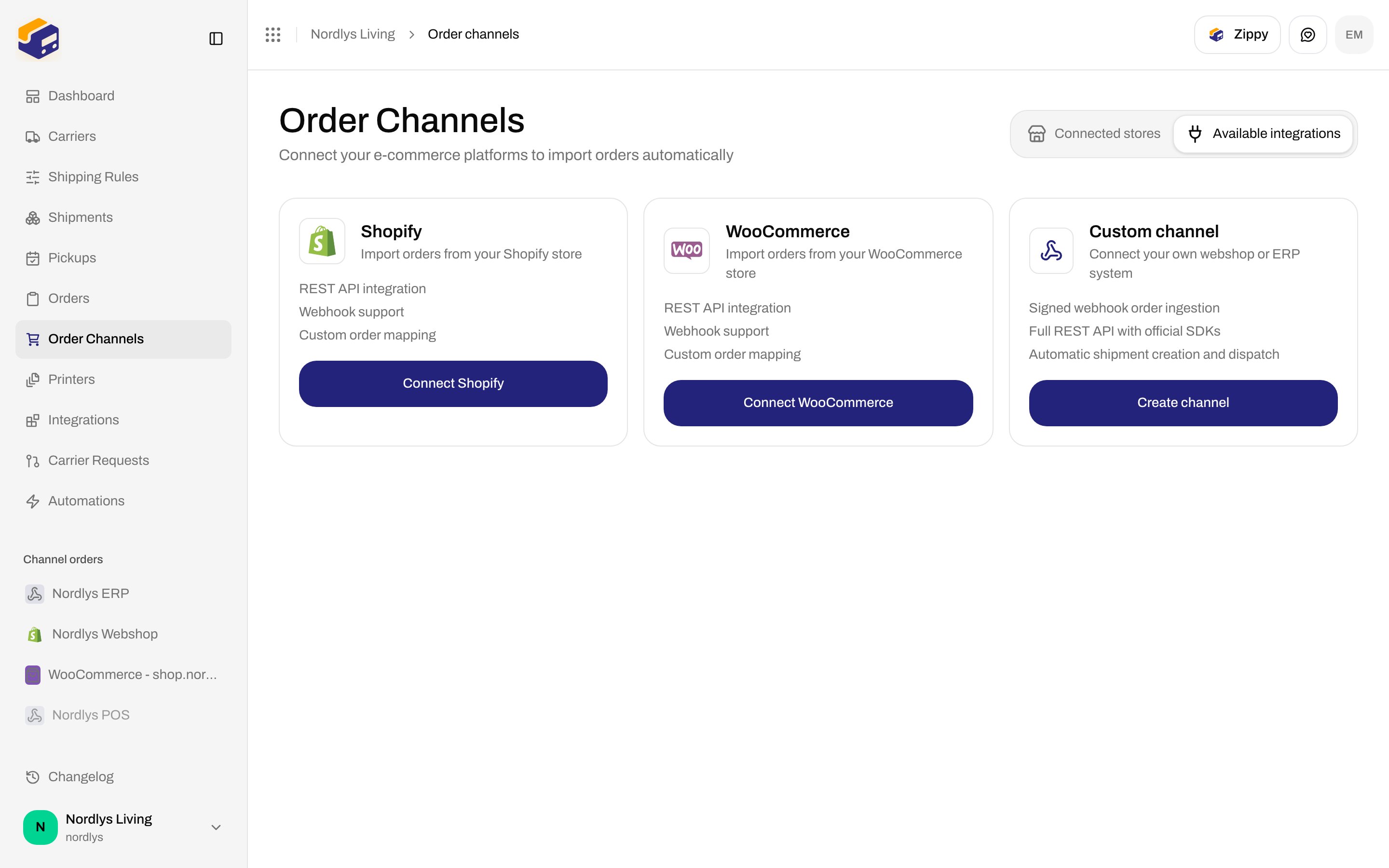
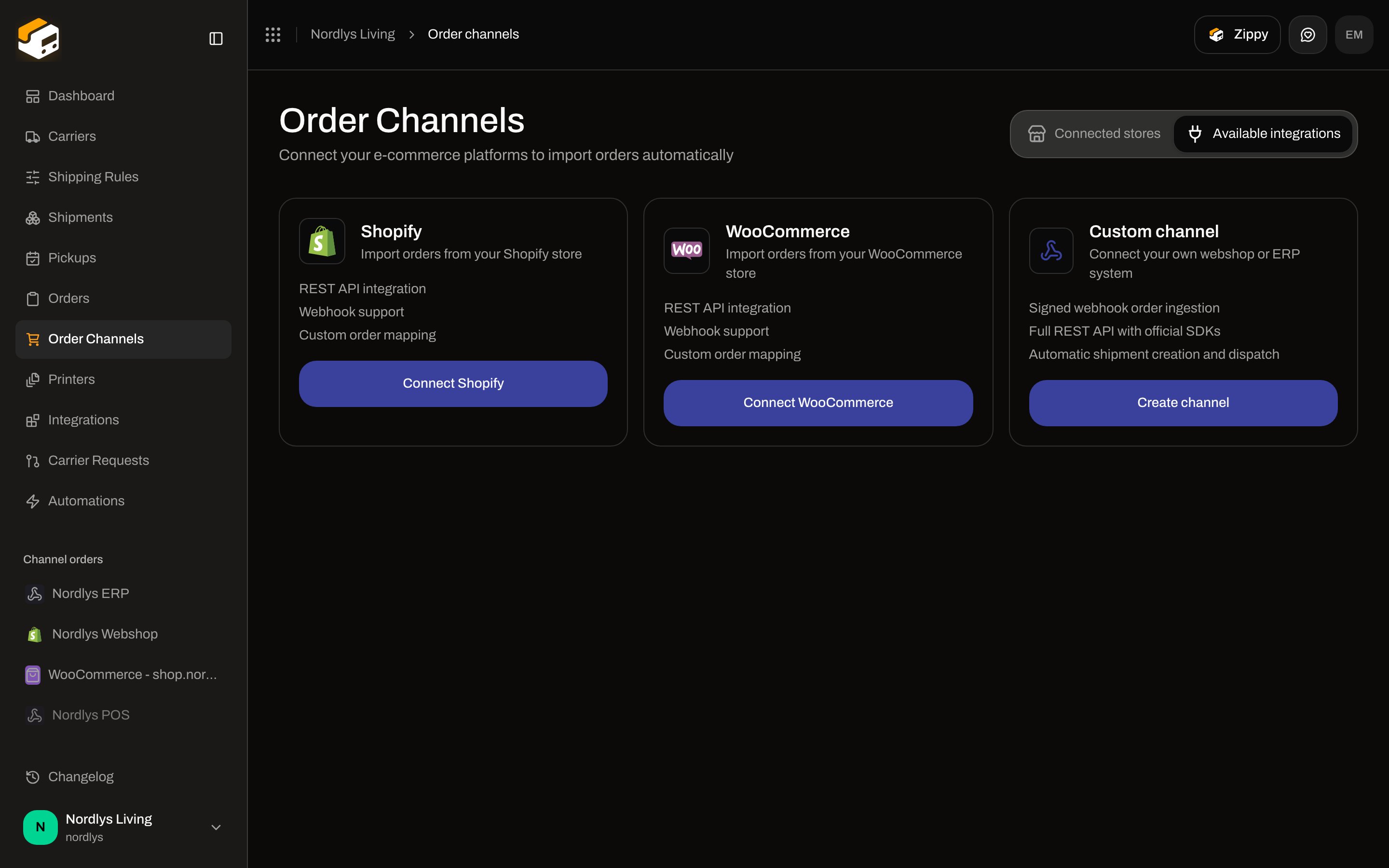 | Card | Description | Features | Button |
| ------------------ | --------------------------------------------- | ---------------------------------------------------------------------------------------------------------------------- | ----------------------- |
| **Shopify** | **Import orders from your Shopify store** | **REST API integration**, **Webhook support**, **Custom order mapping** | **Connect Shopify** |
| **WooCommerce** | **Import orders from your WooCommerce store** | **REST API integration**, **Webhook support**, **Custom order mapping** | **Connect WooCommerce** |
| **Custom channel** | **Connect your own webshop or ERP system** | **Signed webhook order ingestion**, **Full REST API with official SDKs**, **Automatic shipment creation and dispatch** | **Create channel** |
Do not fill those modals here — [Shopify settings](/docs/how-to/shopify-settings), [Connect WooCommerce](/docs/how-to/connect-woocommerce), [Custom channel API](/docs/how-to/custom-channel-api).
## Channel orders in the sidebar
Above the main nav, group label **Channel orders**. Hidden when the sidebar is collapsed to icons. The group is visible on the Connected stores frame above.
| State | What you see |
| -------------- | ------------------------------------------------------------------------------------------------- |
| Loading | Three small skeletons |
| No channels | **Add channel** (tooltip **Connect a store to import orders**) → **Available integrations** |
| Channels exist | One row per channel. Click opens **Orders** with `?channel=\{id\}`. Disabled channels are dimmed. |
This list includes leftover disconnected rows. Removing them is **Disconnected channels** below.
## Brand on the channel
On Shopify, WooCommerce, and custom settings the shared picker is:
| Field | Helper | Saves |
| --------- | -------------------------------------------------- | ------------------------------------------ |
| **Brand** | **Orders from this channel belong to this brand.** | Immediately (not part of **Save changes**) |
Options: **No brand (organization-wide)** plus each brand name. The picker (and on Shopify the wrapping **Brands** card) is hidden until the organization has brands. Create one first: [Create a brand](/docs/how-to/create-a-brand). Switching which brand you are working in is [Switch organization and brand](/docs/how-to/switch-organization-and-brand).
## Disconnected channels
Leftover Order Channel rows that no longer map to a live Shopify installation or WooCommerce connection. Custom channels are never in this list.
Heading **Disconnected channels**. Description: **Left over from a removed store, these only show in your sidebar. Remove them to clean up.**
Dashed card: channel name, optional brand badge, subtitle **No active integration**, badge **Disconnected**. Not clickable — there is no settings screen.
**Remove** opens modal `remove-orphaned-channel-\{id\}`:
| | |
| ------- | -------------------------------------------------------------------------------------------- |
| Title | **Remove channel?** |
| Body | **This permanently removes \{name} and any orders imported under it. This can't be undone.** |
| Confirm | **Remove channel** |
| Cancel | **Cancel** |
Toasts: **Channel removed** / **Failed to remove channel**. API: `ORDER_CHANNEL_NOT_FOUND` — **Order channel not found.**
The documentation org does not keep a leftover channel (it would appear on every **Connected stores** screenshot). The copy above is the live UI.
## Shared toasts
These fire from the generic channel API (create, update, delete, sync). Platform connect/disconnect toasts live on the platform pages.
| Success | Failure |
| -------------------------------------- | ---------------------------------- |
| **Order channel created successfully** | **Failed to create order channel** |
| **Order channel updated successfully** | **Failed to update order channel** |
| **Order channel deleted successfully** | **Failed to delete order channel** |
| **Order sync started successfully** | **Failed to start order sync** |
| **Channel removed** | **Failed to remove channel** |
| — | **No organization selected** |
`ORDER_CHANNEL_CONFIG_INVALID`: **The order channel configuration is invalid.** `ORDER_CHANNEL_TYPE_UNSUPPORTED`: **This operation is not supported for this channel type.**
## Related
* [Connect WooCommerce](/docs/how-to/connect-woocommerce)
* [Shopify settings](/docs/how-to/shopify-settings)
* [Custom channel API](/docs/how-to/custom-channel-api)
* [Create a brand](/docs/how-to/create-a-brand)
* [Search and filters](/docs/how-to/search-and-filters)
* [Connect order channels](/docs/tutorials/connect-order-channels)
* [Connect Shopify](/docs/tutorials/connect-shopify)
* [Order channels](/docs/order-channels/overview)
| Card | Description | Features | Button |
| ------------------ | --------------------------------------------- | ---------------------------------------------------------------------------------------------------------------------- | ----------------------- |
| **Shopify** | **Import orders from your Shopify store** | **REST API integration**, **Webhook support**, **Custom order mapping** | **Connect Shopify** |
| **WooCommerce** | **Import orders from your WooCommerce store** | **REST API integration**, **Webhook support**, **Custom order mapping** | **Connect WooCommerce** |
| **Custom channel** | **Connect your own webshop or ERP system** | **Signed webhook order ingestion**, **Full REST API with official SDKs**, **Automatic shipment creation and dispatch** | **Create channel** |
Do not fill those modals here — [Shopify settings](/docs/how-to/shopify-settings), [Connect WooCommerce](/docs/how-to/connect-woocommerce), [Custom channel API](/docs/how-to/custom-channel-api).
## Channel orders in the sidebar
Above the main nav, group label **Channel orders**. Hidden when the sidebar is collapsed to icons. The group is visible on the Connected stores frame above.
| State | What you see |
| -------------- | ------------------------------------------------------------------------------------------------- |
| Loading | Three small skeletons |
| No channels | **Add channel** (tooltip **Connect a store to import orders**) → **Available integrations** |
| Channels exist | One row per channel. Click opens **Orders** with `?channel=\{id\}`. Disabled channels are dimmed. |
This list includes leftover disconnected rows. Removing them is **Disconnected channels** below.
## Brand on the channel
On Shopify, WooCommerce, and custom settings the shared picker is:
| Field | Helper | Saves |
| --------- | -------------------------------------------------- | ------------------------------------------ |
| **Brand** | **Orders from this channel belong to this brand.** | Immediately (not part of **Save changes**) |
Options: **No brand (organization-wide)** plus each brand name. The picker (and on Shopify the wrapping **Brands** card) is hidden until the organization has brands. Create one first: [Create a brand](/docs/how-to/create-a-brand). Switching which brand you are working in is [Switch organization and brand](/docs/how-to/switch-organization-and-brand).
## Disconnected channels
Leftover Order Channel rows that no longer map to a live Shopify installation or WooCommerce connection. Custom channels are never in this list.
Heading **Disconnected channels**. Description: **Left over from a removed store, these only show in your sidebar. Remove them to clean up.**
Dashed card: channel name, optional brand badge, subtitle **No active integration**, badge **Disconnected**. Not clickable — there is no settings screen.
**Remove** opens modal `remove-orphaned-channel-\{id\}`:
| | |
| ------- | -------------------------------------------------------------------------------------------- |
| Title | **Remove channel?** |
| Body | **This permanently removes \{name} and any orders imported under it. This can't be undone.** |
| Confirm | **Remove channel** |
| Cancel | **Cancel** |
Toasts: **Channel removed** / **Failed to remove channel**. API: `ORDER_CHANNEL_NOT_FOUND` — **Order channel not found.**
The documentation org does not keep a leftover channel (it would appear on every **Connected stores** screenshot). The copy above is the live UI.
## Shared toasts
These fire from the generic channel API (create, update, delete, sync). Platform connect/disconnect toasts live on the platform pages.
| Success | Failure |
| -------------------------------------- | ---------------------------------- |
| **Order channel created successfully** | **Failed to create order channel** |
| **Order channel updated successfully** | **Failed to update order channel** |
| **Order channel deleted successfully** | **Failed to delete order channel** |
| **Order sync started successfully** | **Failed to start order sync** |
| **Channel removed** | **Failed to remove channel** |
| — | **No organization selected** |
`ORDER_CHANNEL_CONFIG_INVALID`: **The order channel configuration is invalid.** `ORDER_CHANNEL_TYPE_UNSUPPORTED`: **This operation is not supported for this channel type.**
## Related
* [Connect WooCommerce](/docs/how-to/connect-woocommerce)
* [Shopify settings](/docs/how-to/shopify-settings)
* [Custom channel API](/docs/how-to/custom-channel-api)
* [Create a brand](/docs/how-to/create-a-brand)
* [Search and filters](/docs/how-to/search-and-filters)
* [Connect order channels](/docs/tutorials/connect-order-channels)
* [Connect Shopify](/docs/tutorials/connect-shopify)
* [Order channels](/docs/order-channels/overview)