> ## Documentation Index
> Fetch the complete documentation index at: https://www.zippendo.com/docs/llms.txt
> Use this file to discover all available pages before exploring further.
# Inbound and returns
> Create inbound (return) shipments — Type Inbound, return addresses, inbound shipping rules, and Create Return Shipment.
Returns in Zippendo are **merchant-side labels**. You book an **inbound** shipment (or let dispatch do it), print the label, and give it to the shopper. There is **no** customer return portal in the dashboard.
Journey: [Returns](/docs/tutorials/returns). Rule fields: [Shipping rule fields](/docs/how-to/shipping-rule-fields). Pickup vs droppoint names: [Droppoint vs service point](/docs/how-to/drop-point-and-service-points).
Zippendo does not host a return portal. Carrier products such as **GLS ShopReturn** may email the shopper or show a QR — that is the carrier, not a Zippendo page.
## Two pieces
1. An **inbound** shipping rule — **Direction** = **Inbound (Return)**, with a return product.
2. On the **outbound** rule you ship with, **Return Shipping Rule** points at that inbound rule.
Then either turn on **Auto-create return on dispatch**, or click **Create Return Shipment** after the outbound shipment is **Dispatched**.
## Inbound shipping rule
**Shipping Rules → Add Shipping Rule**. **Direction** helper: **Outbound for regular shipments, inbound for returns.** Options: **Outbound**, **Inbound (Return)**.
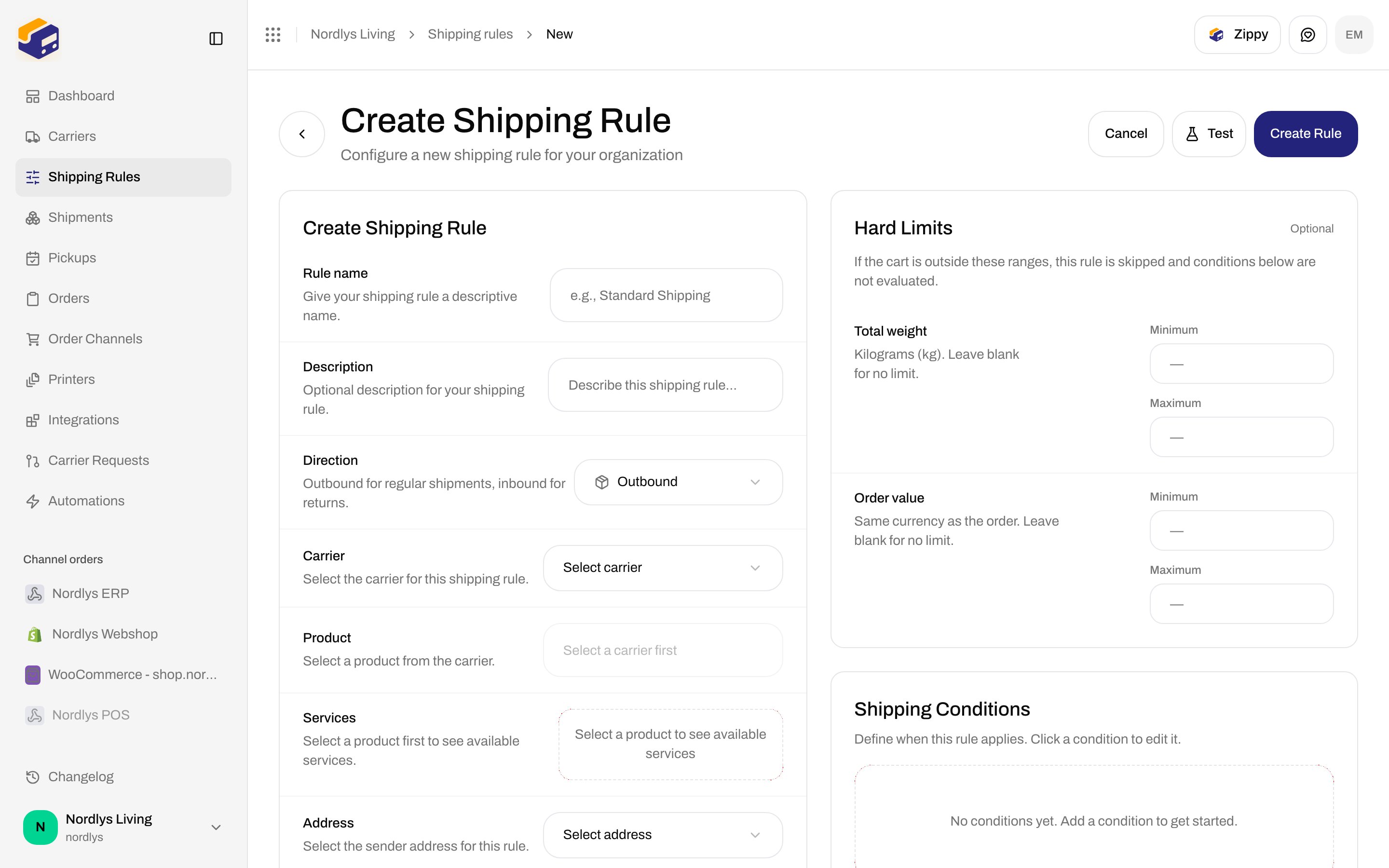
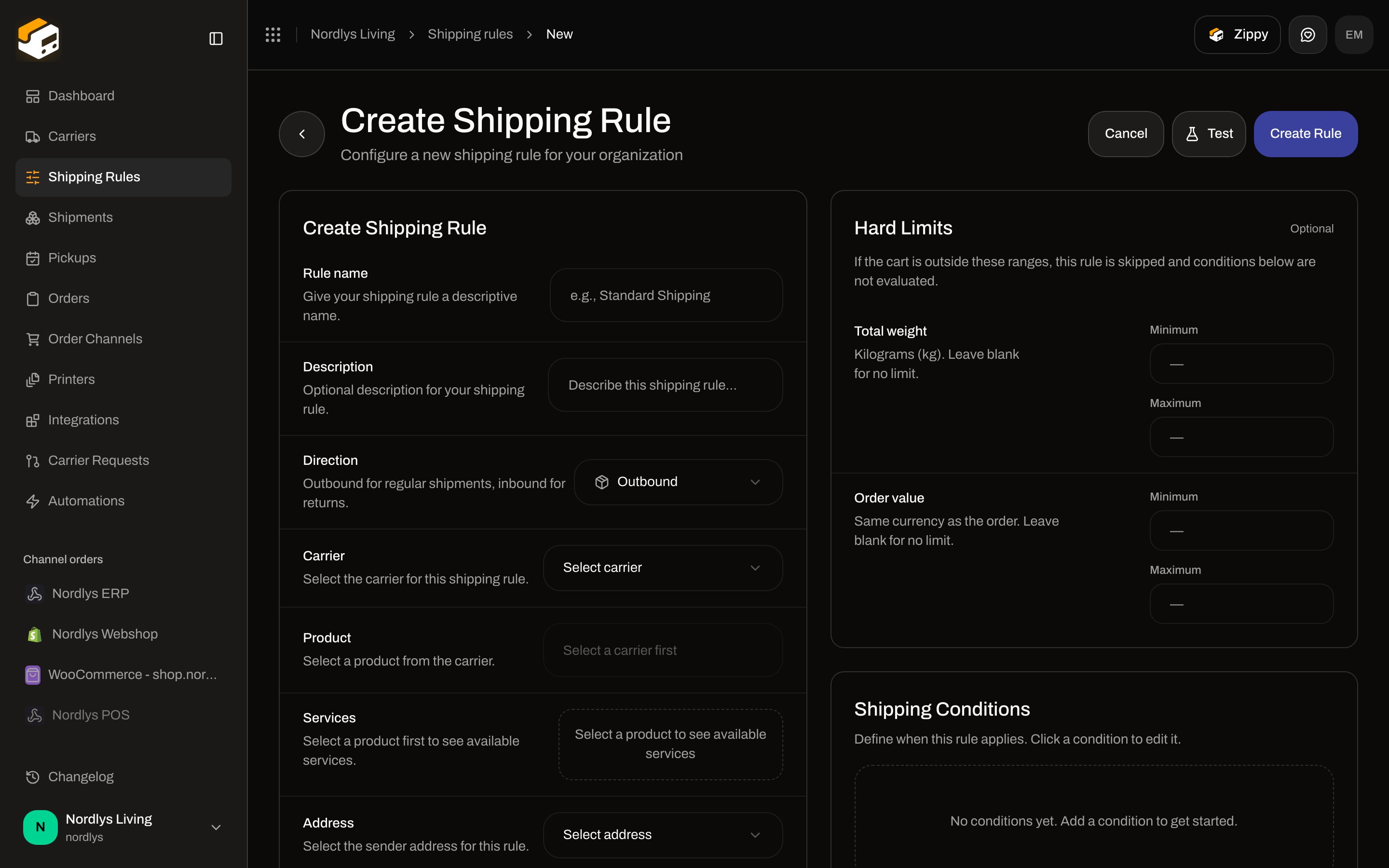 **Inbound (Return)** filters **Product** to return products. Empty: **No inbound products available**. Example on GLS Denmark: **GLS ShopReturn**, **GLS Pick\&Return**.
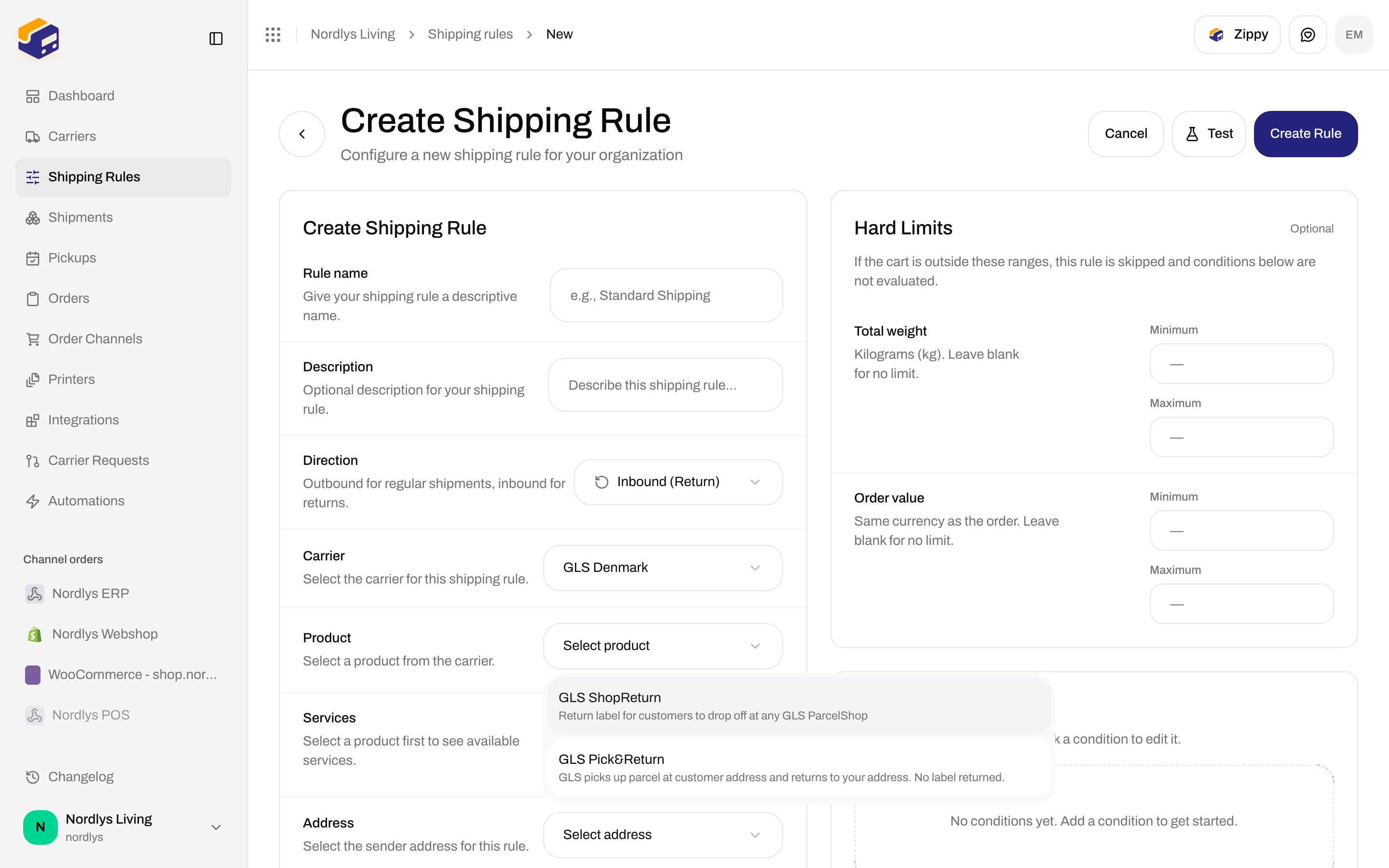
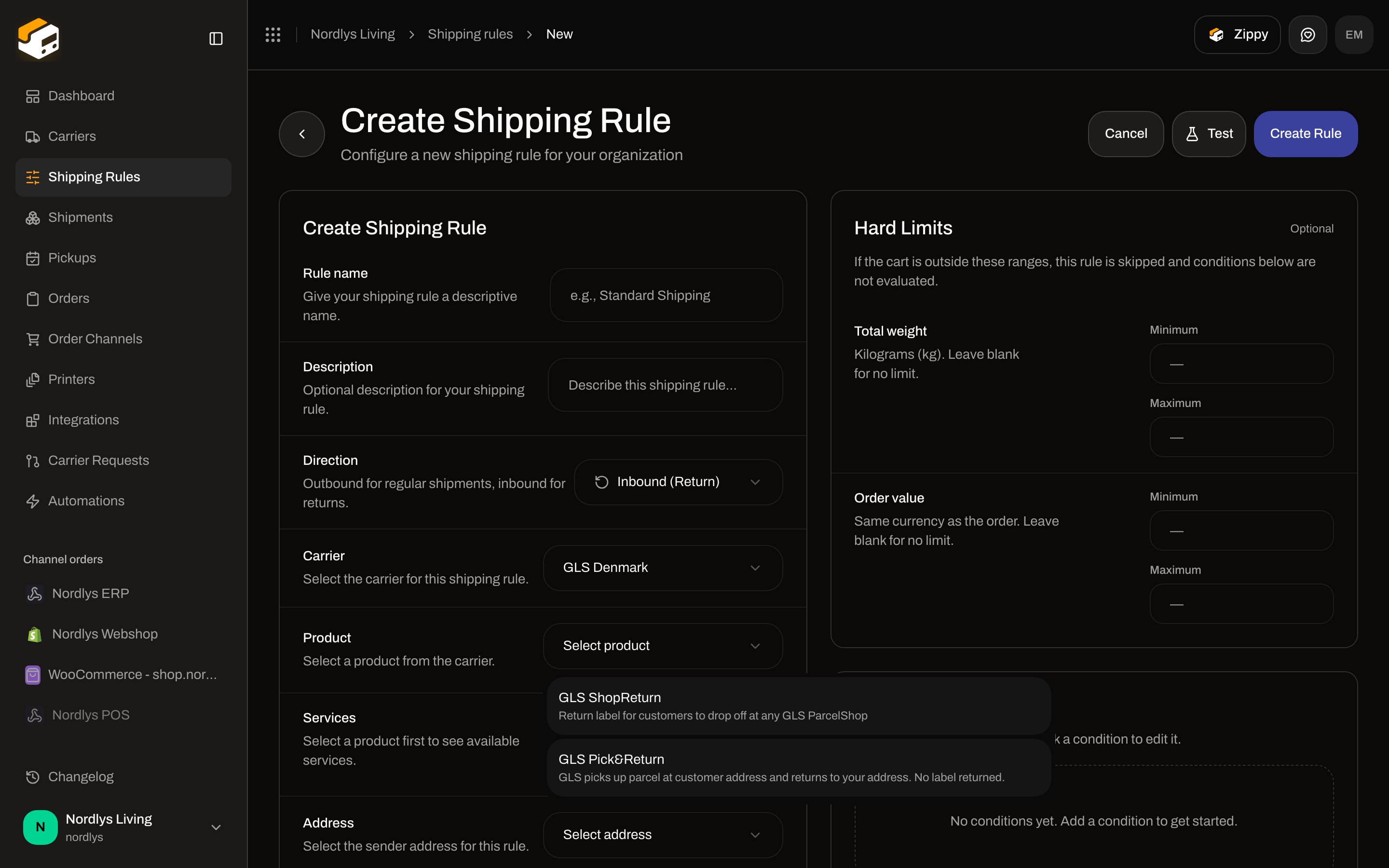 **Address** is still **Select the sender address for this rule** and still lists **sender**-type addresses — even on inbound rules. **Receiving Countries**, conditions, hard limits, and **Test** are the same as outbound — [Shipping rule fields](/docs/how-to/shipping-rule-fields).
## Attach it on the outbound rule
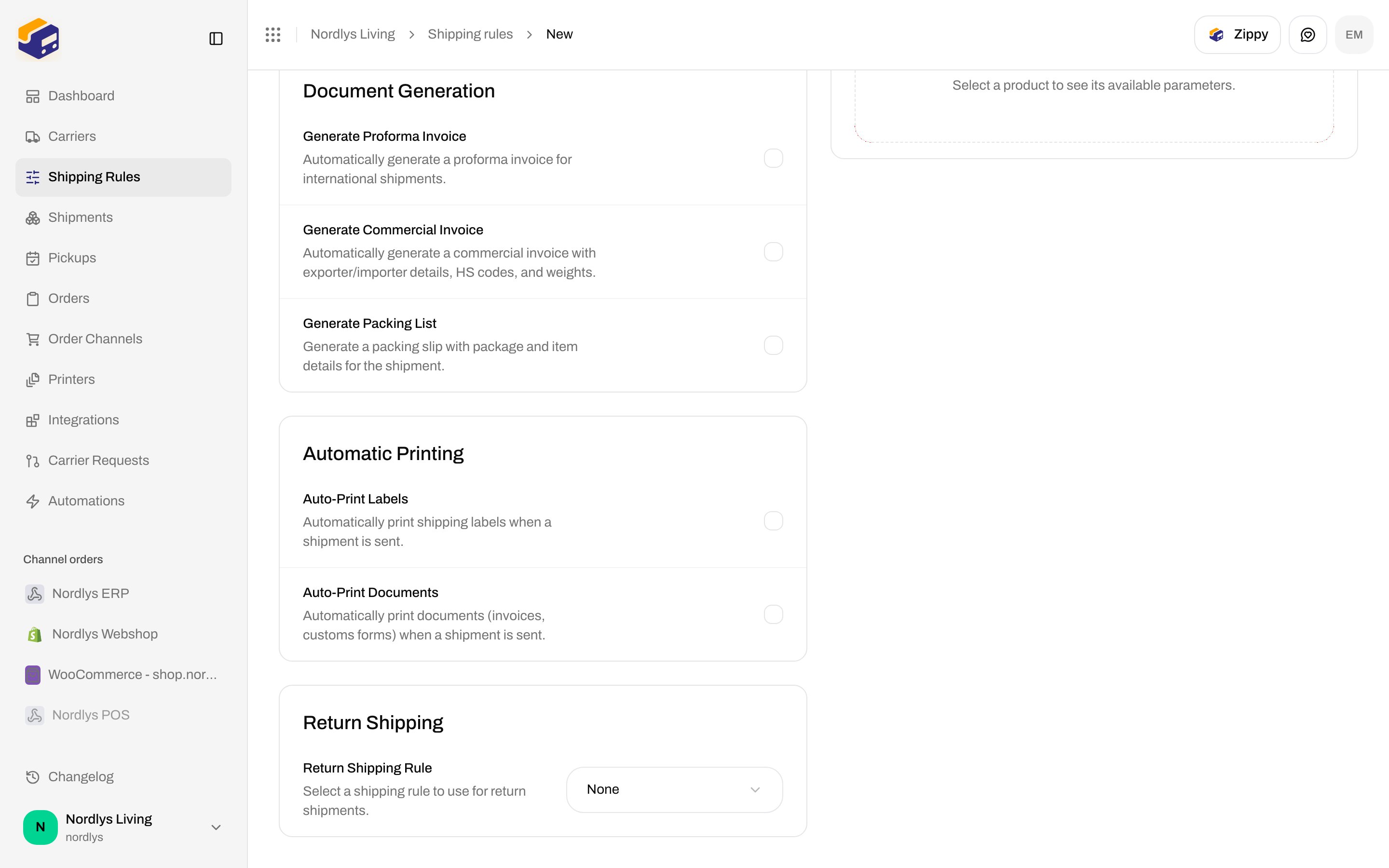
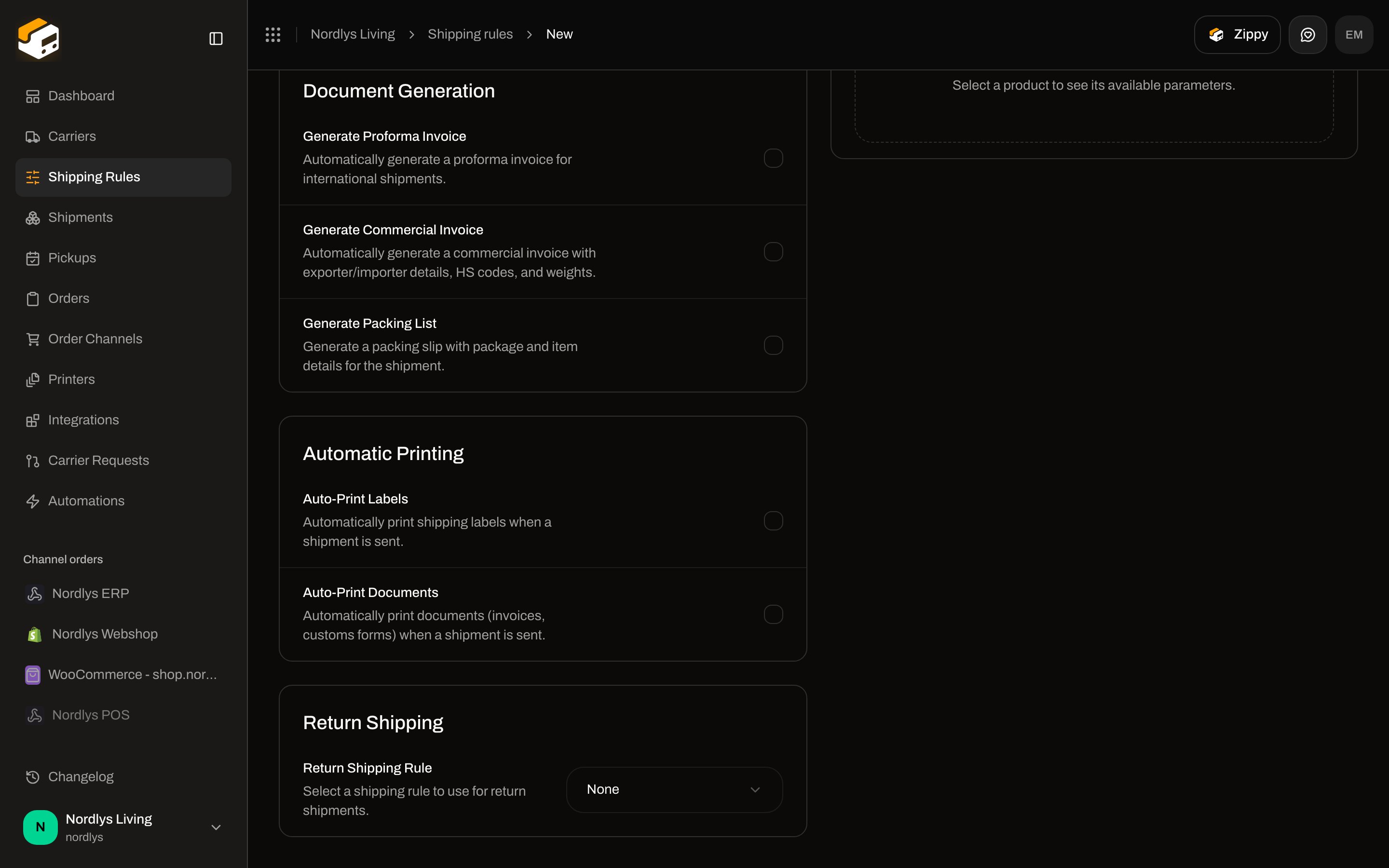
Open the outbound rule. **Return Shipping**:
**Address** is still **Select the sender address for this rule** and still lists **sender**-type addresses — even on inbound rules. **Receiving Countries**, conditions, hard limits, and **Test** are the same as outbound — [Shipping rule fields](/docs/how-to/shipping-rule-fields).
## Attach it on the outbound rule
Open the outbound rule. **Return Shipping**:
 | Field | Details |
| ---------------------------------- | ---------------------------------------------------------------------------------------------------------------------------------------------------------------------------------------------------------- |
| **Return Shipping Rule** | **Select a shipping rule to use for return shipments.** Placeholder **Select a return shipping rule**. **None** plus **all other rules** (not filtered to inbound). Pick an inbound rule here in practice. |
| **Auto-create return on dispatch** | Checkbox. **Automatically create and send a return shipment when the outbound shipment is dispatched.** Only appears after a rule is selected. Choosing **None** clears it. |
Use auto-create when every outbound send should book a return. Leave it off when returns are the exception.
## Create an inbound shipment by hand
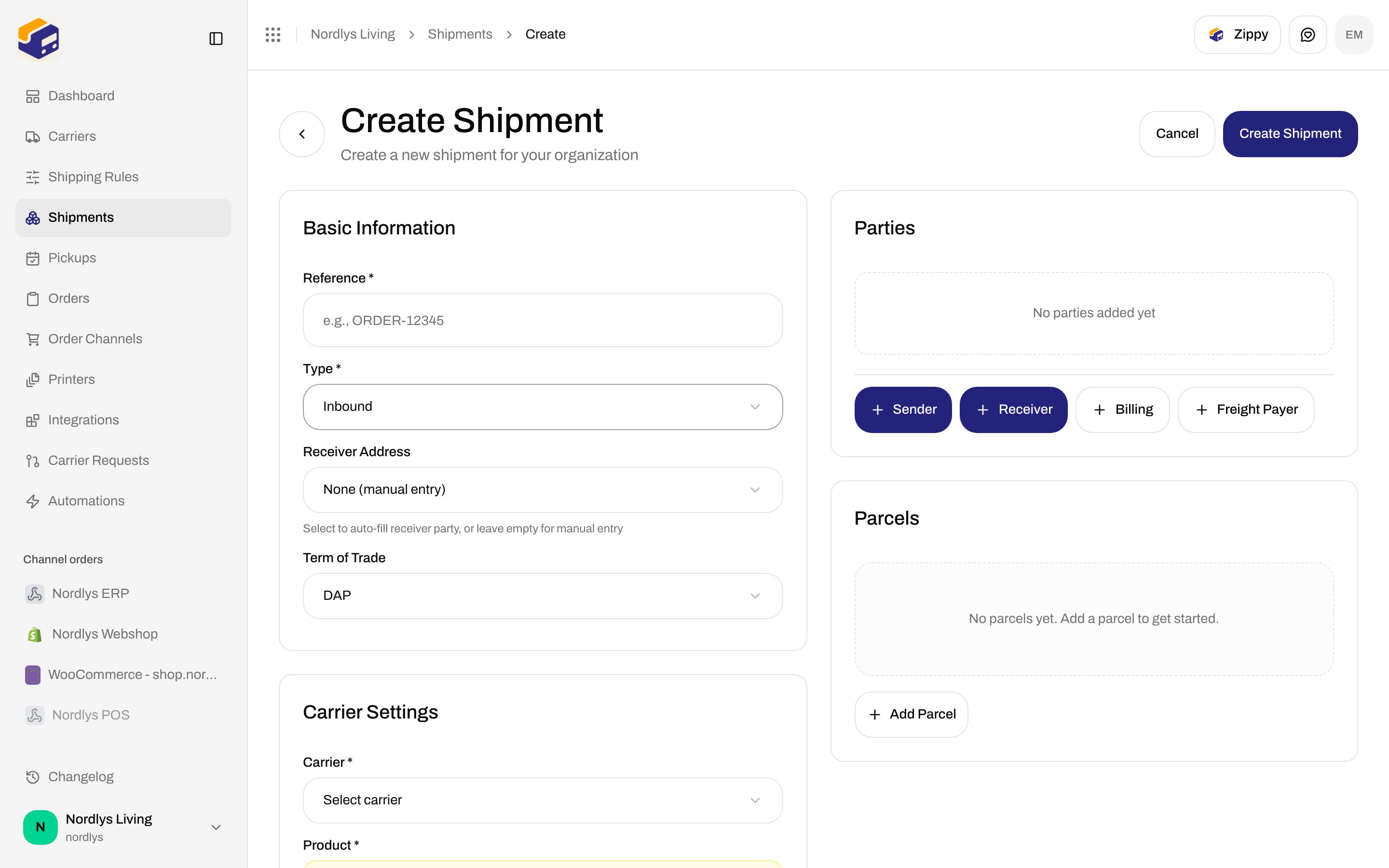
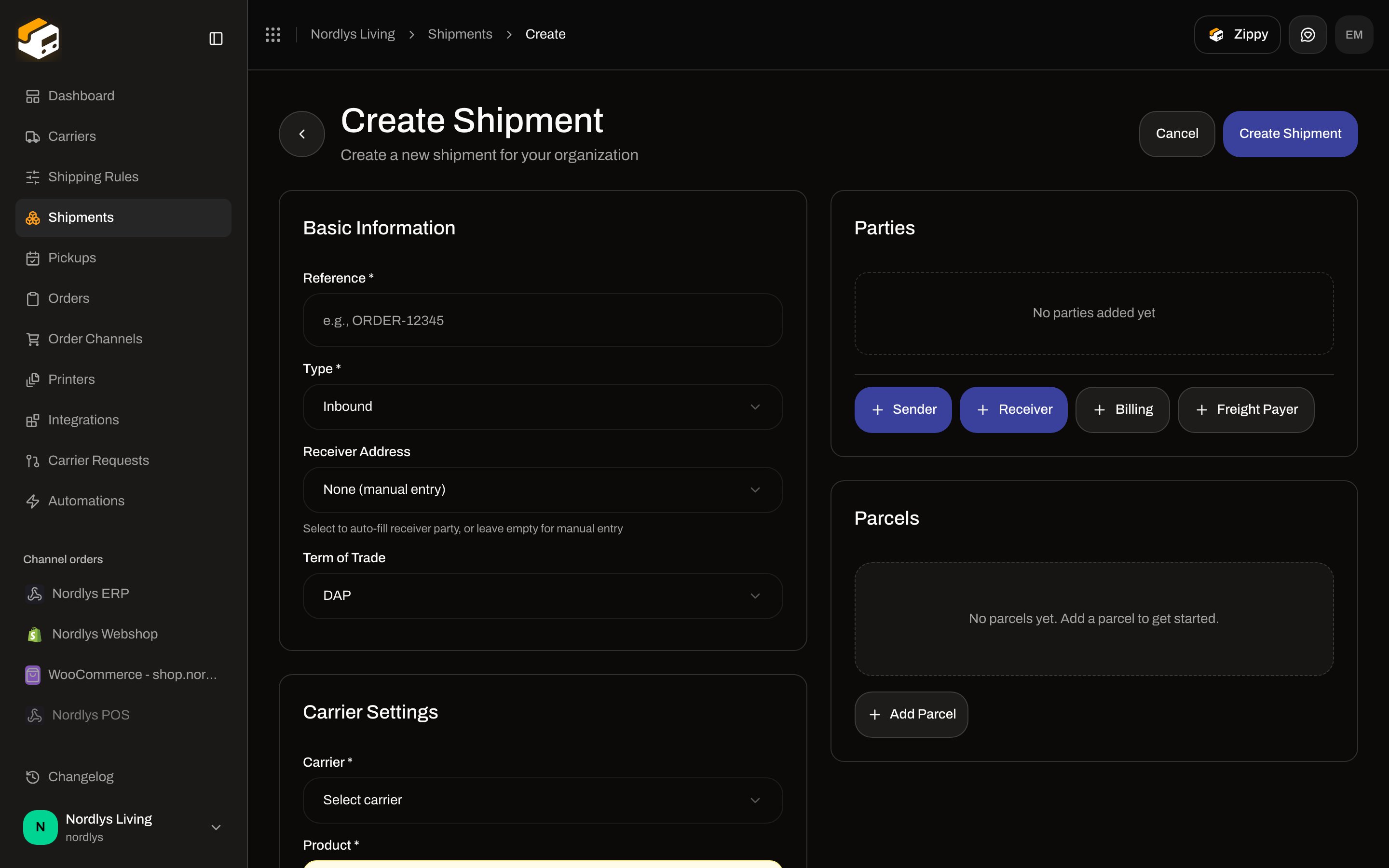
**Shipments → Create shipment**. **Type \***: **Outbound** (default) or **Inbound**. Placeholder **Select type**.
When **Type** is **Inbound**:
| Field | Change |
| ------- | -------------------------------------------------------------------------------------------------------------------------------------------------------------------------------------------------------------------------------------------- |
| Address | Label becomes **Receiver Address**. Helper: **Select to auto-fill receiver party, or leave empty for manual entry**. Options are addresses with type **return**. Placeholder **Select address**. **None (manual entry)** is still available. |
| Product | Inbound products only. Empty: **No inbound products available for this carrier.** |
| Field | Details |
| ---------------------------------- | ---------------------------------------------------------------------------------------------------------------------------------------------------------------------------------------------------------- |
| **Return Shipping Rule** | **Select a shipping rule to use for return shipments.** Placeholder **Select a return shipping rule**. **None** plus **all other rules** (not filtered to inbound). Pick an inbound rule here in practice. |
| **Auto-create return on dispatch** | Checkbox. **Automatically create and send a return shipment when the outbound shipment is dispatched.** Only appears after a rule is selected. Choosing **None** clears it. |
Use auto-create when every outbound send should book a return. Leave it off when returns are the exception.
## Create an inbound shipment by hand
**Shipments → Create shipment**. **Type \***: **Outbound** (default) or **Inbound**. Placeholder **Select type**.
When **Type** is **Inbound**:
| Field | Change |
| ------- | -------------------------------------------------------------------------------------------------------------------------------------------------------------------------------------------------------------------------------------------- |
| Address | Label becomes **Receiver Address**. Helper: **Select to auto-fill receiver party, or leave empty for manual entry**. Options are addresses with type **return**. Placeholder **Select address**. **None (manual entry)** is still available. |
| Product | Inbound products only. Empty: **No inbound products available for this carrier.** |
 Add **return**-type addresses under **Manage → Addresses** — [Sender addresses](/docs/how-to/sender-addresses).
The order **Create Shipment** modal (`create-shipment-from-order`) is always **outbound**. Use this create form (or **Create Return** below) for inbound.
**Reference \*** placeholder **e.g., ORDER-12345**. Parties, parcels, and send: [Create a shipment](/docs/tutorials/create-a-shipment), [Send a shipment](/docs/how-to/send-a-shipment). Filter the list with **Type** = **Inbound** — [Search and filters](/docs/how-to/search-and-filters).
## Create Return Shipment (from a dispatched outbound)
### Shipment header
On a shipment **Overview**, **Create Return Shipment** (busy: **Creating Return…**) appears only when **all** of these are true:
* Status is **Dispatched**
* Type is **Outbound**
* The **shipment’s** shipping rule has **Return Shipping Rule** set
* **Auto-create return on dispatch** is **off**
There is no extra form. The click calls `POST /orgs/:orgId/shipments/:shipmentId/create-return`.
### Order Shipments tab
Overflow **Create Return** (busy: **Creating Return…**) uses the **order’s** shipping rule (`returnShippingRuleId` / `autoCreateReturnShipment`), not the shipment’s. Same dispatched + outbound checks.
The API still resolves the **shipment’s** rule first, then the order’s, when it builds the return.
The docs org’s example shipments have **no** return rule, so **Create Return Shipment** is not on those screenshots. Configure the outbound rule first, dispatch, then the header action appears. Do not expect the button on a shipment that was booked without a return rule.
### What gets created
| | |
| --------- | ------------------------------------------------------------------ |
| Type | **Inbound** |
| Reference | `RET-` + original reference |
| Parties | Swapped (customer becomes sender; your warehouse becomes receiver) |
| Booking | Sent immediately |
Toasts: **Return shipment created successfully** / **Failed to create return shipment**. Orders tab uses the same success copy.
## Automations
The builder includes action **Create Return Shipment** (`action.shipment.create-return`) with optional **Return shipping rule**. Configure it on [Automations](/docs/how-to/automations) — do not duplicate the inspector here.
## Related
* [Returns](/docs/tutorials/returns)
* [Shipping rule fields](/docs/how-to/shipping-rule-fields)
* [Sender addresses](/docs/how-to/sender-addresses)
* [Send a shipment](/docs/how-to/send-a-shipment)
* [Search and filters](/docs/how-to/search-and-filters)
* [Shopify settings](/docs/how-to/shopify-settings) — checkout rates are outbound; returns are merchant-side
Add **return**-type addresses under **Manage → Addresses** — [Sender addresses](/docs/how-to/sender-addresses).
The order **Create Shipment** modal (`create-shipment-from-order`) is always **outbound**. Use this create form (or **Create Return** below) for inbound.
**Reference \*** placeholder **e.g., ORDER-12345**. Parties, parcels, and send: [Create a shipment](/docs/tutorials/create-a-shipment), [Send a shipment](/docs/how-to/send-a-shipment). Filter the list with **Type** = **Inbound** — [Search and filters](/docs/how-to/search-and-filters).
## Create Return Shipment (from a dispatched outbound)
### Shipment header
On a shipment **Overview**, **Create Return Shipment** (busy: **Creating Return…**) appears only when **all** of these are true:
* Status is **Dispatched**
* Type is **Outbound**
* The **shipment’s** shipping rule has **Return Shipping Rule** set
* **Auto-create return on dispatch** is **off**
There is no extra form. The click calls `POST /orgs/:orgId/shipments/:shipmentId/create-return`.
### Order Shipments tab
Overflow **Create Return** (busy: **Creating Return…**) uses the **order’s** shipping rule (`returnShippingRuleId` / `autoCreateReturnShipment`), not the shipment’s. Same dispatched + outbound checks.
The API still resolves the **shipment’s** rule first, then the order’s, when it builds the return.
The docs org’s example shipments have **no** return rule, so **Create Return Shipment** is not on those screenshots. Configure the outbound rule first, dispatch, then the header action appears. Do not expect the button on a shipment that was booked without a return rule.
### What gets created
| | |
| --------- | ------------------------------------------------------------------ |
| Type | **Inbound** |
| Reference | `RET-` + original reference |
| Parties | Swapped (customer becomes sender; your warehouse becomes receiver) |
| Booking | Sent immediately |
Toasts: **Return shipment created successfully** / **Failed to create return shipment**. Orders tab uses the same success copy.
## Automations
The builder includes action **Create Return Shipment** (`action.shipment.create-return`) with optional **Return shipping rule**. Configure it on [Automations](/docs/how-to/automations) — do not duplicate the inspector here.
## Related
* [Returns](/docs/tutorials/returns)
* [Shipping rule fields](/docs/how-to/shipping-rule-fields)
* [Sender addresses](/docs/how-to/sender-addresses)
* [Send a shipment](/docs/how-to/send-a-shipment)
* [Search and filters](/docs/how-to/search-and-filters)
* [Shopify settings](/docs/how-to/shopify-settings) — checkout rates are outbound; returns are merchant-side