> ## Documentation Index
> Fetch the complete documentation index at: https://www.zippendo.com/docs/llms.txt
> Use this file to discover all available pages before exploring further.
# Connect WooCommerce
> Connect a WooCommerce store with one-click or REST API keys, then set every Orders & checkout, Connection, webhook, and checkout-token field.
Connect WooCommerce from **Order Channels**. This page is every control on the connect modal and the store settings screen. The click-through path (catalog, then orders) is [Connect order channels](/docs/tutorials/connect-order-channels). Live rates at checkout are [Checkout](/docs/tutorials/checkout).
Live WooCommerce `wc-auth` (the store’s authorization screen) cannot be completed in the documentation environment. Those steps are described from the Zippendo connect flow and WooCommerce plugin copy. Every Zippendo-side screen that exists is shown below.
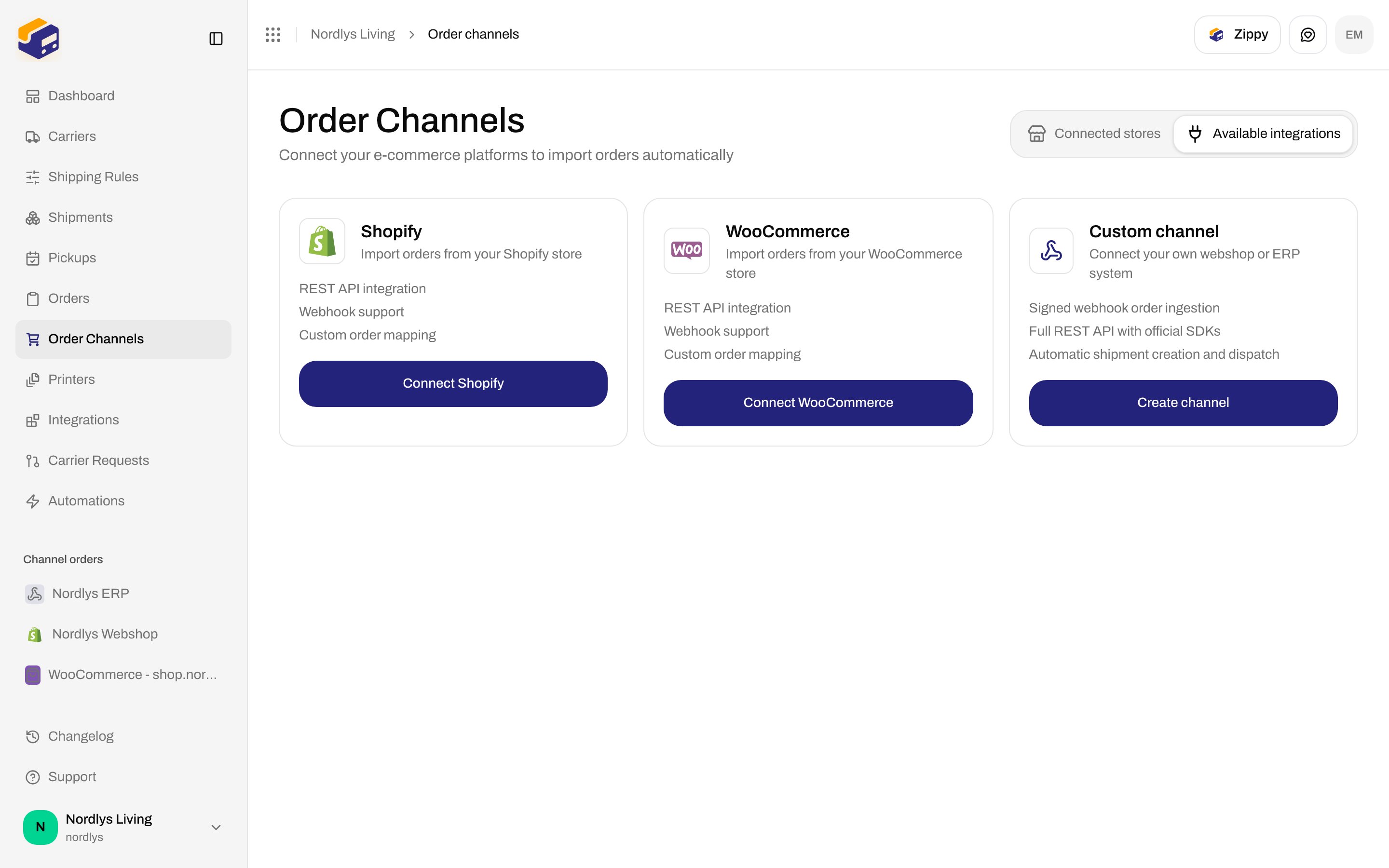
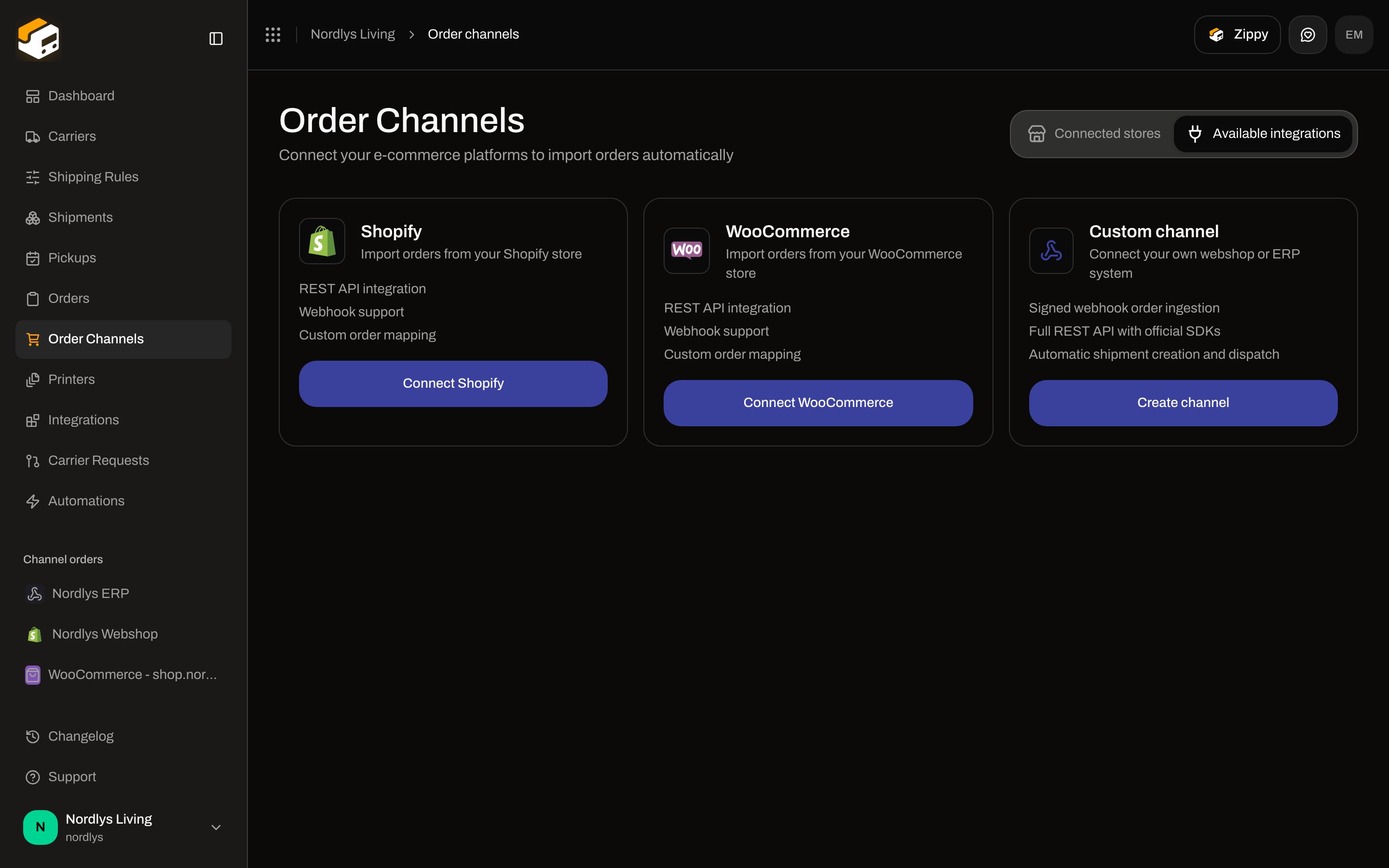
Open **Order Channels** in the sidebar. The page title is **Order Channels**. The subtitle is **Connect your e-commerce platforms to import orders automatically**. Tabs are URL state (`?tab=`): **Connected stores** and **Available integrations**.
## Connect from Available integrations
On **Available integrations**, the **WooCommerce** card reads **Import orders from your WooCommerce store**. Features listed: **REST API integration**, **Webhook support**, **Custom order mapping**. The button is **Connect WooCommerce**.
 ## One-click connect
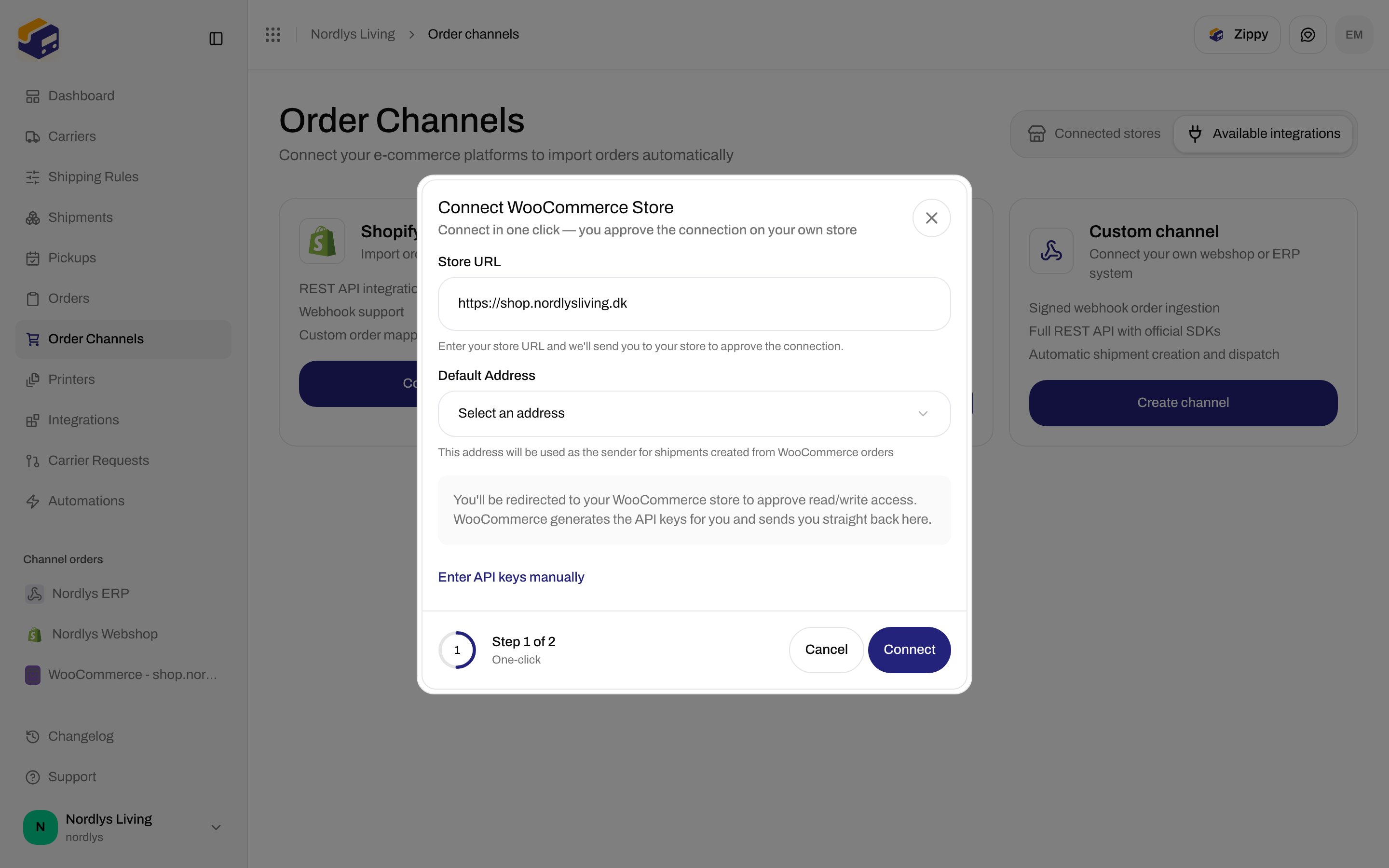
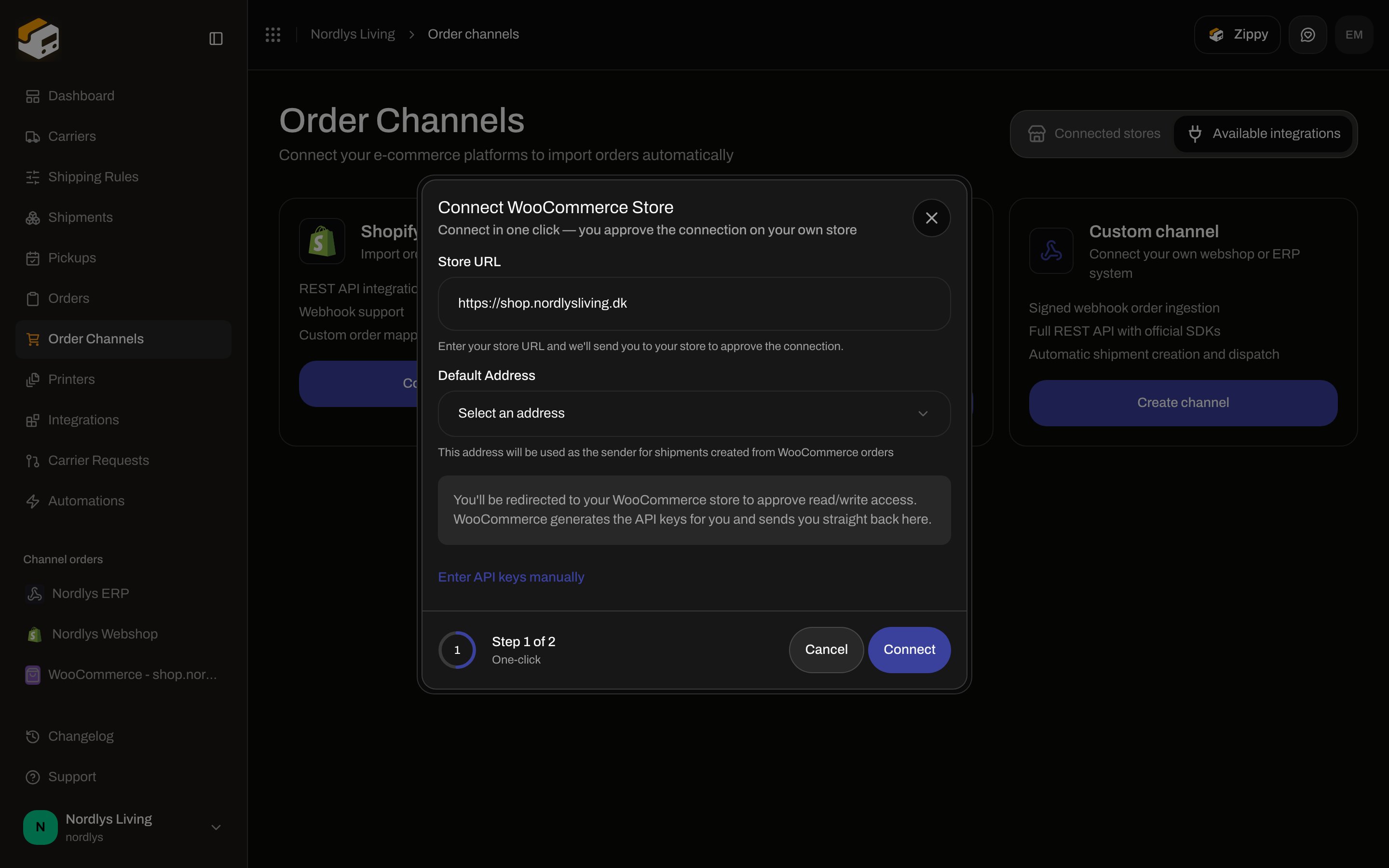
Click **Connect WooCommerce**. Modal id `connect-woocommerce-modal`. Title **Connect WooCommerce Store**. Footer: **Step 1 of 2** with label **One-click**. Subtitle: **Connect in one click — you approve the connection on your own store**.
## One-click connect
Click **Connect WooCommerce**. Modal id `connect-woocommerce-modal`. Title **Connect WooCommerce Store**. Footer: **Step 1 of 2** with label **One-click**. Subtitle: **Connect in one click — you approve the connection on your own store**.
 | Control | Required | Copy in the UI |
| --------------------------- | -------- | ----------------------------------------------------------------------------------------------------------------------------------------------------------------------------------------------------------------------------------------- |
| **Store URL** | Yes | Placeholder `https://mystore.dk`. Helper: **Enter your store URL and we'll send you to your store to approve the connection.** Zippendo prepends `https://` if you omit a protocol and strips a trailing slash. One-click requires HTTPS. |
| **Default Address** | No | Placeholder **Select an address**. Helper: **This address will be used as the sender for shipments created from WooCommerce orders**. Empty list: **No addresses available. Please create one first in Settings → Addresses.** |
| Explainer | — | **You'll be redirected to your WooCommerce store to approve read/write access. WooCommerce generates the API keys for you and sends you straight back here.** |
| **Enter API keys manually** | — | Switches to step **2 of 2 · API keys**. The URL and address you already typed are carried over. |
| **Connect** | — | Becomes **Redirecting…** while Zippendo starts wc-auth. |
| **Cancel** | — | Closes the modal. |
Validation: **Please enter your WooCommerce site URL**.
### Approve on your WooCommerce store
**Connect** sends you to `{store}/wc-auth/v1/authorize` with app name **Zippendo** and scope **read/write**. Approve on that screen. A read-only grant can import orders but cannot push tracking back.
Do not close the tab until WooCommerce returns you to Zippendo. The return URL is **Order Channels** with `?wooConnect=pending`. Success toast: **WooCommerce store connected!** Description: **Webhooks have been set up for real-time order sync.** Failure toast: **Failed to connect WooCommerce store**.
A new channel is named `WooCommerce - {store hostname}`. Defaults: **Automatic sync** on, **Sync interval** 15 minutes, **Only unfulfilled orders** on, **Auto-fulfill in WooCommerce** on, **Auto-create shipments** off.
## Enter API keys manually
Use this when the store is not on HTTPS, wc-auth is blocked, or you already generated keys.
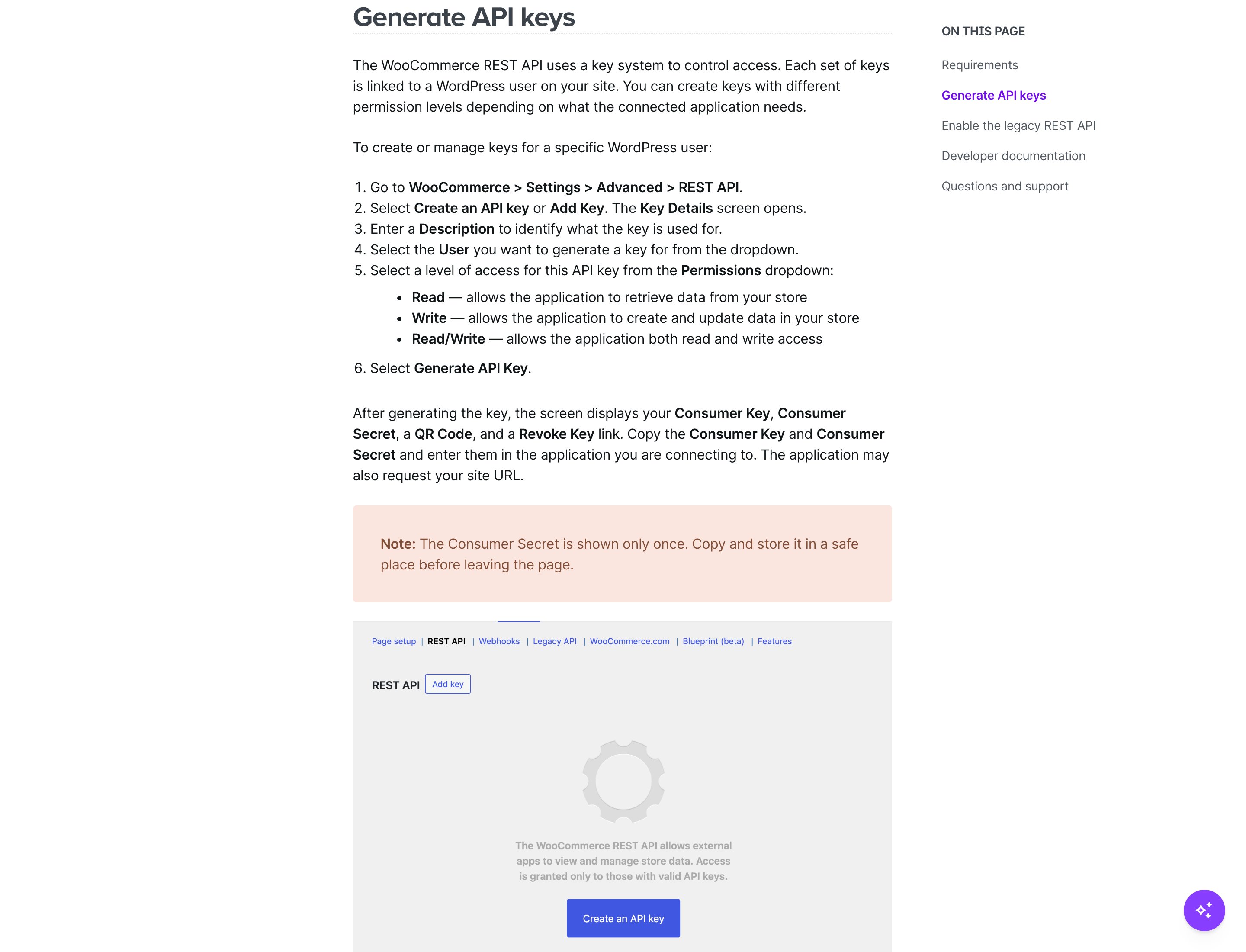
On your store (WooCommerce core, from the modal’s **How to get API Keys** copy):
Go to **WooCommerce → Settings → Advanced → REST API**
Click **"Add Key"**
Set permissions to **"Read/Write"**
Copy the **Consumer Key** and **Consumer Secret**
WooCommerce’s public REST API docs cover the same path. Generating keys happens in **your** WordPress admin (login required).
| Control | Required | Copy in the UI |
| --------------------------- | -------- | ----------------------------------------------------------------------------------------------------------------------------------------------------------------------------------------------------------------------------------------- |
| **Store URL** | Yes | Placeholder `https://mystore.dk`. Helper: **Enter your store URL and we'll send you to your store to approve the connection.** Zippendo prepends `https://` if you omit a protocol and strips a trailing slash. One-click requires HTTPS. |
| **Default Address** | No | Placeholder **Select an address**. Helper: **This address will be used as the sender for shipments created from WooCommerce orders**. Empty list: **No addresses available. Please create one first in Settings → Addresses.** |
| Explainer | — | **You'll be redirected to your WooCommerce store to approve read/write access. WooCommerce generates the API keys for you and sends you straight back here.** |
| **Enter API keys manually** | — | Switches to step **2 of 2 · API keys**. The URL and address you already typed are carried over. |
| **Connect** | — | Becomes **Redirecting…** while Zippendo starts wc-auth. |
| **Cancel** | — | Closes the modal. |
Validation: **Please enter your WooCommerce site URL**.
### Approve on your WooCommerce store
**Connect** sends you to `{store}/wc-auth/v1/authorize` with app name **Zippendo** and scope **read/write**. Approve on that screen. A read-only grant can import orders but cannot push tracking back.
Do not close the tab until WooCommerce returns you to Zippendo. The return URL is **Order Channels** with `?wooConnect=pending`. Success toast: **WooCommerce store connected!** Description: **Webhooks have been set up for real-time order sync.** Failure toast: **Failed to connect WooCommerce store**.
A new channel is named `WooCommerce - {store hostname}`. Defaults: **Automatic sync** on, **Sync interval** 15 minutes, **Only unfulfilled orders** on, **Auto-fulfill in WooCommerce** on, **Auto-create shipments** off.
## Enter API keys manually
Use this when the store is not on HTTPS, wc-auth is blocked, or you already generated keys.
On your store (WooCommerce core, from the modal’s **How to get API Keys** copy):
Go to **WooCommerce → Settings → Advanced → REST API**
Click **"Add Key"**
Set permissions to **"Read/Write"**
Copy the **Consumer Key** and **Consumer Secret**
WooCommerce’s public REST API docs cover the same path. Generating keys happens in **your** WordPress admin (login required).
 The Zippendo checkout plugin is downloaded from Zippendo (**Download plugin**), not from wordpress.org. There is no public WordPress plugin directory listing to screenshot.
In Zippendo, click **Enter API keys manually**. Footer: **Step 2 of 2** with label **API keys**. Subtitle: **Enter the REST API keys you generated in WooCommerce**.
The Zippendo checkout plugin is downloaded from Zippendo (**Download plugin**), not from wordpress.org. There is no public WordPress plugin directory listing to screenshot.
In Zippendo, click **Enter API keys manually**. Footer: **Step 2 of 2** with label **API keys**. Subtitle: **Enter the REST API keys you generated in WooCommerce**.
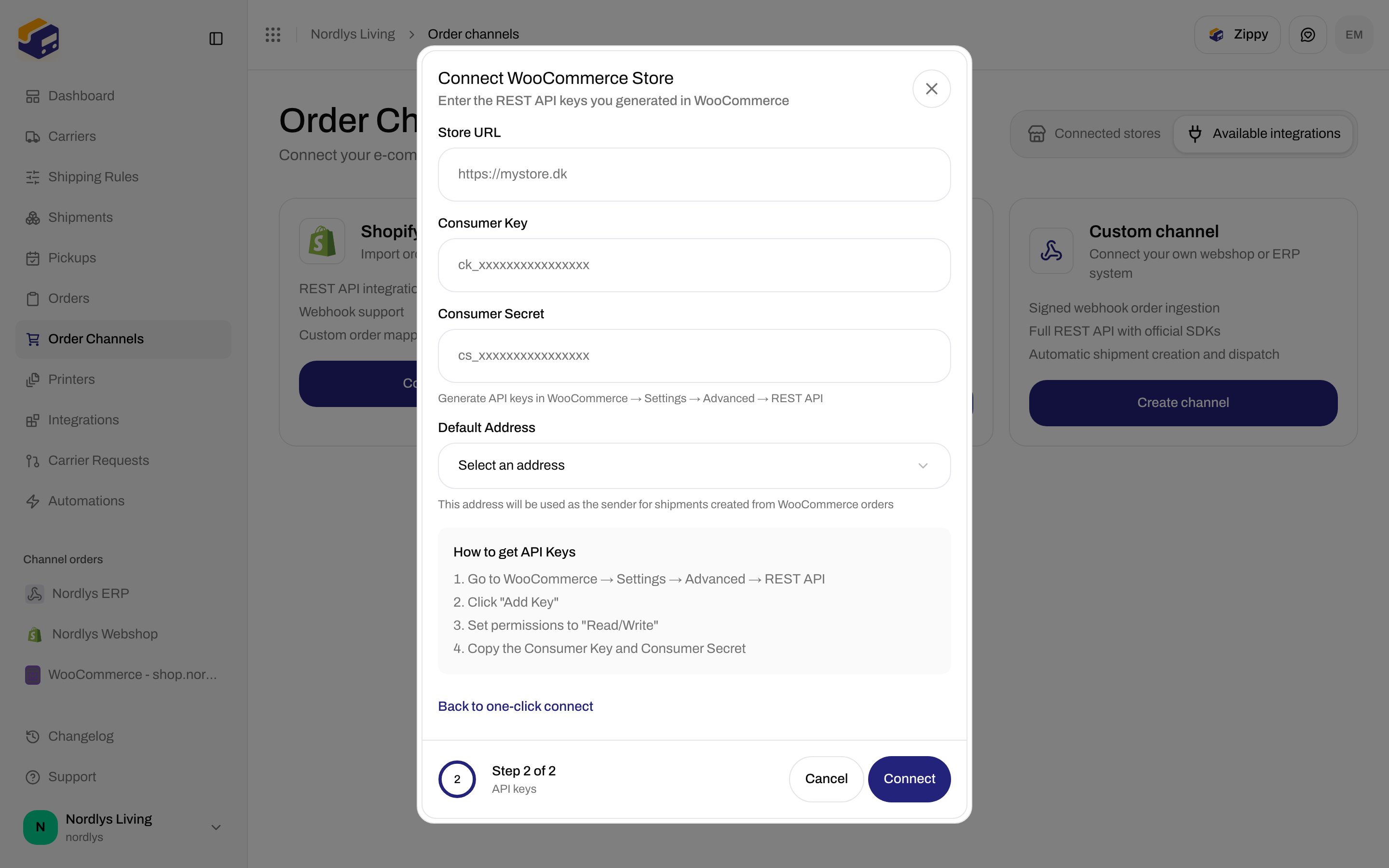
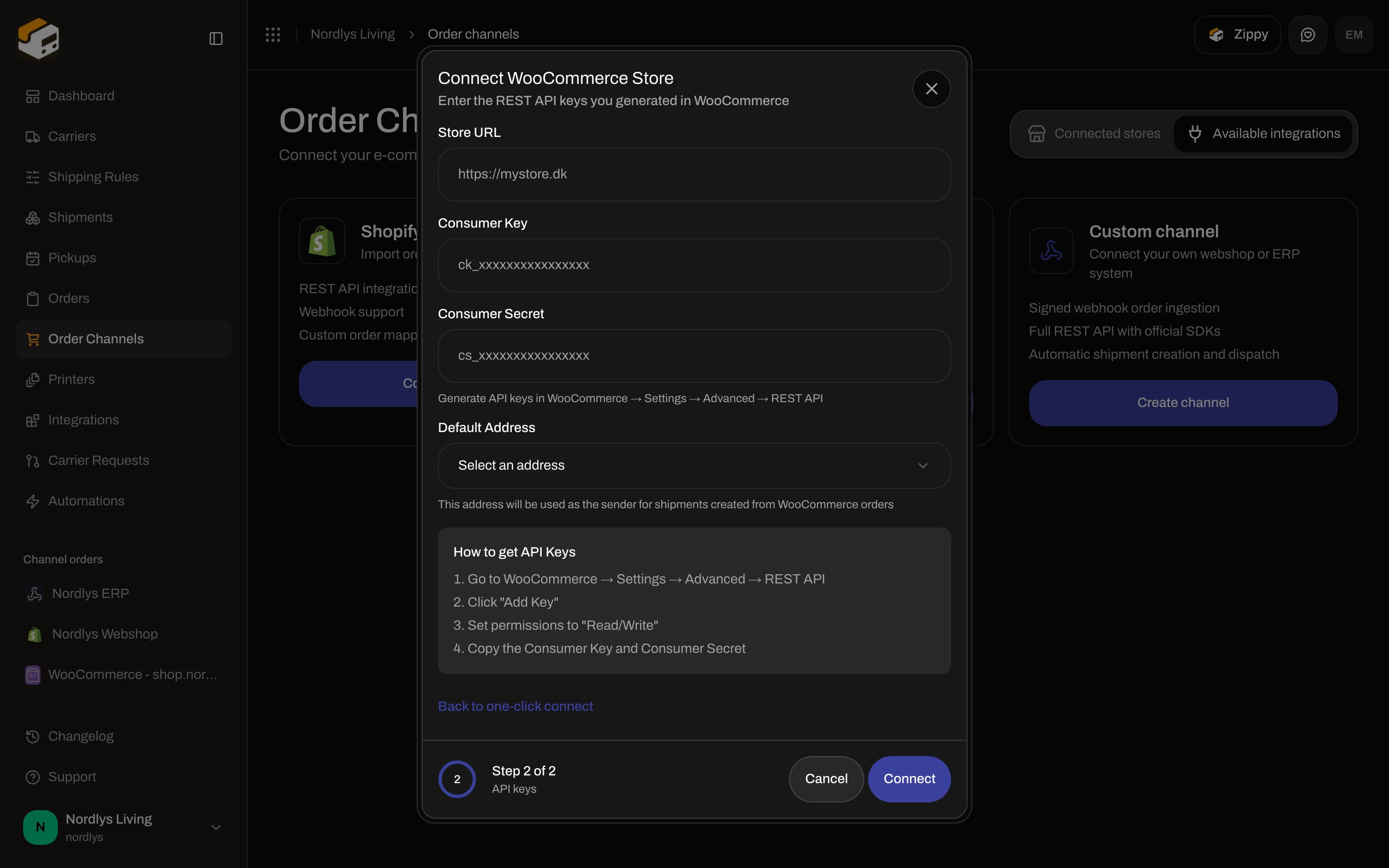 | Control | Required | Copy in the UI |
| ----------------------------- | -------- | ------------------------------------------------------------------------------------------------------------------------------------------------------------------------------- |
| **Store URL** | Yes | Same placeholder as one-click. |
| **Consumer Key** | Yes | Placeholder `ck_xxxxxxxxxxxxxxxx`. Empty: **Please enter your Consumer Key**. |
| **Consumer Secret** | Yes | Password field. Placeholder `cs_xxxxxxxxxxxxxxxx`. Helper: **Generate API keys in WooCommerce → Settings → Advanced → REST API**. Empty: **Please enter your Consumer Secret**. |
| **Default Address** | No | Same as one-click. |
| **How to get API Keys** | — | The four wp-admin steps above. |
| **Back to one-click connect** | — | Returns to step 1 with URL and address preserved. |
| **Connect** | — | Becomes **Connecting…**. Zippendo probes the keys against the store before it saves the channel. |
A **Read/Write** key is required. A read-only key lets orders sync in, but Zippendo cannot push tracking back.
## Connected store card
After connect, the store is on **Connected stores**. Click the card to open settings.
| Control | Required | Copy in the UI |
| ----------------------------- | -------- | ------------------------------------------------------------------------------------------------------------------------------------------------------------------------------- |
| **Store URL** | Yes | Same placeholder as one-click. |
| **Consumer Key** | Yes | Placeholder `ck_xxxxxxxxxxxxxxxx`. Empty: **Please enter your Consumer Key**. |
| **Consumer Secret** | Yes | Password field. Placeholder `cs_xxxxxxxxxxxxxxxx`. Helper: **Generate API keys in WooCommerce → Settings → Advanced → REST API**. Empty: **Please enter your Consumer Secret**. |
| **Default Address** | No | Same as one-click. |
| **How to get API Keys** | — | The four wp-admin steps above. |
| **Back to one-click connect** | — | Returns to step 1 with URL and address preserved. |
| **Connect** | — | Becomes **Connecting…**. Zippendo probes the keys against the store before it saves the channel. |
A **Read/Write** key is required. A read-only key lets orders sync in, but Zippendo cannot push tracking back.
## Connected store card
After connect, the store is on **Connected stores**. Click the card to open settings.
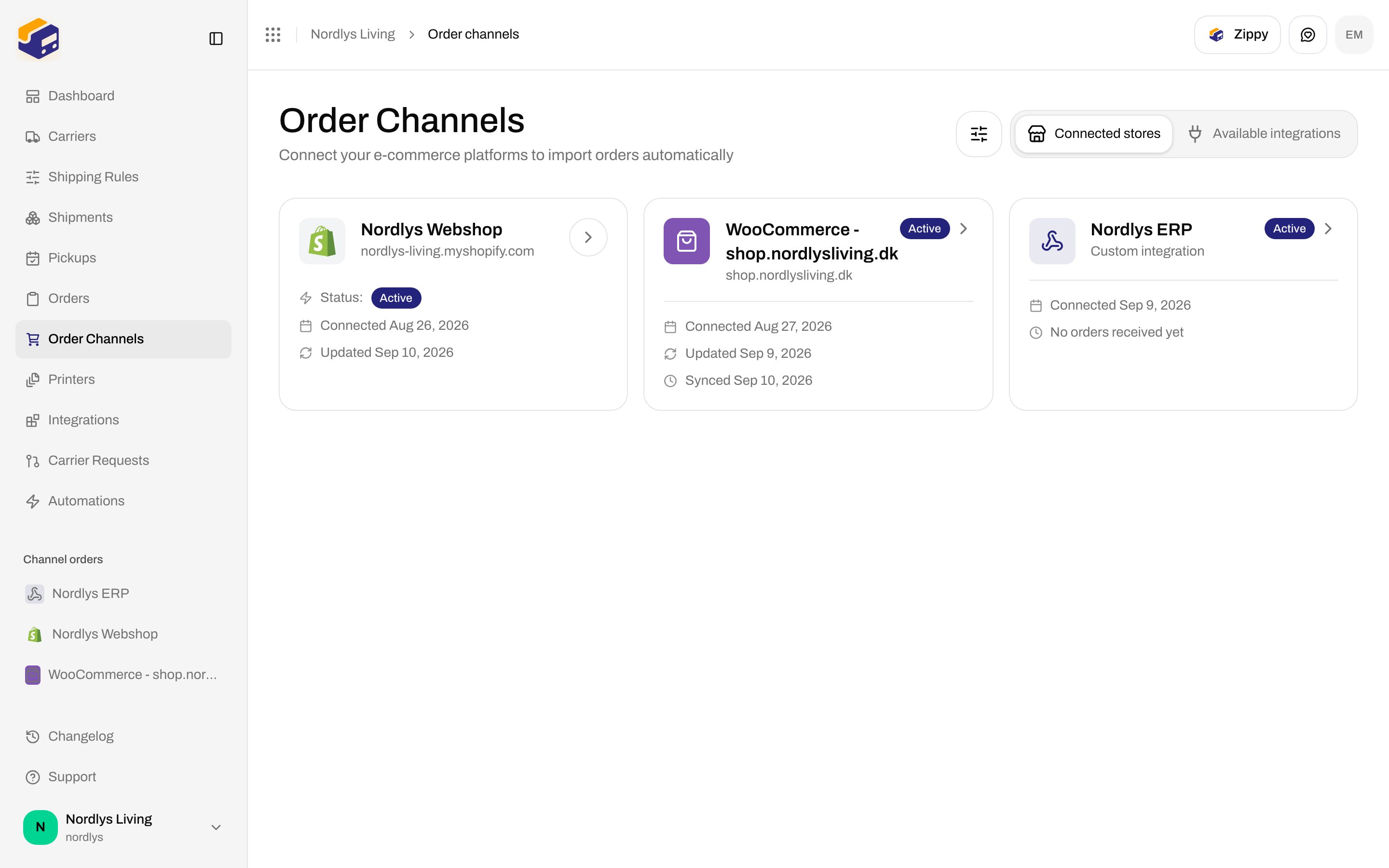
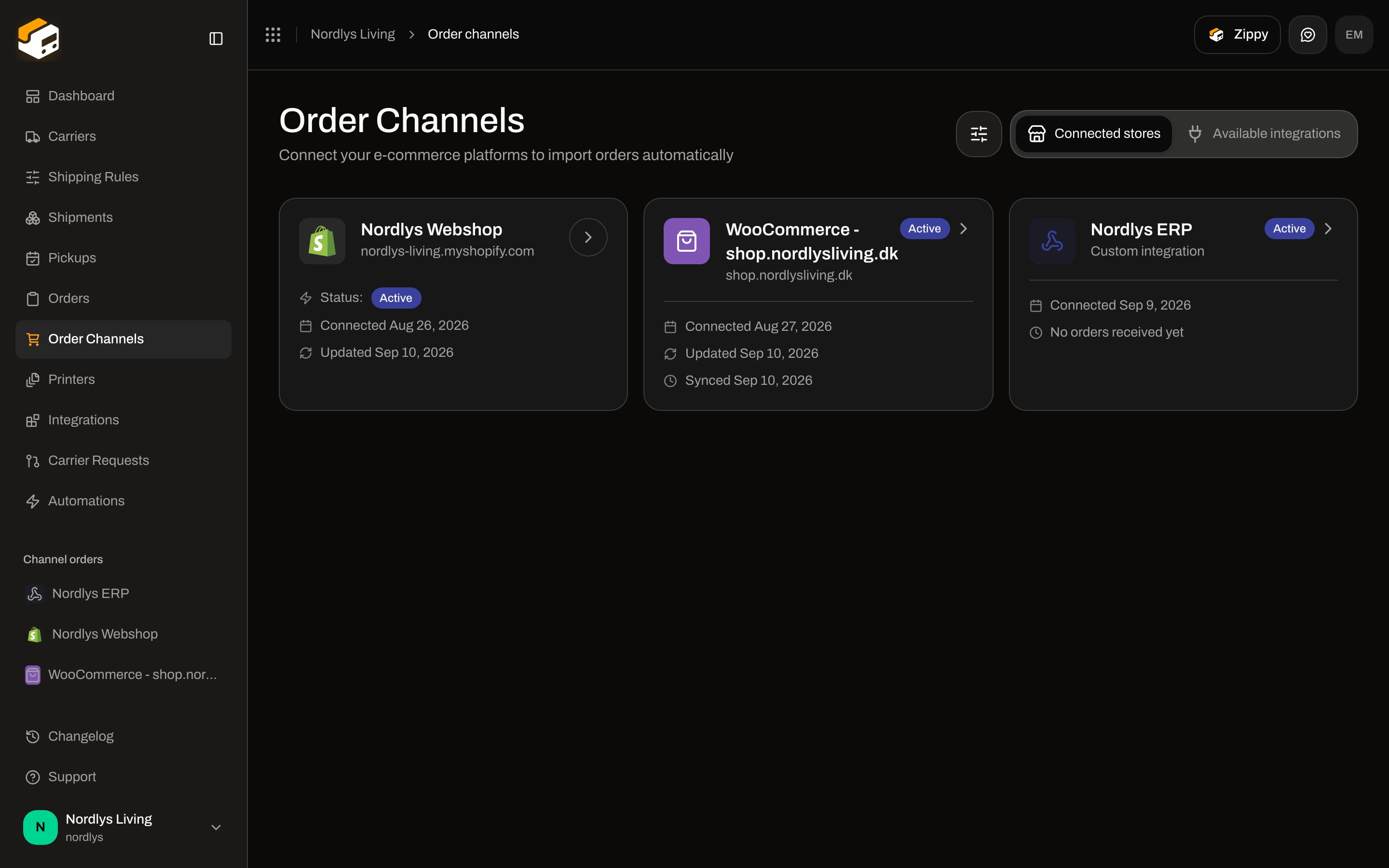 The card shows the channel name, store hostname (or **WooCommerce Store** if the URL is missing), **Active** or **Disabled**, **Connected** date, **Updated** date, and **Synced** date when `lastSyncAt` exists.
There is no enable/disable switch on the WooCommerce settings screen. **Status** is a badge. Stopping import is **Disconnect**. Leftover rows from a removed store sit under **Disconnected channels** — see [Order channel settings](/docs/how-to/order-channel-settings).
## Orders & checkout
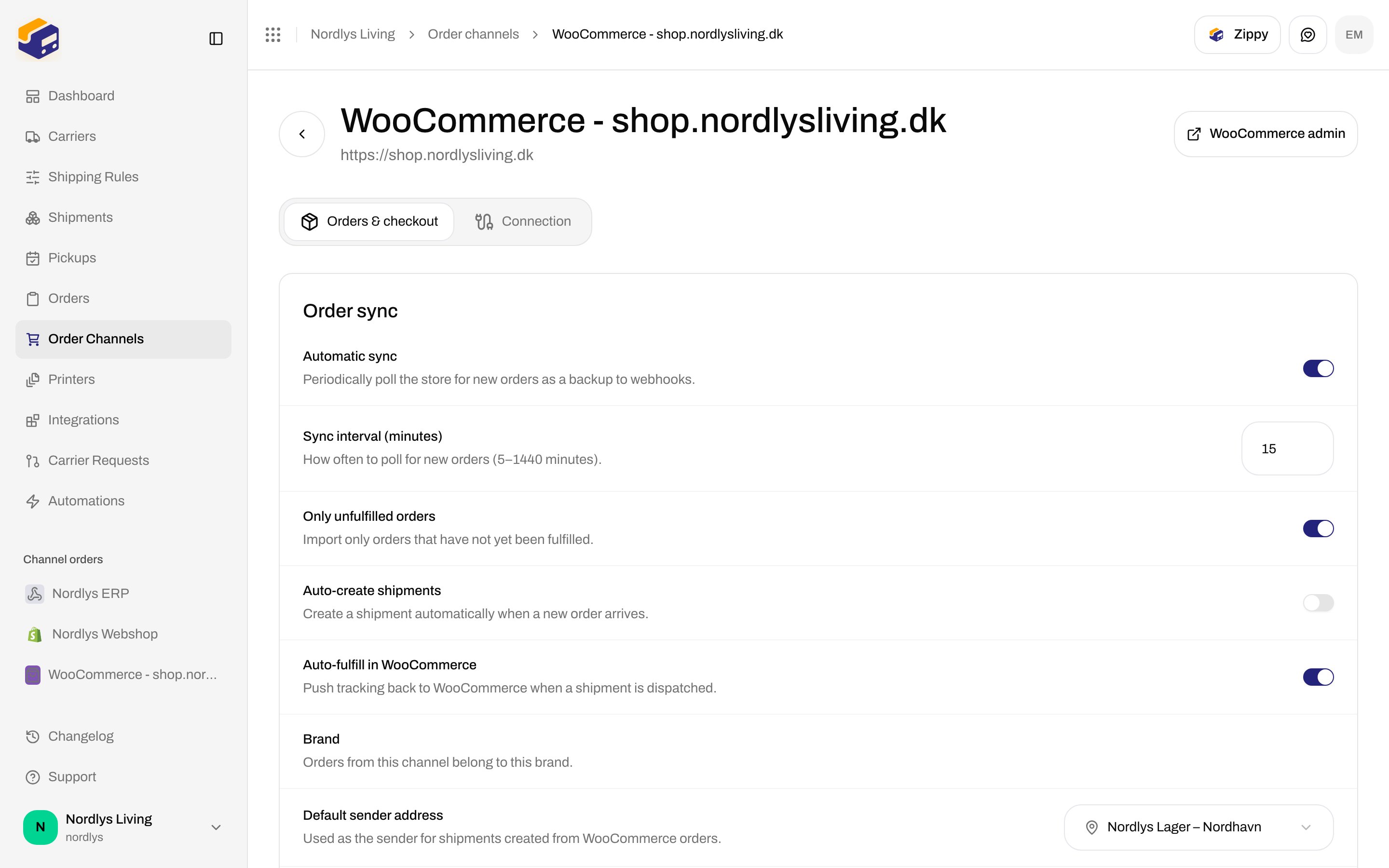
Settings header title is the channel name. Description is the store URL, or **WooCommerce store settings** if none. **WooCommerce admin** opens `{store}/wp-admin` in a new tab.
These two tabs are **not** in the URL (unlike **Connected stores** / **Available integrations**):
* **Orders & checkout**
* **Connection**
Loading description: **Loading store settings…**
The card shows the channel name, store hostname (or **WooCommerce Store** if the URL is missing), **Active** or **Disabled**, **Connected** date, **Updated** date, and **Synced** date when `lastSyncAt` exists.
There is no enable/disable switch on the WooCommerce settings screen. **Status** is a badge. Stopping import is **Disconnect**. Leftover rows from a removed store sit under **Disconnected channels** — see [Order channel settings](/docs/how-to/order-channel-settings).
## Orders & checkout
Settings header title is the channel name. Description is the store URL, or **WooCommerce store settings** if none. **WooCommerce admin** opens `{store}/wp-admin` in a new tab.
These two tabs are **not** in the URL (unlike **Connected stores** / **Available integrations**):
* **Orders & checkout**
* **Connection**
Loading description: **Loading store settings…**
 ### Order sync
| Field | Default | What it does |
| ------------------------------- | -------------------- | ----------------------------------------------------------------------------------------------------------------------------------------------------------------------------------------------------------------- |
| **Automatic sync** | On for a new connect | **Periodically poll the store for new orders as a backup to webhooks.** |
| **Sync interval (minutes)** | `15` | **How often to poll for new orders (5–1440 minutes).** Values outside the range clamp to 5–1440. |
| **Only unfulfilled orders** | On for a new connect | **Import only orders that have not yet been fulfilled.** |
| **Auto-create shipments** | Off | **Create a shipment automatically when a new order arrives.** |
| **Auto-fulfill in WooCommerce** | On | **Push tracking back to WooCommerce when a shipment is dispatched.** Off means Zippendo does not write fulfillment back. |
| **Brand** | Always shown | Label **Brand**. Helper: **Orders from this channel belong to this brand.** The picker itself only appears when the organization has brands. Saves as soon as you change it — it is not part of **Save changes**. |
| **Default sender address** | Optional | **Used as the sender for shipments created from WooCommerce orders.** Placeholder **Select an address**. Empty: **No addresses available. Create one first in Settings → Addresses.** |
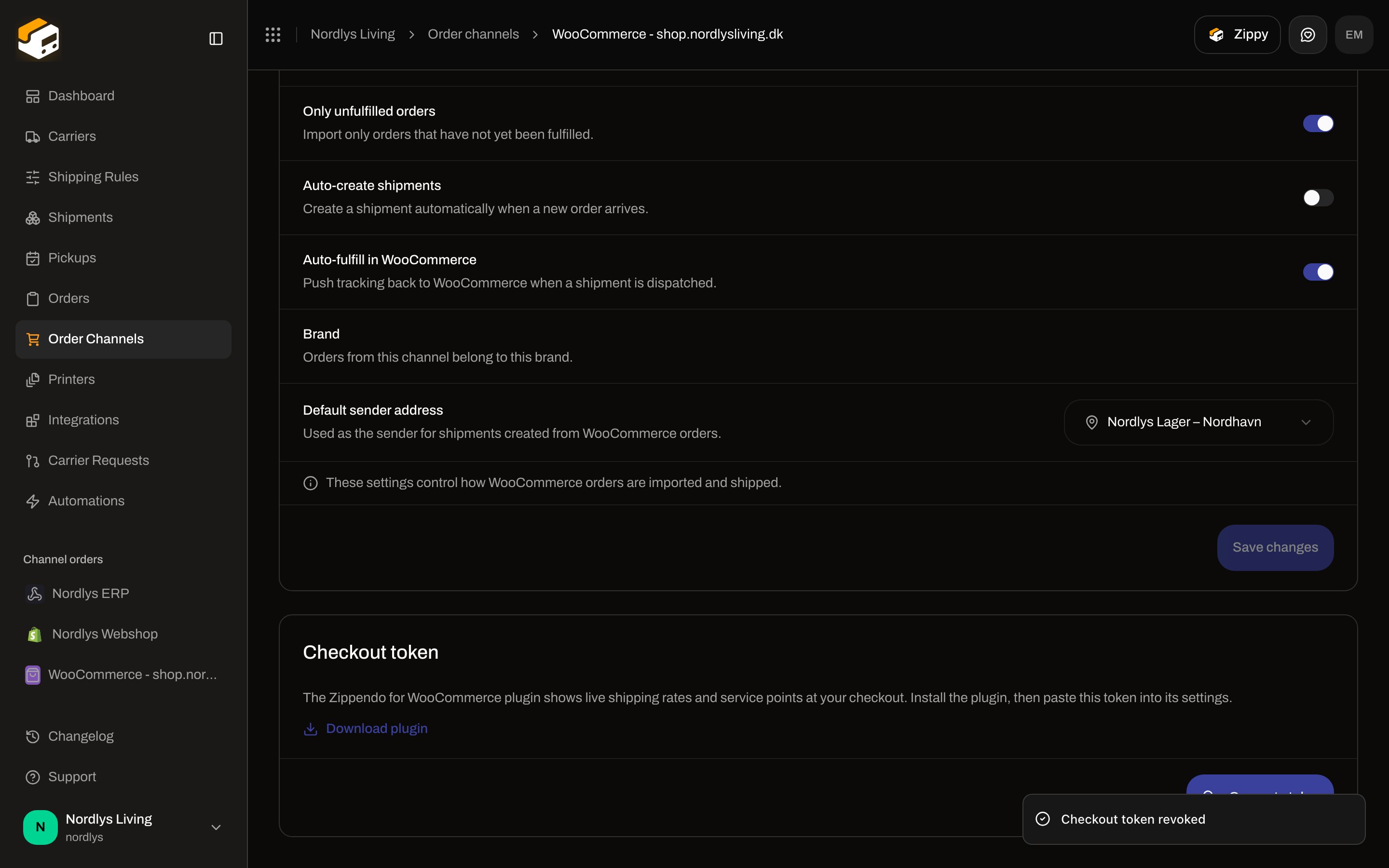
Hint under the rows: **These settings control how WooCommerce orders are imported and shipped.**
**Save changes** (or **Saving…**) applies the draft. It stays disabled until something in this card changed. Toast **Settings saved** / **Failed to save settings**.
### Checkout token
Card title **Checkout token**. Description: **The Zippendo for WooCommerce plugin shows live shipping rates and service points at your checkout. Install the plugin, then paste this token into its settings.**
**Download plugin** opens the latest `zippendo-for-woocommerce.zip` release.
No token yet: **Generate token** (or **Generating…**). After generate or rotate, Zippendo shows the plaintext once.
### Order sync
| Field | Default | What it does |
| ------------------------------- | -------------------- | ----------------------------------------------------------------------------------------------------------------------------------------------------------------------------------------------------------------- |
| **Automatic sync** | On for a new connect | **Periodically poll the store for new orders as a backup to webhooks.** |
| **Sync interval (minutes)** | `15` | **How often to poll for new orders (5–1440 minutes).** Values outside the range clamp to 5–1440. |
| **Only unfulfilled orders** | On for a new connect | **Import only orders that have not yet been fulfilled.** |
| **Auto-create shipments** | Off | **Create a shipment automatically when a new order arrives.** |
| **Auto-fulfill in WooCommerce** | On | **Push tracking back to WooCommerce when a shipment is dispatched.** Off means Zippendo does not write fulfillment back. |
| **Brand** | Always shown | Label **Brand**. Helper: **Orders from this channel belong to this brand.** The picker itself only appears when the organization has brands. Saves as soon as you change it — it is not part of **Save changes**. |
| **Default sender address** | Optional | **Used as the sender for shipments created from WooCommerce orders.** Placeholder **Select an address**. Empty: **No addresses available. Create one first in Settings → Addresses.** |
Hint under the rows: **These settings control how WooCommerce orders are imported and shipped.**
**Save changes** (or **Saving…**) applies the draft. It stays disabled until something in this card changed. Toast **Settings saved** / **Failed to save settings**.
### Checkout token
Card title **Checkout token**. Description: **The Zippendo for WooCommerce plugin shows live shipping rates and service points at your checkout. Install the plugin, then paste this token into its settings.**
**Download plugin** opens the latest `zippendo-for-woocommerce.zip` release.
No token yet: **Generate token** (or **Generating…**). After generate or rotate, Zippendo shows the plaintext once.
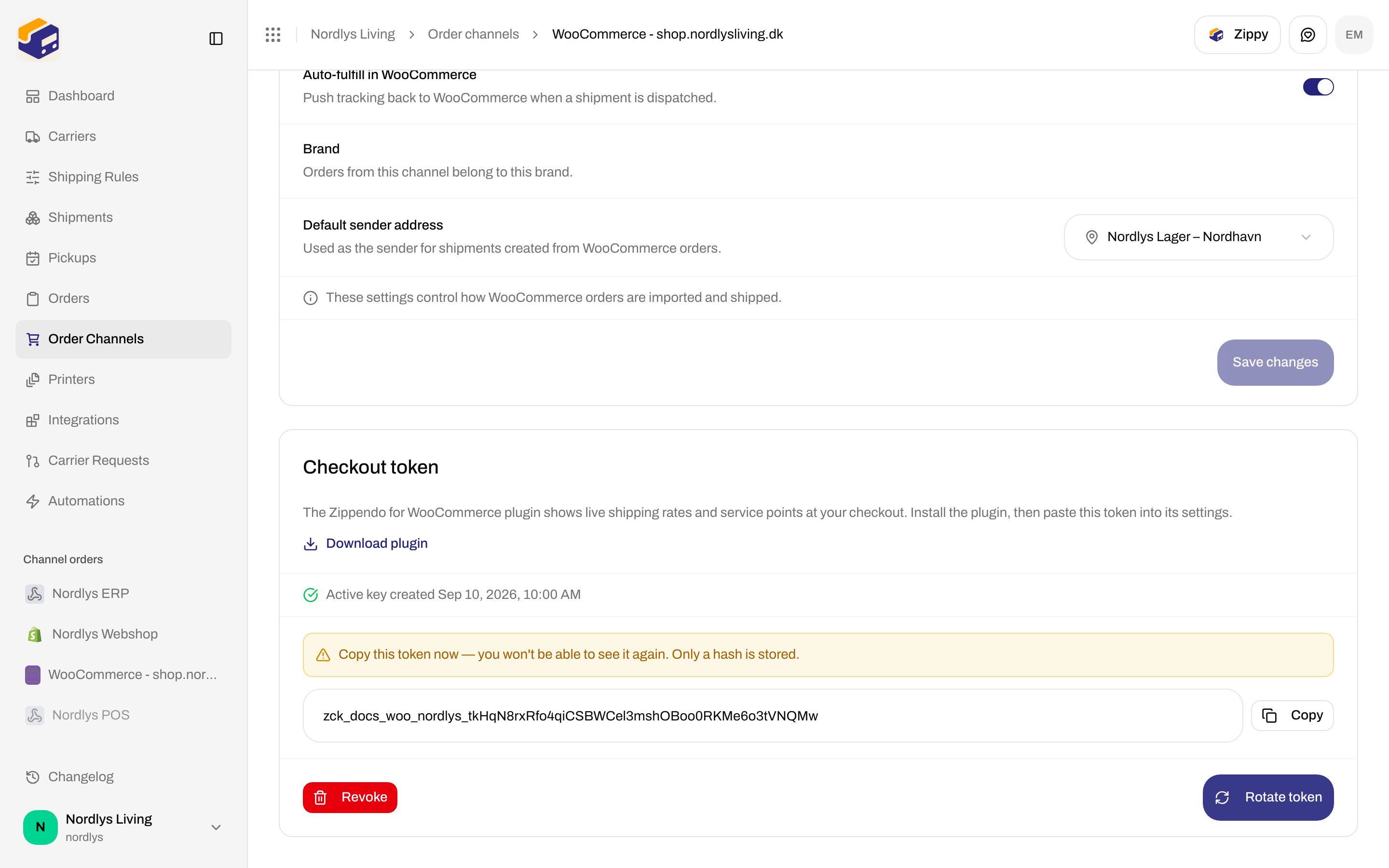
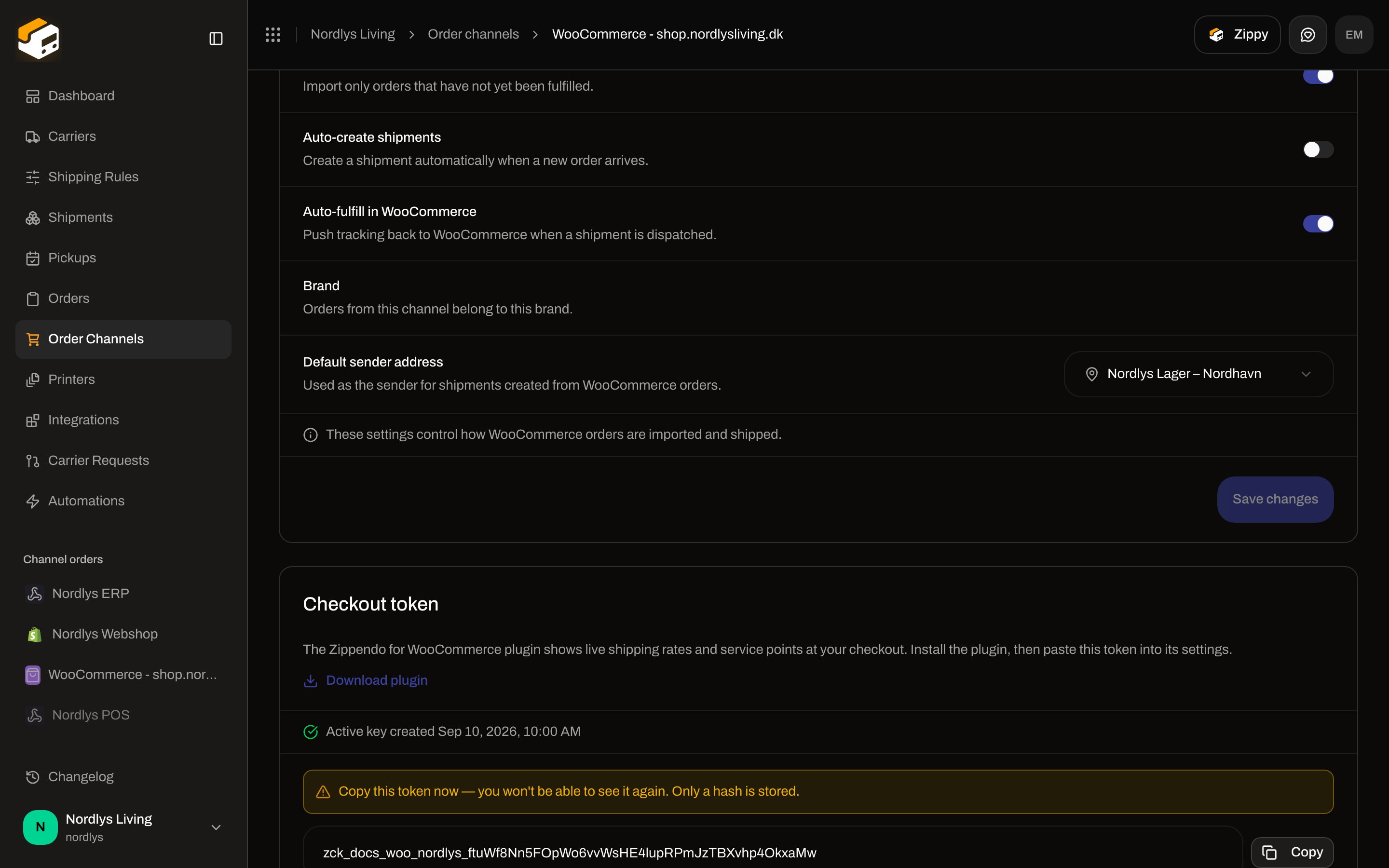 | Control | Copy in the UI |
| ---------------- | -------------------------------------------------------------------------------------------------------------------------------------- |
| One-time warning | **Copy this token now — you won't be able to see it again. Only a hash is stored.** |
| Token field | Starts with `zck_`. **Copy** → **Token copied to clipboard** (or **Could not copy the token**). |
| Active line | **Active key created \{date}** |
| **Rotate token** | Confirm: **Rotate the checkout token? Your current key stops working immediately — you'll need to paste the new one into the plugin.** |
| **Revoke** | Confirm: **Revoke the checkout token? The plugin will stop working until you generate a new one.** Toast **Checkout token revoked**. |
Failed generate/revoke toasts: **Failed to generate checkout token** / **Failed to revoke checkout token**.
The token is only for the [WooCommerce checkout plugin](/docs/order-channels/woocommerce-checkout-plugin). It does not authenticate order sync.
## Connection
| Control | Copy in the UI |
| ---------------- | -------------------------------------------------------------------------------------------------------------------------------------- |
| One-time warning | **Copy this token now — you won't be able to see it again. Only a hash is stored.** |
| Token field | Starts with `zck_`. **Copy** → **Token copied to clipboard** (or **Could not copy the token**). |
| Active line | **Active key created \{date}** |
| **Rotate token** | Confirm: **Rotate the checkout token? Your current key stops working immediately — you'll need to paste the new one into the plugin.** |
| **Revoke** | Confirm: **Revoke the checkout token? The plugin will stop working until you generate a new one.** Toast **Checkout token revoked**. |
Failed generate/revoke toasts: **Failed to generate checkout token** / **Failed to revoke checkout token**.
The token is only for the [WooCommerce checkout plugin](/docs/order-channels/woocommerce-checkout-plugin). It does not authenticate order sync.
## Connection
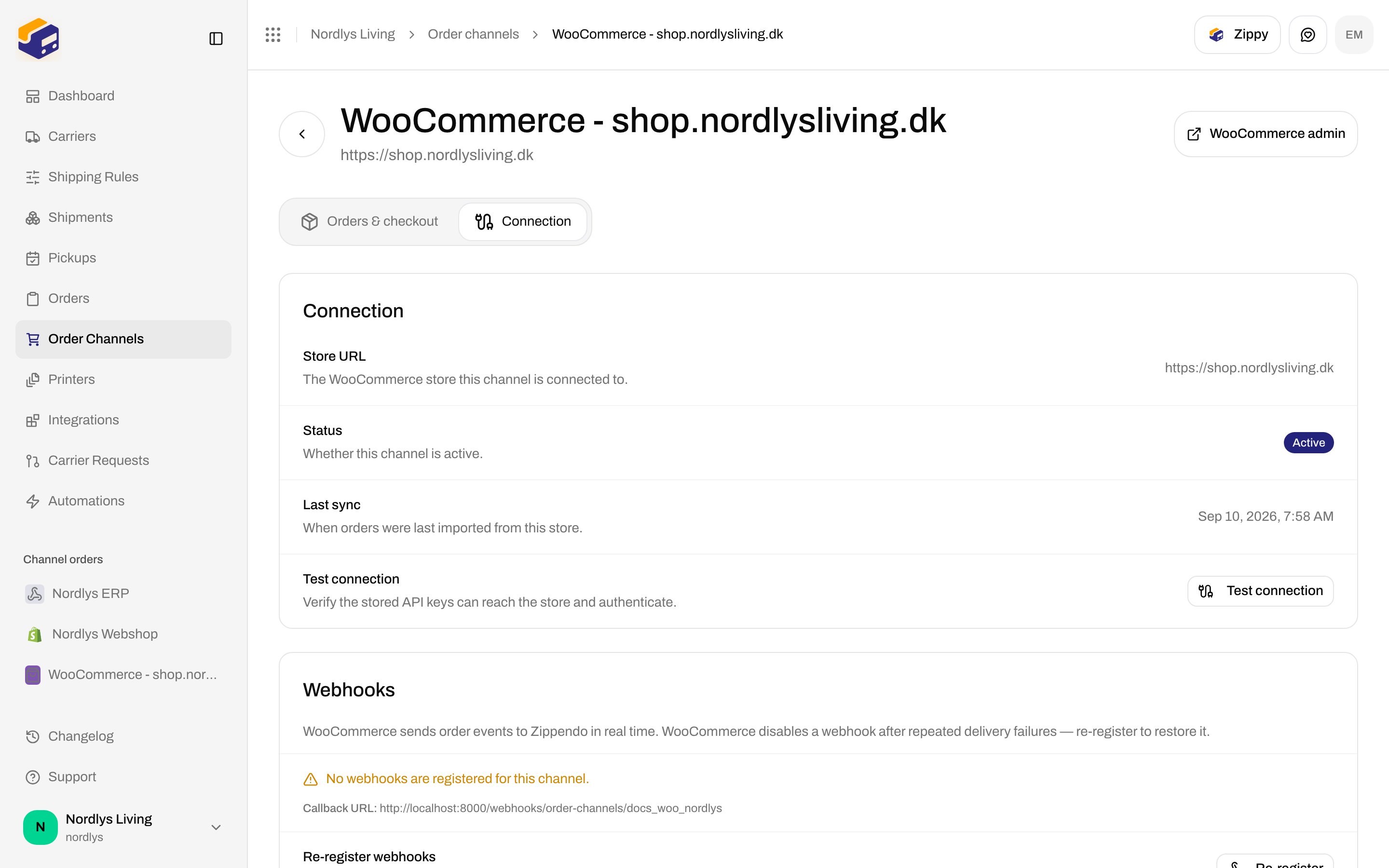
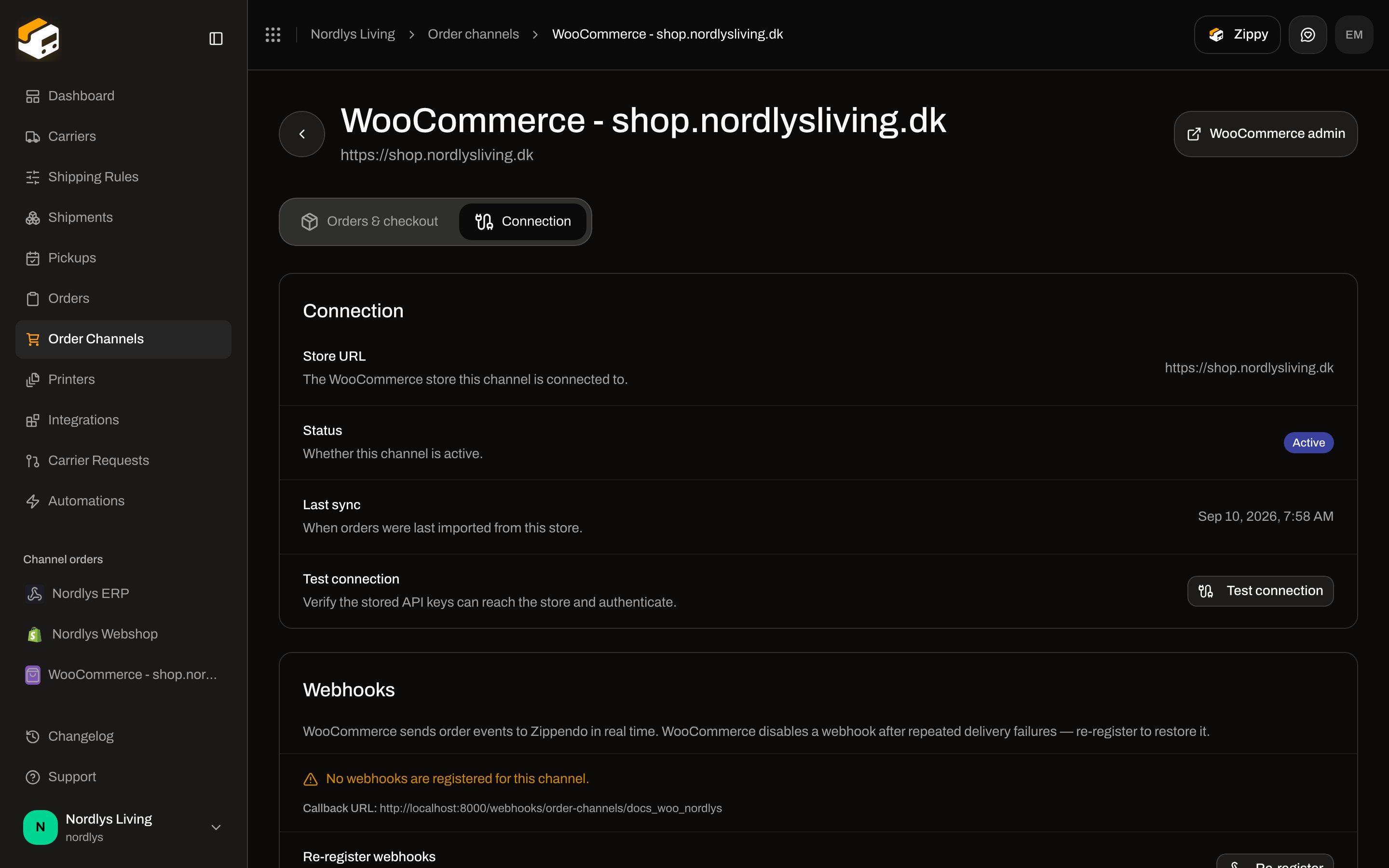 | Field | Copy in the UI |
| ------------------- | ----------------------------------------------------------------------------------------------------------------------------------------------------------------------------------------------------------------------------------------------------------------- |
| **Store URL** | **The WooCommerce store this channel is connected to.** Shown as the saved URL, or **—**. |
| **Status** | **Whether this channel is active.** Badge **Active** or **Disabled**. Display only. |
| **Last sync** | **When orders were last imported from this store.** Timestamp, or **Never**. |
| **Last sync error** | Shown only when the last poll failed: **Last sync error: \{error}**. |
| **Test connection** | **Verify the stored API keys can reach the store and authenticate.** Button **Test connection** / **Testing…**. Inline success **Connection successful.** (or the API message). Inline failure **Connection failed.** Toast on error: **Connection test failed**. |
**Test connection** checks REST keys for order sync. It does not quote checkout rates.
## Webhooks
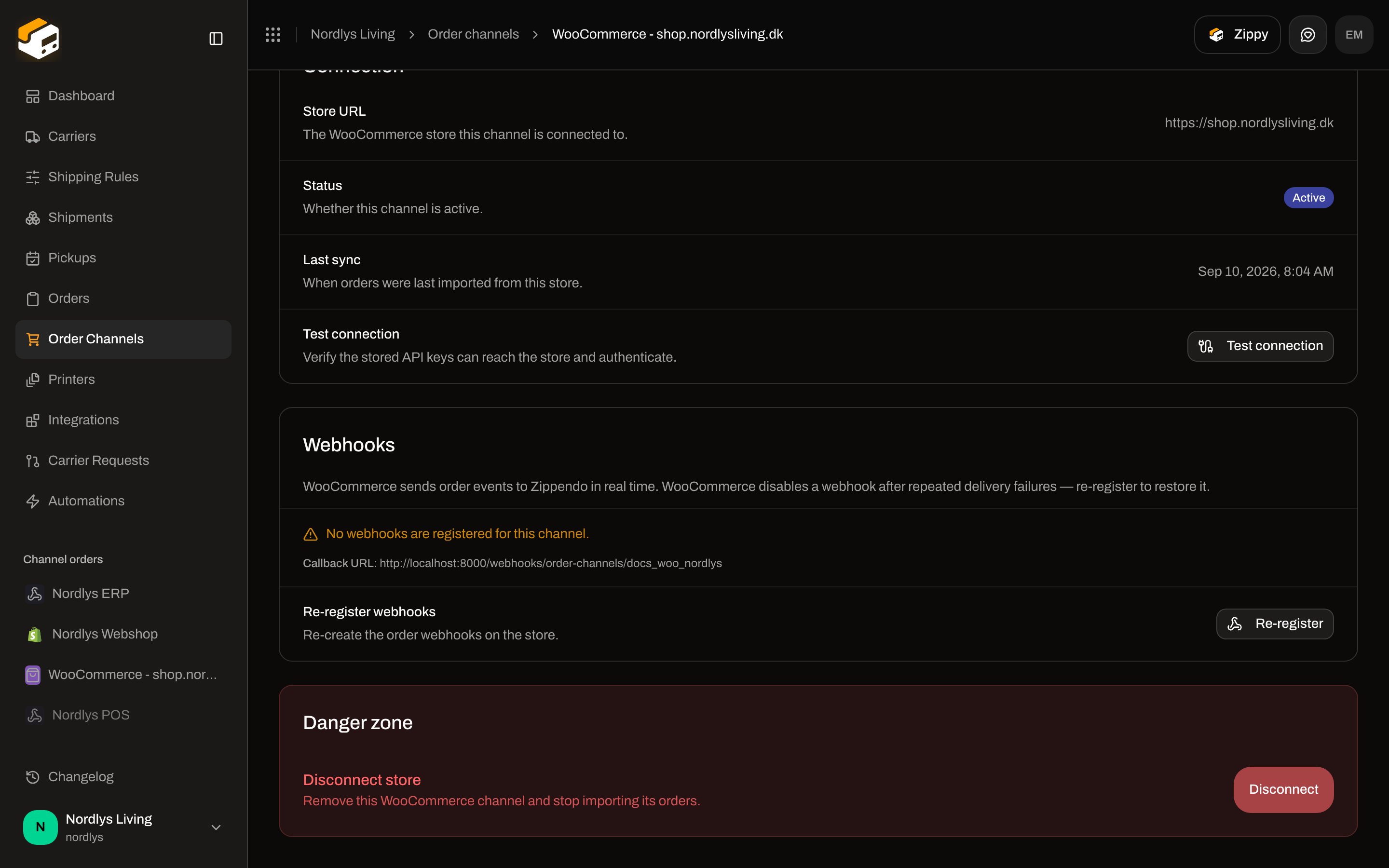
Card title **Webhooks**. Description: **WooCommerce sends order events to Zippendo in real time. WooCommerce disables a webhook after repeated delivery failures — re-register to restore it.**
Topics Zippendo registers: `order.created`, `order.updated`, `order.deleted`.
| Field | Copy in the UI |
| ------------------- | ----------------------------------------------------------------------------------------------------------------------------------------------------------------------------------------------------------------------------------------------------------------- |
| **Store URL** | **The WooCommerce store this channel is connected to.** Shown as the saved URL, or **—**. |
| **Status** | **Whether this channel is active.** Badge **Active** or **Disabled**. Display only. |
| **Last sync** | **When orders were last imported from this store.** Timestamp, or **Never**. |
| **Last sync error** | Shown only when the last poll failed: **Last sync error: \{error}**. |
| **Test connection** | **Verify the stored API keys can reach the store and authenticate.** Button **Test connection** / **Testing…**. Inline success **Connection successful.** (or the API message). Inline failure **Connection failed.** Toast on error: **Connection test failed**. |
**Test connection** checks REST keys for order sync. It does not quote checkout rates.
## Webhooks
Card title **Webhooks**. Description: **WooCommerce sends order events to Zippendo in real time. WooCommerce disables a webhook after repeated delivery failures — re-register to restore it.**
Topics Zippendo registers: `order.created`, `order.updated`, `order.deleted`.
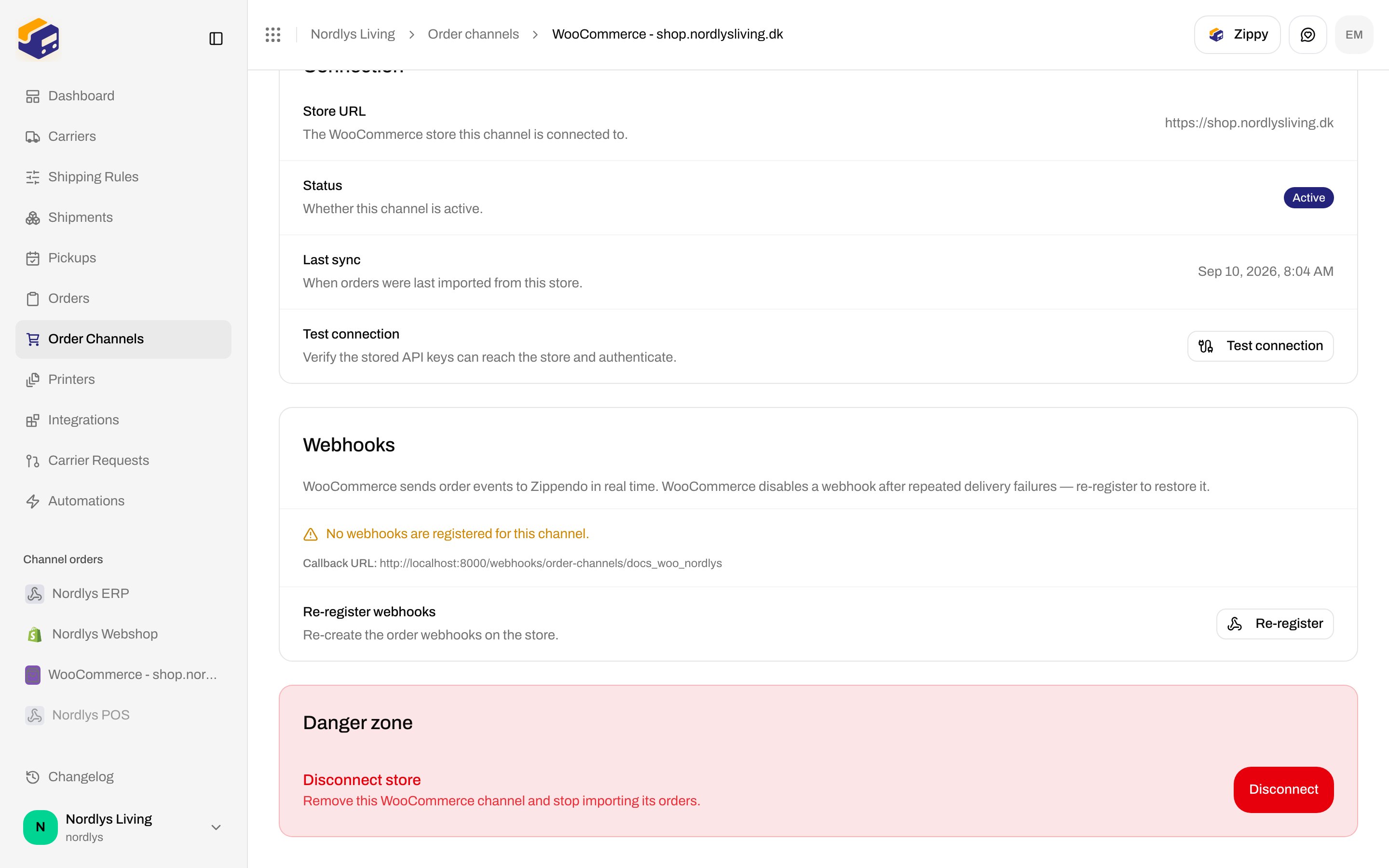
 | State | Copy in the UI |
| ------------------------ | ---------------------------------------------------------------------------------------------------------------------------------------------------------------------------------------------------------------------------- |
| Loading | **Checking webhooks…** |
| Load failed | **Could not load webhook status from the store.** |
| None registered | **No webhooks are registered for this channel.** |
| Per hook | Topic in monospace. Badge **Active**, or **Disabled by WooCommerce** when the store turned the hook off. |
| Callback | **Callback URL:** plus the delivery URL. |
| **Re-register webhooks** | **Re-create the order webhooks on the store.** Button **Re-register** / **Registering…**. Toast **Webhooks registered** with **\{n} webhook registered** / **\{n} webhooks registered**, or **Failed to register webhooks**. |
Without a reachable store (including this documentation environment), the card shows **No webhooks are registered for this channel.** The **Callback URL** may use `localhost` in local captures — copy it from **your** Connection tab. On a live connect you should see the three topics as **Active**.
## Disconnect
On **Connection**, **Danger zone** → **Disconnect store**. Description: **Remove this WooCommerce channel and stop importing its orders.**
| State | Copy in the UI |
| ------------------------ | ---------------------------------------------------------------------------------------------------------------------------------------------------------------------------------------------------------------------------- |
| Loading | **Checking webhooks…** |
| Load failed | **Could not load webhook status from the store.** |
| None registered | **No webhooks are registered for this channel.** |
| Per hook | Topic in monospace. Badge **Active**, or **Disabled by WooCommerce** when the store turned the hook off. |
| Callback | **Callback URL:** plus the delivery URL. |
| **Re-register webhooks** | **Re-create the order webhooks on the store.** Button **Re-register** / **Registering…**. Toast **Webhooks registered** with **\{n} webhook registered** / **\{n} webhooks registered**, or **Failed to register webhooks**. |
Without a reachable store (including this documentation environment), the card shows **No webhooks are registered for this channel.** The **Callback URL** may use `localhost` in local captures — copy it from **your** Connection tab. On a live connect you should see the three topics as **Active**.
## Disconnect
On **Connection**, **Danger zone** → **Disconnect store**. Description: **Remove this WooCommerce channel and stop importing its orders.**
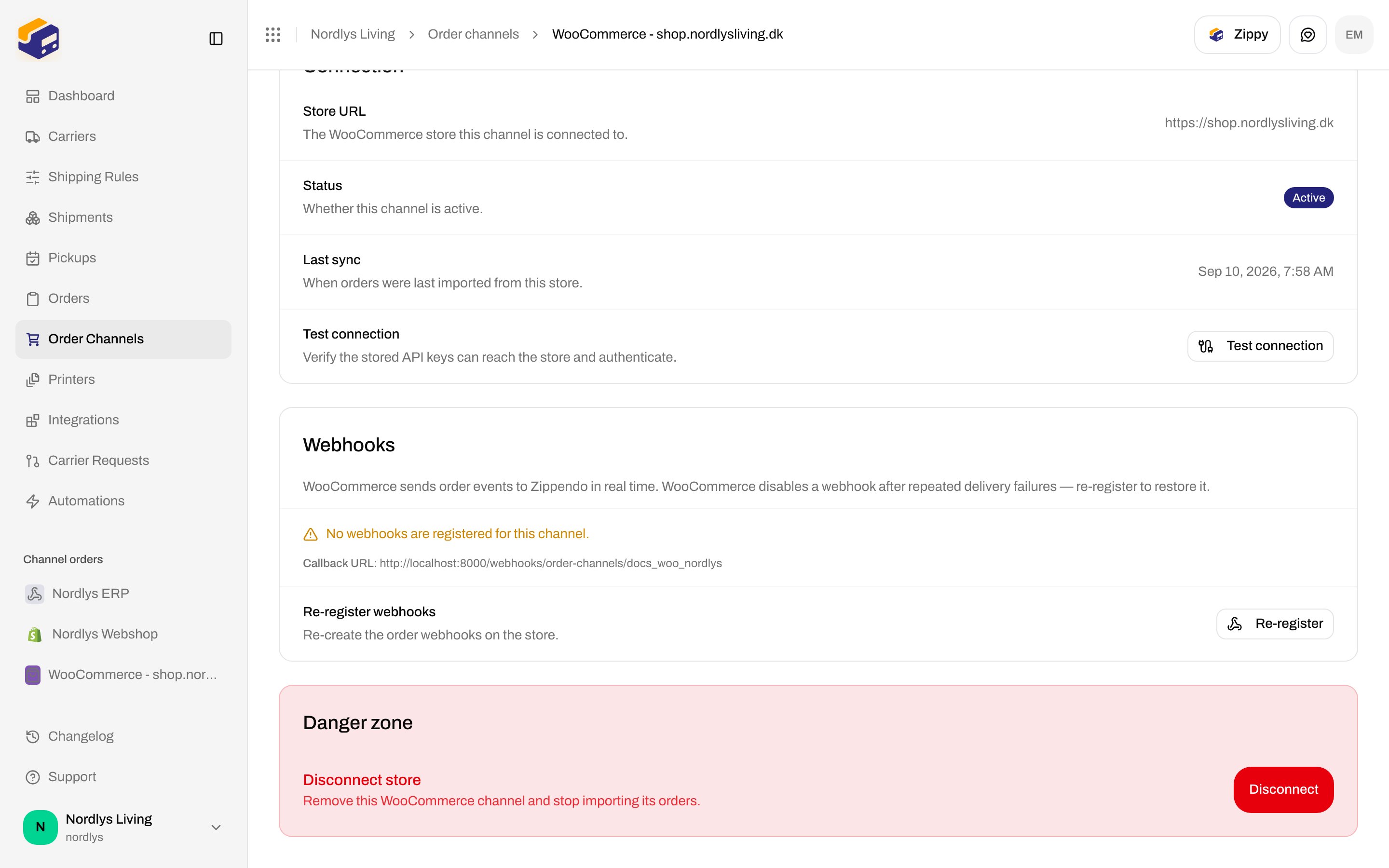
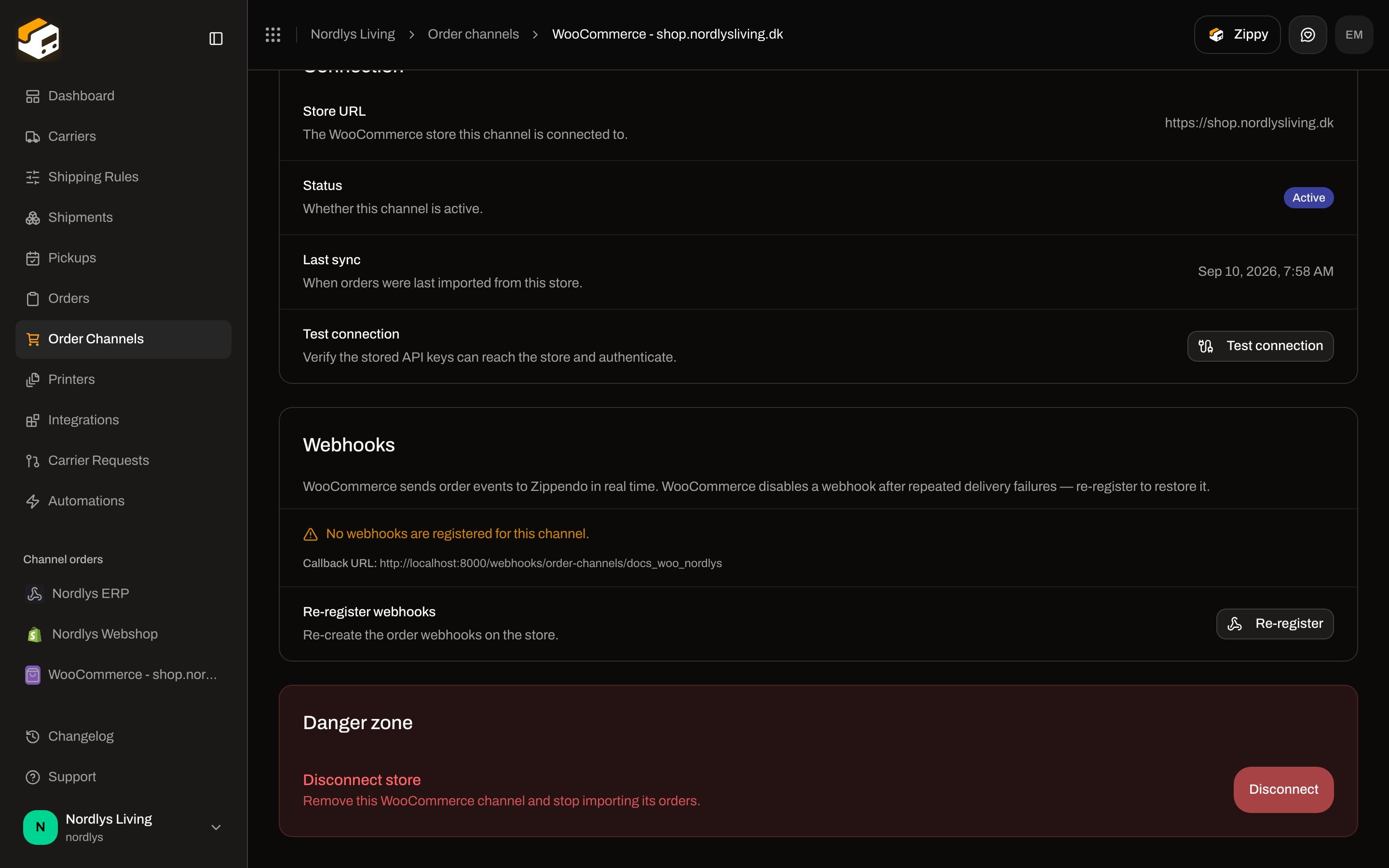 Confirm: **Disconnect this WooCommerce store? Its webhooks will be removed and orders will no longer be imported.** Button **Disconnect** / **Disconnecting…**. Toast **WooCommerce store disconnected** / **Failed to disconnect**.
Orders already in Zippendo stay. Enable, disable, and leftover **Disconnected channels** rows: [Order channel settings](/docs/how-to/order-channel-settings).
## Plugin settings on the WooCommerce store
These labels are from the **Zippendo for WooCommerce** plugin (`WooCommerce → Settings → Shipping → Zippendo`). They are not Zippendo dashboard fields.
| Field | Copy |
| ----------------------- | ------------------------------------------------------------------------------------------------------------------------------------------------------------------------------------------------------------ |
| Section intro | **Connect your store to Zippendo for live shipping rates and pickup point selection at checkout.** |
| **Checkout API key** | Paste the `zck_` token. Tip: generated in the Zippendo dashboard (**Order Channels → WooCommerce**). Never sent to the shopper browser. |
| **Connection** | **Test connection**. Description: **Save your checkout key, then test the connection.** Testing: **Testing connection…**. Success: **Connected to \{org name}**. Failure: **Connection failed: \{message}**. |
| **Fallback rate** | **Offer a flat fallback shipping rate when Zippendo cannot be reached.** Off by default. |
| **Fallback rate label** | Shown to the shopper. Default **Shipping**. |
| **Fallback rate cost** | Flat cost in the store currency. Default `0`. |
| **Debug logging** | **Log detailed API request/response summaries to the WooCommerce status log.** The checkout key is never written to the log. |
Add shipping method **Zippendo** to each zone that should show Zippendo rates. Method description: **Live shipping rates and pickup point selection from Zippendo. Set your checkout key in WooCommerce → Settings → Shipping → Zippendo, then add this method to a shipping zone.** Per-zone **Label prefix** is optional text before each rate label.
Install and token steps: [WooCommerce checkout plugin](/docs/order-channels/woocommerce-checkout-plugin).
## Related
Catalog walkthrough for WooCommerce and custom, then how orders appear.
Live rates and pickup points at WooCommerce checkout.
Enable, disable, and leftover disconnected channels.
When webhooks or polling do not bring orders in.
Confirm: **Disconnect this WooCommerce store? Its webhooks will be removed and orders will no longer be imported.** Button **Disconnect** / **Disconnecting…**. Toast **WooCommerce store disconnected** / **Failed to disconnect**.
Orders already in Zippendo stay. Enable, disable, and leftover **Disconnected channels** rows: [Order channel settings](/docs/how-to/order-channel-settings).
## Plugin settings on the WooCommerce store
These labels are from the **Zippendo for WooCommerce** plugin (`WooCommerce → Settings → Shipping → Zippendo`). They are not Zippendo dashboard fields.
| Field | Copy |
| ----------------------- | ------------------------------------------------------------------------------------------------------------------------------------------------------------------------------------------------------------ |
| Section intro | **Connect your store to Zippendo for live shipping rates and pickup point selection at checkout.** |
| **Checkout API key** | Paste the `zck_` token. Tip: generated in the Zippendo dashboard (**Order Channels → WooCommerce**). Never sent to the shopper browser. |
| **Connection** | **Test connection**. Description: **Save your checkout key, then test the connection.** Testing: **Testing connection…**. Success: **Connected to \{org name}**. Failure: **Connection failed: \{message}**. |
| **Fallback rate** | **Offer a flat fallback shipping rate when Zippendo cannot be reached.** Off by default. |
| **Fallback rate label** | Shown to the shopper. Default **Shipping**. |
| **Fallback rate cost** | Flat cost in the store currency. Default `0`. |
| **Debug logging** | **Log detailed API request/response summaries to the WooCommerce status log.** The checkout key is never written to the log. |
Add shipping method **Zippendo** to each zone that should show Zippendo rates. Method description: **Live shipping rates and pickup point selection from Zippendo. Set your checkout key in WooCommerce → Settings → Shipping → Zippendo, then add this method to a shipping zone.** Per-zone **Label prefix** is optional text before each rate label.
Install and token steps: [WooCommerce checkout plugin](/docs/order-channels/woocommerce-checkout-plugin).
## Related
Catalog walkthrough for WooCommerce and custom, then how orders appear.
Live rates and pickup points at WooCommerce checkout.
Enable, disable, and leftover disconnected channels.
When webhooks or polling do not bring orders in.