> ## Documentation Index
> Fetch the complete documentation index at: https://www.zippendo.com/docs/llms.txt
> Use this file to discover all available pages before exploring further.
# Connect UPS
> Connect UPS from Carriers → All Carriers — Client ID, Client Secret, Account Number, and optional Sandbox Mode.
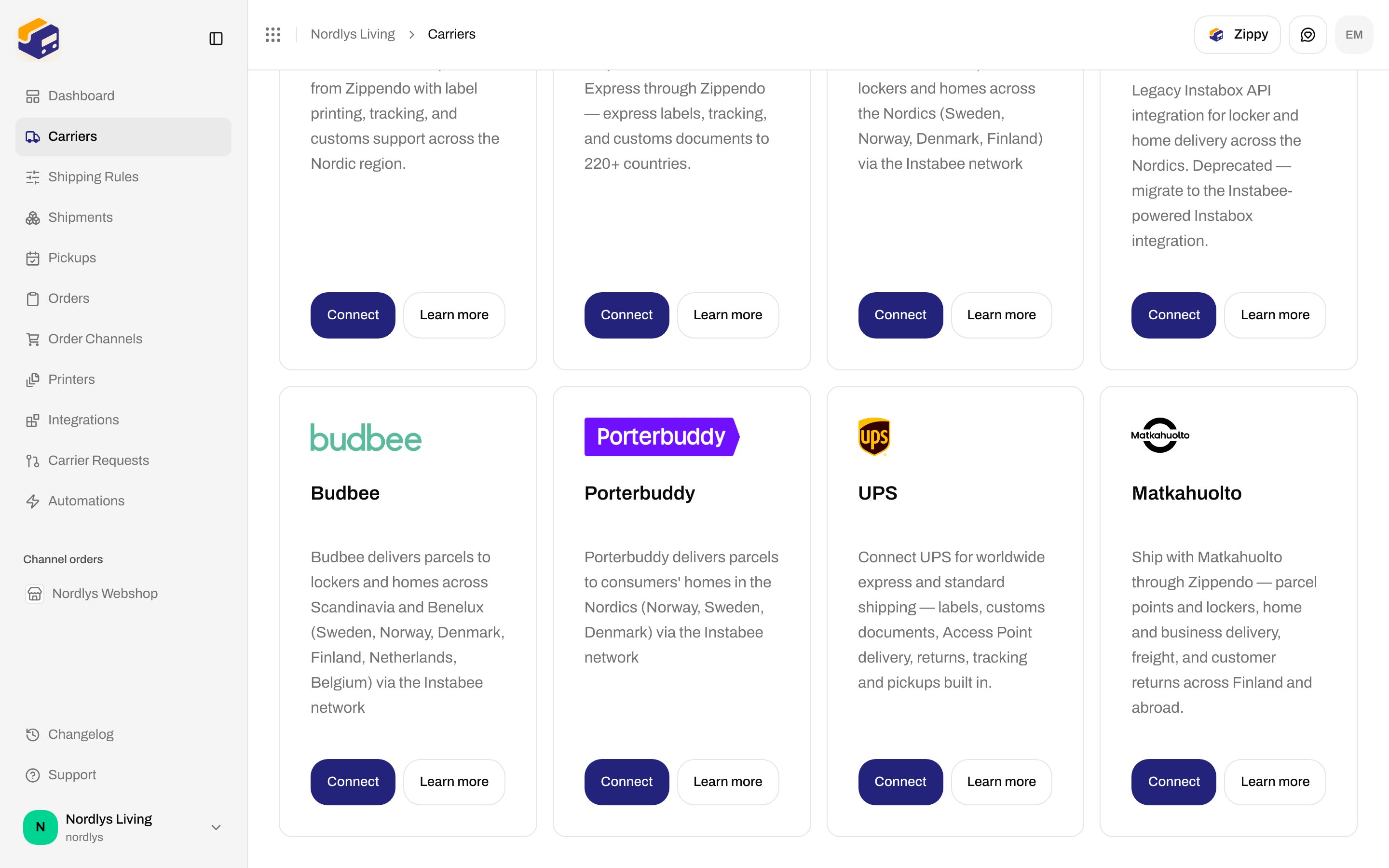
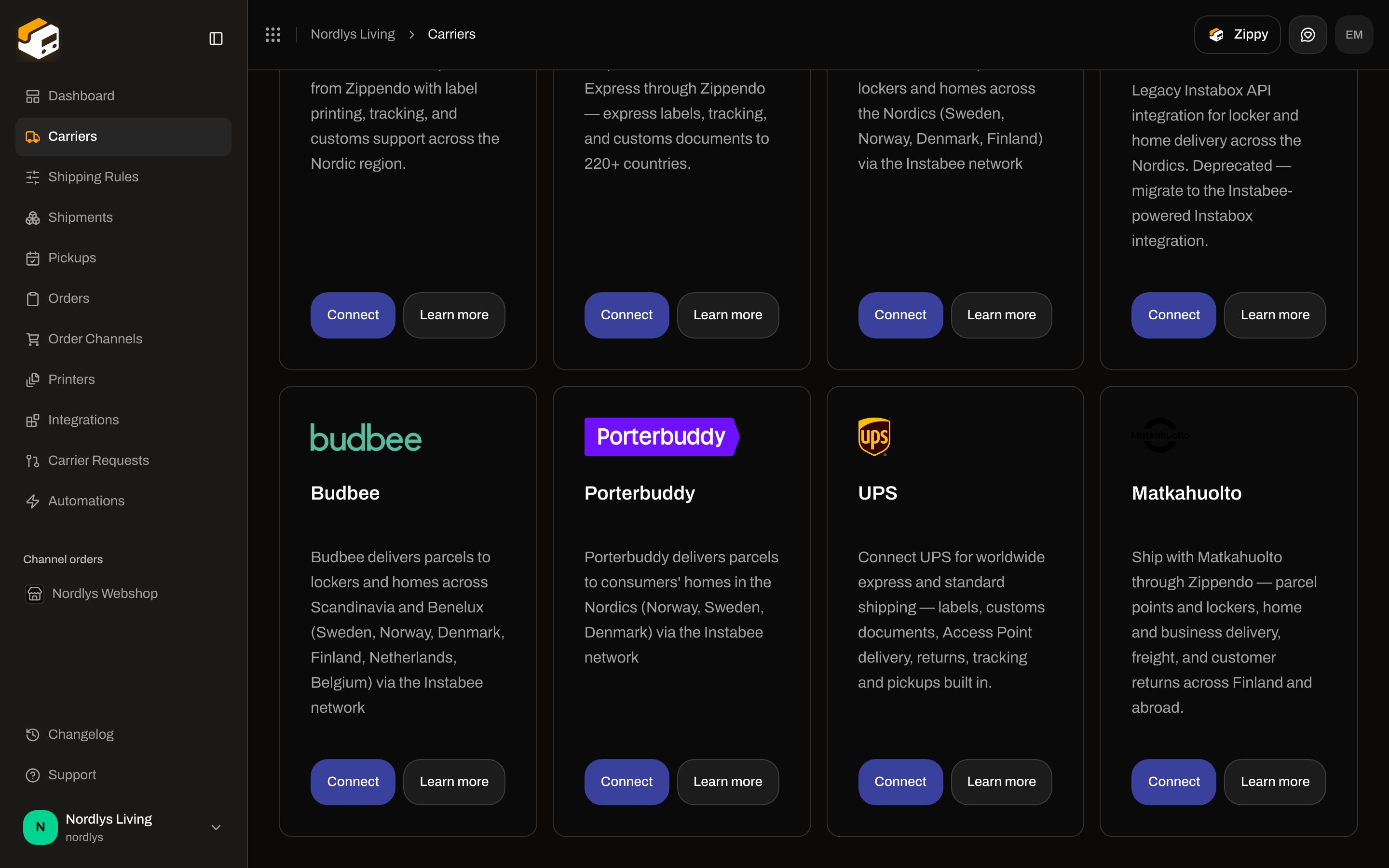
**UPS** books worldwide express and standard labels from Zippendo, with customs documents, Access Point delivery, returns, tracking, and pickups. The catalog card copy is: **Connect UPS for worldwide express and standard shipping — labels, customs documents, Access Point delivery, returns, tracking and pickups built in.** Catalog slug: `ups`.
This page is the UPS connect form. Shared chrome for every carrier: [Carrier credentials](/docs/how-to/carrier-credentials). Inventory of every connector: [Connect a carrier or integration](/docs/how-to/connect-index). Walkthrough: [Carriers](/docs/tutorials/carriers).
You do **not** pick a sender address on this form. Add addresses under **Manage → Addresses**. The address is chosen on the shipment or on a [shipping rule](/docs/how-to/shipping-rule-fields).
## Prerequisites
* A **UPS** shipper account number (6 characters — billed on every shipment and pickup).
* An app on the **UPS Developer Portal** with a **Client ID** and **Client Secret**. The form helpers name that portal; Zippendo does not open it for you.
* Production APIs on that app may need UPS product approval. The same Client ID / Secret can be pointed at the Customer Integration Environment when **Sandbox Mode** is on.
* Permission to create carriers in the organization. You can connect UPS more than once if each connection has its own **Carrier name**.
## Connect from All Carriers
Sidebar **Carriers**. Page title **Carriers / Integrations**. Header tabs: **My Carriers** (`?tab=my-carriers`) and **All Carriers** (`?tab=all-carriers`).
Card title **UPS**. Buttons: **Connect** and **Learn more** (opens [ups.com](https://www.ups.com) in a new tab).
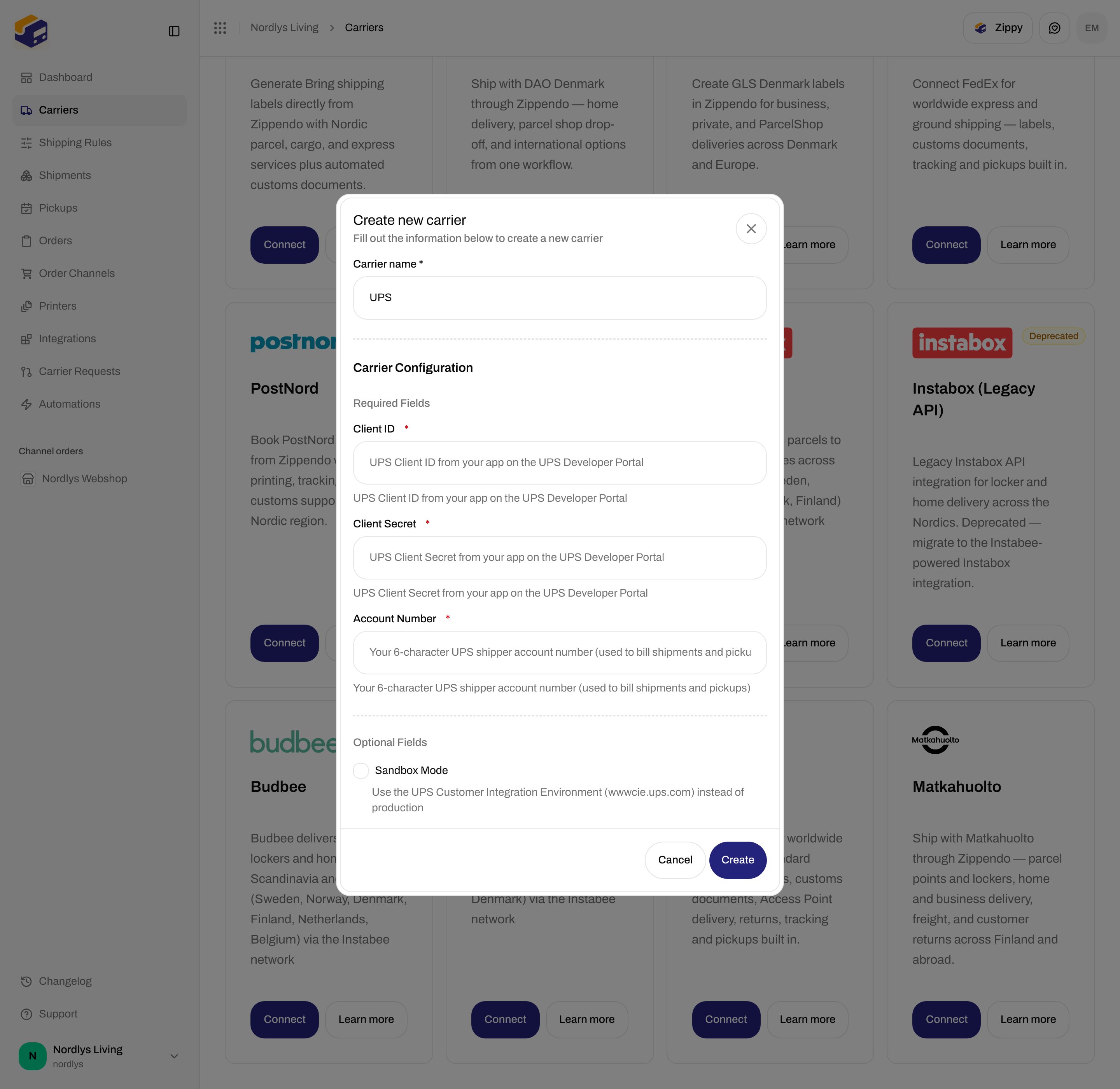
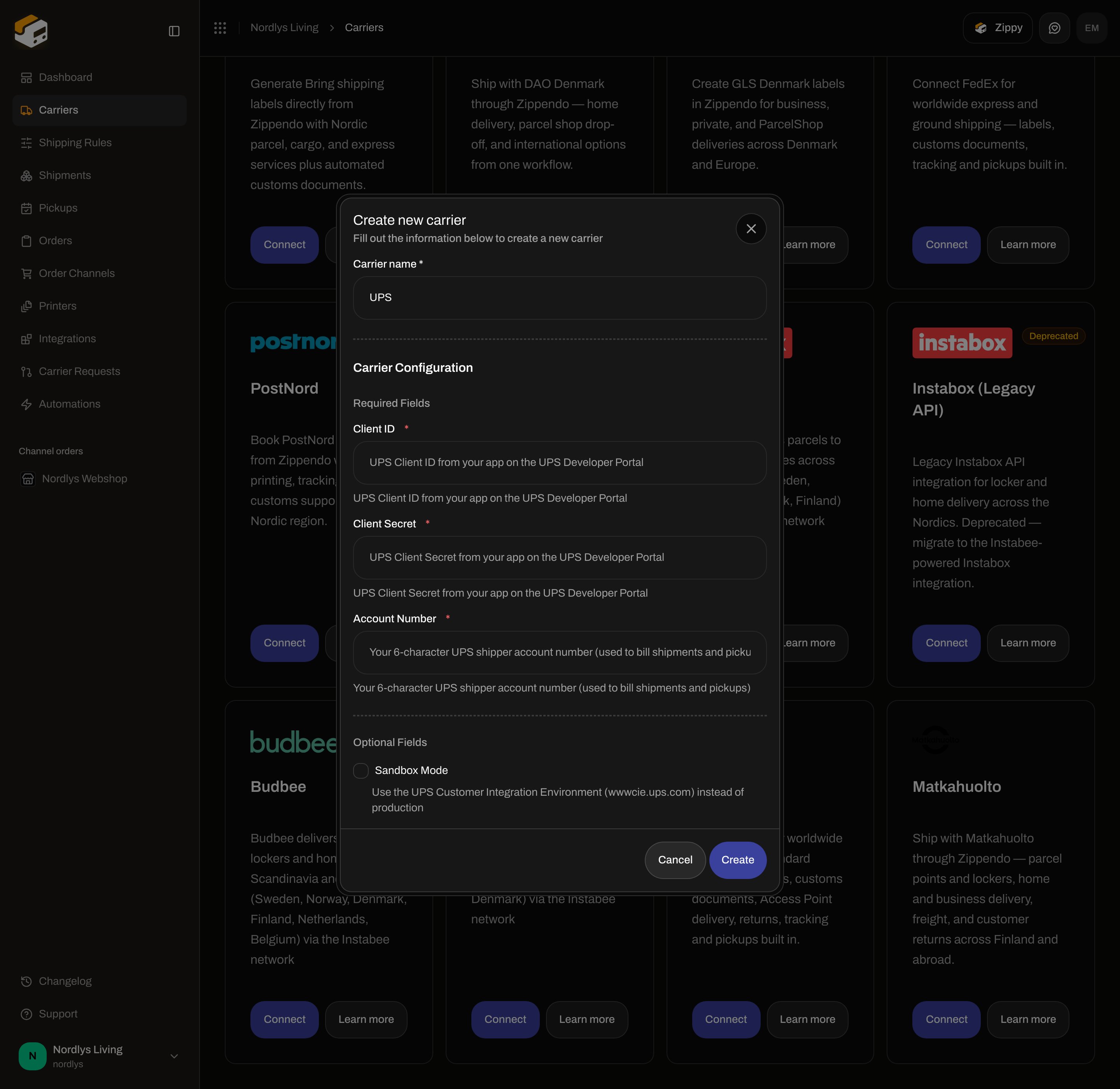
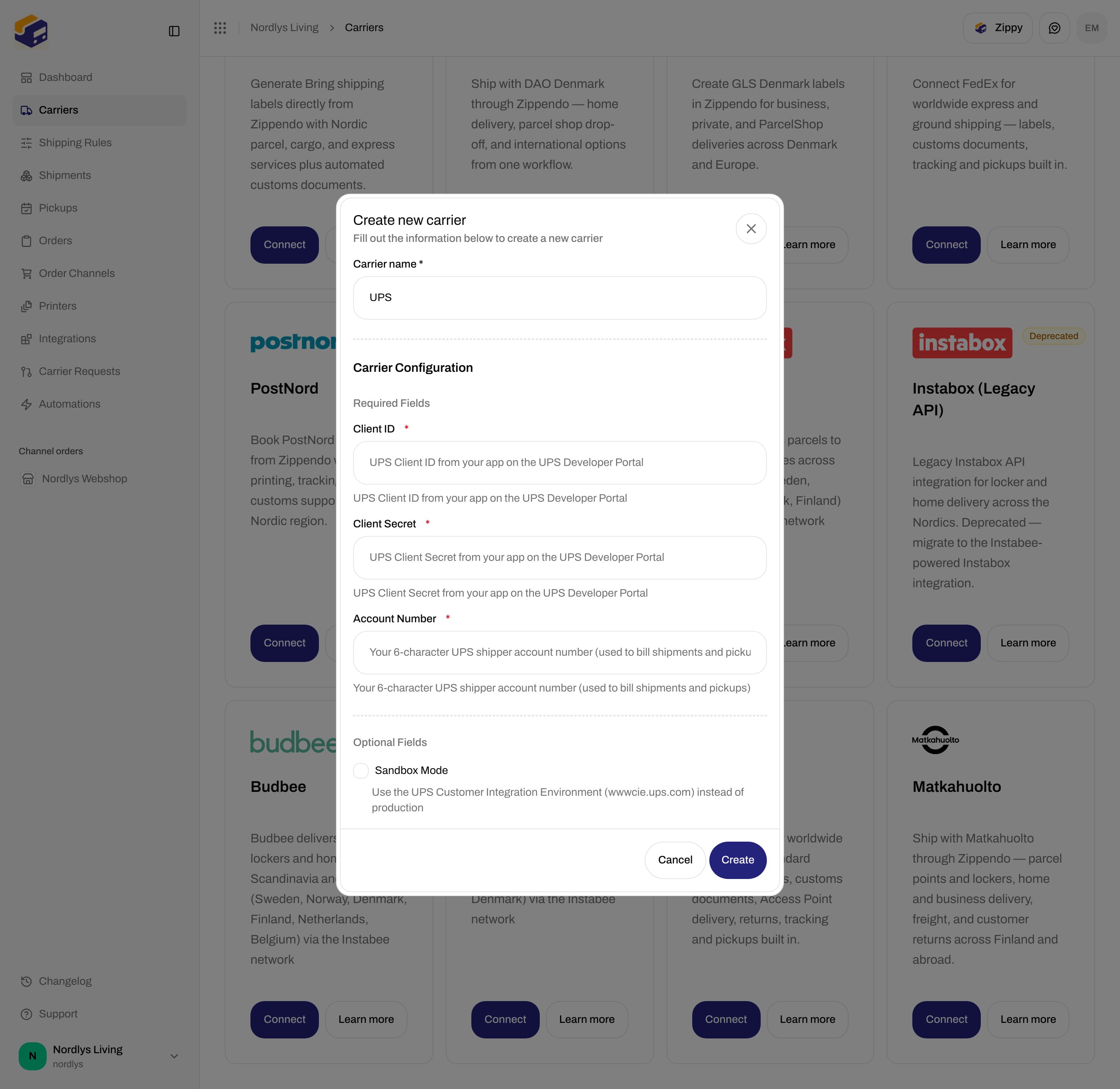
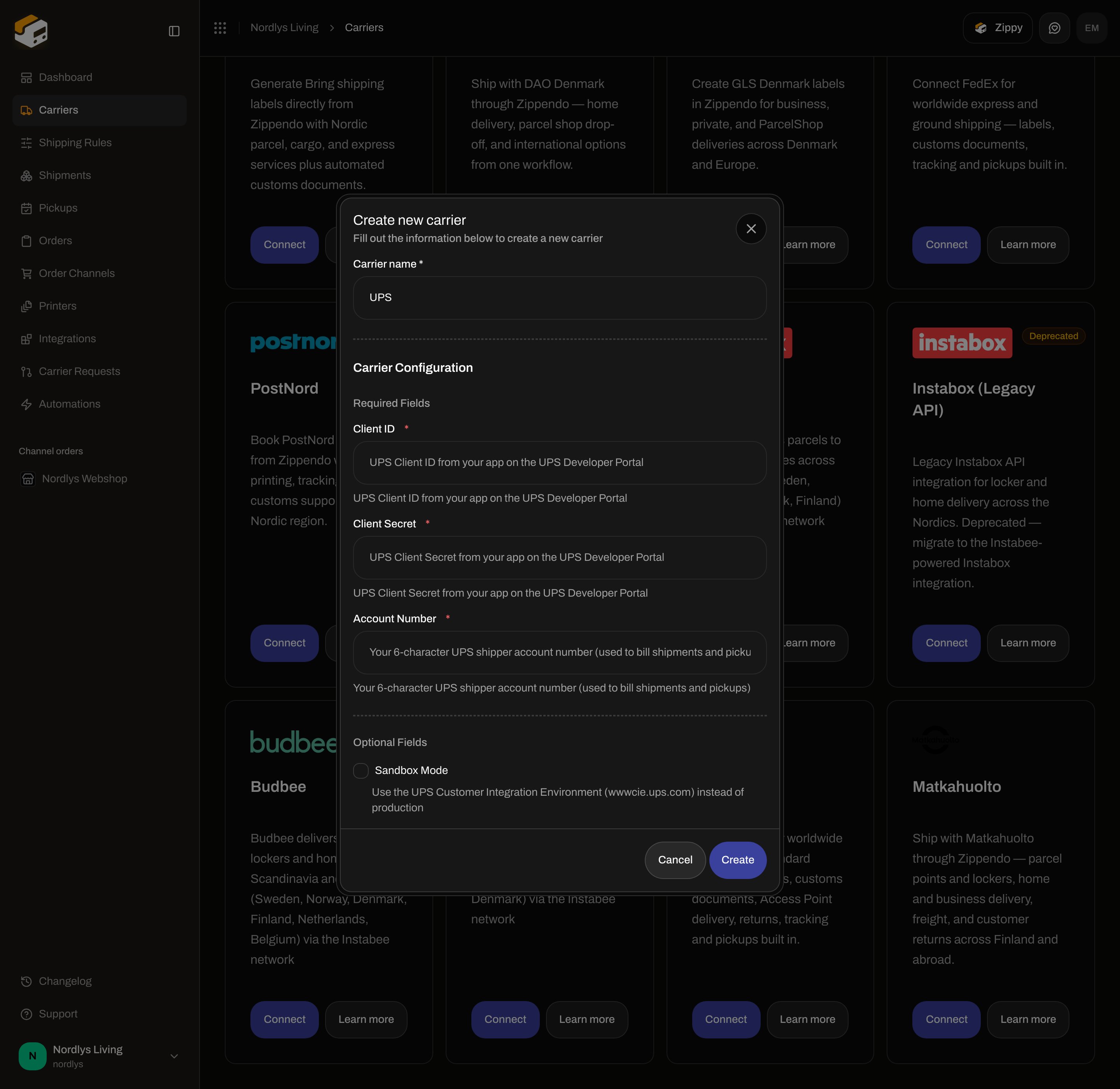
Modal id `connect-carrier-modal`. Title **Create new carrier**. Subtitle **Fill out the information below to create a new carrier**.
Shared fields first, then **Carrier Configuration → Required Fields**. Scroll **Optional Fields** for **Sandbox Mode**. Empty required values make **Create** return without saving.
Click **Create** (shows **Creating…** while the request runs) or **Cancel**. Success toast: **Carrier created successfully**. Failure copy in the modal: **Failed to create carrier. Please try again.**
 ## Shared fields
These appear on every connect dialog, including UPS.
| Field | Required | What it is |
| ------------------- | -------- | ------------------------------------------------------------------------------------------------------------------------------------------------------------------------------------------------------ |
| **Carrier name \*** | Yes | Display name in **My Carriers** and on shipments. Placeholder **Enter carrier name**. Defaults to **UPS**. Empty blocks **Create**. |
| **Brand** | No | Only when the organization has [brands](/docs/how-to/create-a-brand). Label **Brand**. Helper: **Only this brand can use this carrier.** Leave unset for organization-wide. Hidden when you have no brands. |
## UPS credentials
**Carrier Configuration** splits into **Required Fields** and **Optional Fields**. **Client Secret** uses a password input because the label contains “Secret”. Each helper is catalog copy. Placeholder on text fields is the same helper.
| Field | Required | Control | Where you get it | Format | Sandbox vs live |
| ------------------ | -------- | ---------------------------------------------------------------------------------------------------------------------- | ---------------------------------------------------------------------- | ------------------- | ----------------------------------------------------------------- |
| **Client ID** | Yes | Text. Helper: **UPS Client ID from your app on the UPS Developer Portal** | UPS Developer Portal app (OAuth username on the token request). | String. | Same app credentials; **Sandbox Mode** switches host. |
| **Client Secret** | Yes | Password. Helper: **UPS Client Secret from your app on the UPS Developer Portal** | The matching Client Secret. | String. | Same field. |
| **Account Number** | Yes | Text. Helper: **Your 6-character UPS shipper account number (used to bill shipments and pickups)** | Your UPS shipper number. Sent as `x-merchant-id` on the token request. | 6-character string. | Same field. Booking fails without it (`CARRIER_CONFIG_INVALID`). |
| **Sandbox Mode** | No | Checkbox, default off. Helper: **Use the UPS Customer Integration Environment (wwwcie.ups.com) instead of production** | Zippendo checkbox. | Boolean. | On: `https://wwwcie.ups.com`. Off: `https://onlinetools.ups.com`. |
UPS uses OAuth: Zippendo exchanges **Client ID** + **Client Secret** for a bearer token, then bills the **Account Number**.
Create those values on the **UPS Developer Portal** after you sign in. That portal did not load as a public page from here (HTTP/2 timeouts), so there is no screenshot — open it from **your** UPS developer account.
[developer.ups.com](https://developer.ups.com/) is login-walled. We do not screenshot a private UPS dashboard.
## Shared fields
These appear on every connect dialog, including UPS.
| Field | Required | What it is |
| ------------------- | -------- | ------------------------------------------------------------------------------------------------------------------------------------------------------------------------------------------------------ |
| **Carrier name \*** | Yes | Display name in **My Carriers** and on shipments. Placeholder **Enter carrier name**. Defaults to **UPS**. Empty blocks **Create**. |
| **Brand** | No | Only when the organization has [brands](/docs/how-to/create-a-brand). Label **Brand**. Helper: **Only this brand can use this carrier.** Leave unset for organization-wide. Hidden when you have no brands. |
## UPS credentials
**Carrier Configuration** splits into **Required Fields** and **Optional Fields**. **Client Secret** uses a password input because the label contains “Secret”. Each helper is catalog copy. Placeholder on text fields is the same helper.
| Field | Required | Control | Where you get it | Format | Sandbox vs live |
| ------------------ | -------- | ---------------------------------------------------------------------------------------------------------------------- | ---------------------------------------------------------------------- | ------------------- | ----------------------------------------------------------------- |
| **Client ID** | Yes | Text. Helper: **UPS Client ID from your app on the UPS Developer Portal** | UPS Developer Portal app (OAuth username on the token request). | String. | Same app credentials; **Sandbox Mode** switches host. |
| **Client Secret** | Yes | Password. Helper: **UPS Client Secret from your app on the UPS Developer Portal** | The matching Client Secret. | String. | Same field. |
| **Account Number** | Yes | Text. Helper: **Your 6-character UPS shipper account number (used to bill shipments and pickups)** | Your UPS shipper number. Sent as `x-merchant-id` on the token request. | 6-character string. | Same field. Booking fails without it (`CARRIER_CONFIG_INVALID`). |
| **Sandbox Mode** | No | Checkbox, default off. Helper: **Use the UPS Customer Integration Environment (wwwcie.ups.com) instead of production** | Zippendo checkbox. | Boolean. | On: `https://wwwcie.ups.com`. Off: `https://onlinetools.ups.com`. |
UPS uses OAuth: Zippendo exchanges **Client ID** + **Client Secret** for a bearer token, then bills the **Account Number**.
Create those values on the **UPS Developer Portal** after you sign in. That portal did not load as a public page from here (HTTP/2 timeouts), so there is no screenshot — open it from **your** UPS developer account.
[developer.ups.com](https://developer.ups.com/) is login-walled. We do not screenshot a private UPS dashboard.
 Leave **Sandbox Mode** off for live orders. Details: [Sandbox mode](/docs/how-to/sandbox-mode).
## After you connect
The connection appears on **My Carriers** with a **Connected** badge and **Edit Carrier**. Products are **not** on this form — they appear when you [create a shipment](/docs/how-to/send-a-shipment) or save a [shipping rule](/docs/how-to/shipping-rule-fields). See [Carrier products and services](/docs/how-to/carrier-products-and-services).
Outbound products include **UPS Next Day Air**, **UPS 2nd Day Air**, **UPS Ground**, **UPS 3 Day Select**, **UPS Next Day Air Saver**, **UPS Next Day Air Early**, **UPS 2nd Day Air A.M.**, **UPS Standard**, **UPS Express 12:00**, **UPS Access Point Economy**, **UPS Worldwide Express**, **UPS Worldwide Express Plus**, **UPS Worldwide Saver**, **UPS Worldwide Expedited**, **UPS Worldwide Economy DDU**, **UPS Worldwide Economy DDP**, **UPS Worldwide Express Freight Midday**, and **UPS Worldwide Express Freight**. Inbound **Return** variants exist for services that support returns. Extra services can include **Saturday Delivery**, **Signature required**, **Adult signature required**, and on returns **Email return label to customer (no printed label)**. Additional options include **Label Format** (**PNG (4x6)** / **ZPL (thermal)**) and billing (**Bill shipper (my account)**, **Bill receiver's UPS account**, **Bill third party's UPS account**).
### Access Point (service point)
**UPS Access Point Economy** is always a service-point product. These also have an **(Access Point)** variant: **UPS 2nd Day Air**, **UPS Ground**, **UPS 3 Day Select**, **UPS Next Day Air Saver**, **UPS Standard**, **UPS Worldwide Express**, and **UPS Worldwide Saver**.
On **Create Shipment** pick a **Service Point** on the **Drop Point** card before send. Error: **This carrier product delivers to a service point — select a droppoint before sending.** How to pick: [Pick a service point](/docs/how-to/pick-a-service-point). Naming: [Droppoint vs service point](/docs/how-to/drop-point-and-service-points).
UPS does **not** appear in **Pickups**. That list is Bring and PostNord only — [Schedule a pickup](/docs/how-to/schedule-a-pickup).
Tracking is pulled on a schedule. There is no tracking-webhook field on **Edit your carrier** — [Carrier tracking webhooks](/docs/how-to/tracking-webhooks).
UPS generates customs documents and commercial invoices for international shipments — [Customs and documents](/docs/how-to/customs-and-documents).
## Edit
On **My Carriers**, click **Edit Carrier**. Page title: **Edit your carrier**. URL `/dashboard/carriers/:id`.
Two cards:
* **General** — **Carrier name** (helper: **Update the name of your carrier**), plus **Brand** when brands exist.
* **Carrier settings** — the same UPS fields as connect, including **Sandbox Mode**.
Header actions: **Delete** and **Save** (pending **Saving…**). Success toast: **Carrier updated successfully**. Loading: **Loading carrier…**. Load failure: **Failed to load carrier. Please try again.** Save failure: **Failed to update carrier. Please try again.**
On edit, credential strings are plain text inputs (not password). Shared delete chrome: [Carrier credentials](/docs/how-to/carrier-credentials).
## Delete
On **Edit your carrier**, click **Delete**. Modal id `global-delete-modal`. Title **Delete Carrier**. Subtitle **You are about to delete carrier "\{\{name}}".** Body: **This will permanently delete carrier "\{\{name}}". This action cannot be undone.** Type the carrier name in **uppercase** to enable **Delete**. Toast: **Carrier deleted successfully**. Failure: **Failed to delete carrier**.
Booked shipments keep their labels and tracking.
## Common errors
| When | Copy |
| ------------------------------- | ---------------------------------------------------------------------------------------------------------------------------------------- |
| Required field empty on connect | **Create** does nothing until **Carrier name**, **Client ID**, **Client Secret**, and **Account Number** have values. |
| Connect request fails | **Failed to create carrier. Please try again.** |
| Plan / resource cap | **You have reached your plan limit for this resource.** / **You have exceeded your plan limits. Please upgrade or remove excess items.** |
| Send with bad credentials | **The carrier rejected your API credentials. Update the carrier's API key or secret in Carrier settings.** |
| Booking rejected | **UPS could not book the shipment.** |
| Missing account at send | **The carrier configuration is invalid.** |
| Access Point without a point | **This carrier product delivers to a service point — select a droppoint before sending.** |
| Product vs countries | **The selected carrier product does not ship between these countries. Choose a different product.** |
| Carrier down | **The carrier service is currently unavailable.** / **The carrier rejected the request.** |
Auth failures after send: [Carrier authentication failures](/docs/knowledge-base/carrier-authentication-failures).
## Related
* [Connect a carrier or integration](/docs/how-to/connect-index)
* [Carrier credentials](/docs/how-to/carrier-credentials)
* [Sandbox mode](/docs/how-to/sandbox-mode)
* [Carrier products and services](/docs/how-to/carrier-products-and-services)
* [Connect an integration](/docs/how-to/connect-an-integration)
* [Request a carrier integration](/docs/how-to/request-carrier-integration)
* [Carriers](/docs/tutorials/carriers)
Leave **Sandbox Mode** off for live orders. Details: [Sandbox mode](/docs/how-to/sandbox-mode).
## After you connect
The connection appears on **My Carriers** with a **Connected** badge and **Edit Carrier**. Products are **not** on this form — they appear when you [create a shipment](/docs/how-to/send-a-shipment) or save a [shipping rule](/docs/how-to/shipping-rule-fields). See [Carrier products and services](/docs/how-to/carrier-products-and-services).
Outbound products include **UPS Next Day Air**, **UPS 2nd Day Air**, **UPS Ground**, **UPS 3 Day Select**, **UPS Next Day Air Saver**, **UPS Next Day Air Early**, **UPS 2nd Day Air A.M.**, **UPS Standard**, **UPS Express 12:00**, **UPS Access Point Economy**, **UPS Worldwide Express**, **UPS Worldwide Express Plus**, **UPS Worldwide Saver**, **UPS Worldwide Expedited**, **UPS Worldwide Economy DDU**, **UPS Worldwide Economy DDP**, **UPS Worldwide Express Freight Midday**, and **UPS Worldwide Express Freight**. Inbound **Return** variants exist for services that support returns. Extra services can include **Saturday Delivery**, **Signature required**, **Adult signature required**, and on returns **Email return label to customer (no printed label)**. Additional options include **Label Format** (**PNG (4x6)** / **ZPL (thermal)**) and billing (**Bill shipper (my account)**, **Bill receiver's UPS account**, **Bill third party's UPS account**).
### Access Point (service point)
**UPS Access Point Economy** is always a service-point product. These also have an **(Access Point)** variant: **UPS 2nd Day Air**, **UPS Ground**, **UPS 3 Day Select**, **UPS Next Day Air Saver**, **UPS Standard**, **UPS Worldwide Express**, and **UPS Worldwide Saver**.
On **Create Shipment** pick a **Service Point** on the **Drop Point** card before send. Error: **This carrier product delivers to a service point — select a droppoint before sending.** How to pick: [Pick a service point](/docs/how-to/pick-a-service-point). Naming: [Droppoint vs service point](/docs/how-to/drop-point-and-service-points).
UPS does **not** appear in **Pickups**. That list is Bring and PostNord only — [Schedule a pickup](/docs/how-to/schedule-a-pickup).
Tracking is pulled on a schedule. There is no tracking-webhook field on **Edit your carrier** — [Carrier tracking webhooks](/docs/how-to/tracking-webhooks).
UPS generates customs documents and commercial invoices for international shipments — [Customs and documents](/docs/how-to/customs-and-documents).
## Edit
On **My Carriers**, click **Edit Carrier**. Page title: **Edit your carrier**. URL `/dashboard/carriers/:id`.
Two cards:
* **General** — **Carrier name** (helper: **Update the name of your carrier**), plus **Brand** when brands exist.
* **Carrier settings** — the same UPS fields as connect, including **Sandbox Mode**.
Header actions: **Delete** and **Save** (pending **Saving…**). Success toast: **Carrier updated successfully**. Loading: **Loading carrier…**. Load failure: **Failed to load carrier. Please try again.** Save failure: **Failed to update carrier. Please try again.**
On edit, credential strings are plain text inputs (not password). Shared delete chrome: [Carrier credentials](/docs/how-to/carrier-credentials).
## Delete
On **Edit your carrier**, click **Delete**. Modal id `global-delete-modal`. Title **Delete Carrier**. Subtitle **You are about to delete carrier "\{\{name}}".** Body: **This will permanently delete carrier "\{\{name}}". This action cannot be undone.** Type the carrier name in **uppercase** to enable **Delete**. Toast: **Carrier deleted successfully**. Failure: **Failed to delete carrier**.
Booked shipments keep their labels and tracking.
## Common errors
| When | Copy |
| ------------------------------- | ---------------------------------------------------------------------------------------------------------------------------------------- |
| Required field empty on connect | **Create** does nothing until **Carrier name**, **Client ID**, **Client Secret**, and **Account Number** have values. |
| Connect request fails | **Failed to create carrier. Please try again.** |
| Plan / resource cap | **You have reached your plan limit for this resource.** / **You have exceeded your plan limits. Please upgrade or remove excess items.** |
| Send with bad credentials | **The carrier rejected your API credentials. Update the carrier's API key or secret in Carrier settings.** |
| Booking rejected | **UPS could not book the shipment.** |
| Missing account at send | **The carrier configuration is invalid.** |
| Access Point without a point | **This carrier product delivers to a service point — select a droppoint before sending.** |
| Product vs countries | **The selected carrier product does not ship between these countries. Choose a different product.** |
| Carrier down | **The carrier service is currently unavailable.** / **The carrier rejected the request.** |
Auth failures after send: [Carrier authentication failures](/docs/knowledge-base/carrier-authentication-failures).
## Related
* [Connect a carrier or integration](/docs/how-to/connect-index)
* [Carrier credentials](/docs/how-to/carrier-credentials)
* [Sandbox mode](/docs/how-to/sandbox-mode)
* [Carrier products and services](/docs/how-to/carrier-products-and-services)
* [Connect an integration](/docs/how-to/connect-an-integration)
* [Request a carrier integration](/docs/how-to/request-carrier-integration)
* [Carriers](/docs/tutorials/carriers)