> ## Documentation Index
> Fetch the complete documentation index at: https://www.zippendo.com/docs/llms.txt
> Use this file to discover all available pages before exploring further.
# Auto-print labels and documents
> Turn on Auto-Print Labels and Auto-Print Documents on a shipping rule, or set printers on a shipment so labels print when you send.
**Automatic printing** sends a print job to an **Active** printer when a shipment is **sent** (booked with the carrier). You do not click **Print** on **Documents** for that first copy.
It exists in three places:
1. **Shipping Rules** → **Automatic Printing** (the usual setup). Full rule fields: [Shipping rule fields](/docs/how-to/shipping-rule-fields).
2. **Printer Settings** on create-shipment, or **Configure** on a shipment with **no** shipping rule.
3. Automations **Print Shipping Label** / **Print Document** — these nodes exist in the builder but **do not queue print jobs yet**. See [Automations](/docs/how-to/automations).
Journey: [Labels and printing](/docs/tutorials/labels-printing). Printers must already be registered: [Set up the printer client](/docs/how-to/setup-printer-client) and [Add a printer](/docs/how-to/add-a-printer). Jobs after a send: [Printer jobs](/docs/how-to/printer-jobs).
You need at least one **Active** **Label** printer to auto-print labels, and an **Active** **Document** printer to auto-print invoices and packing lists. Pending or disabled printers do not appear in the dropdowns.
## On a shipping rule
Open **Shipping Rules** in the sidebar → **Add Shipping Rule** or edit a row. **Automatic Printing** is its own card on **Create Shipping Rule** / **Edit Shipping Rule**.
The rest of the rule (name, carrier, countries, conditions) is documented on [Shipping rule fields](/docs/how-to/shipping-rule-fields). Auto-print runs only when you **send** a shipment that **has this rule**.
### Auto-Print Labels
| Control | Default | Copy |
| --------------------- | ------- | ---------------------------------------------------------------- |
| **Auto-Print Labels** | Off | **Automatically print shipping labels when a shipment is sent.** |
When the checkbox is on, **Label Printer** appears:
| Field | Copy |
| ----------- | -------------------------------------------------- |
| Title | **Label Printer** |
| Description | **Select the printer to use for shipping labels.** |
| Placeholder | **Select a label printer** |
| Empty list | **No approved label printers available** |
The dropdown lists **Active** printers with type **Label**. The form does **not** require a printer to save — you can leave **Auto-Print Labels** on with no printer selected. In that case send still succeeds, but no label job is queued.
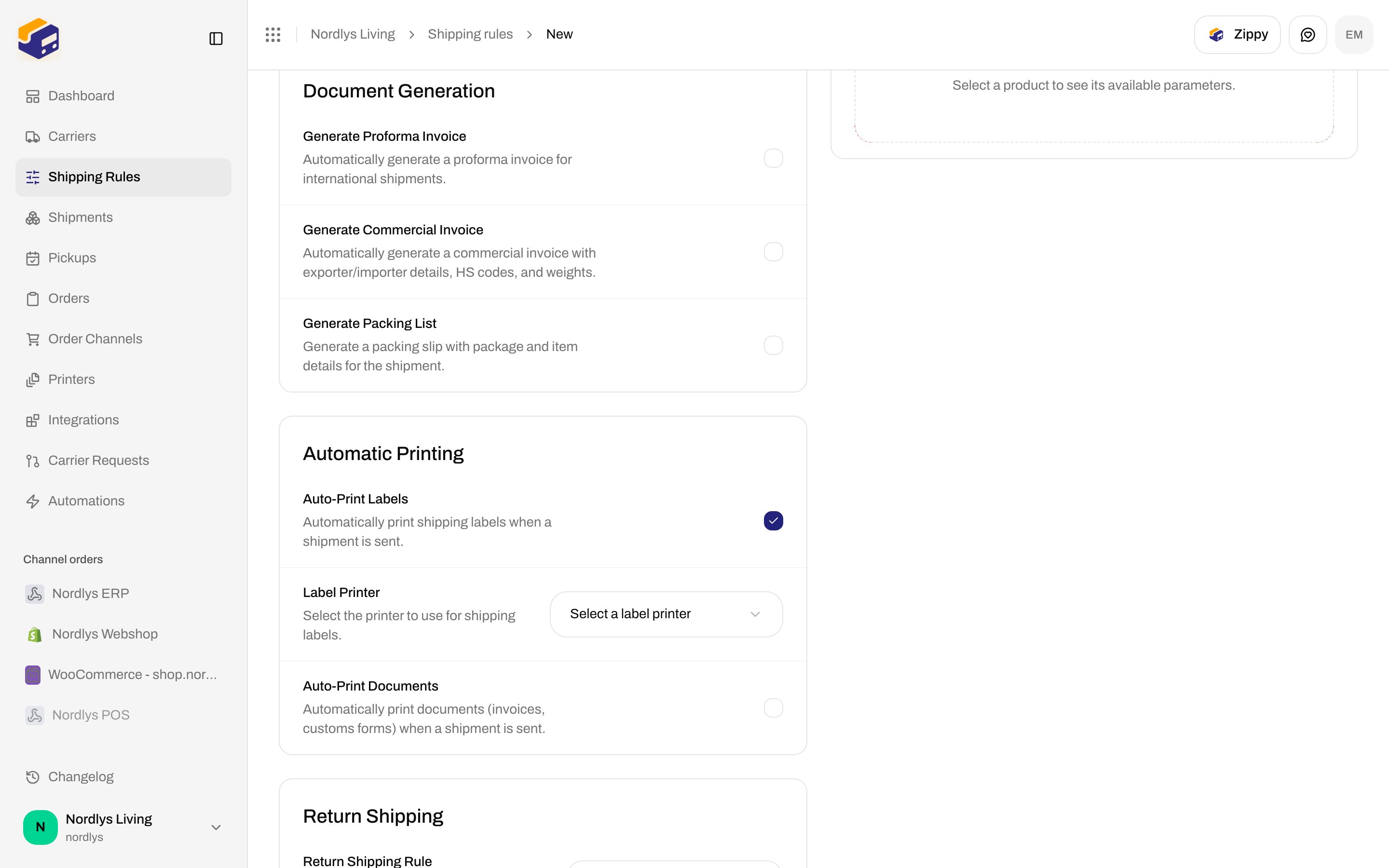
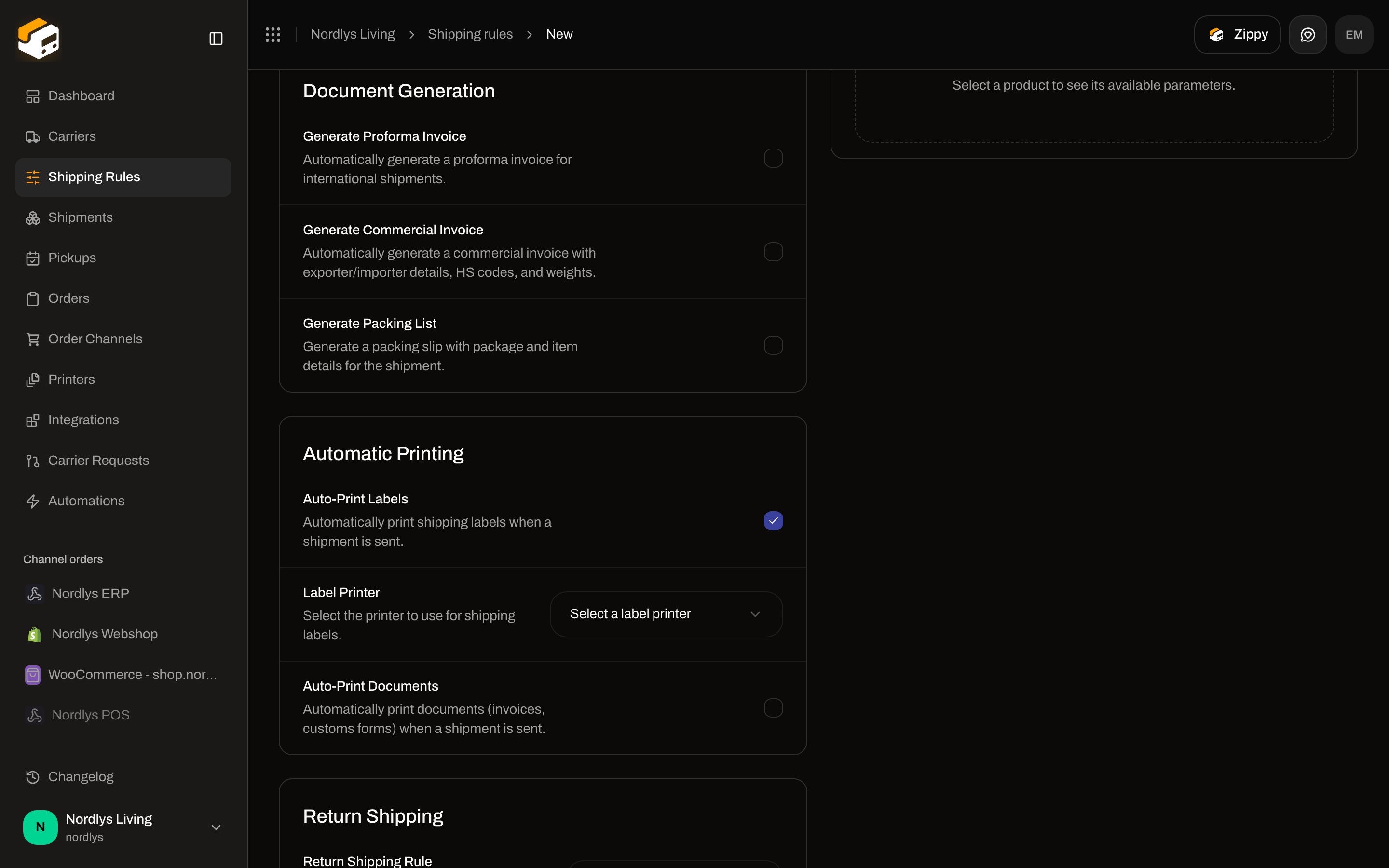 When **Auto-Print Labels** is on and a label printer is set, Zippendo queues a **Label** job for every shipment document whose type is **label**.
### Auto-Print Documents
| Control | Default | Copy |
| ------------------------ | ------- | ------------------------------------------------------------------------------------ |
| **Auto-Print Documents** | Off | **Automatically print documents (invoices, customs forms) when a shipment is sent.** |
When the checkbox is on, **Document Printer** appears:
| Field | Copy |
| ----------- | ----------------------------------------------------- |
| Title | **Document Printer** |
| Description | **Select the printer to use for shipping documents.** |
| Placeholder | **Select a document printer** |
| Empty list | **No approved document printers available** |
The dropdown lists **Active** printers with type **Document**. Saving without a printer is allowed; no document jobs are queued until both the toggle is on and a printer id is stored.
When **Auto-Print Labels** is on and a label printer is set, Zippendo queues a **Label** job for every shipment document whose type is **label**.
### Auto-Print Documents
| Control | Default | Copy |
| ------------------------ | ------- | ------------------------------------------------------------------------------------ |
| **Auto-Print Documents** | Off | **Automatically print documents (invoices, customs forms) when a shipment is sent.** |
When the checkbox is on, **Document Printer** appears:
| Field | Copy |
| ----------- | ----------------------------------------------------- |
| Title | **Document Printer** |
| Description | **Select the printer to use for shipping documents.** |
| Placeholder | **Select a document printer** |
| Empty list | **No approved document printers available** |
The dropdown lists **Active** printers with type **Document**. Saving without a printer is allowed; no document jobs are queued until both the toggle is on and a printer id is stored.
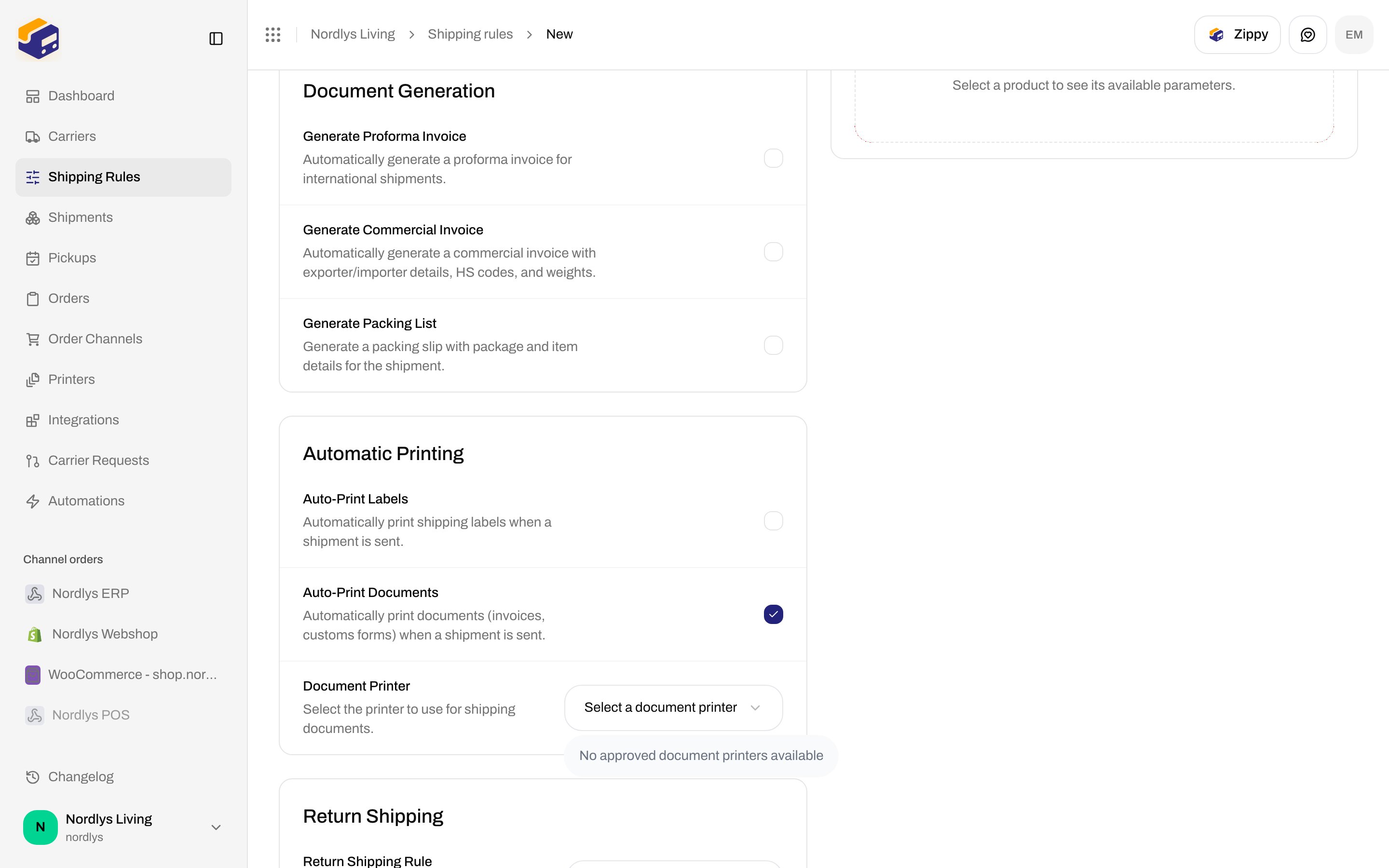
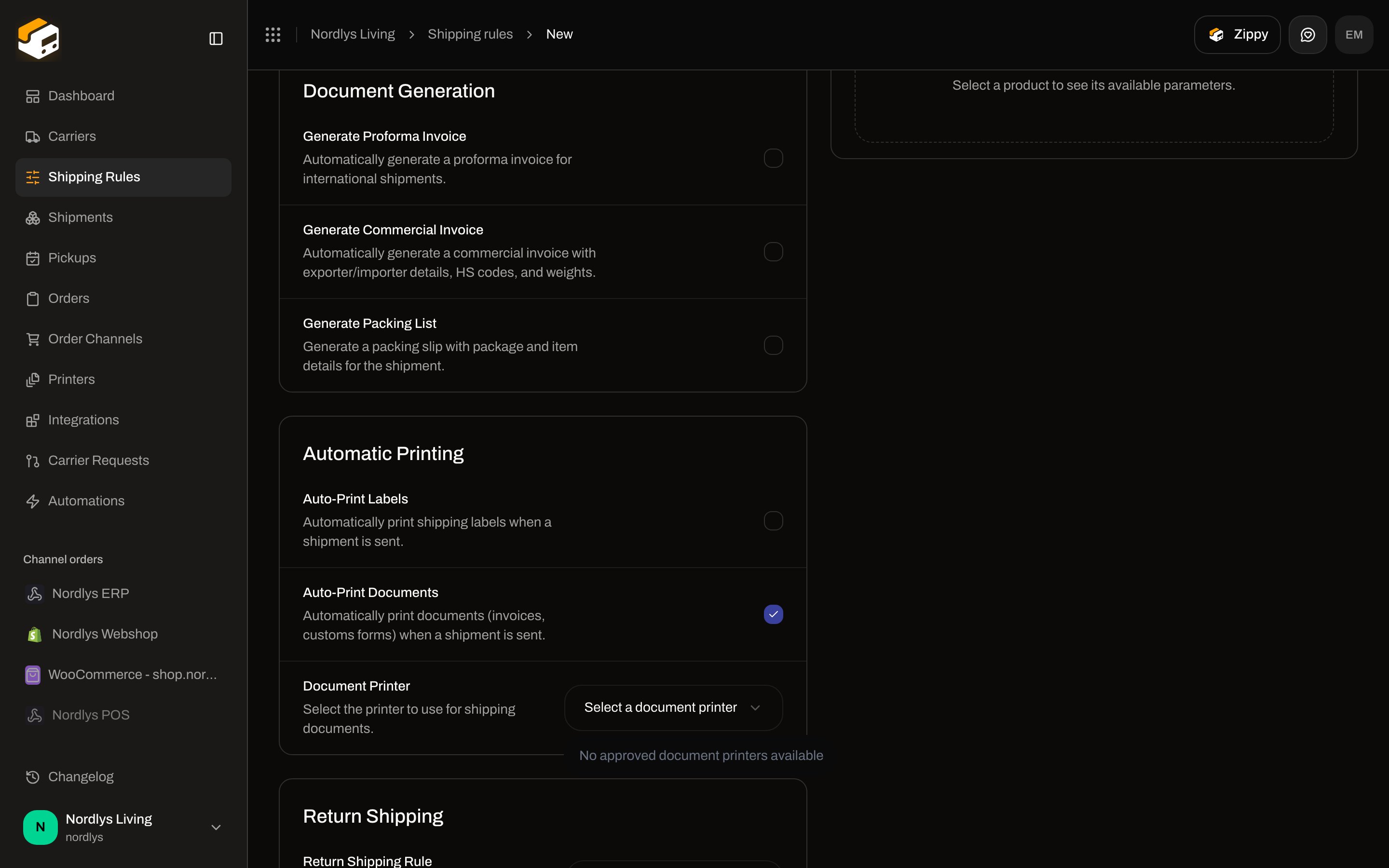 When **Auto-Print Documents** is on and a document printer is set, Zippendo queues a **Document** job for every shipment document that is **not** type `label`.
## What gets generated vs what gets printed
**Document Generation** (the card above **Automatic Printing**) creates files. **Automatic Printing** sends those files to a printer. If generation is off, auto-print documents has nothing to print except files the carrier already returned with the label.
| Checkbox | Default | Description in the form |
| ------------------------------- | ------- | ------------------------------------------------------------------------------------------------------ |
| **Generate Proforma Invoice** | Off | **Automatically generate a proforma invoice for international shipments.** |
| **Generate Commercial Invoice** | Off | **Automatically generate a commercial invoice with exporter/importer details, HS codes, and weights.** |
| **Generate Packing List** | Off | **Generate a packing slip with package and item details for the shipment.** |
Proforma and commercial invoice rows are hidden when the selected carrier produces those files itself. The form then says **\{carrier} produces the customs declaration and commercial invoice itself and returns them with the label, so Zippendo does not generate its own copies for this rule.**
Document types that can appear on the shipment (and therefore on a document printer) are the **Type** labels on **Documents**:
| Type on Documents | Source |
| ---------------------------- | ----------------------------------------------- |
| **Label** | Created when you send — auto-print labels |
| **Proforma Invoice** | **Generate Proforma Invoice**, or the carrier |
| **Commercial Invoice** | **Generate Commercial Invoice**, or the carrier |
| **Packing List** | **Generate Packing List** |
| **Customs Invoice** | Carrier |
| **Certificate of Origin** | Carrier |
| **CN22 Customs Declaration** | Carrier |
| **CN23 Customs Declaration** | Carrier |
| **Other** | Carrier or system |
There is no per-type checkbox under **Automatic Printing**. **Auto-Print Documents** prints every non-label document that exists after send. Field-level generation and customs: [Shipping rule fields](/docs/how-to/shipping-rule-fields) and [Customs and documents](/docs/how-to/customs-and-documents).
## On a shipment (no shipping rule)
If the shipment **has** a shipping rule, auto-print uses **only** that rule's toggles and printer ids — not the shipment's printer fields.
If the shipment has **no** shipping rule, send still auto-prints when printers are saved on the shipment:
* A **Label printer** other than **None** → print labels (`printLabels: true`)
* A **Document printer** other than **None** → print non-label documents (`printDocuments: true`)
There is no separate auto-print checkbox on the shipment. Picking a printer **is** the toggle.
### Create Shipment → Printer Settings
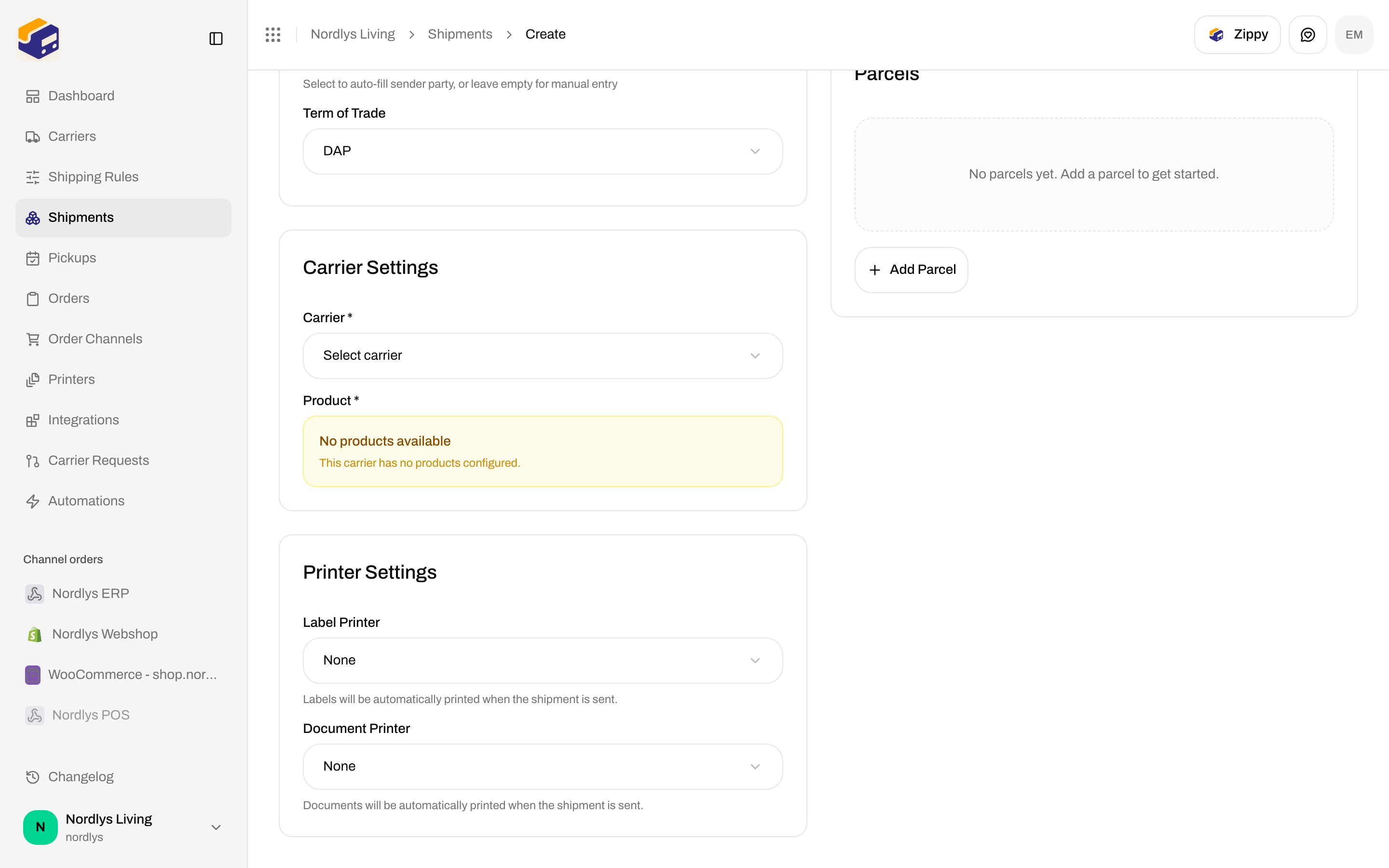
On **Create Shipment**, the **Printer Settings** card:
| Field | Placeholder | Helper |
| -------------------- | --------------------------- | ---------------------------------------------------------------------- |
| **Label Printer** | **Select label printer** | **Labels will be automatically printed when the shipment is sent.** |
| **Document Printer** | **Select document printer** | **Documents will be automatically printed when the shipment is sent.** |
Both lists include **None** (default) plus **Active** printers of that type.
When **Auto-Print Documents** is on and a document printer is set, Zippendo queues a **Document** job for every shipment document that is **not** type `label`.
## What gets generated vs what gets printed
**Document Generation** (the card above **Automatic Printing**) creates files. **Automatic Printing** sends those files to a printer. If generation is off, auto-print documents has nothing to print except files the carrier already returned with the label.
| Checkbox | Default | Description in the form |
| ------------------------------- | ------- | ------------------------------------------------------------------------------------------------------ |
| **Generate Proforma Invoice** | Off | **Automatically generate a proforma invoice for international shipments.** |
| **Generate Commercial Invoice** | Off | **Automatically generate a commercial invoice with exporter/importer details, HS codes, and weights.** |
| **Generate Packing List** | Off | **Generate a packing slip with package and item details for the shipment.** |
Proforma and commercial invoice rows are hidden when the selected carrier produces those files itself. The form then says **\{carrier} produces the customs declaration and commercial invoice itself and returns them with the label, so Zippendo does not generate its own copies for this rule.**
Document types that can appear on the shipment (and therefore on a document printer) are the **Type** labels on **Documents**:
| Type on Documents | Source |
| ---------------------------- | ----------------------------------------------- |
| **Label** | Created when you send — auto-print labels |
| **Proforma Invoice** | **Generate Proforma Invoice**, or the carrier |
| **Commercial Invoice** | **Generate Commercial Invoice**, or the carrier |
| **Packing List** | **Generate Packing List** |
| **Customs Invoice** | Carrier |
| **Certificate of Origin** | Carrier |
| **CN22 Customs Declaration** | Carrier |
| **CN23 Customs Declaration** | Carrier |
| **Other** | Carrier or system |
There is no per-type checkbox under **Automatic Printing**. **Auto-Print Documents** prints every non-label document that exists after send. Field-level generation and customs: [Shipping rule fields](/docs/how-to/shipping-rule-fields) and [Customs and documents](/docs/how-to/customs-and-documents).
## On a shipment (no shipping rule)
If the shipment **has** a shipping rule, auto-print uses **only** that rule's toggles and printer ids — not the shipment's printer fields.
If the shipment has **no** shipping rule, send still auto-prints when printers are saved on the shipment:
* A **Label printer** other than **None** → print labels (`printLabels: true`)
* A **Document printer** other than **None** → print non-label documents (`printDocuments: true`)
There is no separate auto-print checkbox on the shipment. Picking a printer **is** the toggle.
### Create Shipment → Printer Settings
On **Create Shipment**, the **Printer Settings** card:
| Field | Placeholder | Helper |
| -------------------- | --------------------------- | ---------------------------------------------------------------------- |
| **Label Printer** | **Select label printer** | **Labels will be automatically printed when the shipment is sent.** |
| **Document Printer** | **Select document printer** | **Documents will be automatically printed when the shipment is sent.** |
Both lists include **None** (default) plus **Active** printers of that type.
 ### Shipment detail → Configure
On an existing shipment, **Printer settings** → **Configure** (modal id `shipment-printer-settings`) stores the same two ids. Empty copy: **No printers selected yet — add them so Zippendo knows where to send labels and documents.** Helpers in the modal: **Labels route here when the shipment is sent from Zippendo.** / **Packing slips and other documents use this printer when enabled.**
Every field on that modal: [Shipment printer settings](/docs/how-to/shipment-printer-settings).
## Automations (not wired)
On **Automations**, category **Printing**:
| Action | Fields in the inspector | What it does today |
| ------------------------ | ------------------------------------------------------------------------------------------------------------------------ | -------------------------------------------------- |
| **Print Shipping Label** | **Label printer** — placeholder **Default printer**. Helper: **If empty, the org's default label printer will be used.** | Logs the action. **Does not** create a printer job |
| **Print Document** | **Document type** (required) and **Printer** | Same — **not** dispatched to a printer |
**Document type** options:
| Value | Label |
| -------------------- | ---------------------- |
| `proforma_invoice` | **Proforma invoice** |
| `commercial_invoice` | **Commercial invoice** |
| `packing_list` | **Packing list** |
| `cn22` | **CN22** |
| `cn23` | **CN23** |
**Printer** placeholder **Default printer**. Empty option **None (default)**. Helper: **If empty, the org's default document printer will be used.** There is no separate “default printer” setting on **Printers** — leaving the field empty does not pick a printer in the live print path, because this action is still a stub.
Use a shipping rule or shipment printers for printing that actually runs. Node details: [Automations](/docs/how-to/automations).
## When the job is created
Auto-print is enqueued as part of **Send Shipment** / **Send order** (after the carrier books the label):
1. Generate any invoices / packing list the rule requested.
2. If the rule has **Auto-Print Labels** or **Auto-Print Documents**, queue `documents.auto-print-shipment` with those flags and printer ids.
3. Else if there is **no** rule and the shipment has `labelPrinterId` or `documentPrinterId`, queue the same job from those ids.
The worker then:
* Prints `documentType === "label"` to the label printer (must be **Active** and type **Label**).
* Prints every other document to the document printer (must be **Active** and type **Document**).
* Skips silently if the printer is missing, disabled, or the wrong type.
Manual **Print** / **Print All** on **Documents** is separate — [Add a printer](/docs/how-to/add-a-printer#print-all-and-print-documents). Failed or stuck jobs: [Printer jobs](/docs/how-to/printer-jobs) and [Printer offline or not printing](/docs/knowledge-base/printer-offline-or-not-printing).
## If nothing prints
* The shipment must be **sent**, not only saved as **Pending**.
* A rule-backed shipment ignores printers on the shipment — check the rule's **Automatic Printing** card.
* **Auto-Print Labels** / **Auto-Print Documents** can be on with no printer selected; save still works, print does not.
* The printer must be **Active** (not **Pending Approval** or **Disabled**) and **Online** for the client to print. Connection is independent of status.
* **Auto-Print Documents** needs generated or carrier-returned non-label files. Turn on **Generate Packing List** (and invoices when they apply) if you expect those pages.
## Next
Conditions, countries, document generation, and returns on the same form.
Label and document printer on one shipment.
Install Zippendo Printer and keep it Connected.
Register a label or document printer and set rotation.
Send a shipment, then view or reprint the label.
### Shipment detail → Configure
On an existing shipment, **Printer settings** → **Configure** (modal id `shipment-printer-settings`) stores the same two ids. Empty copy: **No printers selected yet — add them so Zippendo knows where to send labels and documents.** Helpers in the modal: **Labels route here when the shipment is sent from Zippendo.** / **Packing slips and other documents use this printer when enabled.**
Every field on that modal: [Shipment printer settings](/docs/how-to/shipment-printer-settings).
## Automations (not wired)
On **Automations**, category **Printing**:
| Action | Fields in the inspector | What it does today |
| ------------------------ | ------------------------------------------------------------------------------------------------------------------------ | -------------------------------------------------- |
| **Print Shipping Label** | **Label printer** — placeholder **Default printer**. Helper: **If empty, the org's default label printer will be used.** | Logs the action. **Does not** create a printer job |
| **Print Document** | **Document type** (required) and **Printer** | Same — **not** dispatched to a printer |
**Document type** options:
| Value | Label |
| -------------------- | ---------------------- |
| `proforma_invoice` | **Proforma invoice** |
| `commercial_invoice` | **Commercial invoice** |
| `packing_list` | **Packing list** |
| `cn22` | **CN22** |
| `cn23` | **CN23** |
**Printer** placeholder **Default printer**. Empty option **None (default)**. Helper: **If empty, the org's default document printer will be used.** There is no separate “default printer” setting on **Printers** — leaving the field empty does not pick a printer in the live print path, because this action is still a stub.
Use a shipping rule or shipment printers for printing that actually runs. Node details: [Automations](/docs/how-to/automations).
## When the job is created
Auto-print is enqueued as part of **Send Shipment** / **Send order** (after the carrier books the label):
1. Generate any invoices / packing list the rule requested.
2. If the rule has **Auto-Print Labels** or **Auto-Print Documents**, queue `documents.auto-print-shipment` with those flags and printer ids.
3. Else if there is **no** rule and the shipment has `labelPrinterId` or `documentPrinterId`, queue the same job from those ids.
The worker then:
* Prints `documentType === "label"` to the label printer (must be **Active** and type **Label**).
* Prints every other document to the document printer (must be **Active** and type **Document**).
* Skips silently if the printer is missing, disabled, or the wrong type.
Manual **Print** / **Print All** on **Documents** is separate — [Add a printer](/docs/how-to/add-a-printer#print-all-and-print-documents). Failed or stuck jobs: [Printer jobs](/docs/how-to/printer-jobs) and [Printer offline or not printing](/docs/knowledge-base/printer-offline-or-not-printing).
## If nothing prints
* The shipment must be **sent**, not only saved as **Pending**.
* A rule-backed shipment ignores printers on the shipment — check the rule's **Automatic Printing** card.
* **Auto-Print Labels** / **Auto-Print Documents** can be on with no printer selected; save still works, print does not.
* The printer must be **Active** (not **Pending Approval** or **Disabled**) and **Online** for the client to print. Connection is independent of status.
* **Auto-Print Documents** needs generated or carrier-returned non-label files. Turn on **Generate Packing List** (and invoices when they apply) if you expect those pages.
## Next
Conditions, countries, document generation, and returns on the same form.
Label and document printer on one shipment.
Install Zippendo Printer and keep it Connected.
Register a label or document printer and set rotation.
Send a shipment, then view or reprint the label.