> ## Documentation Index
> Fetch the complete documentation index at: https://www.zippendo.com/docs/llms.txt
> Use this file to discover all available pages before exploring further.
# Authorize the printer client
> Download the Zippendo Printer Client, authorize it in the browser, then Approve a pending printer on Printers.
The **Zippendo Printer Client** is a desktop app that connects local printers over WebSocket. You authorize it in the browser, register printers in the client, then **Approve** each device on **Printers**.
Walkthrough: [Labels and printing](/docs/tutorials/labels-printing). Install, **Sign in with Browser**, and **Add Printer**: [Set up the printer client](/docs/how-to/setup-printer-client). Naming, type, and rotate-wide-pages on the web list: [Add a printer](/docs/how-to/add-a-printer).
This page is the **web** authorize screen (`/authorize-printer`) and the **Approve** / **Disable** actions on **Printers**. Every screen in the **Zippendo Printer** desktop app is [Set up the printer client](/docs/how-to/setup-printer-client).
## Download the client
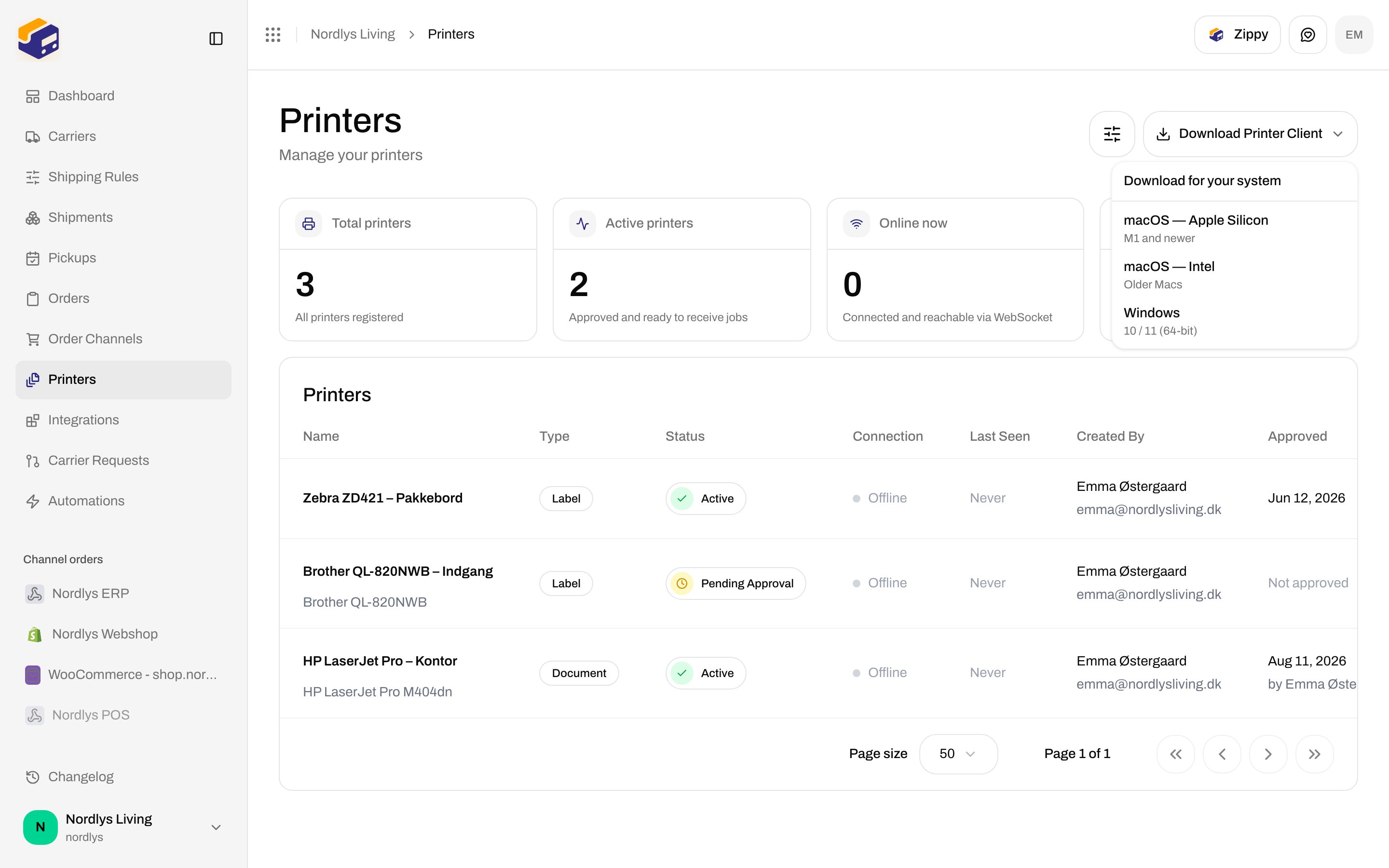
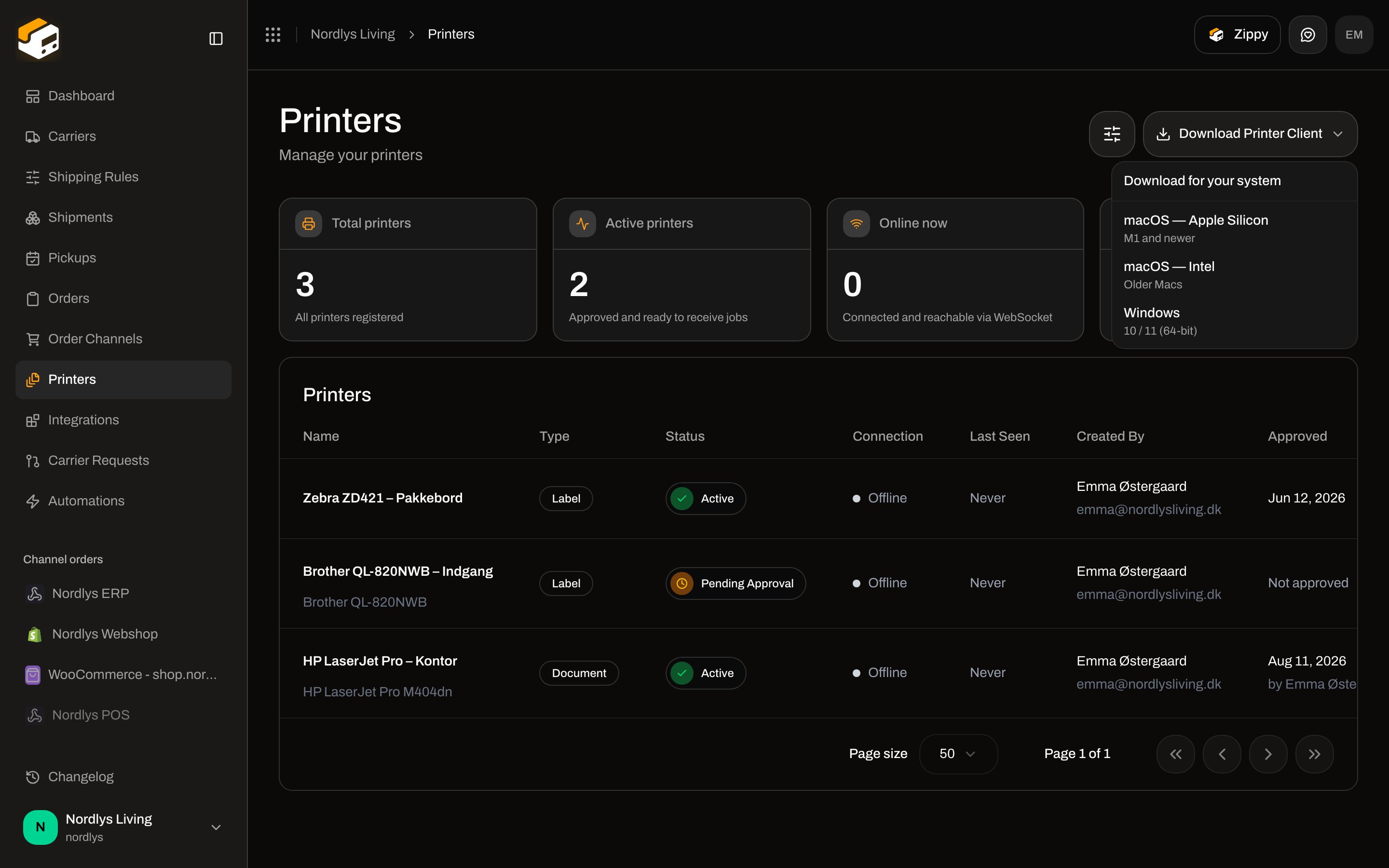
Sidebar **Printers**. Header action **Download Printer Client**. Menu title **Download for your system**:
| Item | Subtitle | File |
| ------------------------- | -------------------- | -------------------------------- |
| **macOS — Apple Silicon** | **M1 and newer** | `Zippendo-Printer-mac-arm64.dmg` |
| **macOS — Intel** | **Older Macs** | `Zippendo-Printer-mac-x64.dmg` |
| **Windows** | **10 / 11 (64-bit)** | `Zippendo-Printer-win-x64.exe` |
Links open the latest GitHub release in a new tab.
 ## Authorize in the browser
In the printer client, choose sign in with the browser. Zippendo opens `/authorize-printer?session_id=…` (optional `callback_port` for the HTTP fallback). You must already be signed in.
Title: **Authorize Printer Client**. Description: **A printer client is requesting access to your Zippendo account.**
| Element | Copy |
| ------------- | ------------------------------------------------------------------------------------------------------------------------------- |
| Signed-in box | **Signed in as \{\{email}}** |
| Org count | **Access to \{\{count}} organization** / **organizations** |
| Warning | **By authorizing, you will grant this printer client access to manage printers and receive print jobs for your organizations.** |
| Primary | **Authorize Printer Client** (pending: **Authorizing…**) |
| Secondary | **Reject** (pending: **Rejecting…**) |
## Authorize in the browser
In the printer client, choose sign in with the browser. Zippendo opens `/authorize-printer?session_id=…` (optional `callback_port` for the HTTP fallback). You must already be signed in.
Title: **Authorize Printer Client**. Description: **A printer client is requesting access to your Zippendo account.**
| Element | Copy |
| ------------- | ------------------------------------------------------------------------------------------------------------------------------- |
| Signed-in box | **Signed in as \{\{email}}** |
| Org count | **Access to \{\{count}} organization** / **organizations** |
| Warning | **By authorizing, you will grant this printer client access to manage printers and receive print jobs for your organizations.** |
| Primary | **Authorize Printer Client** (pending: **Authorizing…**) |
| Secondary | **Reject** (pending: **Rejecting…**) |
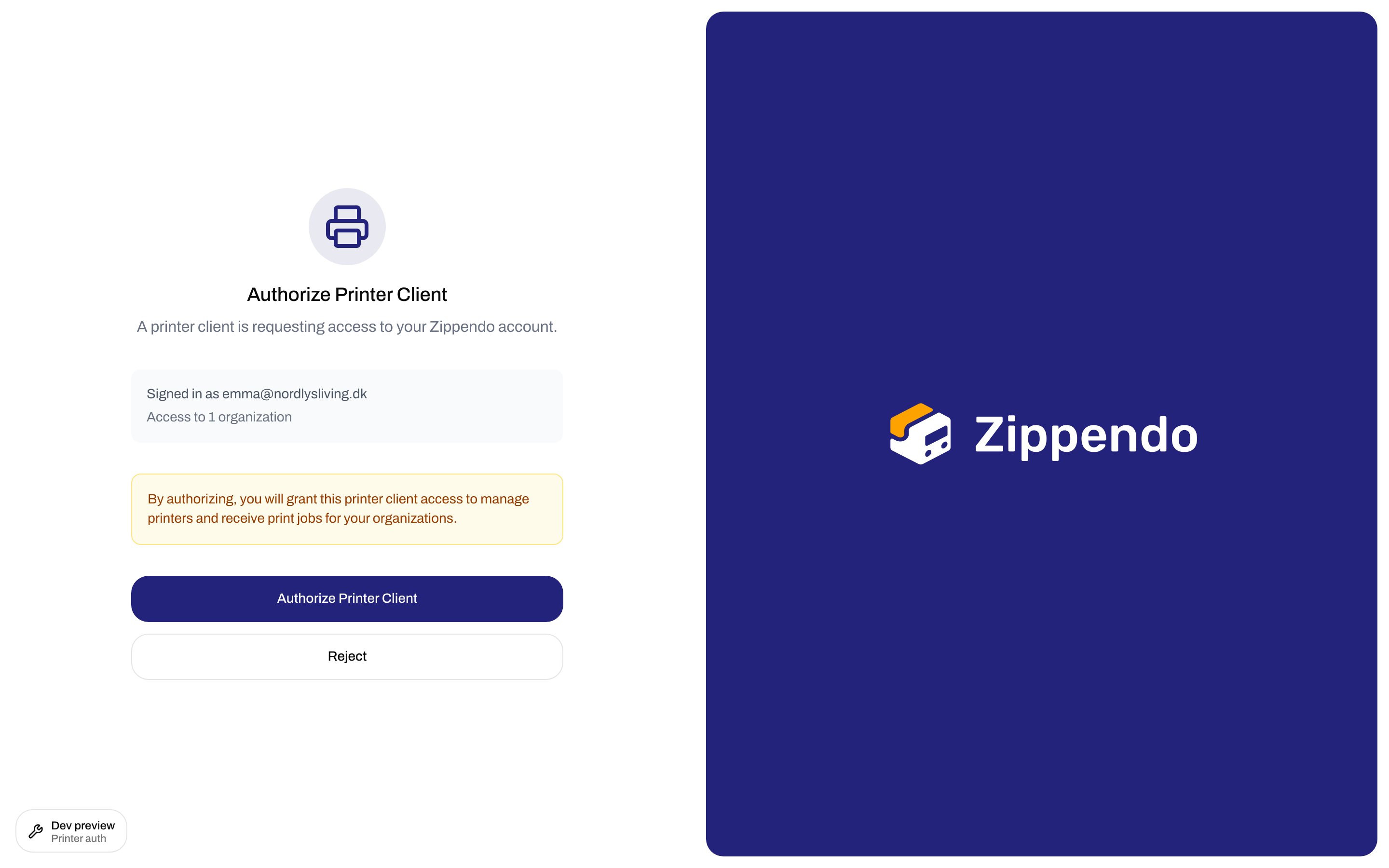
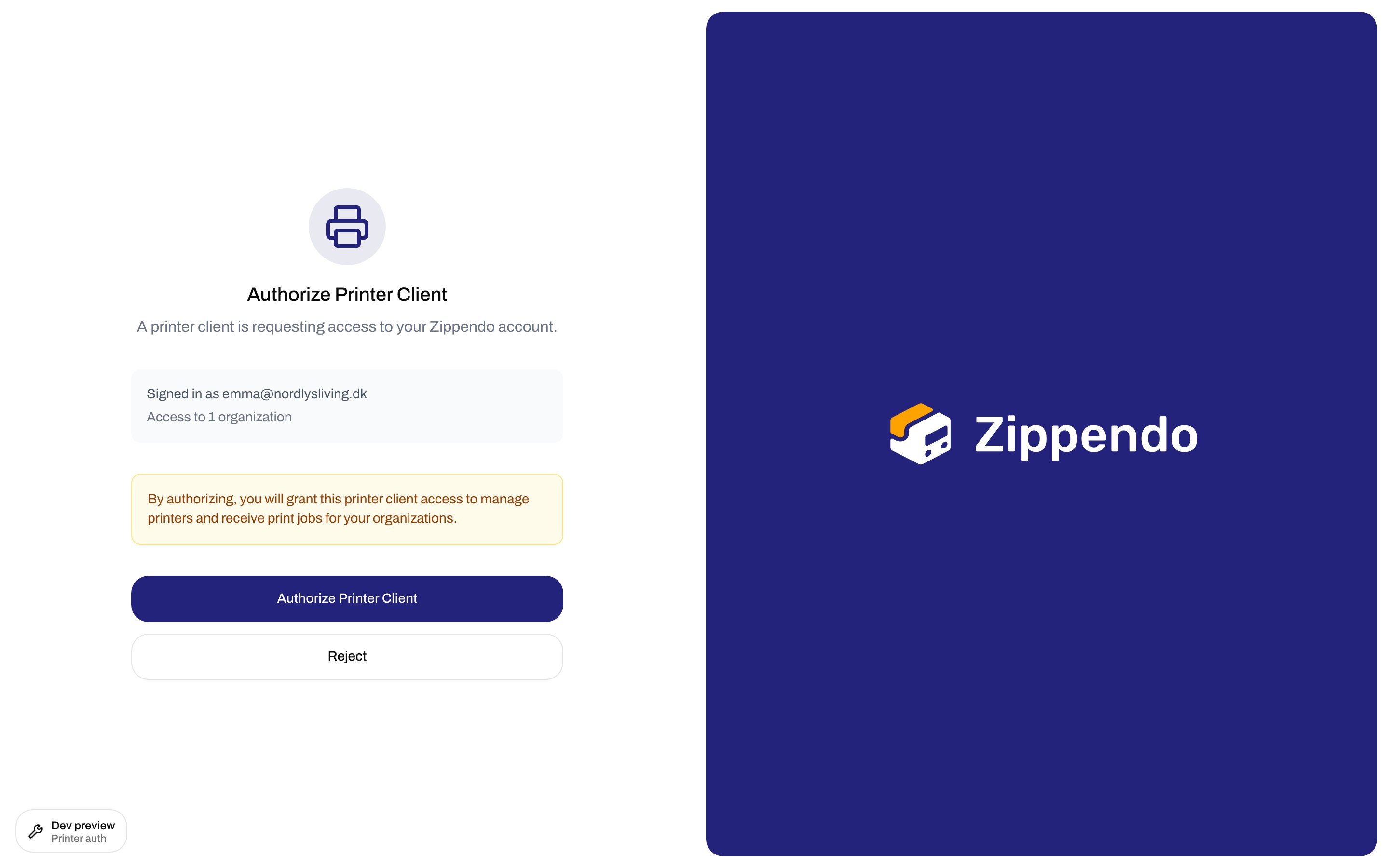 **Authorize Printer Client** calls the approve API, then redirects to `zippendo://callback?token=…` (preferred) or `http://localhost:PORT/callback`. Stay on this tab until the client receives the token.
 ### Other authorize states
None of these have extra fields — close the window and start again from the client if needed.
| State | Title | Description |
| ----------------------- | -------------------------- | ----------------------------------------------------------------------------------------------------- |
| Loading | — | **Loading…** |
| Missing `session_id` | **Invalid Request** | **No session ID provided. Please start the authorization from the printer client.** |
| Session error | **Session Error** | API message, or **Failed to load session** |
| Already approved | **Already Authorized** | **This printer client has already been authorized. You can close this window.** |
| Rejected (this session) | **Authorization Rejected** | **This authorization request was rejected. You can close this window.** |
| Expired | **Session Expired** | **This authorization session has expired. Please start a new authorization from the printer client.** |
| After reject click | **Authorization Rejected** | **You have rejected the authorization request. You can close this window.** |
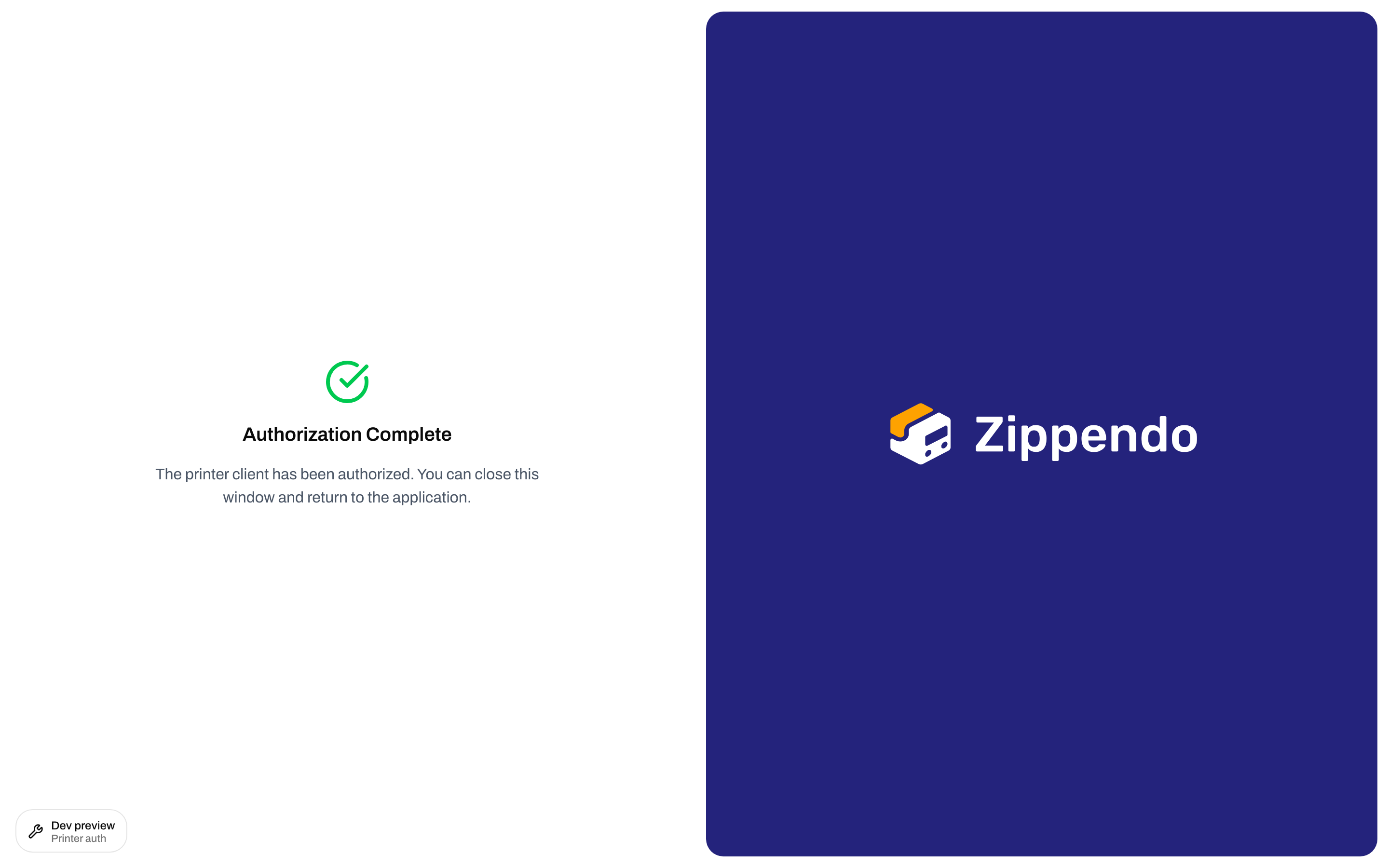
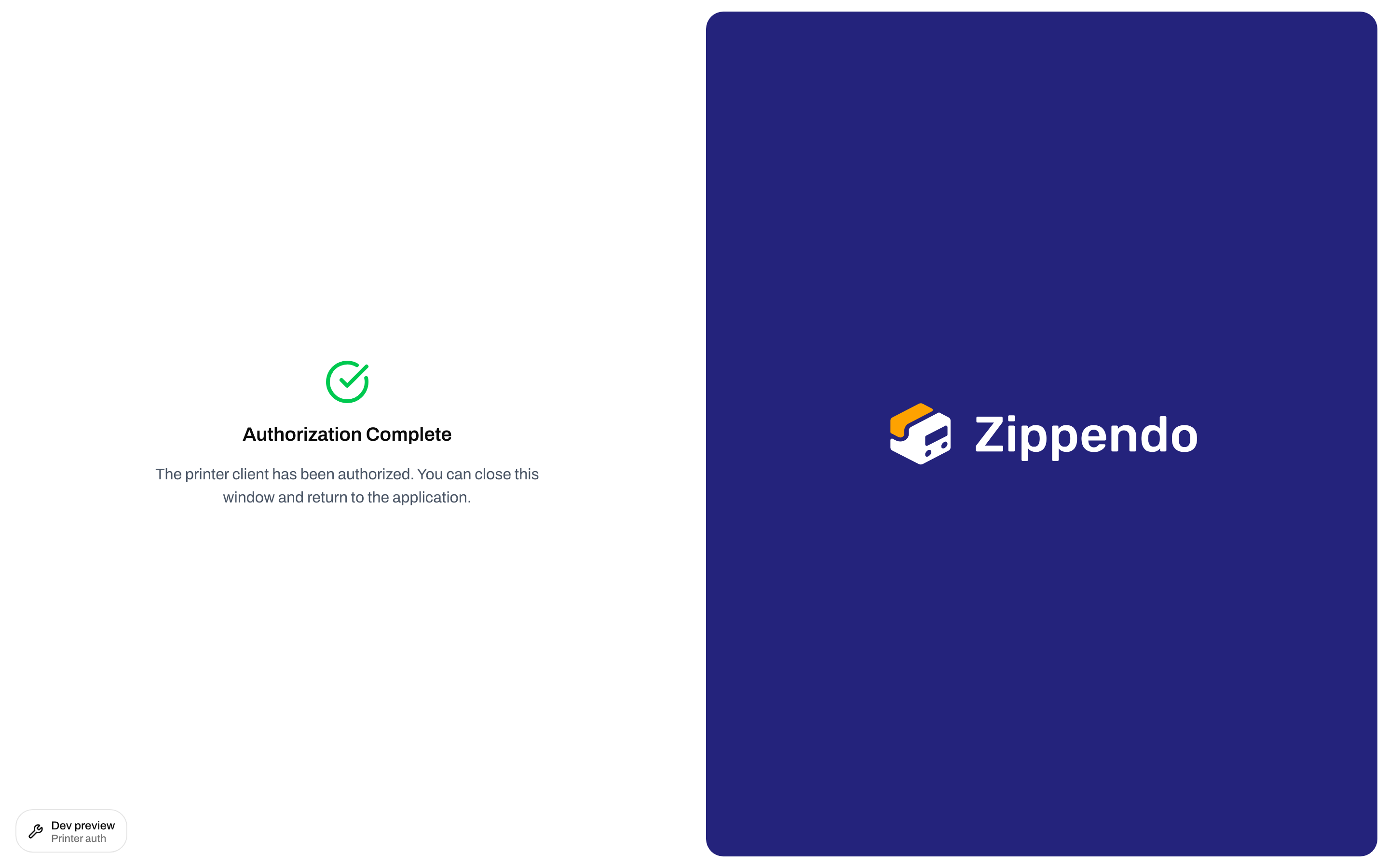
| After approve | **Authorization Complete** | **The printer client has been authorized. You can close this window and return to the application.** |
Toasts / inline errors: **Failed to approve authorization**, **Failed to reject authorization**.
OAuth consent internals (`/authorize` for API apps) are a different screen. Do not use that flow for the printer client.
## Approve a pending printer
After the client registers a printer, it appears on **Printers** with status **Pending Approval**. Stat **Pending approval** / **Waiting for admin approval** counts those rows.
Row menu **Approve** is only shown when status is **Pending Approval**. Toast: **Printer approved successfully** (or **Failed to approve printer**). Status becomes **Active**. **Approved** shows the date and **by \{\{name}}**. Until then the column is **Not approved**.
### Other authorize states
None of these have extra fields — close the window and start again from the client if needed.
| State | Title | Description |
| ----------------------- | -------------------------- | ----------------------------------------------------------------------------------------------------- |
| Loading | — | **Loading…** |
| Missing `session_id` | **Invalid Request** | **No session ID provided. Please start the authorization from the printer client.** |
| Session error | **Session Error** | API message, or **Failed to load session** |
| Already approved | **Already Authorized** | **This printer client has already been authorized. You can close this window.** |
| Rejected (this session) | **Authorization Rejected** | **This authorization request was rejected. You can close this window.** |
| Expired | **Session Expired** | **This authorization session has expired. Please start a new authorization from the printer client.** |
| After reject click | **Authorization Rejected** | **You have rejected the authorization request. You can close this window.** |
| After approve | **Authorization Complete** | **The printer client has been authorized. You can close this window and return to the application.** |
Toasts / inline errors: **Failed to approve authorization**, **Failed to reject authorization**.
OAuth consent internals (`/authorize` for API apps) are a different screen. Do not use that flow for the printer client.
## Approve a pending printer
After the client registers a printer, it appears on **Printers** with status **Pending Approval**. Stat **Pending approval** / **Waiting for admin approval** counts those rows.
Row menu **Approve** is only shown when status is **Pending Approval**. Toast: **Printer approved successfully** (or **Failed to approve printer**). Status becomes **Active**. **Approved** shows the date and **by \{\{name}}**. Until then the column is **Not approved**.
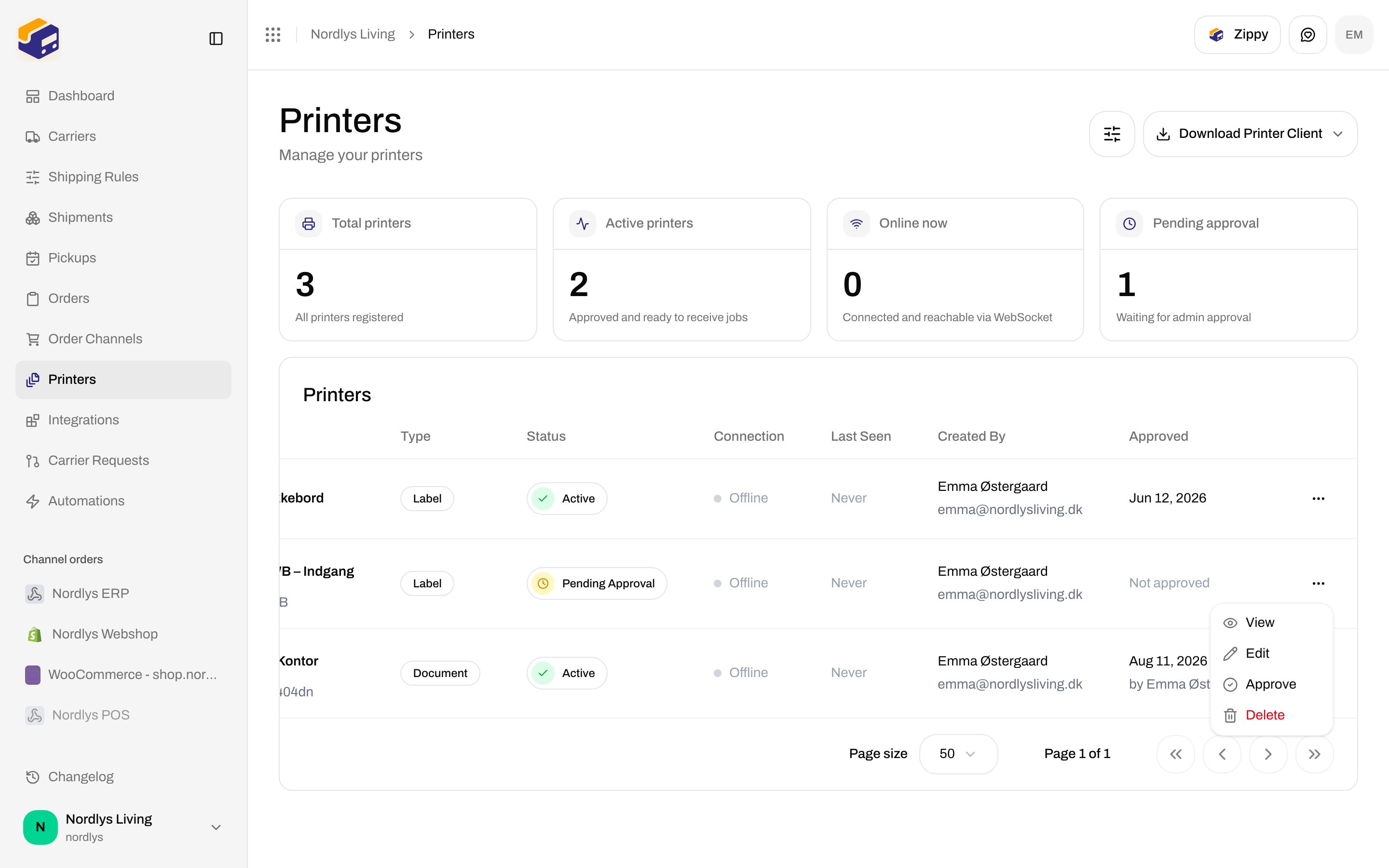
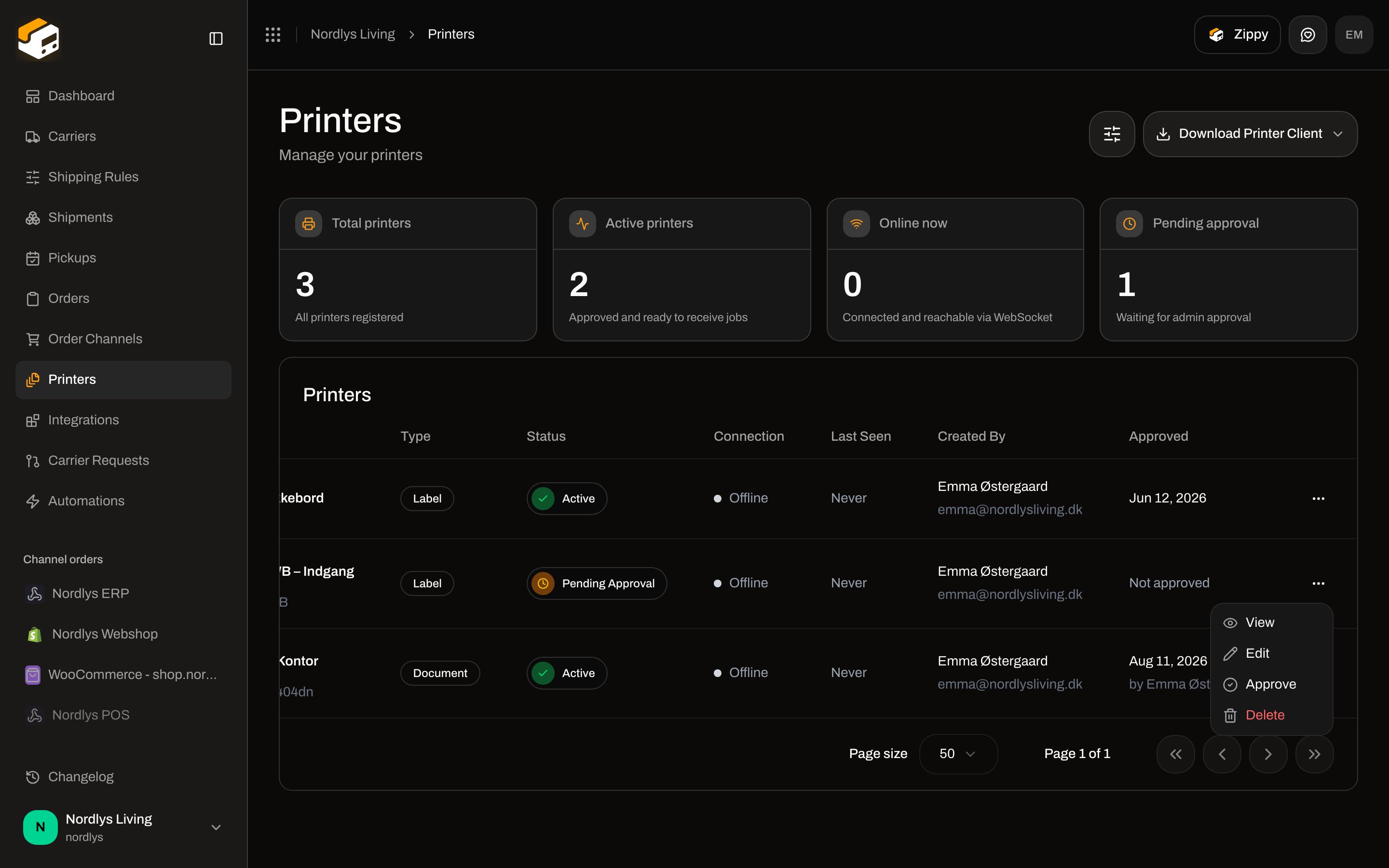 Statuses on the list: **Active**, **Pending Approval**, **Disabled**. Connection: **Online** (green) or **Offline**. Testenv printers stay **Offline** because no printer-client WebSocket is connected.
**Last Seen**: **Never**, **Just now**, **\{\{count}} min ago**, **hour(s) ago**, or **day(s) ago**.
### Disable
On an **Active** printer, row menu **Disable**. Toast: **Printer disabled successfully** / **Failed to disable printer**. Disabled printers do not receive new jobs.
### Filters
Header **Filters**: **Search**, **Status** (**Active** / **Pending Approval** / **Disabled**), **Type** (**Label printer** / **Document printer**).
## Related
* [Set up the printer client](/docs/how-to/setup-printer-client) — install, sign in, Add Printer
* [Add a printer](/docs/how-to/add-a-printer) — name, type, rotate wide pages
* [Printer jobs](/docs/how-to/printer-jobs)
* [Shipment printer settings](/docs/how-to/shipment-printer-settings)
* [Labels and printing](/docs/tutorials/labels-printing)
Statuses on the list: **Active**, **Pending Approval**, **Disabled**. Connection: **Online** (green) or **Offline**. Testenv printers stay **Offline** because no printer-client WebSocket is connected.
**Last Seen**: **Never**, **Just now**, **\{\{count}} min ago**, **hour(s) ago**, or **day(s) ago**.
### Disable
On an **Active** printer, row menu **Disable**. Toast: **Printer disabled successfully** / **Failed to disable printer**. Disabled printers do not receive new jobs.
### Filters
Header **Filters**: **Search**, **Status** (**Active** / **Pending Approval** / **Disabled**), **Type** (**Label printer** / **Document printer**).
## Related
* [Set up the printer client](/docs/how-to/setup-printer-client) — install, sign in, Add Printer
* [Add a printer](/docs/how-to/add-a-printer) — name, type, rotate wide pages
* [Printer jobs](/docs/how-to/printer-jobs)
* [Shipment printer settings](/docs/how-to/shipment-printer-settings)
* [Labels and printing](/docs/tutorials/labels-printing)