> ## Documentation Index
> Fetch the complete documentation index at: https://www.zippendo.com/docs/llms.txt
> Use this file to discover all available pages before exploring further.
# Apply a shipping rule
> Assign a shipping rule on an order or a draft/pending shipment — Configure modal, Rule dropdown, apply to existing shipments, and Service Point when the product needs a shop.
A **shipping rule** is a saved carrier + product + services + sender address. **Apply** attaches that rule to an **order** or a **draft/pending shipment** so you do not pick carrier fields by hand. Building the rule: [Shipping rule fields](/docs/how-to/shipping-rule-fields). Journey: [Shipping rules](/docs/tutorials/shipping-rules).
**Apply** is not the same as **Create Shipment**. Applying writes `shippingRuleId` (and may copy carrier settings onto existing draft/pending shipments). Creating still happens from **Create Shipment**.
## Where Configure appears
| Screen | Card | When it is shown |
| ------------------------------------------------------------- | ----------------- | ------------------------------------------------------------------------------- |
| Order **Overview** (`/dashboard/orders/:id`, `?tab=overview`) | **Shipping rule** | Order is **not** **Fulfilled** or **Cancelled** |
| Shipment **Overview** | **Shipping rule** | Status is **Draft** or **Pending** only (same gate as split). Hidden after send |
Both cards use header **Configure**.
### Order card
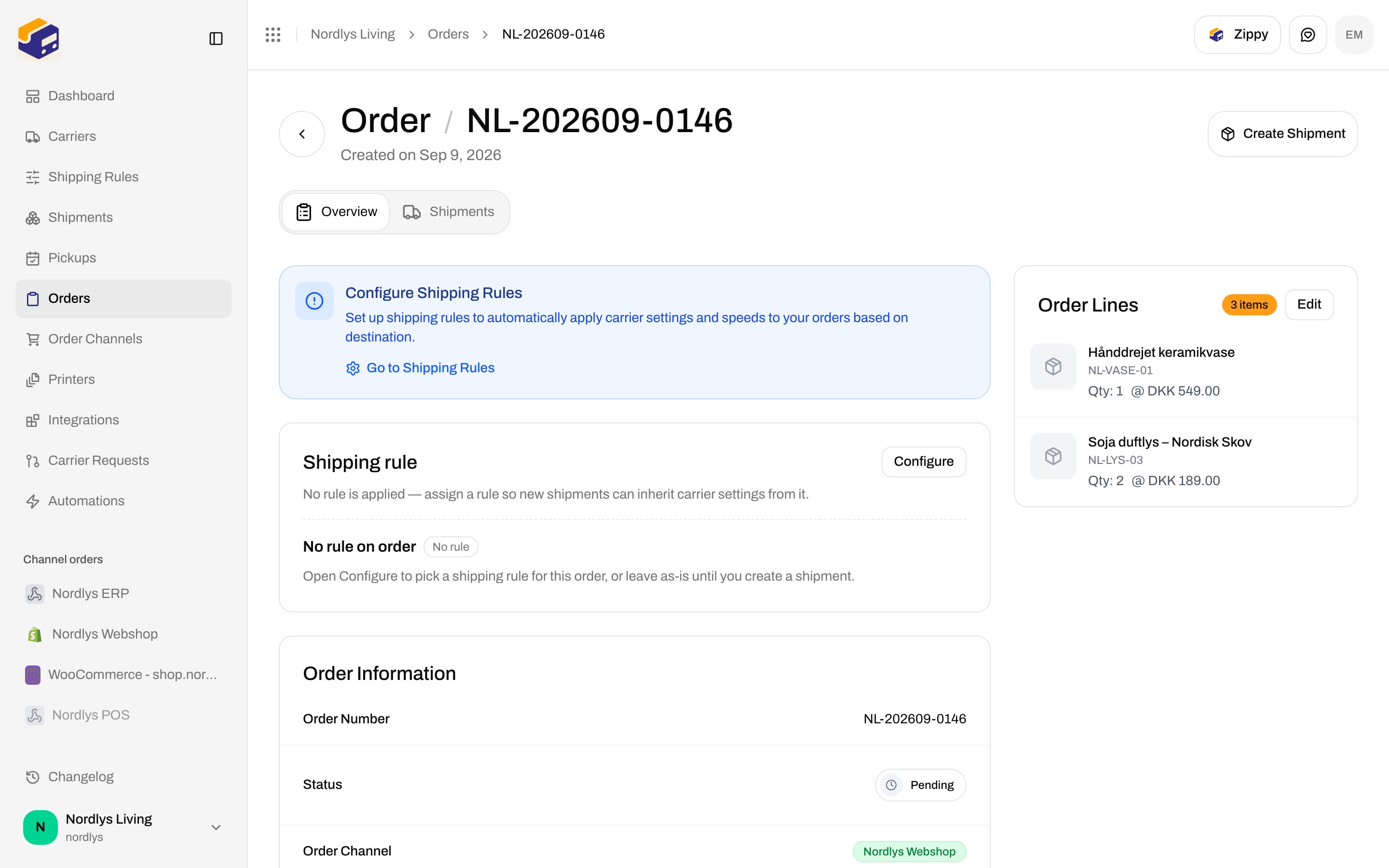
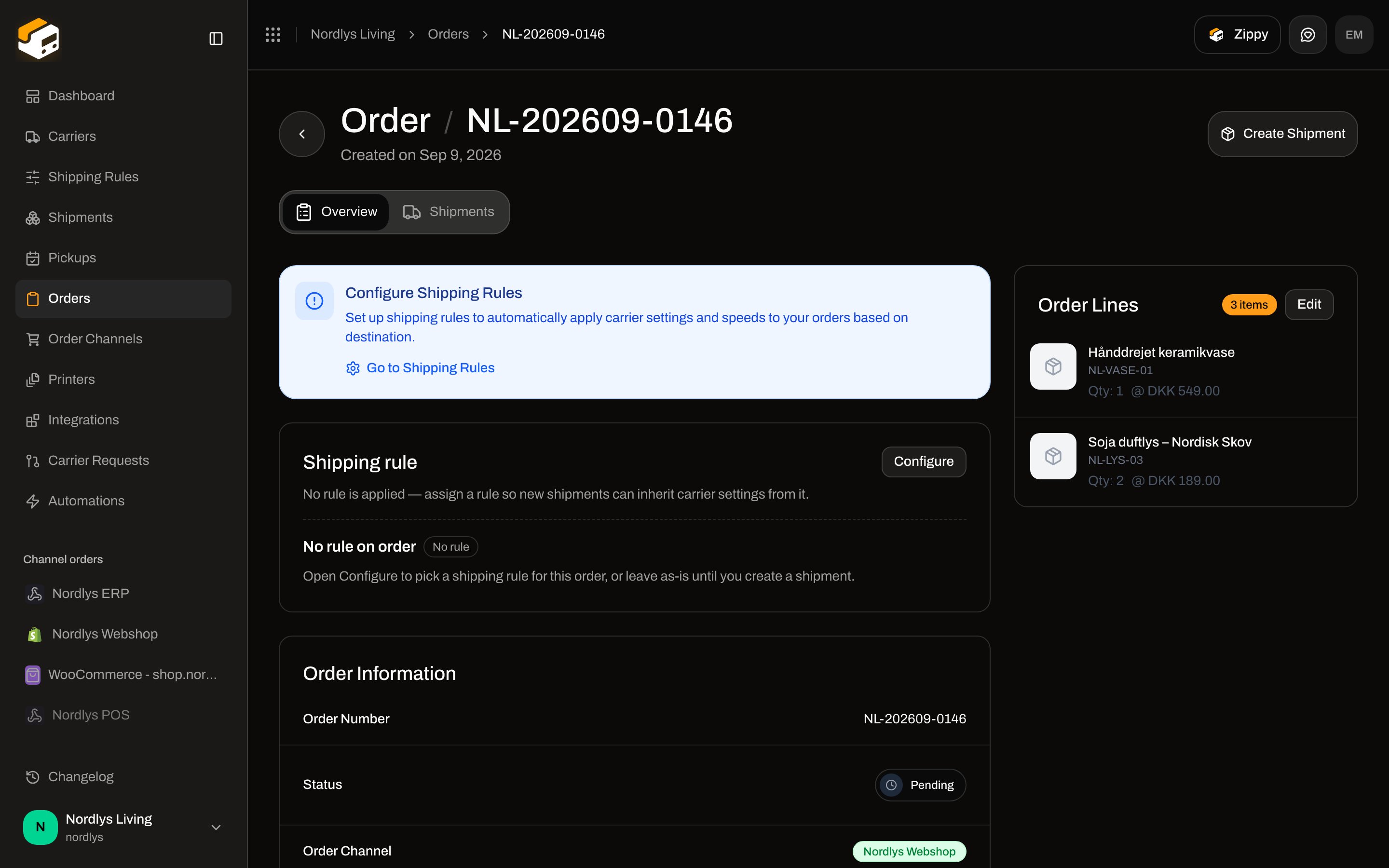
Title: **Shipping rule**.
**When a rule is set**
* Description: **Carrier, product, and services come from this saved rule for new shipments.**
* Rule **name** + badge **Active**
* Services joined with `·`, or **No additional services on this rule**
**When no rule**
* Description: **No rule is applied — assign a rule so new shipments can inherit carrier settings from it.**
* Heading **No rule on order** + badge **No rule**
* Help: **Open Configure to pick a shipping rule for this order, or leave as-is until you create a shipment.**
If the order has **no shipments yet**, is still creatable, and has **no** rule, a blue prompt also shows: title **Configure Shipping Rules**, body **Set up shipping rules to automatically apply carrier settings and speeds to your orders based on destination.**, link **Go to Shipping Rules**.
 ### Shipment card
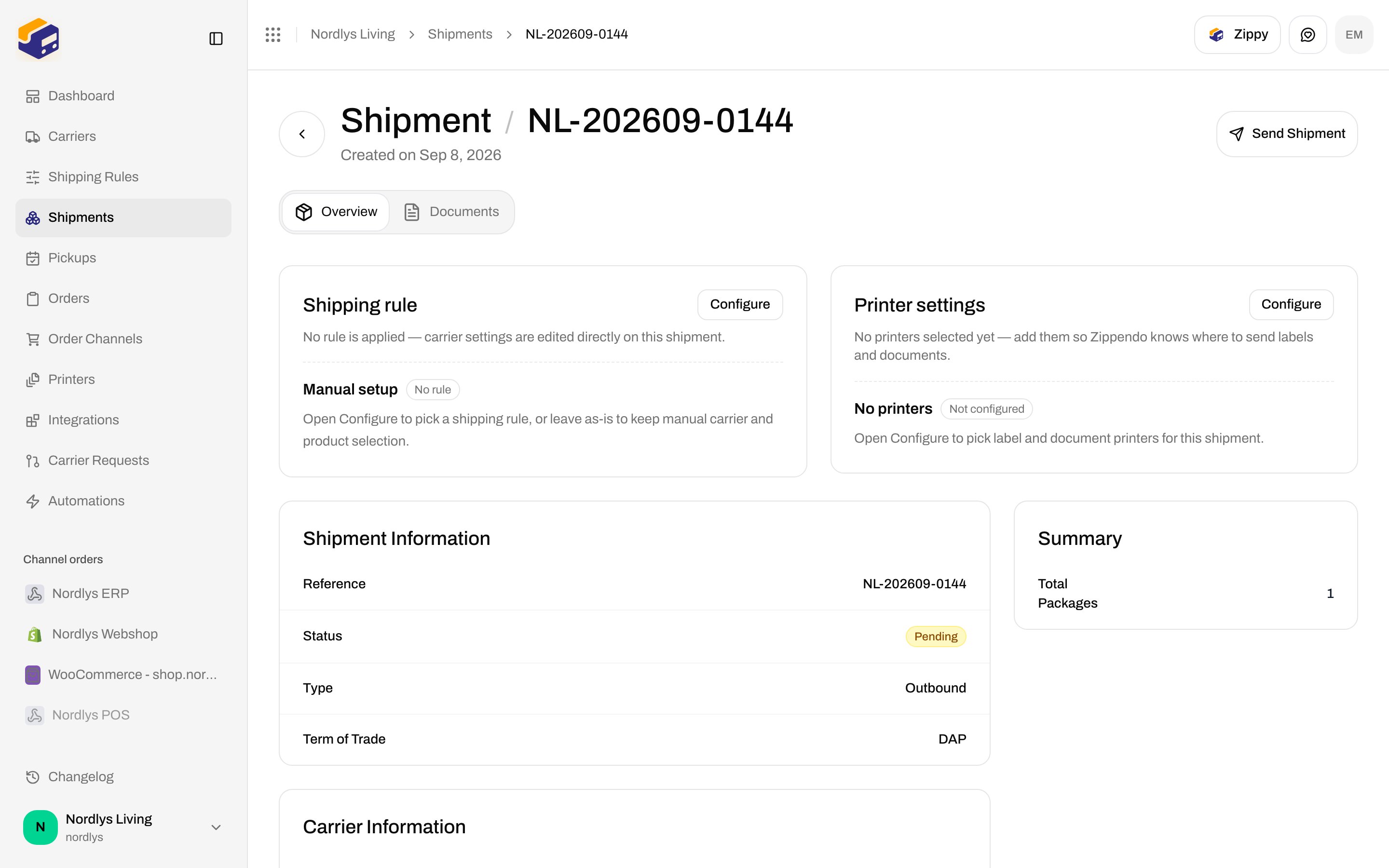
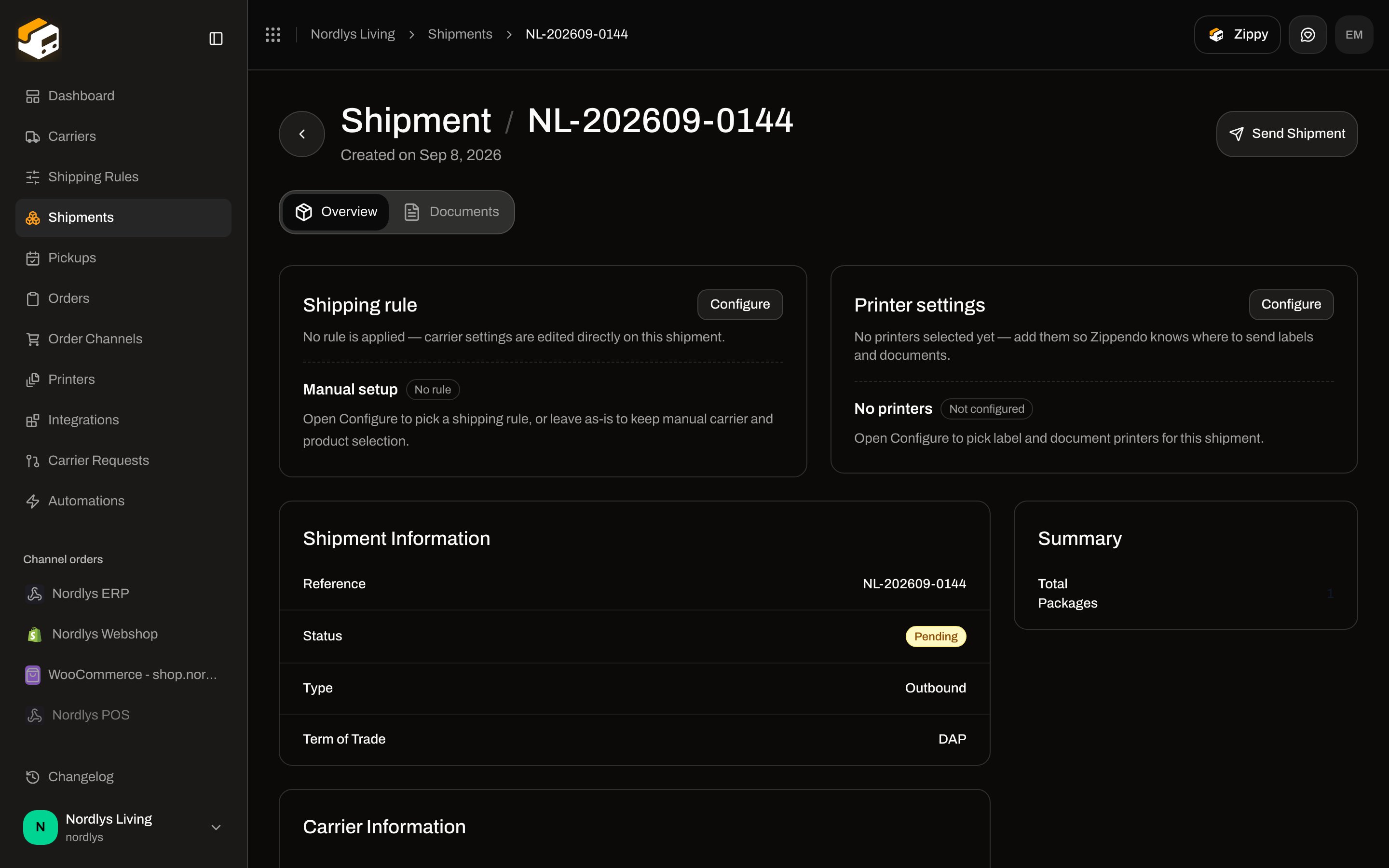
Title: **Shipping rule**.
**When a rule is set**
* **Carrier, product, and services come from this saved rule.**
* Name + **Active**
* Services or **No additional services on this rule**
**When no rule (manual)**
* **No rule is applied — carrier settings are edited directly on this shipment.**
* Heading **Manual setup** + badge **No rule**
* **Open Configure to pick a shipping rule, or leave as-is to keep manual carrier and product selection.**
Printer settings sit in the other column on the same row. [Shipment printer settings](/docs/how-to/shipment-printer-settings).
### Shipment card
Title: **Shipping rule**.
**When a rule is set**
* **Carrier, product, and services come from this saved rule.**
* Name + **Active**
* Services or **No additional services on this rule**
**When no rule (manual)**
* **No rule is applied — carrier settings are edited directly on this shipment.**
* Heading **Manual setup** + badge **No rule**
* **Open Configure to pick a shipping rule, or leave as-is to keep manual carrier and product selection.**
Printer settings sit in the other column on the same row. [Shipment printer settings](/docs/how-to/shipment-printer-settings).
 ## Order modal
**Configure** opens `modalId="order-shipping-rule"`.
| Chrome | Copy |
| --------- | ------------------------------------------------------------------------------------------ |
| Title | **Shipping rule** |
| Subtitle | **Choose which rule applies to this order, or leave no rule until you create a shipment.** |
| Primary | **Apply** (or **Applying…**) |
| Secondary | **Cancel** (disabled while applying) |
### Fields
| Control | Required | What it is |
| ------------------------------------------- | -------- | ---------------------------------------------------------------------------------------------------------------------------------------------------------------------------- |
| **Rule** | No | Select. Placeholder **Select a shipping rule**. First option **No shipping rule (manual)** clears the rule (`shippingRuleId` null). Other options are rule **names**. |
| Loading | — | Spinner + **Loading shipping rules…** |
| Empty | — | **No shipping rules configured** + link **Configure Shipping Rules** → `/dashboard/shipping-rules` |
| **Also apply to \{n} existing shipment(s)** | No | Checkbox. Default **on**. Shown only when the order has **draft** or **pending** shipments **and** a rule (not manual) is selected. Label uses **shipment** / **shipments**. |
**Apply** stays disabled when there is no `orderId`, rules are still loading, you picked a rule id but the list is empty, or a service point is required and none is selected.
## Order modal
**Configure** opens `modalId="order-shipping-rule"`.
| Chrome | Copy |
| --------- | ------------------------------------------------------------------------------------------ |
| Title | **Shipping rule** |
| Subtitle | **Choose which rule applies to this order, or leave no rule until you create a shipment.** |
| Primary | **Apply** (or **Applying…**) |
| Secondary | **Cancel** (disabled while applying) |
### Fields
| Control | Required | What it is |
| ------------------------------------------- | -------- | ---------------------------------------------------------------------------------------------------------------------------------------------------------------------------- |
| **Rule** | No | Select. Placeholder **Select a shipping rule**. First option **No shipping rule (manual)** clears the rule (`shippingRuleId` null). Other options are rule **names**. |
| Loading | — | Spinner + **Loading shipping rules…** |
| Empty | — | **No shipping rules configured** + link **Configure Shipping Rules** → `/dashboard/shipping-rules` |
| **Also apply to \{n} existing shipment(s)** | No | Checkbox. Default **on**. Shown only when the order has **draft** or **pending** shipments **and** a rule (not manual) is selected. Label uses **shipment** / **shipments**. |
**Apply** stays disabled when there is no `orderId`, rules are still loading, you picked a rule id but the list is empty, or a service point is required and none is selected.
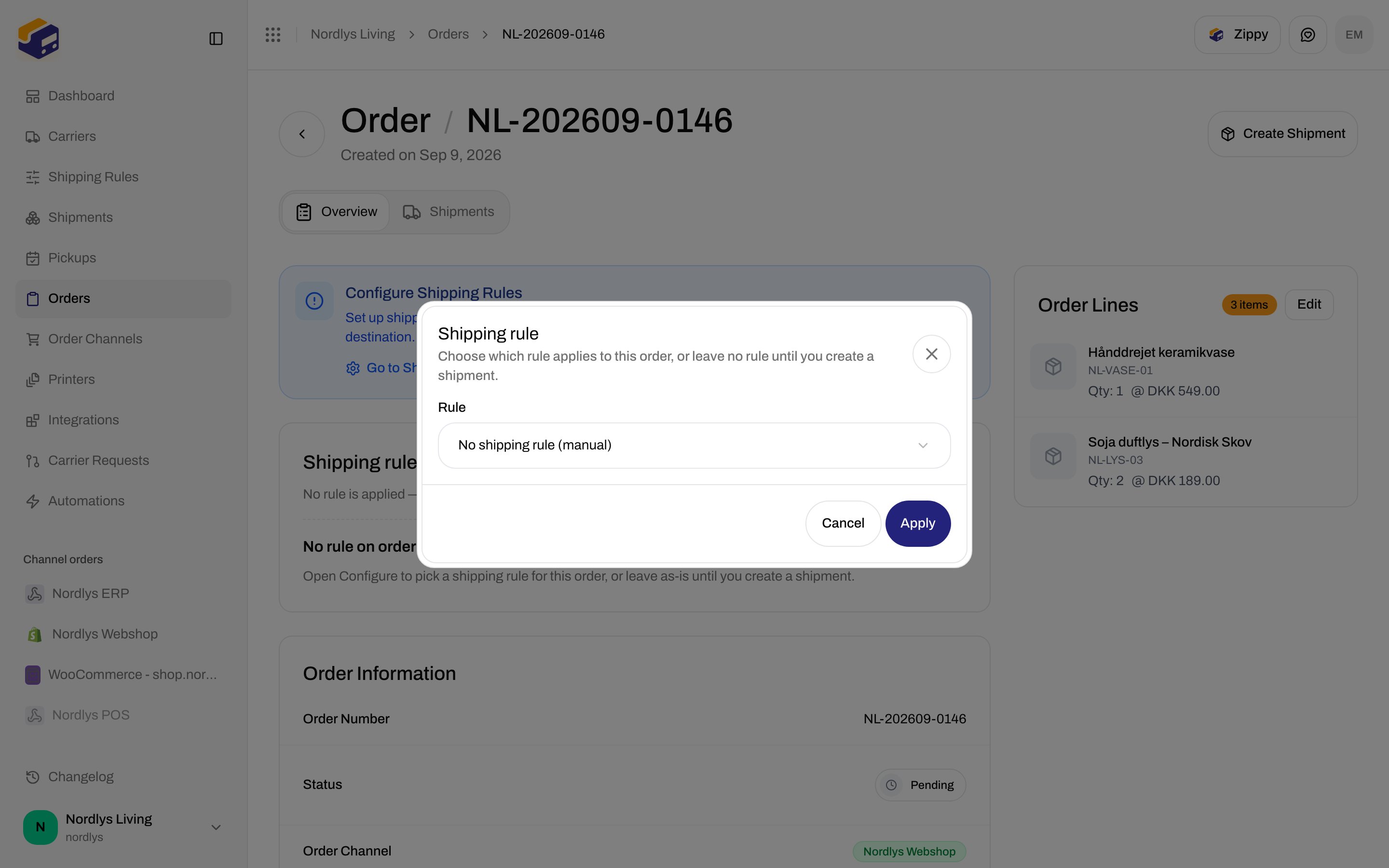
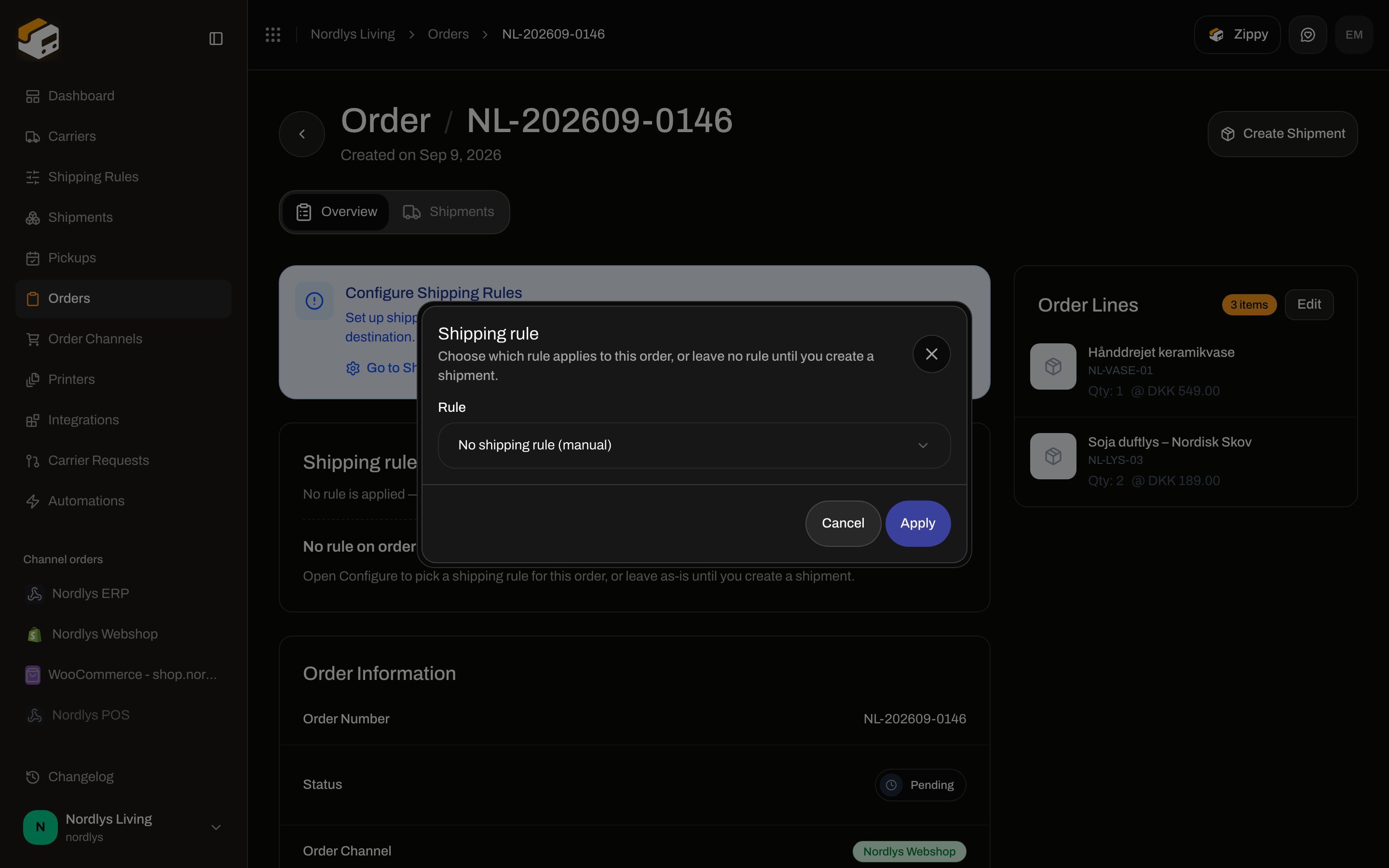 This order has no shipments yet, so **Also apply to \{n} existing shipment(s)** is hidden. Pick a named rule on an order that already has **draft** or **pending** shipments to see it.
On the order **Shipping rule** card.
Choose a named rule, or **No shipping rule (manual)** to clear it.
Leave **Also apply to \{n} existing shipment(s)** on to patch every **draft** and **pending** shipment. Turn it off to change only the order. **Processing** / **Dispatched** / **Error** rows are not in this count.
If the rule’s product is a shop product and an eligible shipment has no point yet, complete **Service Point \*** — see below.
Saves the order, then applies the rule to those shipments when the checkbox is on.
Toasts from the shipment apply path: **Shipping rule applied successfully** / **Failed to apply shipping rule**. Order save: **Order updated successfully** / **Failed to update order**.
Already-imported shop ids (for example from checkout) are **kept**. Only shipments **without** `servicePointId` get the point you pick here.
## Shipment modal
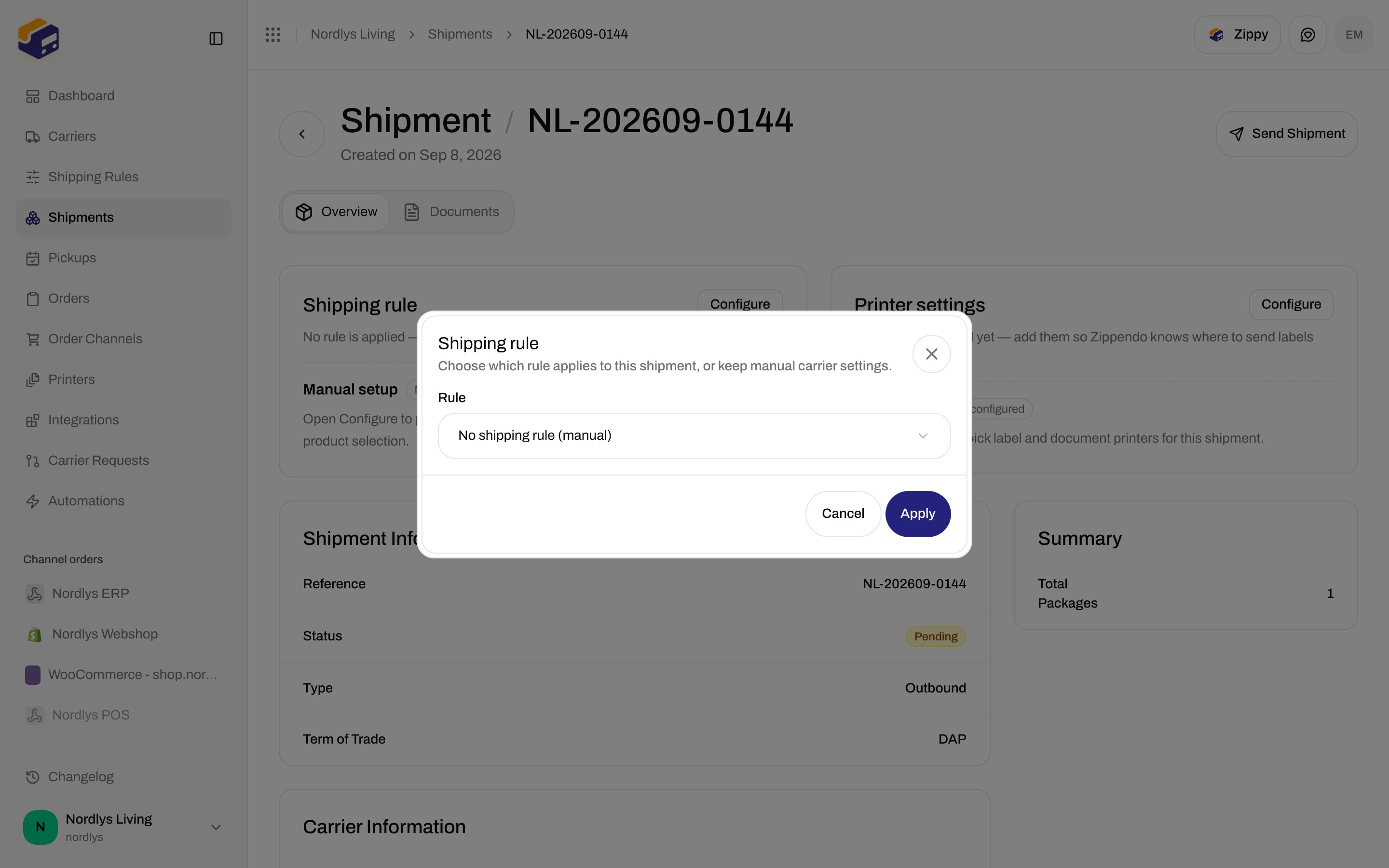
**Configure** opens `modalId="shipment-shipping-rule"`.
| Chrome | Copy |
| --------- | -------------------------------------------------------------------------------- |
| Title | **Shipping rule** |
| Subtitle | **Choose which rule applies to this shipment, or keep manual carrier settings.** |
| Primary | **Apply** / **Applying…** |
| Secondary | **Cancel** |
| Control | What it is |
| -------- | --------------------------------------------------------------------------------------------------------------------------------------------------------------------------------------------------------------------------------------------------------------- |
| **Rule** | Same select as the order modal: **No shipping rule (manual)** + rule names. Placeholder **Select a shipping rule**. Loading / empty copy matches the order modal (**Loading shipping rules…**, **No shipping rules configured**, **Configure Shipping Rules**). |
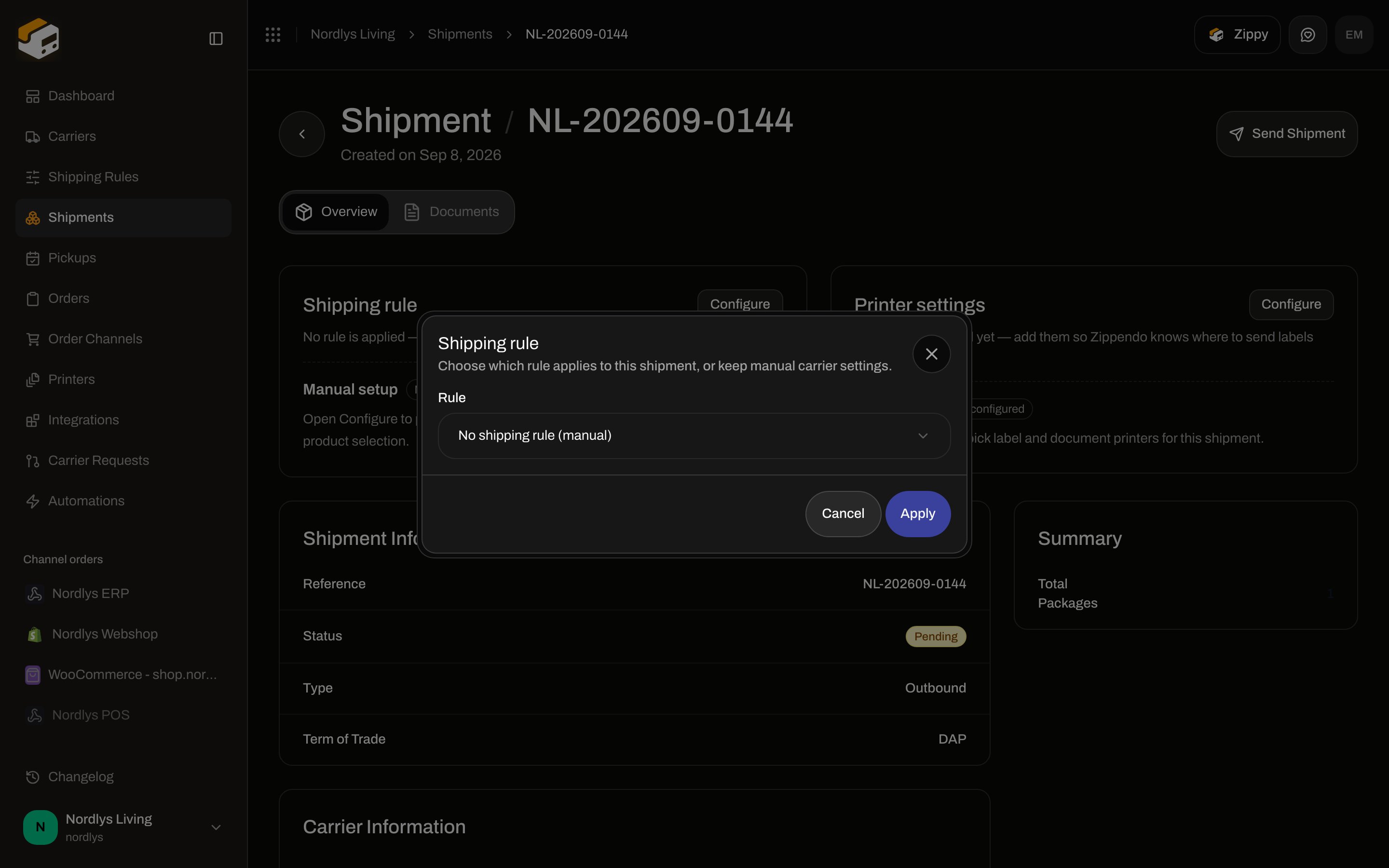
There is **no** “also apply to other shipments” checkbox — this modal updates **this** shipment only.
This order has no shipments yet, so **Also apply to \{n} existing shipment(s)** is hidden. Pick a named rule on an order that already has **draft** or **pending** shipments to see it.
On the order **Shipping rule** card.
Choose a named rule, or **No shipping rule (manual)** to clear it.
Leave **Also apply to \{n} existing shipment(s)** on to patch every **draft** and **pending** shipment. Turn it off to change only the order. **Processing** / **Dispatched** / **Error** rows are not in this count.
If the rule’s product is a shop product and an eligible shipment has no point yet, complete **Service Point \*** — see below.
Saves the order, then applies the rule to those shipments when the checkbox is on.
Toasts from the shipment apply path: **Shipping rule applied successfully** / **Failed to apply shipping rule**. Order save: **Order updated successfully** / **Failed to update order**.
Already-imported shop ids (for example from checkout) are **kept**. Only shipments **without** `servicePointId` get the point you pick here.
## Shipment modal
**Configure** opens `modalId="shipment-shipping-rule"`.
| Chrome | Copy |
| --------- | -------------------------------------------------------------------------------- |
| Title | **Shipping rule** |
| Subtitle | **Choose which rule applies to this shipment, or keep manual carrier settings.** |
| Primary | **Apply** / **Applying…** |
| Secondary | **Cancel** |
| Control | What it is |
| -------- | --------------------------------------------------------------------------------------------------------------------------------------------------------------------------------------------------------------------------------------------------------------- |
| **Rule** | Same select as the order modal: **No shipping rule (manual)** + rule names. Placeholder **Select a shipping rule**. Loading / empty copy matches the order modal (**Loading shipping rules…**, **No shipping rules configured**, **Configure Shipping Rules**). |
There is **no** “also apply to other shipments” checkbox — this modal updates **this** shipment only.
 ## Service Point block (both modals)
Shown when the selected rule’s **product** has `isServicePoint` **and** (order: you are applying to eligible shipments that still lack a point; shipment: this shipment has no `servicePointId` yet).
| State | UI |
| ------------------- | ------------------------------------------------------------------------------------ |
| No receiver address | **Please add a receiver address first to find nearby droppoints.** |
| Loading | Skeleton |
| Error | Localized error or **Failed to load droppoints** + **Retry** |
| None nearby | **No droppoints found near the receiver address.** **Select Service Point** disabled |
| Selected | Name + address + **Change Service Point** |
| Not selected | **No service point selected** + **Select Service Point** |
**Select Service Point** switches the same modal to the picker (title **Select Service Point**, **Confirm Selection**, **Back**). [Pick a service point](/docs/how-to/pick-a-service-point).
**Apply** stays disabled until a point is selected when this block is required.
## When apply is locked
| Situation | What you see |
| ------------------------------------ | ------------------------------------------------------ |
| Order **Fulfilled** or **Cancelled** | No **Shipping rule** card (and no **Create Shipment**) |
| Shipment not **Draft** / **Pending** | No **Shipping rule** card |
| No rules in the org | Empty modal copy + **Configure Shipping Rules** |
Creating from an order when a rule is already on the order uses **Shipping rule** inside **Create Shipment** (hint **Carrier, product, services and sender address come from the order's shipping rule.**) with **Configure carrier manually instead** — that is create, not this **Apply** modal. [Create a shipment](/docs/tutorials/create-a-shipment).
You are done when the card shows the rule **name** and **Active**, or **No rule** / **Manual setup** if you cleared it. Then [send](/docs/how-to/send-a-shipment) if the shipment is still pending.
## Service Point block (both modals)
Shown when the selected rule’s **product** has `isServicePoint` **and** (order: you are applying to eligible shipments that still lack a point; shipment: this shipment has no `servicePointId` yet).
| State | UI |
| ------------------- | ------------------------------------------------------------------------------------ |
| No receiver address | **Please add a receiver address first to find nearby droppoints.** |
| Loading | Skeleton |
| Error | Localized error or **Failed to load droppoints** + **Retry** |
| None nearby | **No droppoints found near the receiver address.** **Select Service Point** disabled |
| Selected | Name + address + **Change Service Point** |
| Not selected | **No service point selected** + **Select Service Point** |
**Select Service Point** switches the same modal to the picker (title **Select Service Point**, **Confirm Selection**, **Back**). [Pick a service point](/docs/how-to/pick-a-service-point).
**Apply** stays disabled until a point is selected when this block is required.
## When apply is locked
| Situation | What you see |
| ------------------------------------ | ------------------------------------------------------ |
| Order **Fulfilled** or **Cancelled** | No **Shipping rule** card (and no **Create Shipment**) |
| Shipment not **Draft** / **Pending** | No **Shipping rule** card |
| No rules in the org | Empty modal copy + **Configure Shipping Rules** |
Creating from an order when a rule is already on the order uses **Shipping rule** inside **Create Shipment** (hint **Carrier, product, services and sender address come from the order's shipping rule.**) with **Configure carrier manually instead** — that is create, not this **Apply** modal. [Create a shipment](/docs/tutorials/create-a-shipment).
You are done when the card shows the rule **name** and **Active**, or **No rule** / **Manual setup** if you cleared it. Then [send](/docs/how-to/send-a-shipment) if the shipment is still pending.