> ## Documentation Index
> Fetch the complete documentation index at: https://www.zippendo.com/docs/llms.txt
> Use this file to discover all available pages before exploring further.
# Add a printer
> Register a Zippendo printer from the printer client, then manage name, type (Label or Document), status, rotation, and Print All on the Printers screen.
You do **not** add a printer from a form on the web app. The **Printers** screen lists devices that the [Zippendo Printer Client](/docs/how-to/setup-printer-client) registered. After a printer is **Active**, you edit its name and type here, turn on **Rotate wide pages to portrait**, and send jobs with **Print All** / **Print** from a shipment.
Journey walkthrough: [Labels and printing](/docs/tutorials/labels-printing). Install and **Sign in with Browser**: [Set up the printer client](/docs/how-to/setup-printer-client). Browser **Authorize Printer Client**: [Authorize the printer client](/docs/how-to/authorize-a-printer). Job history: [Printer jobs](/docs/how-to/printer-jobs). Printers on one shipment: [Shipment printer settings](/docs/how-to/shipment-printer-settings).
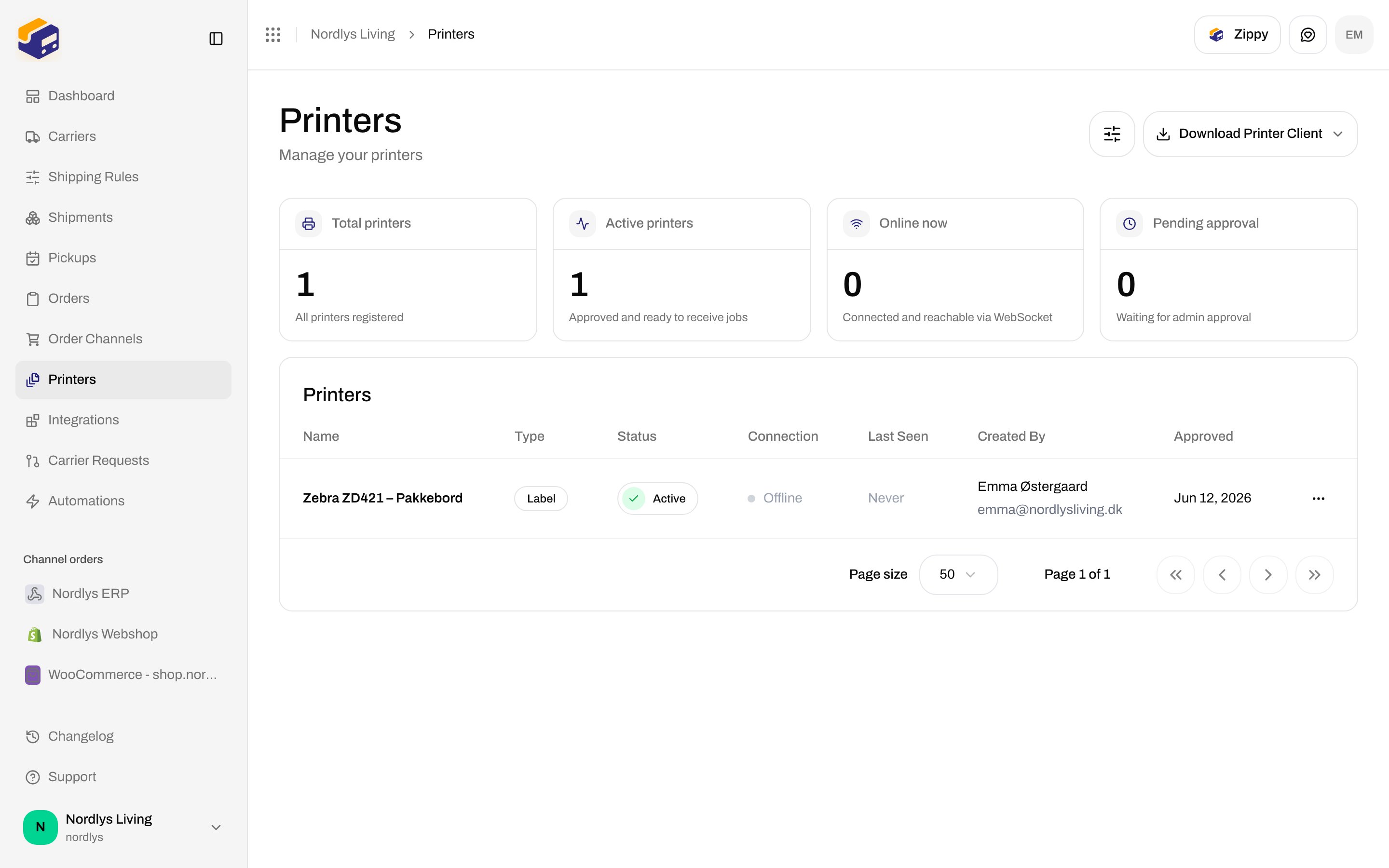
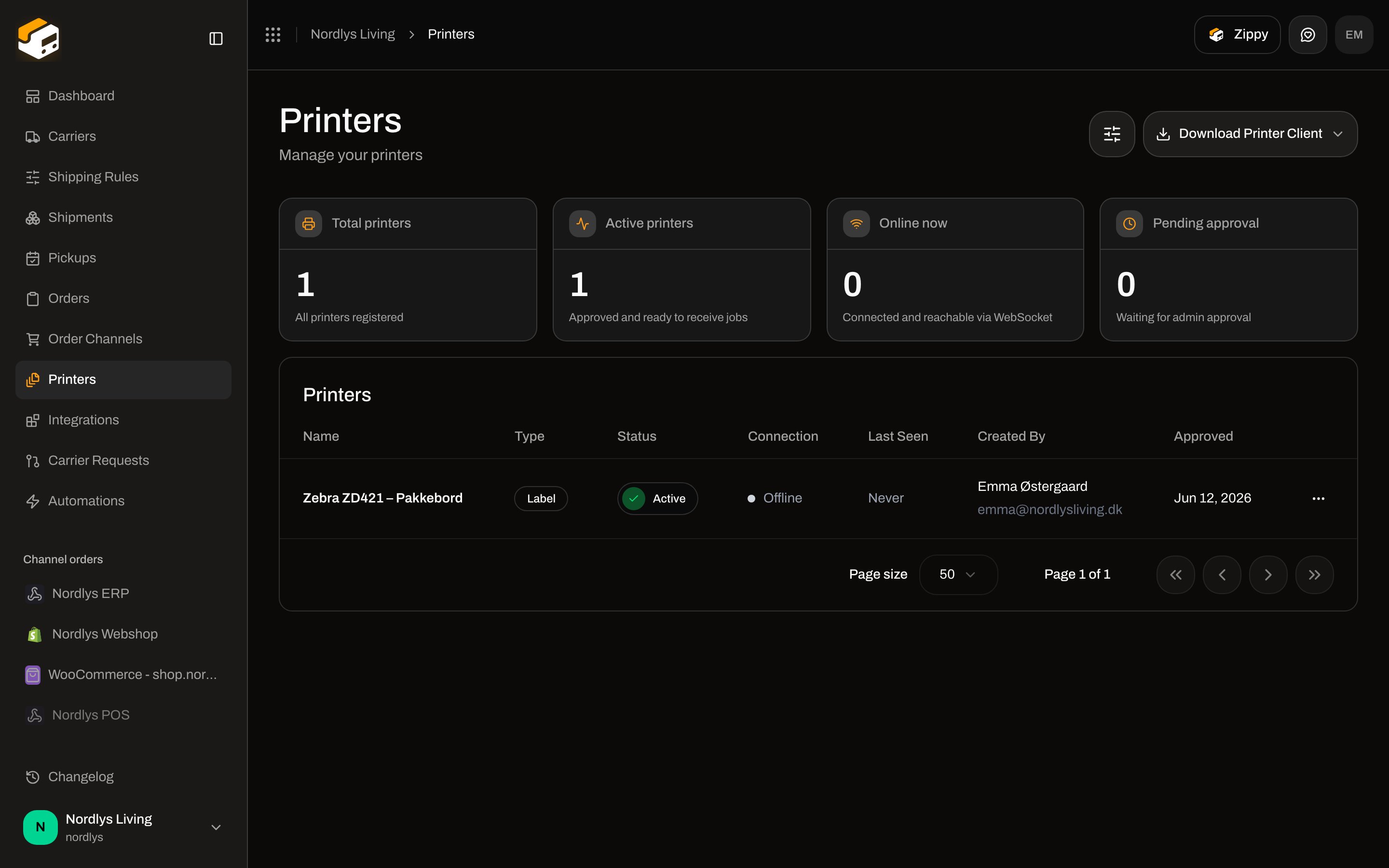
**Printers** is a top-level sidebar item (`/{org}/dashboard/printers`). It is not a Settings tab. Description in the header: **Manage your printers**.
## Printer client vs the Printers screen
| Surface | What you do there |
| -------------------------------- | --------------------------------------------------------------------------------------------------------------------- |
| **Printer client** (desktop app) | Sign in with the browser, pick a local OS printer, give it a **Display Name**, set **Printer Type**, and register it |
| **Printers** (this screen) | Download the client, see **Active** / **Offline**, **Approve** or **Disable**, **Edit** name/type/rotation, open jobs |
The list empty state is explicit: **No printers yet** — **Printers will appear here once they are registered from the printer client application.** There is no **Add printer** button in the dashboard.
 ## Download the printer client
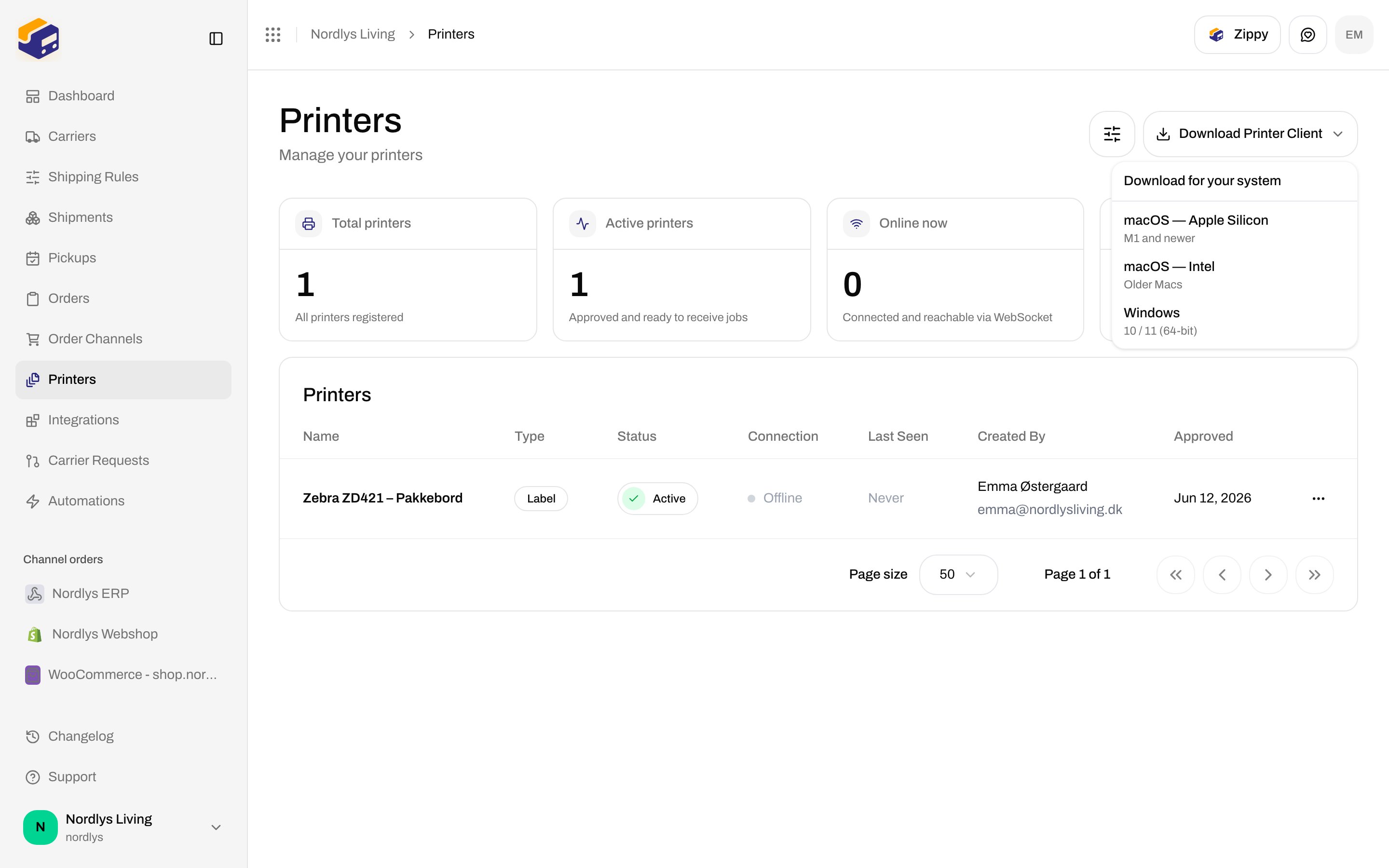
The header action is **Download Printer Client**. The menu title is **Download for your system**. Each row is a direct installer (not a landing page):
| Label | Helper | File |
| ------------------------- | ---------------- | -------------------------------- |
| **macOS — Apple Silicon** | M1 and newer | `Zippendo-Printer-mac-arm64.dmg` |
| **macOS — Intel** | Older Macs | `Zippendo-Printer-mac-x64.dmg` |
| **Windows** | 10 / 11 (64-bit) | `Zippendo-Printer-win-x64.exe` |
## Download the printer client
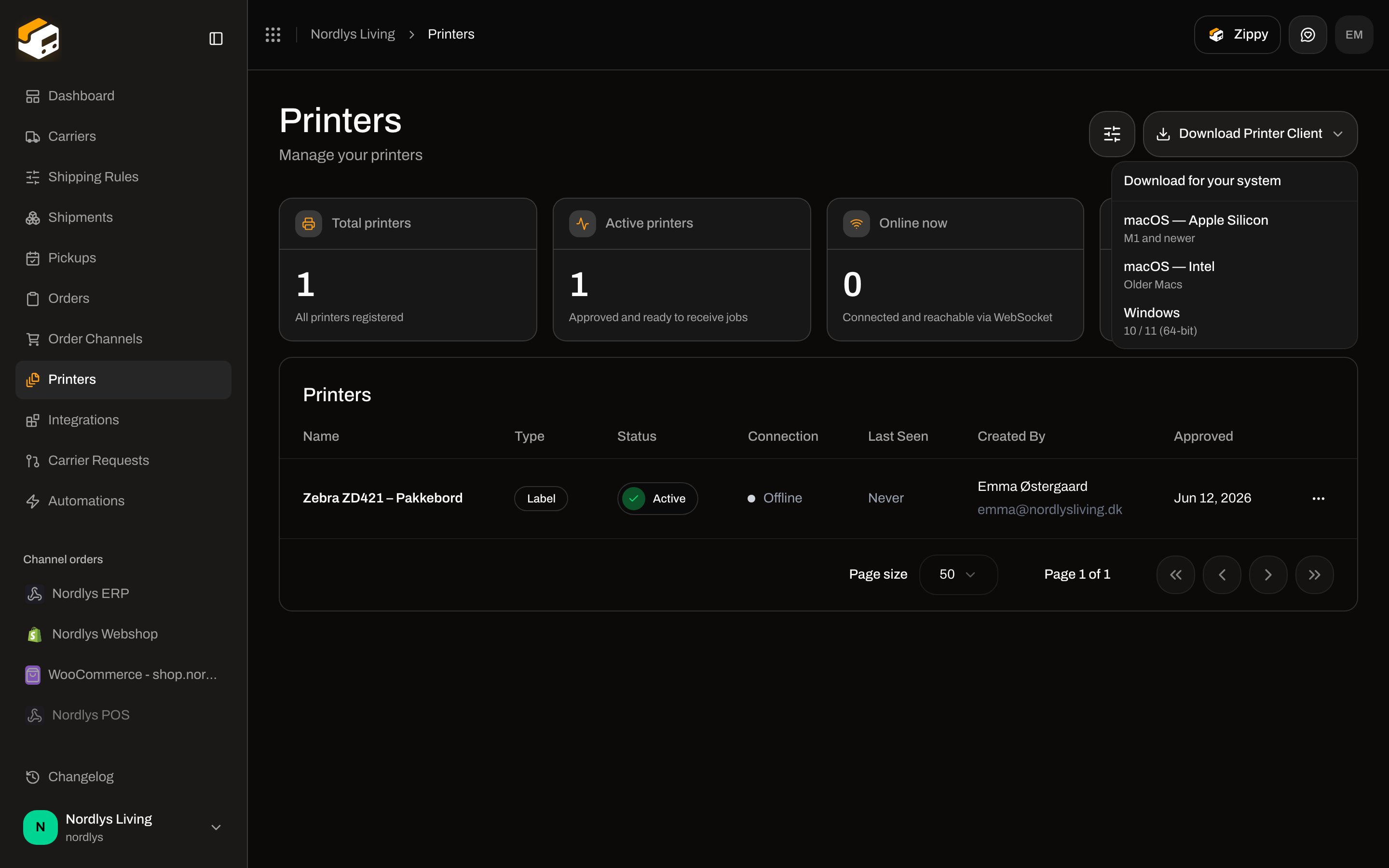
The header action is **Download Printer Client**. The menu title is **Download for your system**. Each row is a direct installer (not a landing page):
| Label | Helper | File |
| ------------------------- | ---------------- | -------------------------------- |
| **macOS — Apple Silicon** | M1 and newer | `Zippendo-Printer-mac-arm64.dmg` |
| **macOS — Intel** | Older Macs | `Zippendo-Printer-mac-x64.dmg` |
| **Windows** | 10 / 11 (64-bit) | `Zippendo-Printer-win-x64.exe` |
 Sign-in and approval happen in the client and on **Authorize Printer Client**. See [Set up the printer client](/docs/how-to/setup-printer-client) and [Authorize the printer client](/docs/how-to/authorize-a-printer).
## Register from the printer client
After you authorize, the client dashboard **Printers** heading has **+ Add Printer** (empty state: **Add Your First Printer**). The modal title is **Add Printer**. Every field is required (the client shows **Please fill in all fields** if any is empty):
| Field | Control | Options / placeholder |
| ----------------- | ------- | -------------------------------------------------------------------------------------------------------------------------------------------------------------- |
| **Organization** | Select | **Select organization…** — every org the signed-in user can access |
| **Local Printer** | Select | **Select printer…** — printers the OS reports. The OS default is marked **(Default)**. While scanning: **Discovering printers…**. Empty: **No printers found** |
| **Display Name** | Text | Placeholder **e.g., Warehouse Label Printer** — this is the name on the Zippendo **Printers** list |
| **Printer Type** | Select | **Document Printer** or **Label Printer** (default in the modal is **Document Printer**) |
Actions: **Cancel**, **Add Printer** (busy: **Adding…**).
Use **Label Printer** for shipping labels (thermal / ZPL). Use **Document Printer** for packing lists and invoices (usually A4). The same local OS printer can be registered once per type on that client — for example as both Label and Document, but not twice as Label.
A new printer lands on **Printers** with status **Pending Approval** until someone uses **Approve** on the row. The client shows **Waiting for admin approval**. Full approve / reject copy: [Authorize the printer client](/docs/how-to/authorize-a-printer).
Printer names must be unique within the organization. The OS name (**Local Printer**) is stored as **OS Printer Name** and cannot be changed in Zippendo.
## Stats on the Printers screen
Four cards above the table (loading subtitle **Loading printers…**):
| Card | Counts | Subtitle |
| -------------------- | ------------------------------- | ------------------------------------- |
| **Total printers** | Every row in the current filter | All printers registered |
| **Active printers** | Status **Active** | Approved and ready to receive jobs |
| **Online now** | Connection **Online** | Connected and reachable via WebSocket |
| **Pending approval** | Status **Pending Approval** | Waiting for admin approval |
A printer can be **Active** and **Offline** at the same time: it is approved, but the desktop app is not connected. Jobs stay queued until the client is online. See [Printer offline or not printing](/docs/knowledge-base/printer-offline-or-not-printing).
## Filters
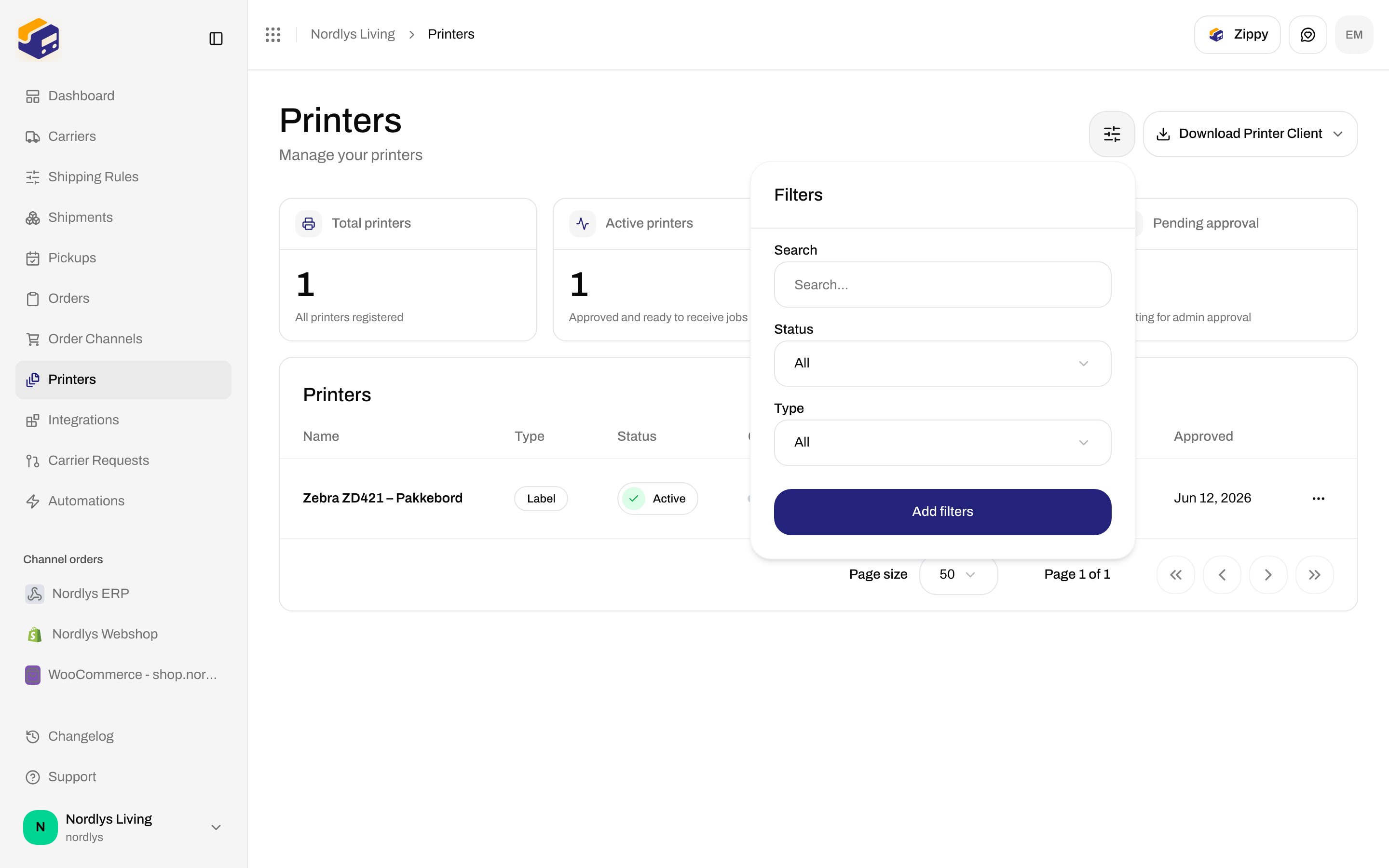
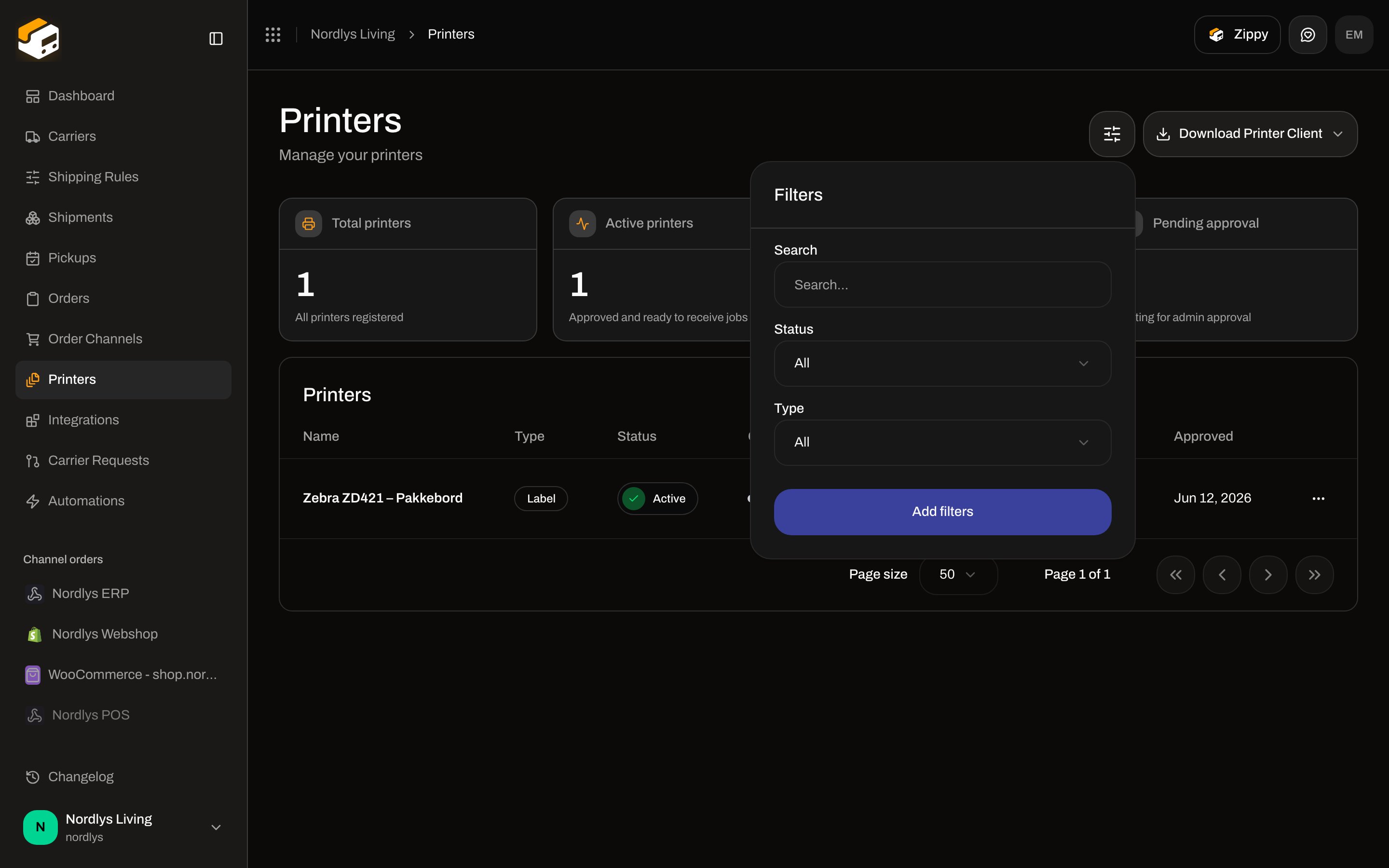
Open **Filters** in the header (`common.filters`). **Add filters** applies; **Clear all filters** resets.
| Filter | Label | Options |
| ---------- | ------ | ------------------------------------------------------- |
| **Search** | Search | Placeholder **Search…** — matches printer name |
| **Status** | Status | **All**, **Active**, **Pending Approval**, **Disabled** |
| **Type** | Type | **All**, **Label printer**, **Document printer** |
Sign-in and approval happen in the client and on **Authorize Printer Client**. See [Set up the printer client](/docs/how-to/setup-printer-client) and [Authorize the printer client](/docs/how-to/authorize-a-printer).
## Register from the printer client
After you authorize, the client dashboard **Printers** heading has **+ Add Printer** (empty state: **Add Your First Printer**). The modal title is **Add Printer**. Every field is required (the client shows **Please fill in all fields** if any is empty):
| Field | Control | Options / placeholder |
| ----------------- | ------- | -------------------------------------------------------------------------------------------------------------------------------------------------------------- |
| **Organization** | Select | **Select organization…** — every org the signed-in user can access |
| **Local Printer** | Select | **Select printer…** — printers the OS reports. The OS default is marked **(Default)**. While scanning: **Discovering printers…**. Empty: **No printers found** |
| **Display Name** | Text | Placeholder **e.g., Warehouse Label Printer** — this is the name on the Zippendo **Printers** list |
| **Printer Type** | Select | **Document Printer** or **Label Printer** (default in the modal is **Document Printer**) |
Actions: **Cancel**, **Add Printer** (busy: **Adding…**).
Use **Label Printer** for shipping labels (thermal / ZPL). Use **Document Printer** for packing lists and invoices (usually A4). The same local OS printer can be registered once per type on that client — for example as both Label and Document, but not twice as Label.
A new printer lands on **Printers** with status **Pending Approval** until someone uses **Approve** on the row. The client shows **Waiting for admin approval**. Full approve / reject copy: [Authorize the printer client](/docs/how-to/authorize-a-printer).
Printer names must be unique within the organization. The OS name (**Local Printer**) is stored as **OS Printer Name** and cannot be changed in Zippendo.
## Stats on the Printers screen
Four cards above the table (loading subtitle **Loading printers…**):
| Card | Counts | Subtitle |
| -------------------- | ------------------------------- | ------------------------------------- |
| **Total printers** | Every row in the current filter | All printers registered |
| **Active printers** | Status **Active** | Approved and ready to receive jobs |
| **Online now** | Connection **Online** | Connected and reachable via WebSocket |
| **Pending approval** | Status **Pending Approval** | Waiting for admin approval |
A printer can be **Active** and **Offline** at the same time: it is approved, but the desktop app is not connected. Jobs stay queued until the client is online. See [Printer offline or not printing](/docs/knowledge-base/printer-offline-or-not-printing).
## Filters
Open **Filters** in the header (`common.filters`). **Add filters** applies; **Clear all filters** resets.
| Filter | Label | Options |
| ---------- | ------ | ------------------------------------------------------- |
| **Search** | Search | Placeholder **Search…** — matches printer name |
| **Status** | Status | **All**, **Active**, **Pending Approval**, **Disabled** |
| **Type** | Type | **All**, **Label printer**, **Document printer** |
 A search with no match uses the same empty copy: **No printers yet** / **Printers will appear here once they are registered from the printer client application.**
## List columns and row actions
Click a row to open printer detail. Columns:
| Column | What it shows |
| -------------- | ------------------------------------------------------------------------------------- |
| **Name** | Display name. The OS name sits underneath when `localName` is set |
| **Type** | **Label** or **Document** |
| **Status** | **Active**, **Pending Approval**, or **Disabled** |
| **Connection** | Green dot **Online** or grey dot **Offline** |
| **Last Seen** | **Never**, **Just now**, **N min ago**, **N hour(s) ago**, or **N day(s) ago** |
| **Created By** | Name, or email, or **Unknown**. Email is shown under the name when both exist |
| **Approved** | Approval date, or **Not approved**. Subline **by \{name}** when an approver is stored |
Row menu:
| Action | When it appears |
| ----------- | ------------------------------------------------------------------------------------------------------------------------------------------------------------------------------------------------- |
| **View** | Always — same as row click (printer detail) |
| **Edit** | Always — opens **Edit Printer** |
| **Approve** | Only if status is **Pending Approval**. Toast: **Printer approved successfully** / **Failed to approve printer** |
| **Disable** | Only if status is **Active** (destructive). Toast: **Printer disabled successfully** / **Failed to disable printer**. There is no confirmation and no **Enable** action for **Disabled** printers |
| **Delete** | Always (destructive) |
**Delete Printer** is permanent. Title **Delete Printer**. Description: **This will permanently delete printer "\{name}". This action cannot be undone.** Confirm by typing the printer name in capitals. Toast: **Printer deleted successfully** / **Failed to delete printer**.
API errors the list can surface include **Printer not found.** (`PRINTER_NOT_FOUND`) and **The printer is offline.** (`PRINTER_OFFLINE`).
## Edit Printer
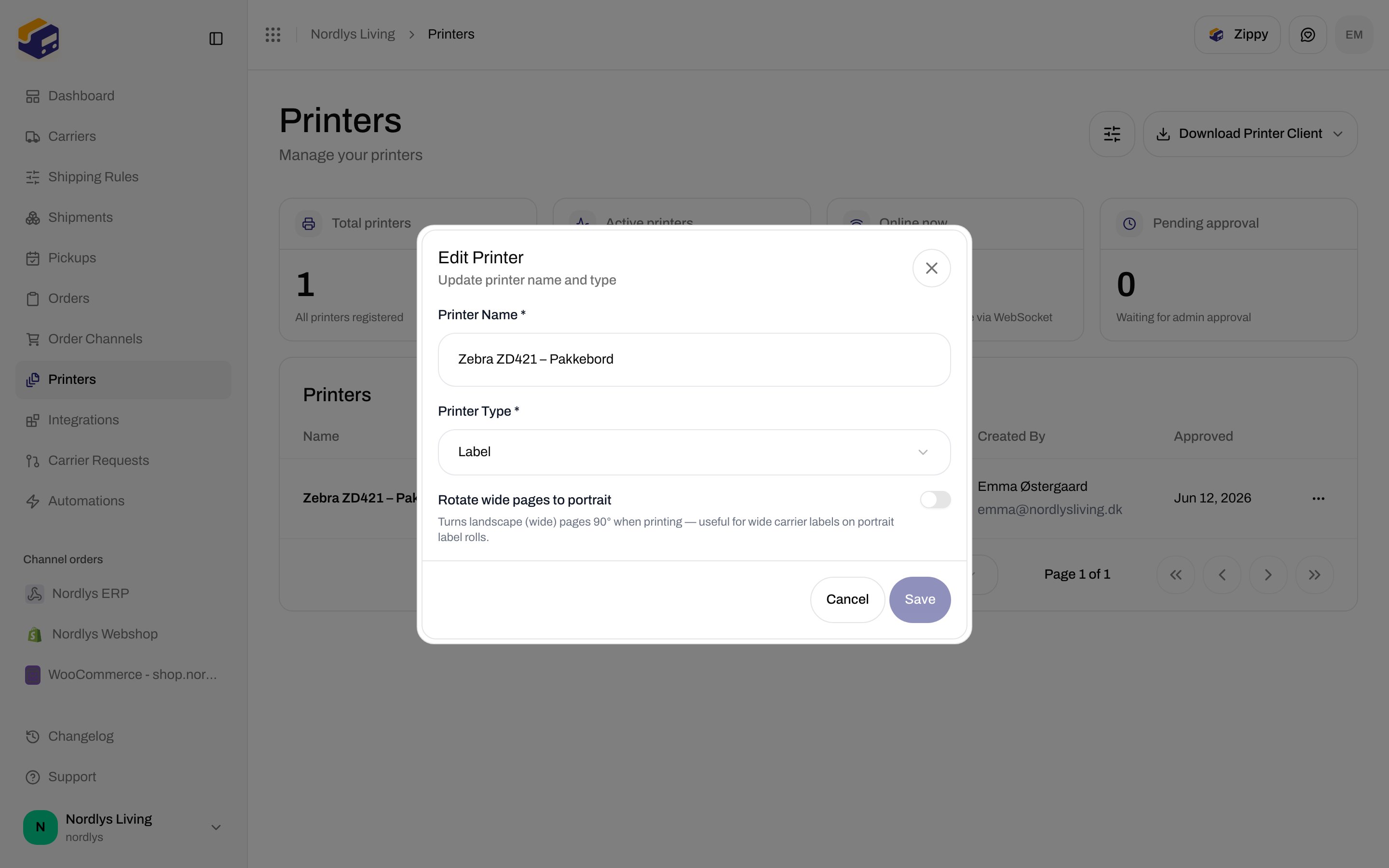
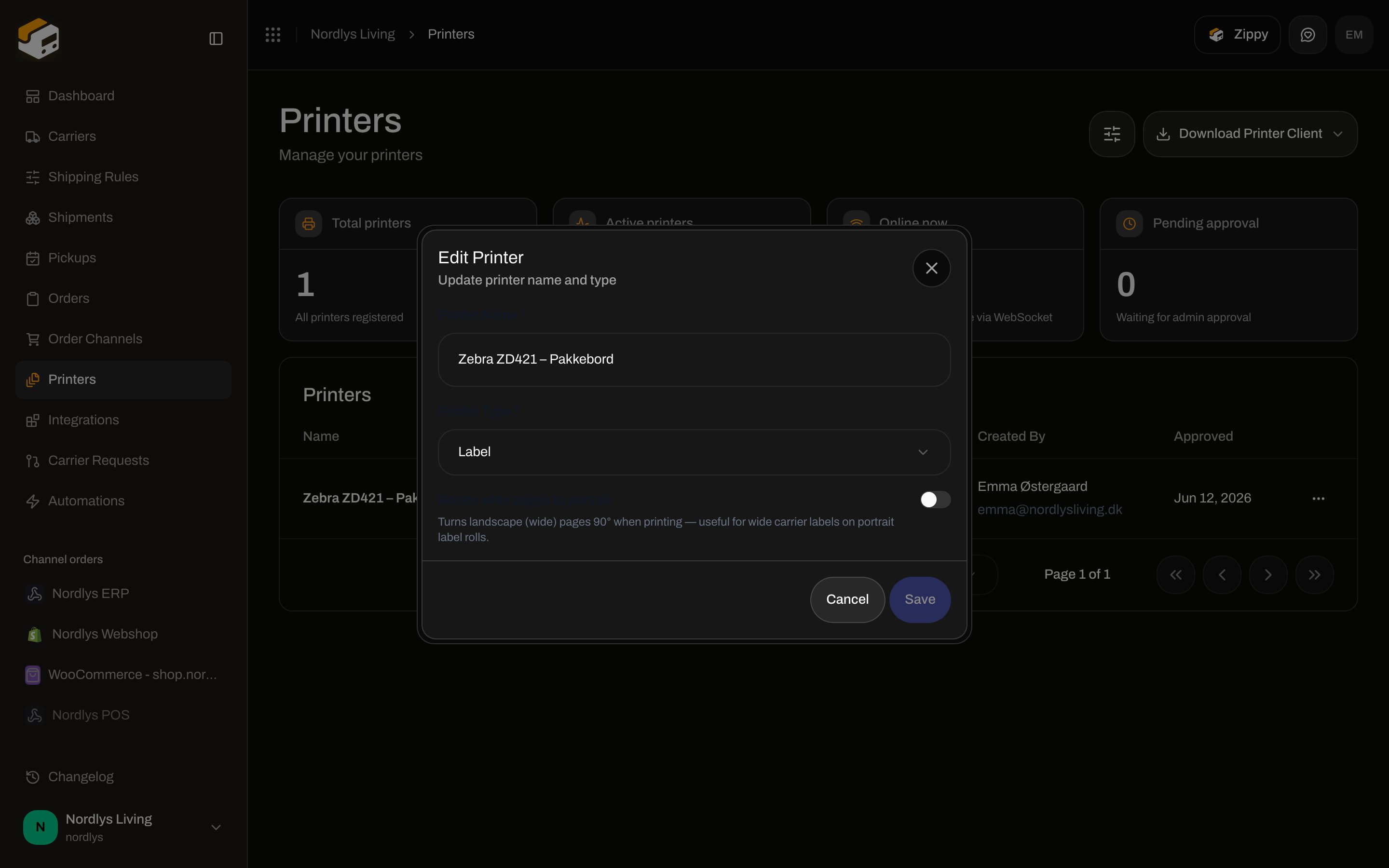
Modal id `edit-printer-modal`. Title **Edit Printer**. Subtitle **Update printer name and type**. **Save** stays disabled until something changes and **Printer Name** is non-empty. Busy: **Saving…**. **Cancel** reverts.
| Field | Required | Notes |
| --------------------------------- | --------- | --------------------------------------------------------------------------------------------------------------------------------------------------- |
| **Printer Name \*** | Yes | Placeholder **Enter printer name**. Trimmed on save |
| **Printer Type \*** | Yes | **Label** or **Document** |
| **Rotate wide pages to portrait** | No | Off by default. Helper: **Turns landscape (wide) pages 90° when printing — useful for wide carrier labels on portrait label rolls.** |
| **OS Printer Name** | Read-only | Shown only when the client stored a local name. Helper: **This is the system name and cannot be changed**. Placeholder **OS-reported printer name** |
Toast: **Printer updated successfully** / **Failed to update printer**.
There is no rotate control on the label viewer. Rotation is only this switch.
A search with no match uses the same empty copy: **No printers yet** / **Printers will appear here once they are registered from the printer client application.**
## List columns and row actions
Click a row to open printer detail. Columns:
| Column | What it shows |
| -------------- | ------------------------------------------------------------------------------------- |
| **Name** | Display name. The OS name sits underneath when `localName` is set |
| **Type** | **Label** or **Document** |
| **Status** | **Active**, **Pending Approval**, or **Disabled** |
| **Connection** | Green dot **Online** or grey dot **Offline** |
| **Last Seen** | **Never**, **Just now**, **N min ago**, **N hour(s) ago**, or **N day(s) ago** |
| **Created By** | Name, or email, or **Unknown**. Email is shown under the name when both exist |
| **Approved** | Approval date, or **Not approved**. Subline **by \{name}** when an approver is stored |
Row menu:
| Action | When it appears |
| ----------- | ------------------------------------------------------------------------------------------------------------------------------------------------------------------------------------------------- |
| **View** | Always — same as row click (printer detail) |
| **Edit** | Always — opens **Edit Printer** |
| **Approve** | Only if status is **Pending Approval**. Toast: **Printer approved successfully** / **Failed to approve printer** |
| **Disable** | Only if status is **Active** (destructive). Toast: **Printer disabled successfully** / **Failed to disable printer**. There is no confirmation and no **Enable** action for **Disabled** printers |
| **Delete** | Always (destructive) |
**Delete Printer** is permanent. Title **Delete Printer**. Description: **This will permanently delete printer "\{name}". This action cannot be undone.** Confirm by typing the printer name in capitals. Toast: **Printer deleted successfully** / **Failed to delete printer**.
API errors the list can surface include **Printer not found.** (`PRINTER_NOT_FOUND`) and **The printer is offline.** (`PRINTER_OFFLINE`).
## Edit Printer
Modal id `edit-printer-modal`. Title **Edit Printer**. Subtitle **Update printer name and type**. **Save** stays disabled until something changes and **Printer Name** is non-empty. Busy: **Saving…**. **Cancel** reverts.
| Field | Required | Notes |
| --------------------------------- | --------- | --------------------------------------------------------------------------------------------------------------------------------------------------- |
| **Printer Name \*** | Yes | Placeholder **Enter printer name**. Trimmed on save |
| **Printer Type \*** | Yes | **Label** or **Document** |
| **Rotate wide pages to portrait** | No | Off by default. Helper: **Turns landscape (wide) pages 90° when printing — useful for wide carrier labels on portrait label rolls.** |
| **OS Printer Name** | Read-only | Shown only when the client stored a local name. Helper: **This is the system name and cannot be changed**. Placeholder **OS-reported printer name** |
Toast: **Printer updated successfully** / **Failed to update printer**.
There is no rotate control on the label viewer. Rotation is only this switch.
 ## Printer detail (Overview)
URL `/{org}/dashboard/printers/{printerId}`. Tabs use `?tab=` (`useTabQueryState`):
| Tab | `?tab=` |
| ------------ | ------------------------------------------------------------------------------------------------------------ |
| **Overview** | `overview` (default) |
| **Jobs** | `jobs` — badge is the job count. Field-level job list and retry/delete: [Printer jobs](/docs/how-to/printer-jobs) |
Header title is the printer **name**. Description is the OS name, or **Printer • \{LABEL|DOCUMENT}** if none. Back goes to **Printers**.
**Printer Information** rows (overview):
| Row | Value |
| --------------- | ------------------------------------------------- |
| **Status** | **Active**, **Pending Approval**, or **Disabled** |
| **Connection** | **Online** or **Offline** |
| **Type** | `LABEL` or `DOCUMENT` (raw enum on this row) |
| **Created At** | Date-time |
| **Last Seen** | Only if the client has checked in |
| **Created By** | Name or email |
| **Approved At** | Date-time, with **by \{name}** when stored |
Not found: **Printer Not Found** — **The printer you're looking for doesn't exist or you don't have access to it.**
## Printer detail (Overview)
URL `/{org}/dashboard/printers/{printerId}`. Tabs use `?tab=` (`useTabQueryState`):
| Tab | `?tab=` |
| ------------ | ------------------------------------------------------------------------------------------------------------ |
| **Overview** | `overview` (default) |
| **Jobs** | `jobs` — badge is the job count. Field-level job list and retry/delete: [Printer jobs](/docs/how-to/printer-jobs) |
Header title is the printer **name**. Description is the OS name, or **Printer • \{LABEL|DOCUMENT}** if none. Back goes to **Printers**.
**Printer Information** rows (overview):
| Row | Value |
| --------------- | ------------------------------------------------- |
| **Status** | **Active**, **Pending Approval**, or **Disabled** |
| **Connection** | **Online** or **Offline** |
| **Type** | `LABEL` or `DOCUMENT` (raw enum on this row) |
| **Created At** | Date-time |
| **Last Seen** | Only if the client has checked in |
| **Created By** | Name or email |
| **Approved At** | Date-time, with **by \{name}** when stored |
Not found: **Printer Not Found** — **The printer you're looking for doesn't exist or you don't have access to it.**
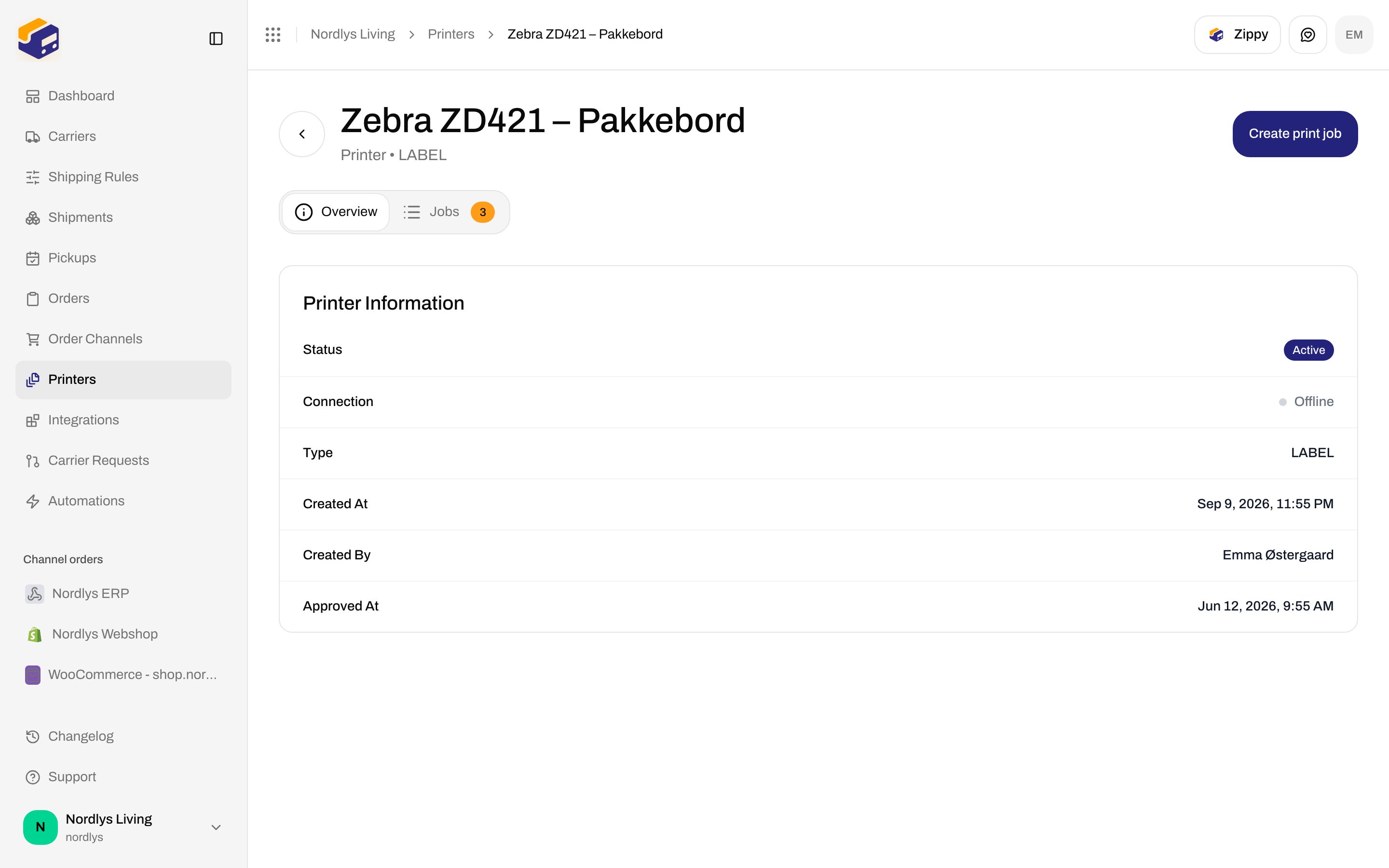
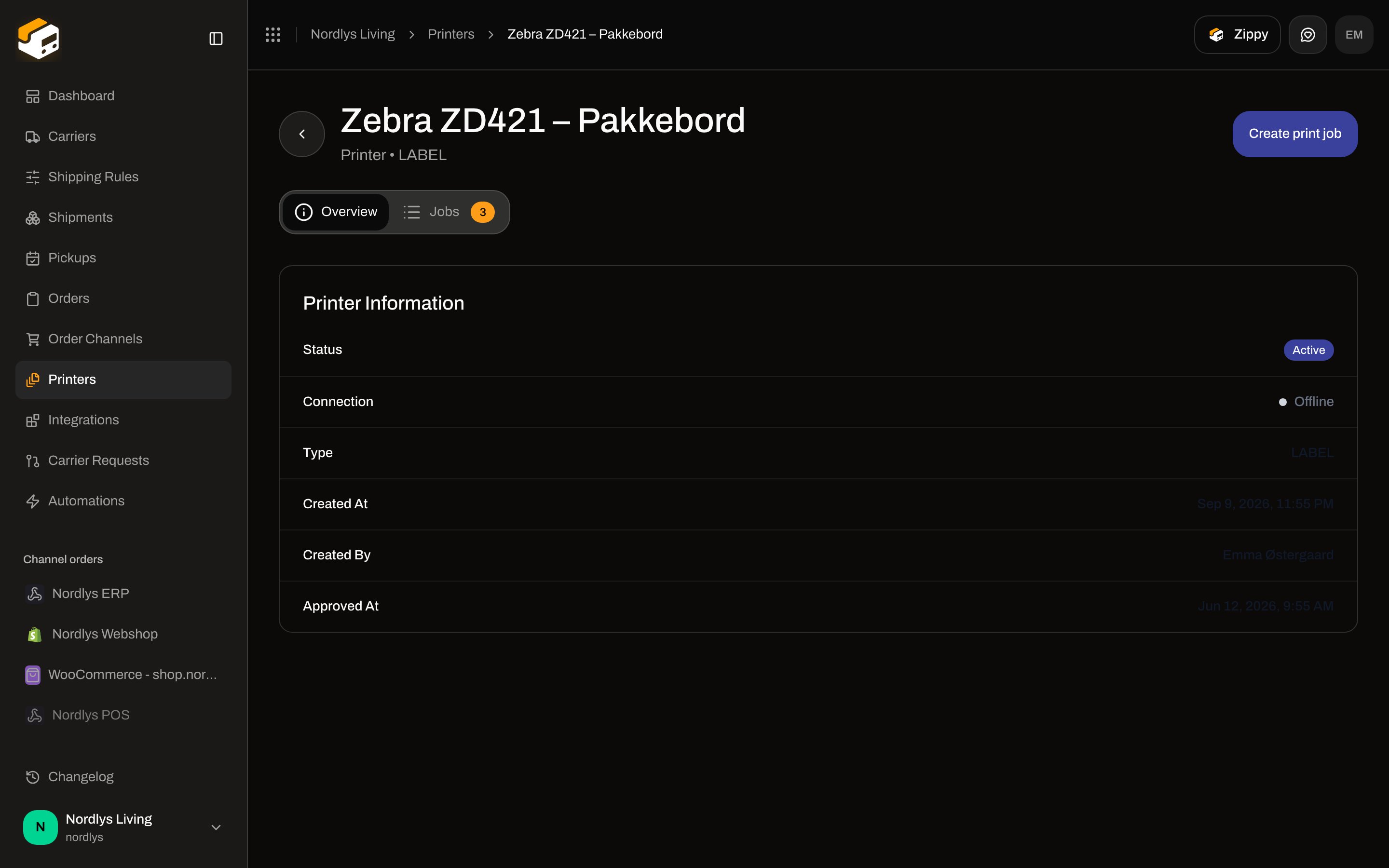 The header action **Create print job** goes to `.../jobs/create`. That route is not a form in the client. Jobs are created from **Print** / **Print All** on a shipment, from auto-print, or from the printer client receiving work. Use [Printer jobs](/docs/how-to/printer-jobs) for the jobs table.
## Print All and Print Documents
On a shipment **Documents** tab (`?tab=documents`), **Print All** and each row's **Print** create Zippendo print jobs. They do **not** open the browser print dialog.
Labels go to an **Active** **Label** printer. Packing lists, invoices, and other non-label files go to an **Active** **Document** printer. Zippendo uses the shipping rule's printers first, then the shipment's printers. If neither is set, **Print Documents** opens (modal id `printer-select-modal`).
| Field | Copy |
| -------------------- | ------------------------------------------------------------------------------------------------------------------------------------ |
| Title | **Print Documents** |
| Help | **Select which printer(s) to use for this shipment's documents.** |
| **Label Printer** | Helper **\{n} label(s) will be sent to this printer**. Placeholder **Select label printer**. Only **Active** label printers |
| **Document Printer** | Helper **\{n} document(s) will be sent to this printer**. Placeholder **Select document printer**. Only **Active** document printers |
| Actions | **Print**, **Cancel** |
Warnings when a needed type has no **Active** printer:
* **No active printers found. Please set up a printer first.**
* **No active label printers found. Please set up a printer first.**
* **No active document printers found. Please set up a printer first.**
**Print** stays disabled until every shown dropdown has a value. Toasts: **1 print job created** / **N print jobs created**, or **1 document failed to print** / **N documents failed to print**.
The header action **Create print job** goes to `.../jobs/create`. That route is not a form in the client. Jobs are created from **Print** / **Print All** on a shipment, from auto-print, or from the printer client receiving work. Use [Printer jobs](/docs/how-to/printer-jobs) for the jobs table.
## Print All and Print Documents
On a shipment **Documents** tab (`?tab=documents`), **Print All** and each row's **Print** create Zippendo print jobs. They do **not** open the browser print dialog.
Labels go to an **Active** **Label** printer. Packing lists, invoices, and other non-label files go to an **Active** **Document** printer. Zippendo uses the shipping rule's printers first, then the shipment's printers. If neither is set, **Print Documents** opens (modal id `printer-select-modal`).
| Field | Copy |
| -------------------- | ------------------------------------------------------------------------------------------------------------------------------------ |
| Title | **Print Documents** |
| Help | **Select which printer(s) to use for this shipment's documents.** |
| **Label Printer** | Helper **\{n} label(s) will be sent to this printer**. Placeholder **Select label printer**. Only **Active** label printers |
| **Document Printer** | Helper **\{n} document(s) will be sent to this printer**. Placeholder **Select document printer**. Only **Active** document printers |
| Actions | **Print**, **Cancel** |
Warnings when a needed type has no **Active** printer:
* **No active printers found. Please set up a printer first.**
* **No active label printers found. Please set up a printer first.**
* **No active document printers found. Please set up a printer first.**
**Print** stays disabled until every shown dropdown has a value. Toasts: **1 print job created** / **N print jobs created**, or **1 document failed to print** / **N documents failed to print**.
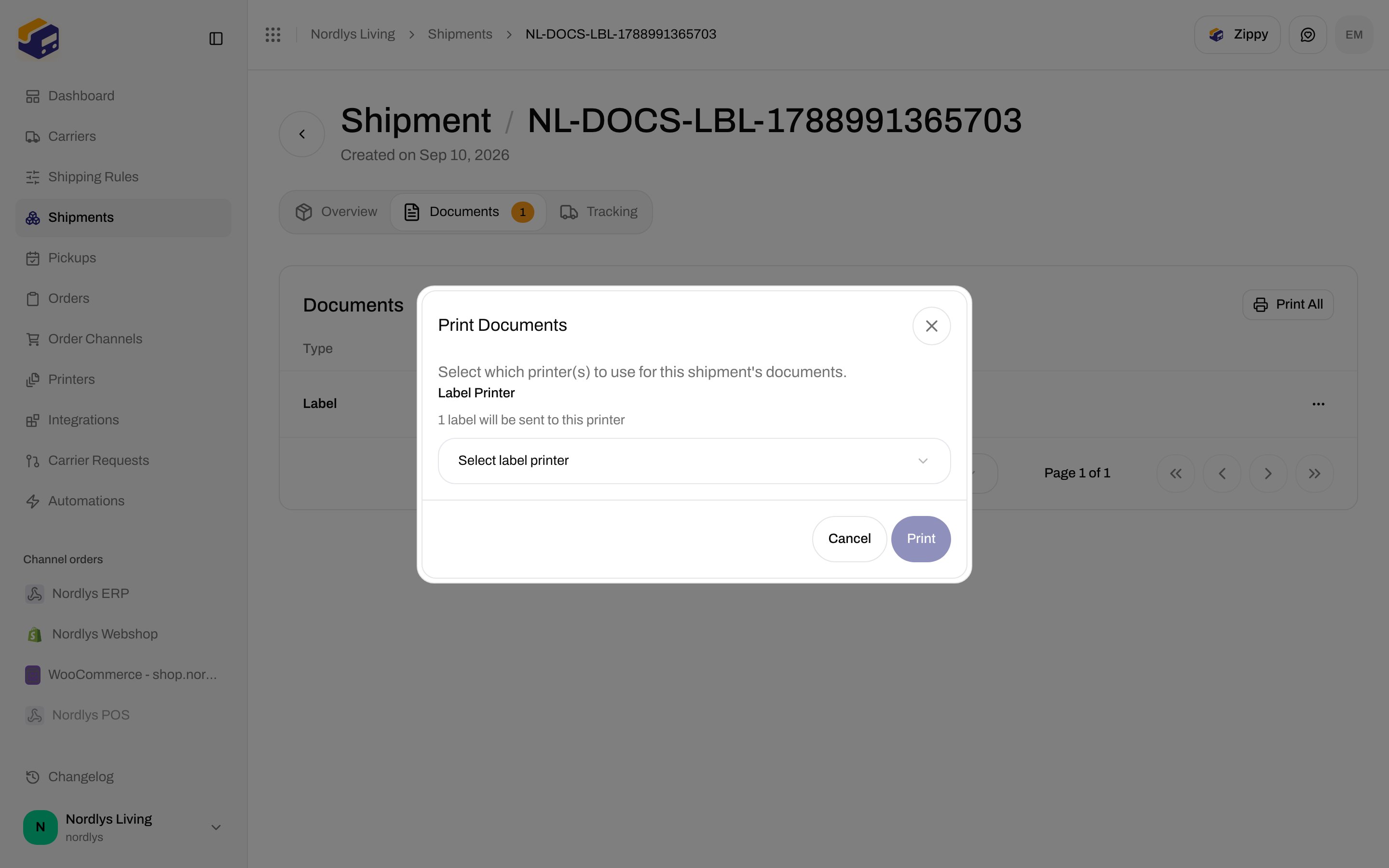
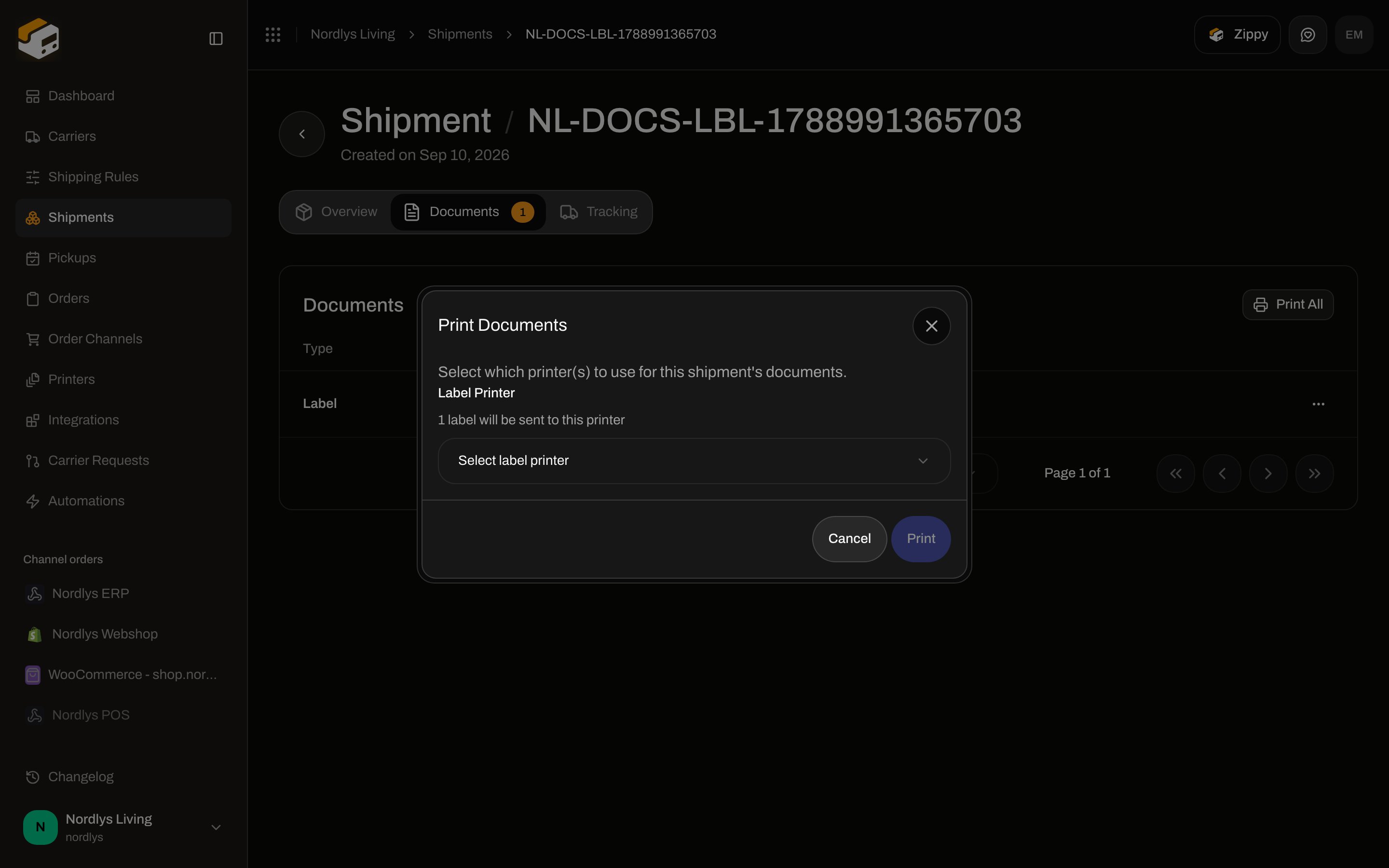 To save printers on the shipment so this modal is skipped, use [Shipment printer settings](/docs/how-to/shipment-printer-settings). To print automatically when you send, use [Auto-print labels and documents](/docs/how-to/auto-print).
## Next
Install Zippendo Printer, sign in with the browser, and register a local printer.
Download, sign in with the browser, and approve a pending printer.
Pending, processing, failed, and completed jobs — retry and delete.
Print labels and documents when a shipment is sent.
Send a shipment, then view, download, or print the label.
To save printers on the shipment so this modal is skipped, use [Shipment printer settings](/docs/how-to/shipment-printer-settings). To print automatically when you send, use [Auto-print labels and documents](/docs/how-to/auto-print).
## Next
Install Zippendo Printer, sign in with the browser, and register a local printer.
Download, sign in with the browser, and approve a pending printer.
Pending, processing, failed, and completed jobs — retry and delete.
Print labels and documents when a shipment is sent.
Send a shipment, then view, download, or print the label.